Boost!for kintone
Home / Attachment
PLUGIN

Attachment

This plugin adds handy features, such as showing input hints in fields and placing link buttons to the lookup source. You can also place a search box in the list view to filter records, and view attachments without downloading them.

See the features

By using this product, you are deemed to have agreed to the Terms of Service.

SETTING

Setup

01

Specify the settings

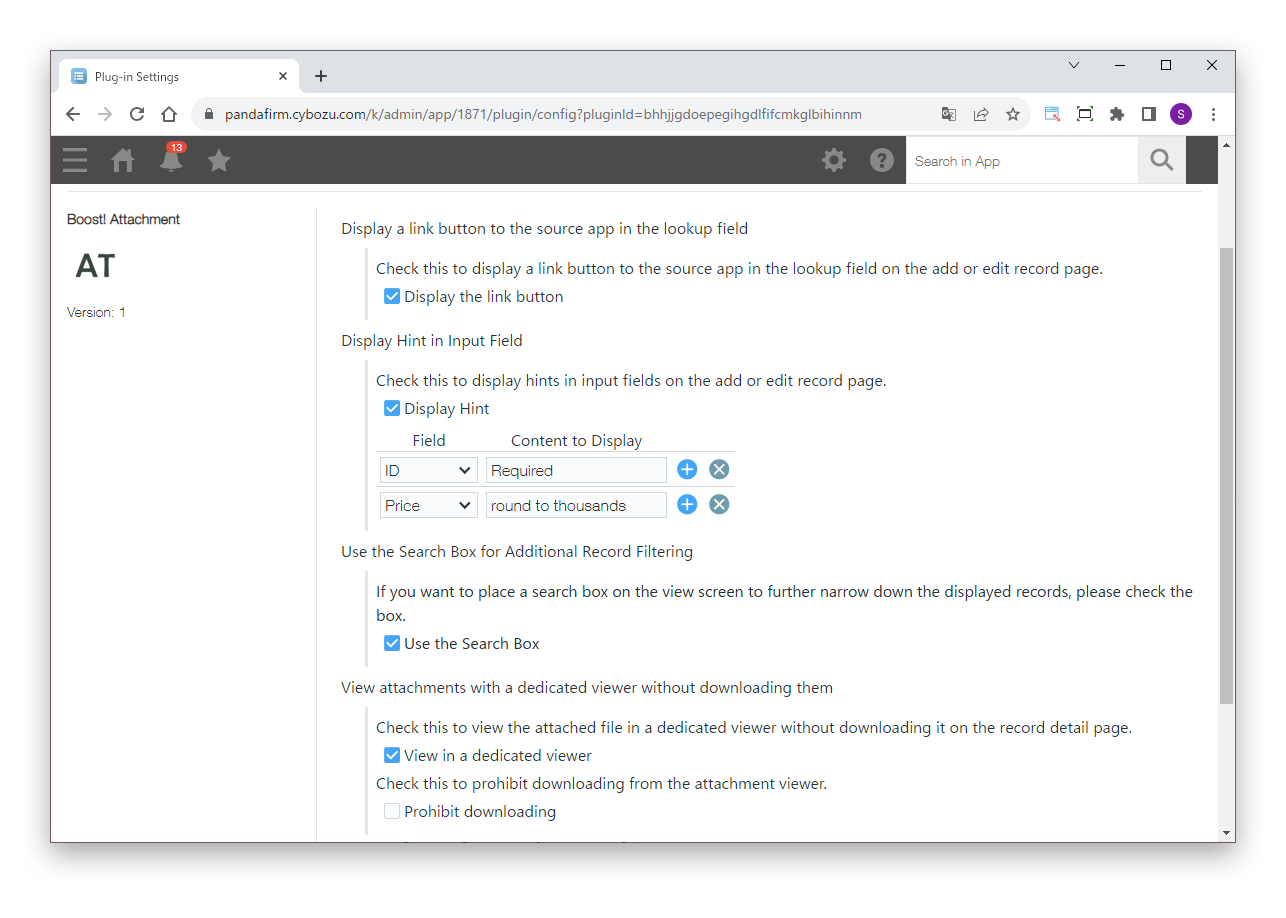
On the plugin settings screen, specify the features you want to use.

Settings

Display a link button to the source app in the lookup field
On the record add and edit screens, shows a button in lookup fields that opens the source app.
Display Hint in Input Field
On the record add and edit screens, specify for each field the hint shown in the input box.
Use the Search Box for Additional Record Filtering
Shows a search box in the list view that further filters the records shown.
View attachments with a dedicated viewer without downloading them
On the record detail screen, shows attachments in a dedicated viewer. You can also prohibit downloading from the viewer.
Align Table Operation Buttons to the Left
On the record add and edit screens, shows the buttons for working with table rows at the left end.
Display Table in Multi-Row Layout
Shows table rows split into multiple lines, breaking the line just before the specified fields.
Copy Table Rows
Lets you copy table rows on the record add and edit screens.
Table Sorting
Lets you sort table rows on the record add and edit screens.
Style radio buttons like tabs
Shows the specified radio buttons like tabs. You can also specify the background color of the tabs.
Transpose the pivot table
On the graph screen, shows the cross table with its rows and columns swapped.
Use the bulk update function
Shows a button in the list view that updates the records shown in bulk. You can also specify the users, departments and groups allowed to run it.
HOW TO USE

How to use

01

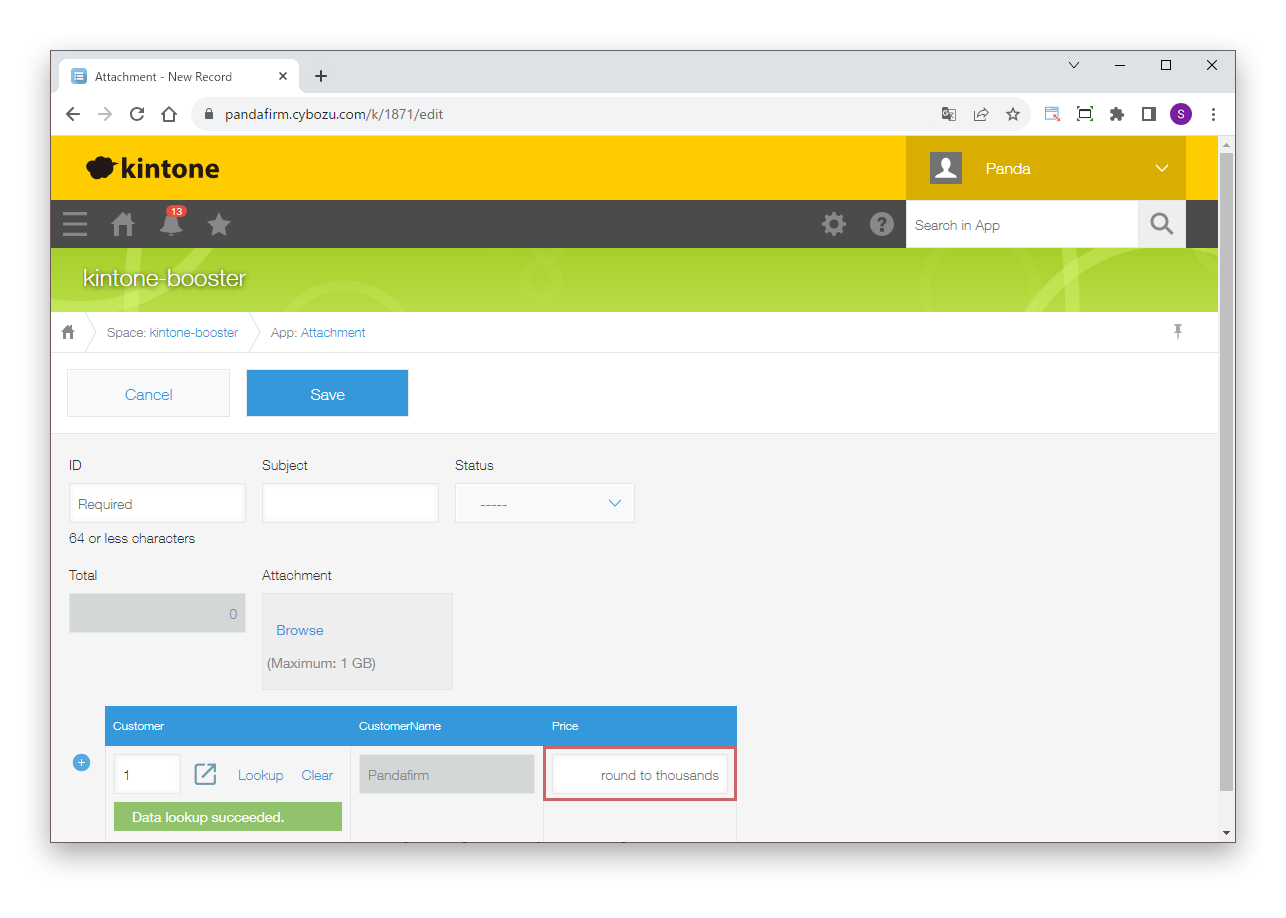
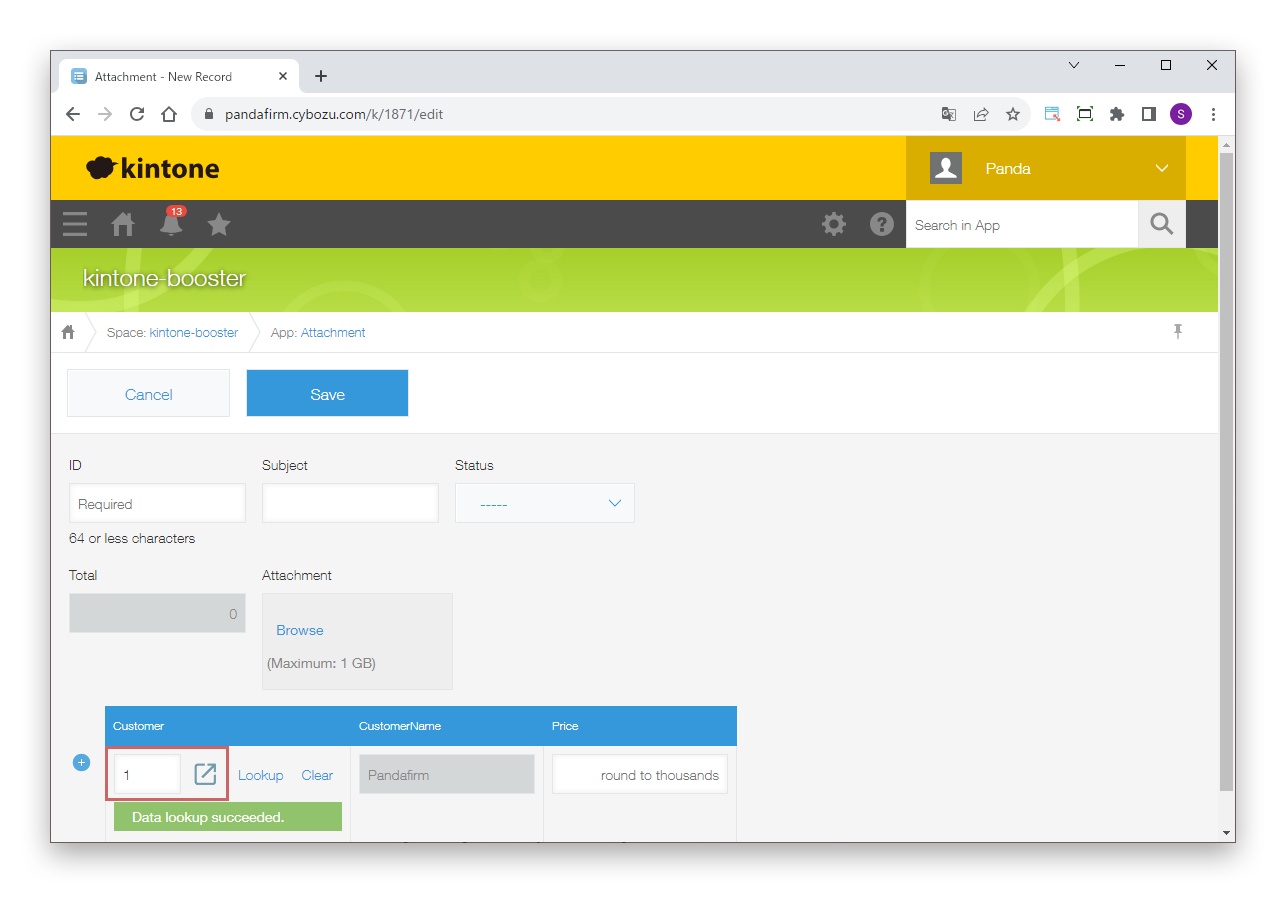
Open the lookup source

A button that opens the source app is shown in the lookup field. If the lookup field is empty, the record add screen opens in a new window; if it has a value, the detail screen of the matching record opens in a new window.

This does not work if the source app has more than one record matching the value of the lookup field.

02

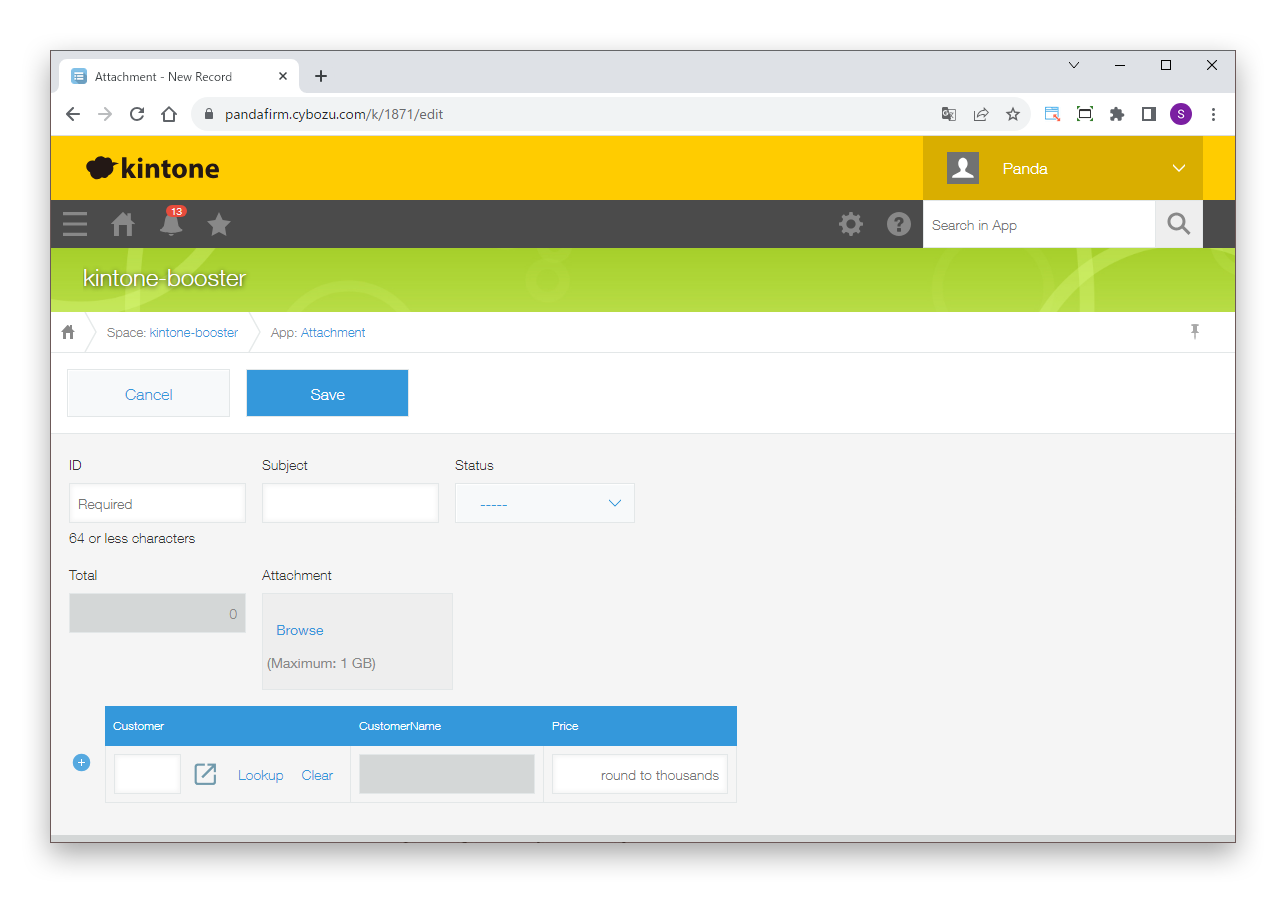
Show input hints

The specified hint is shown in the input box.

03

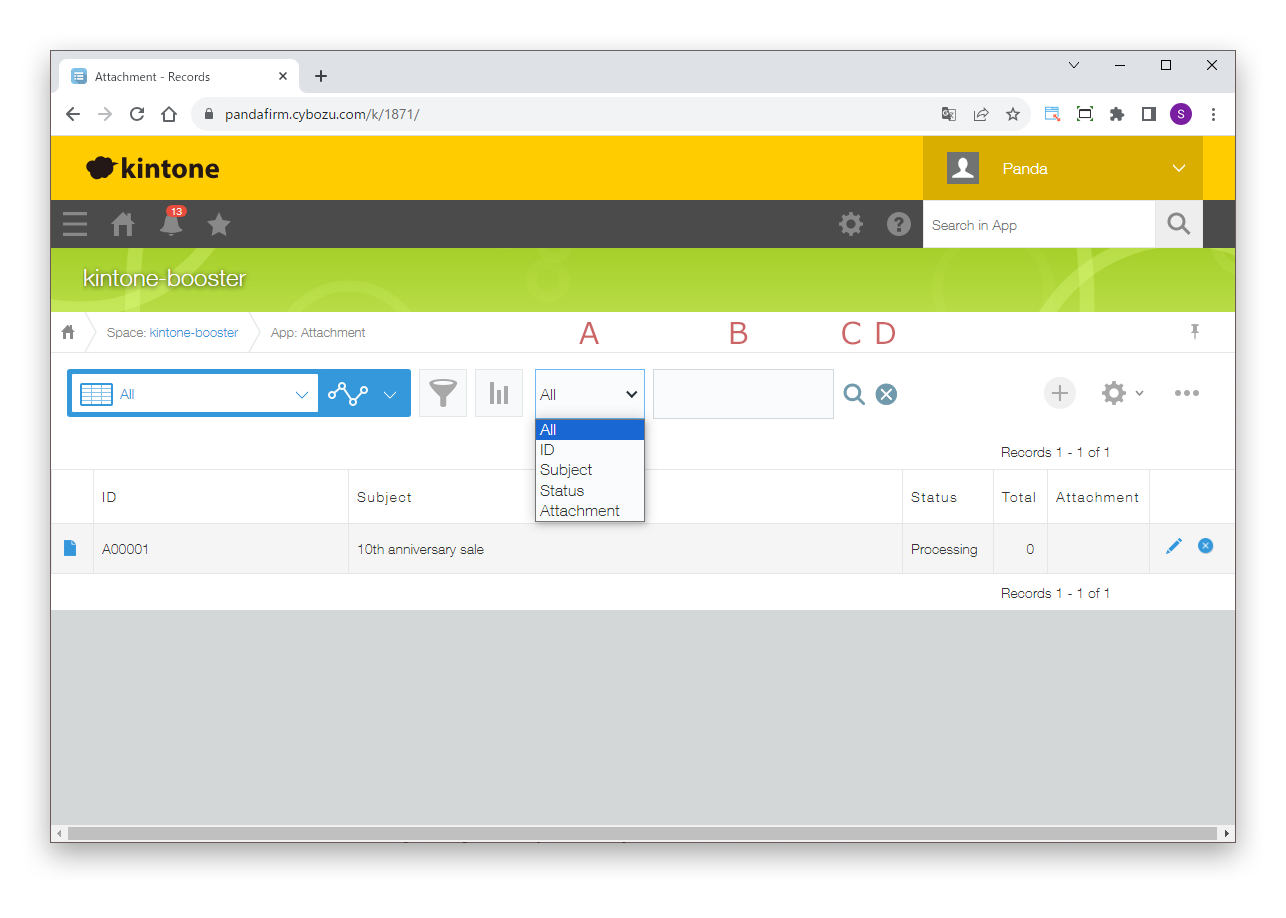
Filter the records in the list

A search box appears in the list view, and you can further filter the records shown.

Using the search box

A
Narrows down the fields to search. You can search text, multi-line text, rich text, radio button, check box, multi-choice, drop-down, link and attachment fields.
B
Enter the keywords to search for.
C
Filters the records. Filtering also runs when you confirm the keyword (by pressing Enter or moving the cursor out of the box).
D
Clears the filter.

Enter multiple keywords separated by spaces to search with OR. To search for records that do not match, add "!" before the keyword. To search for empty fields, enter "EMPTY".

Notes on entering search keywords +
04

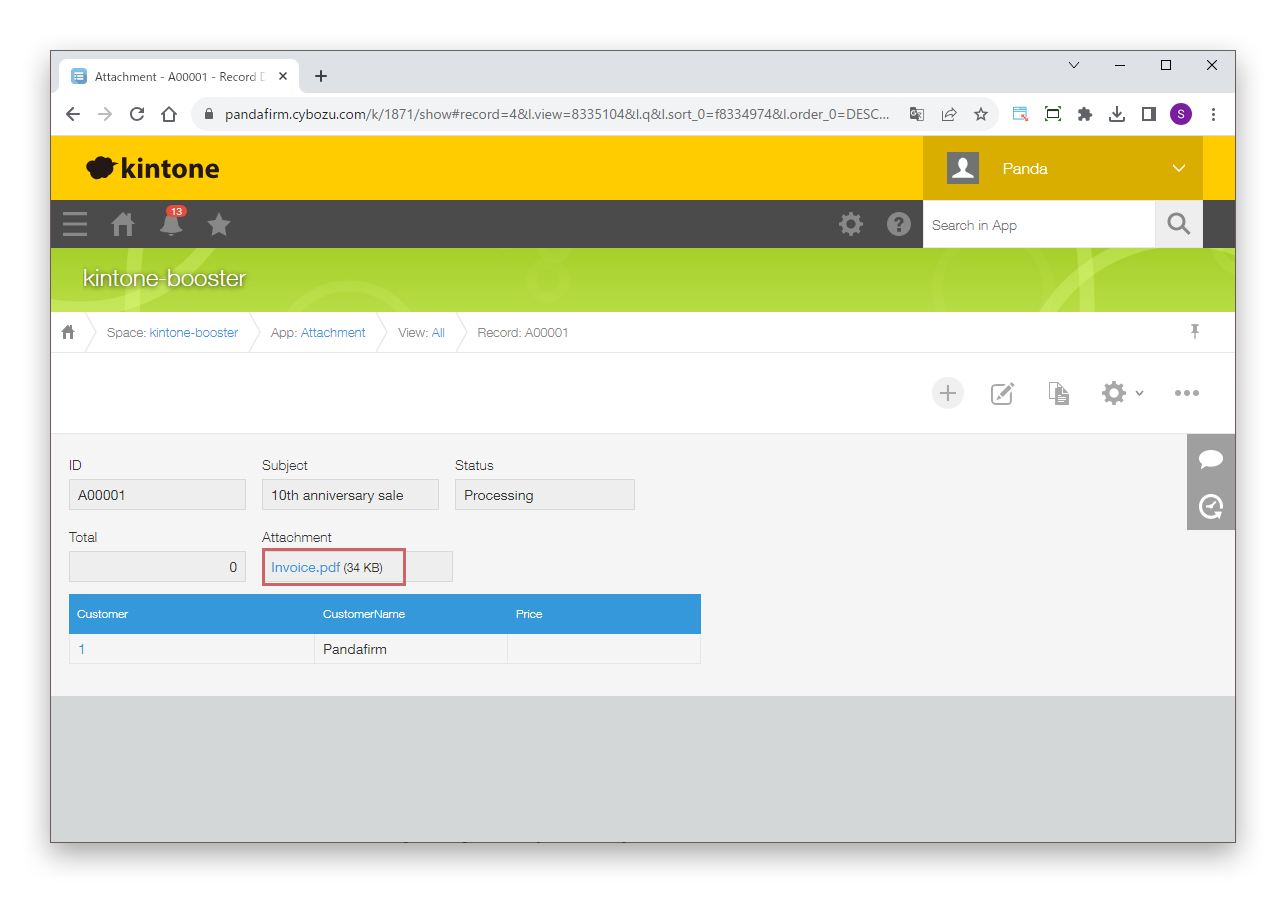
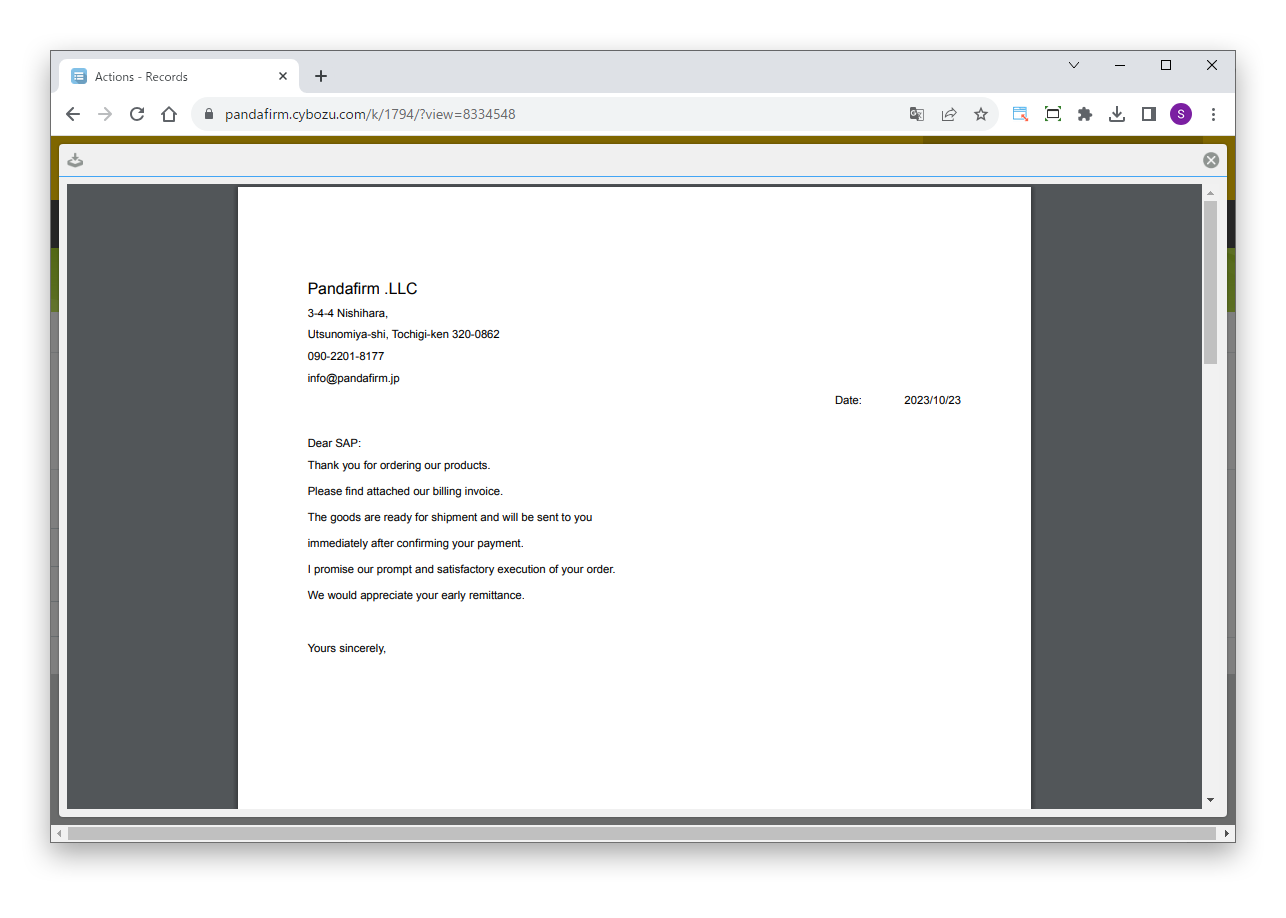
View attachments in the dedicated viewer

Click the file name of an attachment to check its content in the dedicated viewer without downloading it.

To zoom in or out on a PDF in the viewer, hold down Ctrl and turn the mouse wheel.

05

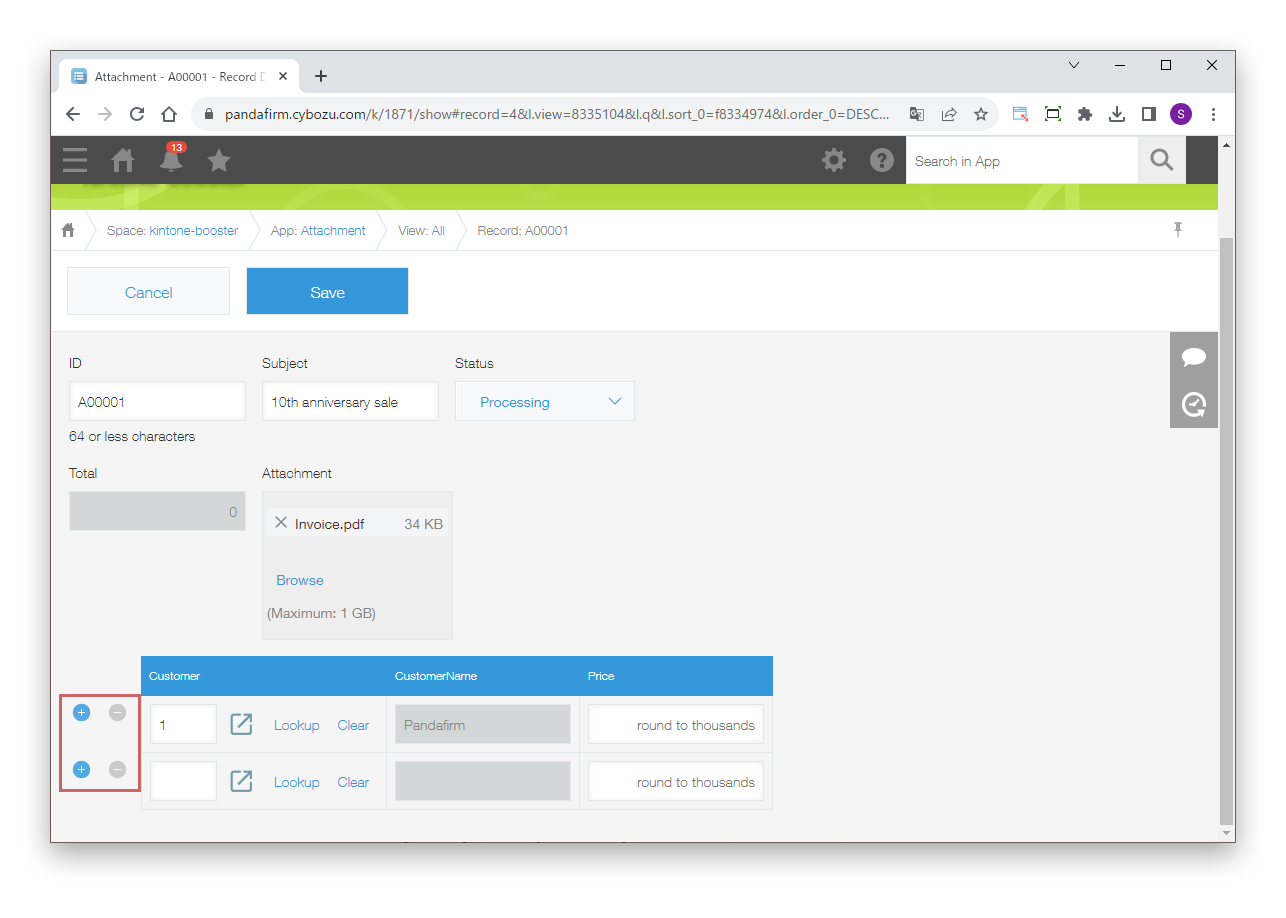
Align table operation buttons to the left

The buttons for working with table rows move to the leftmost column.

06

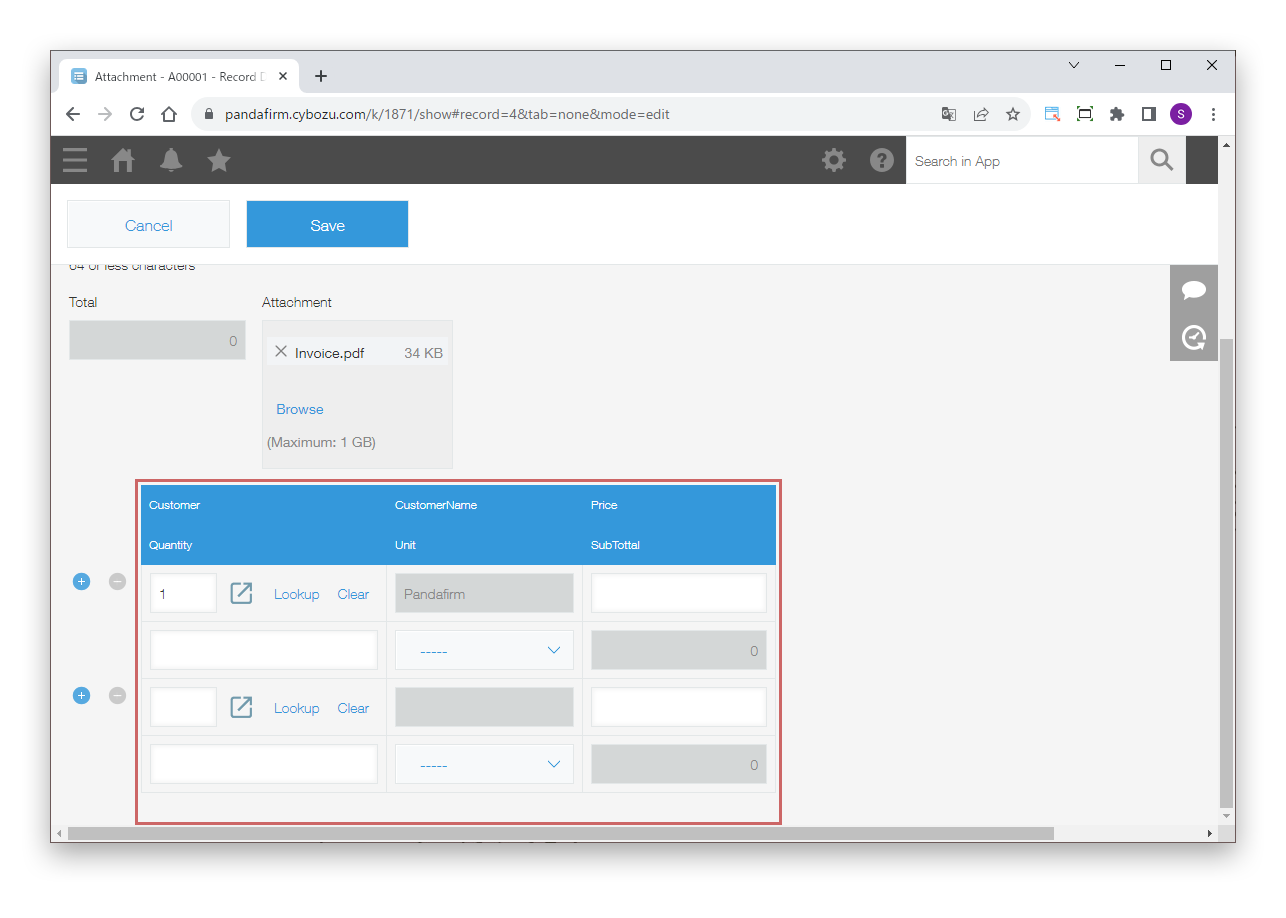
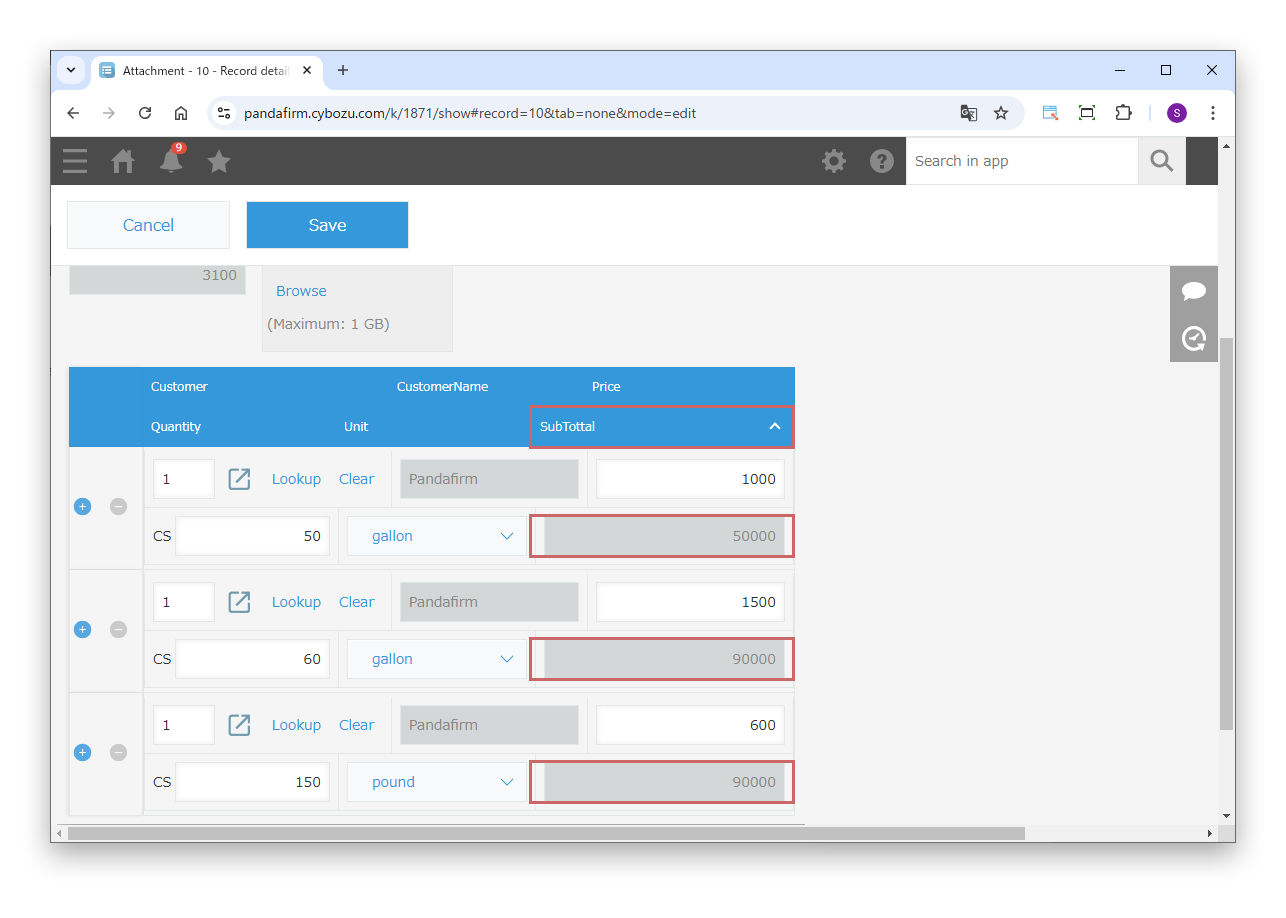
Show tables in multiple lines

Table rows break at the specified fields and are shown in multiple lines.

This works only on PC.

07

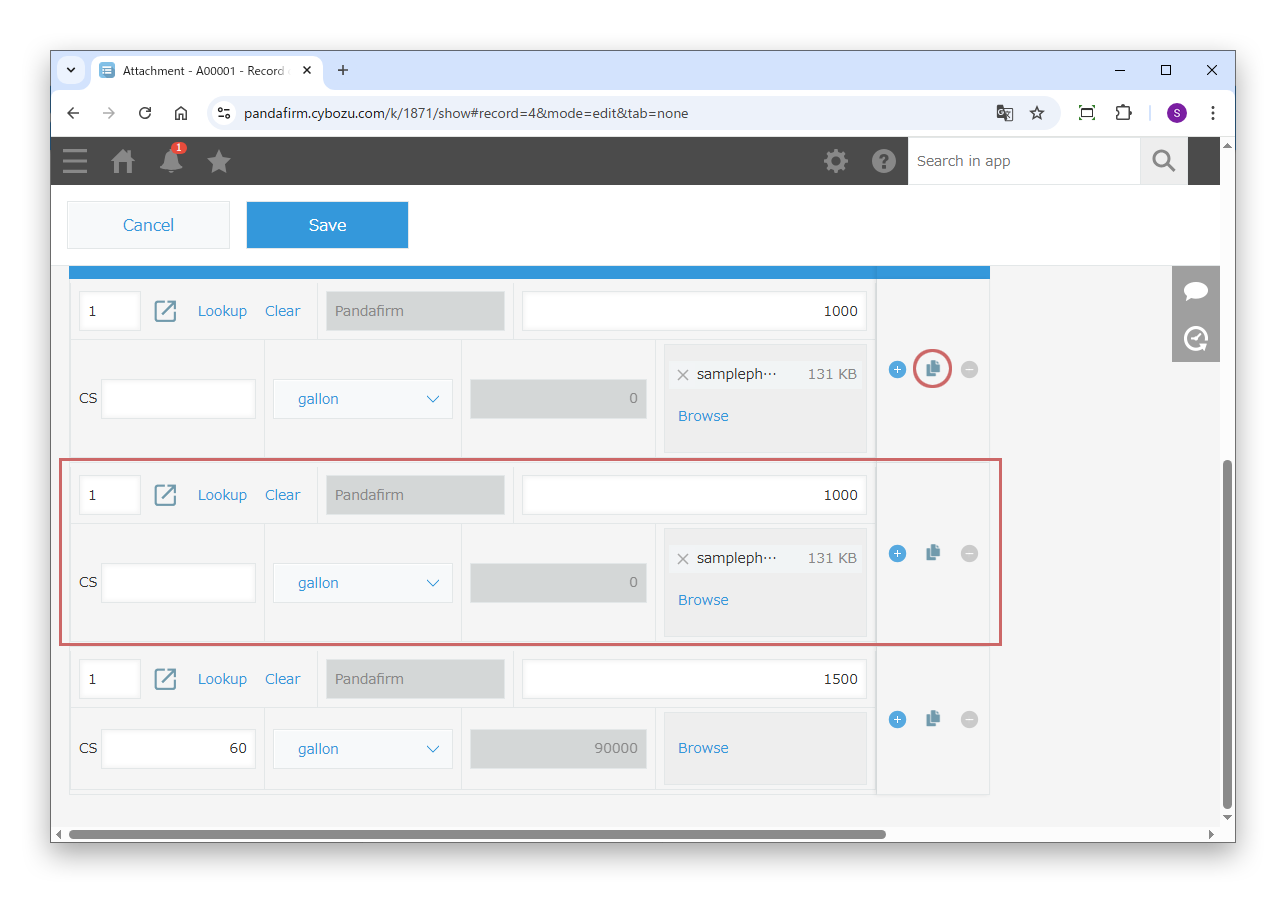
Copy table rows

A copy button appears next to the button for adding a row. Click it to copy the row.

This works only on PC.

08

Sort tables

Click a column header of the table to sort the rows.

This works only on PC.

Rows can be sorted by fields that hold a single value, such as text and date fields, and by fields where a single value is selected, such as drop-downs.

09

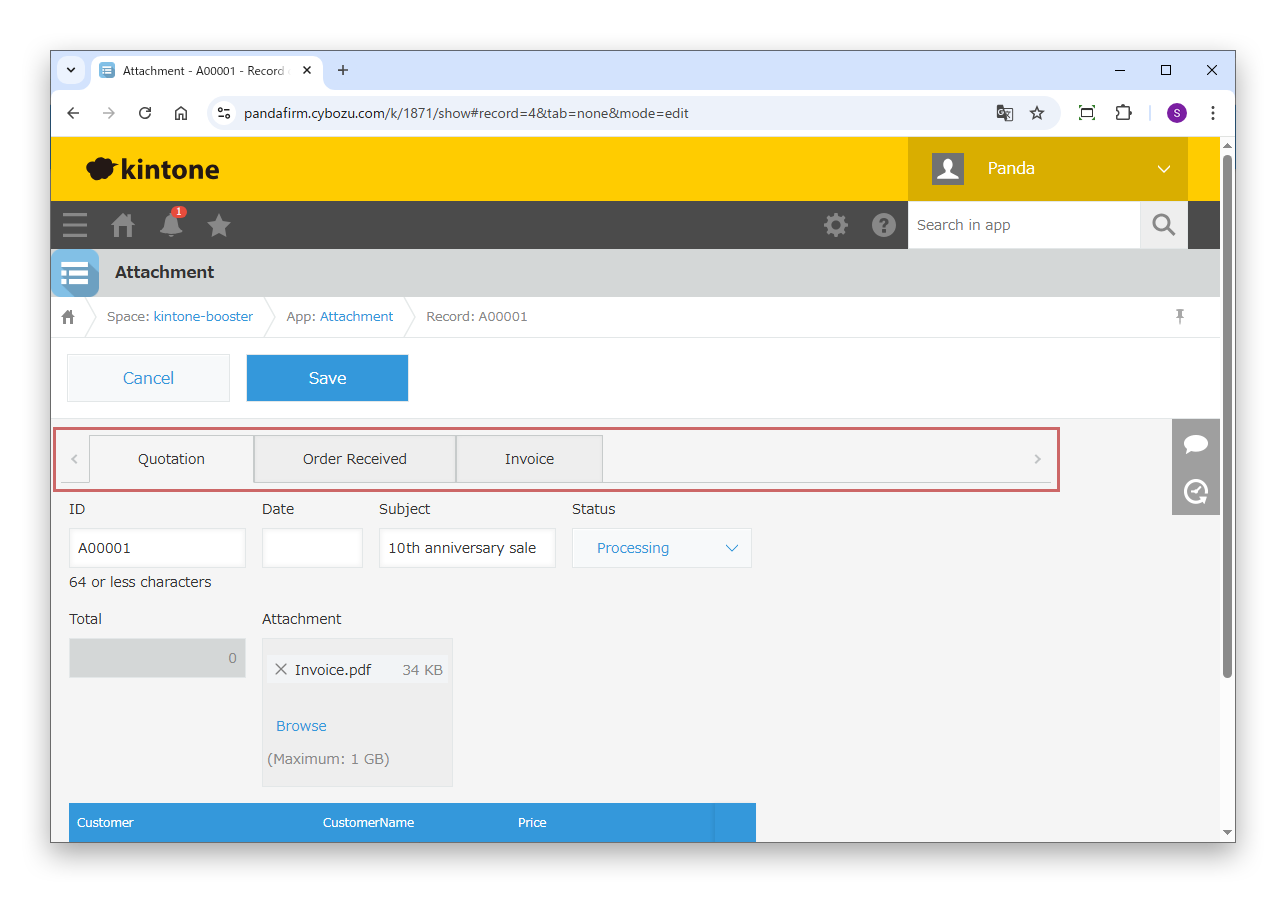
Show radio buttons like tabs

Radio buttons are shown like tabs. Combined with Field Display Switching of Boost! Style, you can switch the content of the form with the tabs.

10

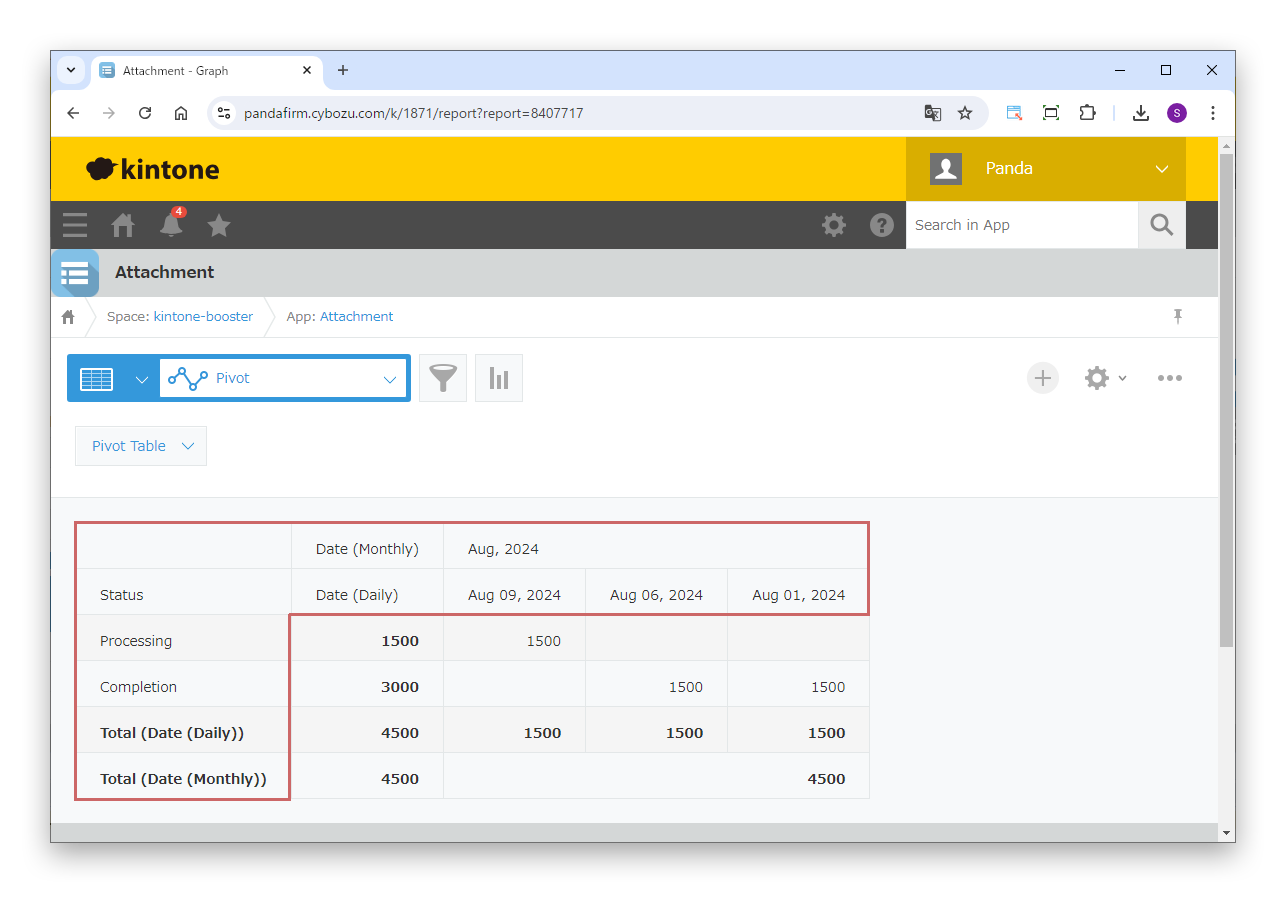
Transpose the cross table

The rows and columns of the cross table on the graph screen are swapped.

This works only on PC.

11

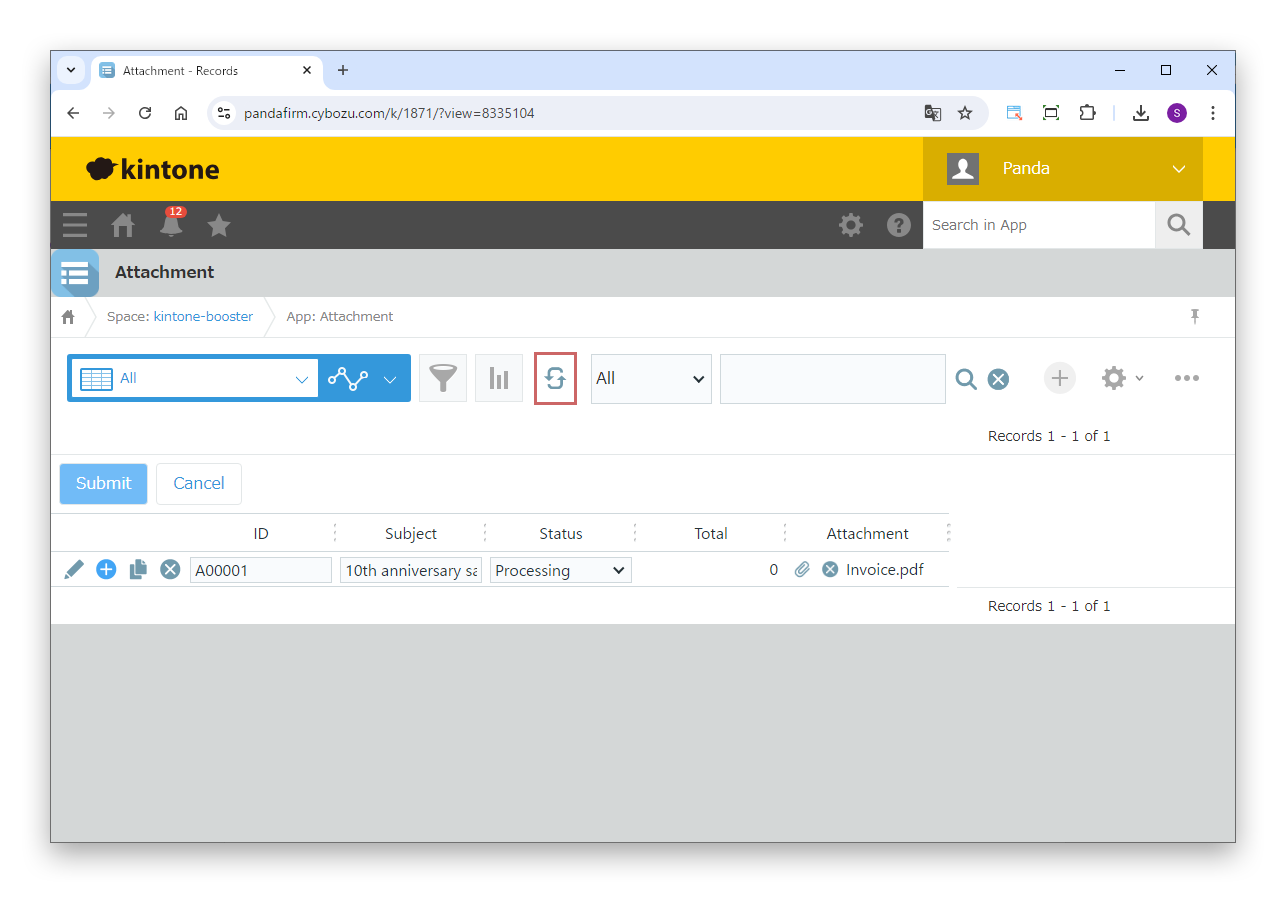
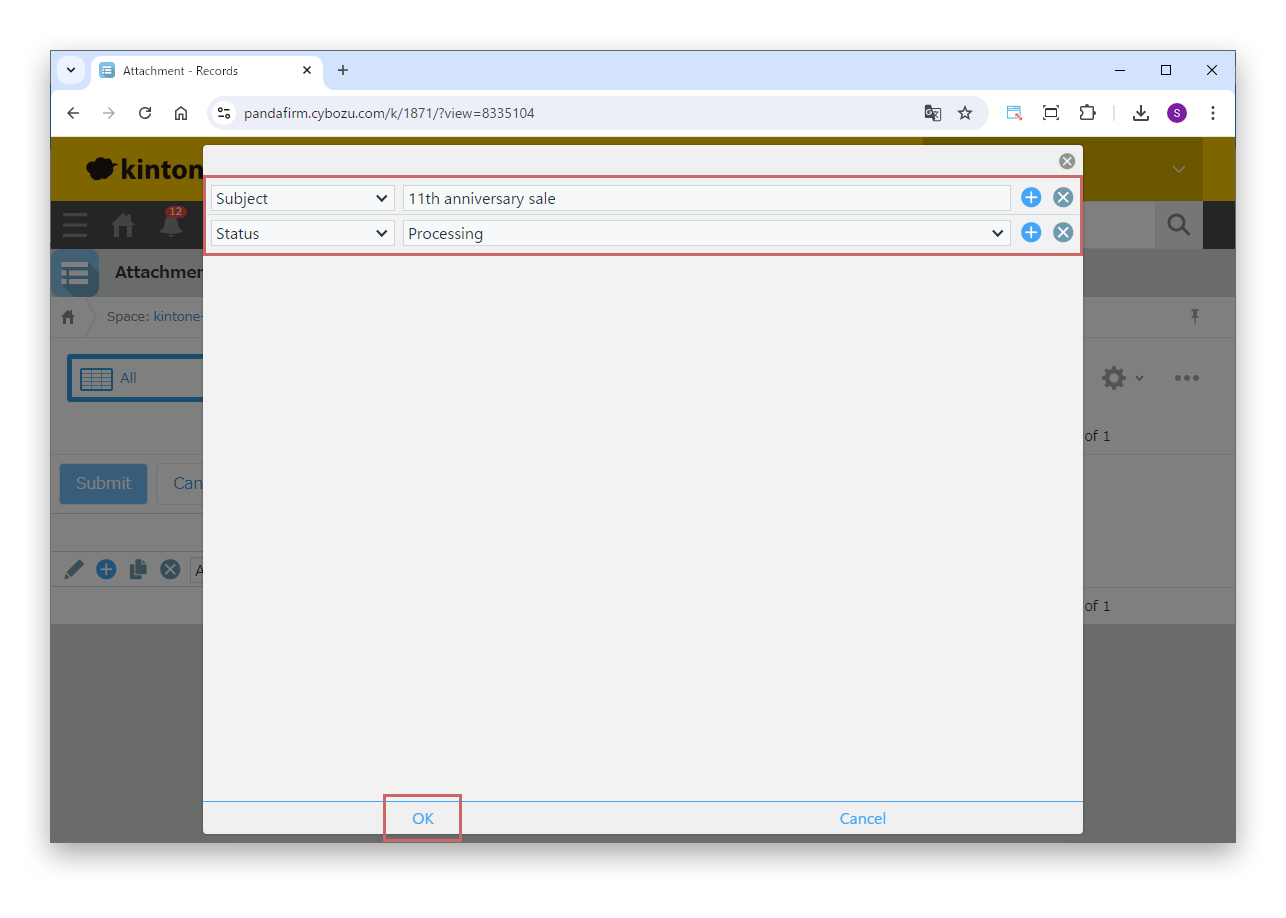
Update records in bulk

A bulk update button appears in the list view.

On the screen that appears when you click the button, specify the fields and values to update, and the records shown in the view are updated in bulk.

Attachment fields, fields specified in "Field mappings" of a lookup, the status and fields in tables cannot be updated in bulk.

CAUTION

Notes

When "Table Sorting" is used and the table contains an attachment field, the record is updated once more after it is saved so that the attachments are in the correct positions.

At this time, an error occurs if the table contains a lookup field whose "Key field" is a field without "Prohibit duplicate values" selected. If an error occurs, select "Prohibit duplicate values" for the field specified as the "Key field", or do not use "Table Sorting" in that app.