Boost!for kintone
Home / Group Gantt
PLUGIN

Group Gantt

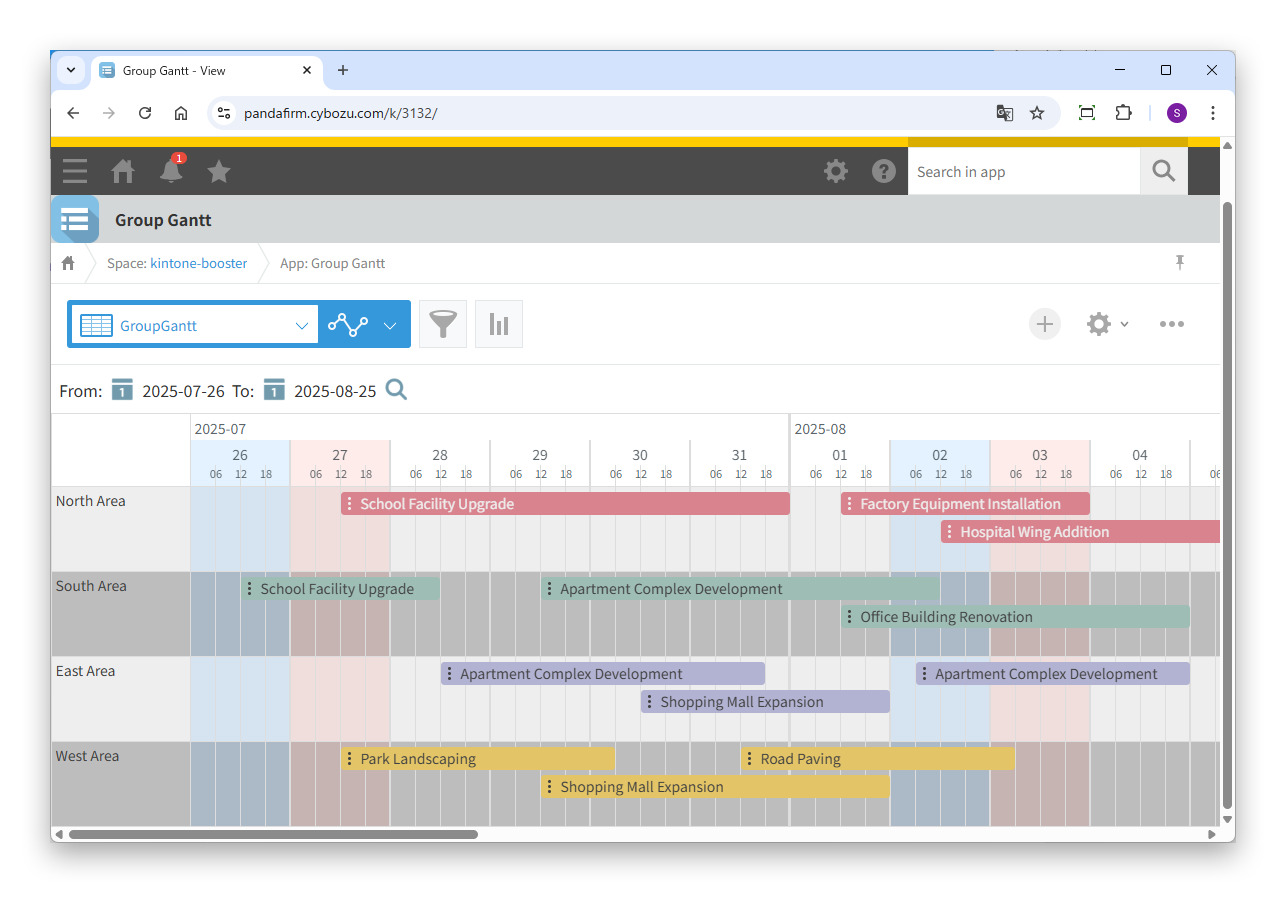
This plugin creates a Gantt chart view grouped by condition. The time unit can be set from one day down to 15 minutes, and you can add and move tasks by dragging, including moving them to other groups. Fields in tables can also be shown as tasks.

See the features

By using this product, you are deemed to have agreed to the Terms of Service.

SETTING

Setup

01

Create a custom view

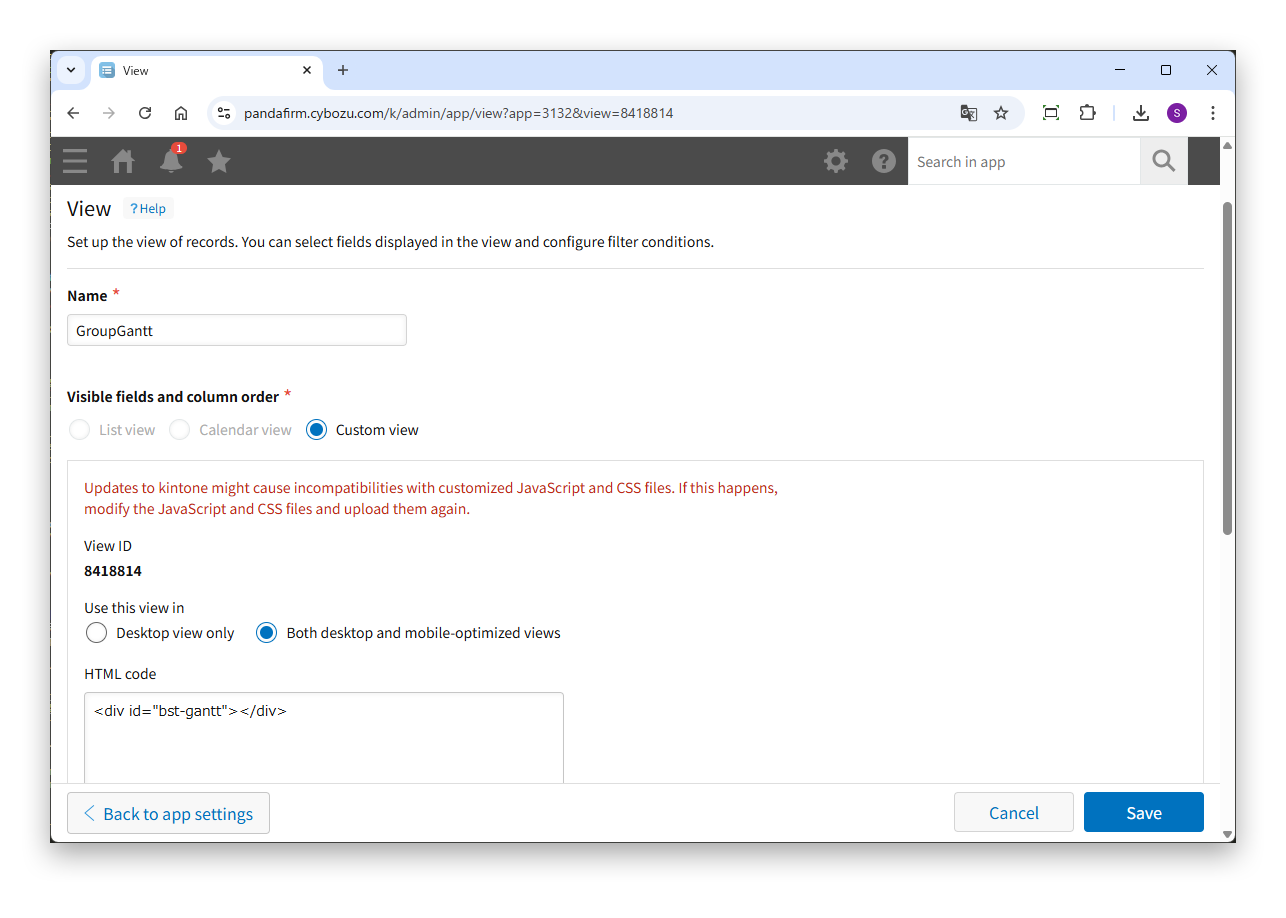
This plugin requires a custom view. Create a custom view in the app that uses the plugin, and enter the following in the HTML code field.

Custom view settings

HTML
<div id="bst-gantt"></div>

Clear the "Show pagination" checkbox.
02

Specify the tasks

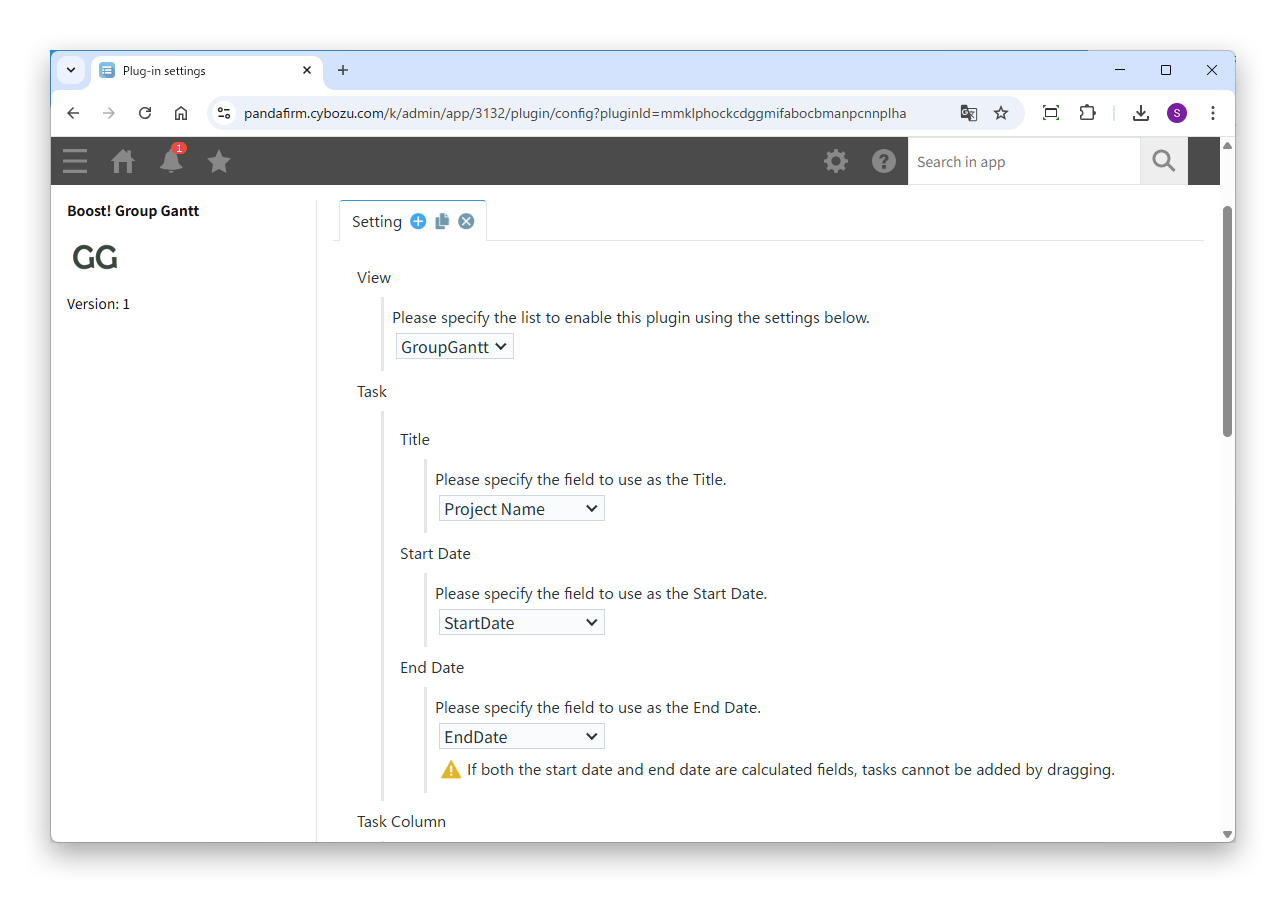
Open the plugin settings screen and specify the tasks shown in the Gantt chart.

Settings

View
Specify the view in which this plugin is enabled. You cannot specify the same view in different tabs.
Title
Specify the field to use as the task title.
Start Date
Specify the field to use as the task start date.
End Date
Specify the field to use as the task end date.

The fields specified for the title, start date and end date must all be in the same table, or all be outside tables.

If calculated fields are specified for both the start date and end date, tasks cannot be added by dragging.

03

Specify the task columns and groups

Next, specify how the task columns are shown and the groups created in the Gantt chart.

Settings

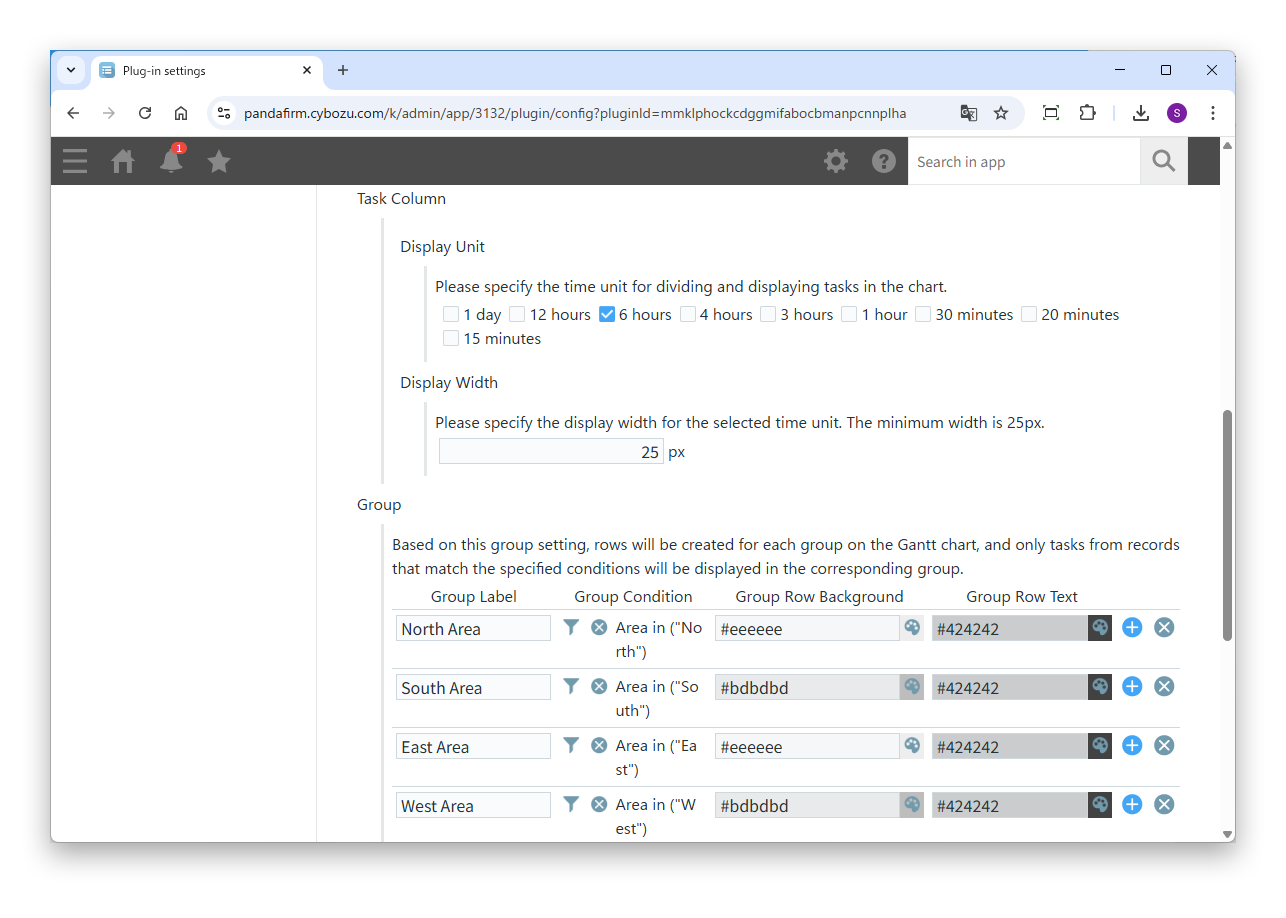
Display Unit
Select the time unit that divides the task columns (1 day, 12 hours, 6 hours, 4 hours, 3 hours, 1 hour, 30 minutes, 20 minutes or 15 minutes).
Display Width
Enter the column width for each display unit. The minimum width is 25px.
Group
For each group row created in the Gantt chart, specify the group label, the group condition, and the background and text colors of the group row. Each group shows only the tasks of records that match its group condition.

To use a display unit other than "1 day", specify a date and time field for either the start date or end date.

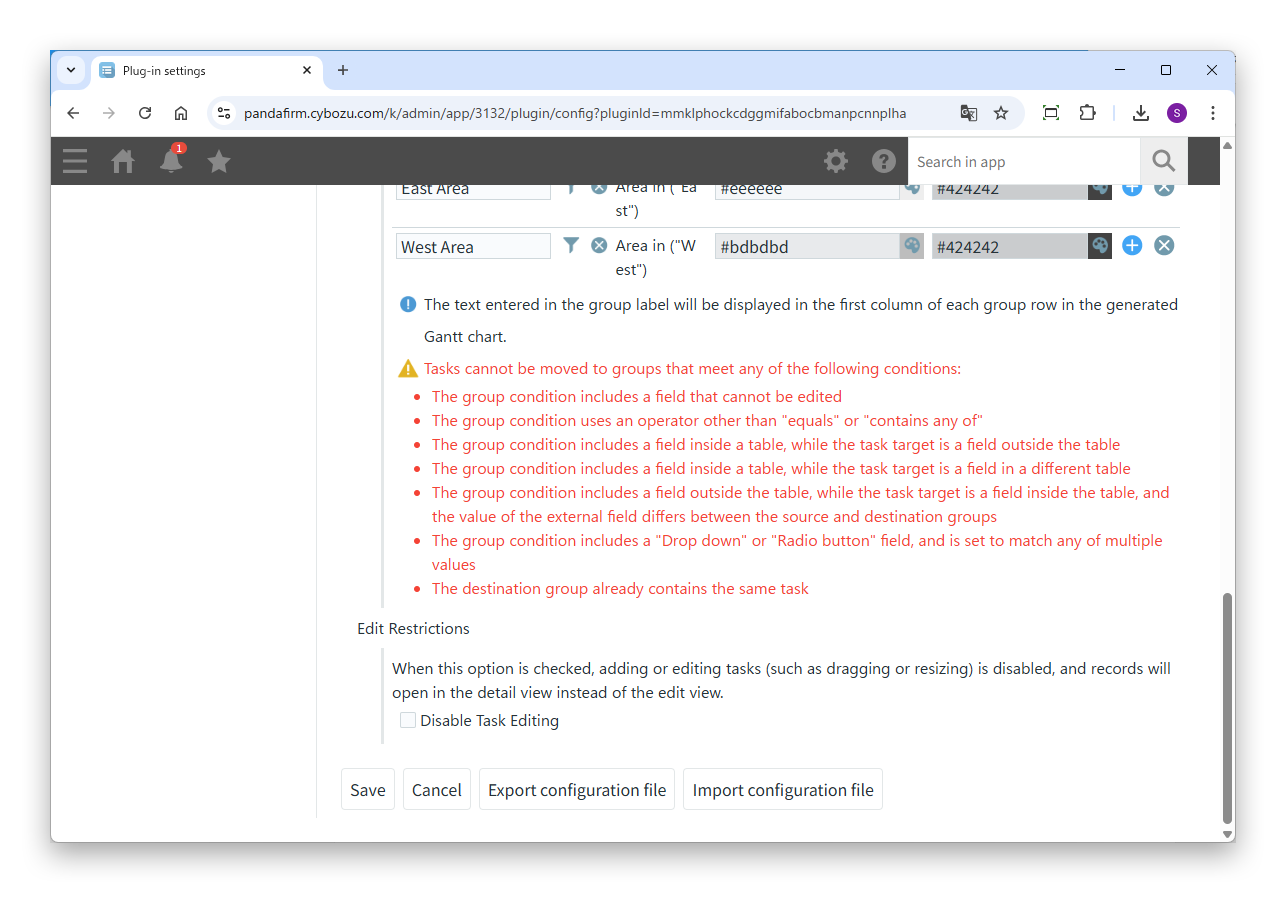
Depending on the group conditions, tasks may not be movable between groups. For details, check the notes on the settings screen.

04

Specify the edit restrictions

To prohibit adding and editing tasks by dragging or resizing, select "Disable Task Editing" under "Edit Restrictions". When it is selected, records also open in the detail screen instead of the edit screen.

HOW TO USE

How to use

01

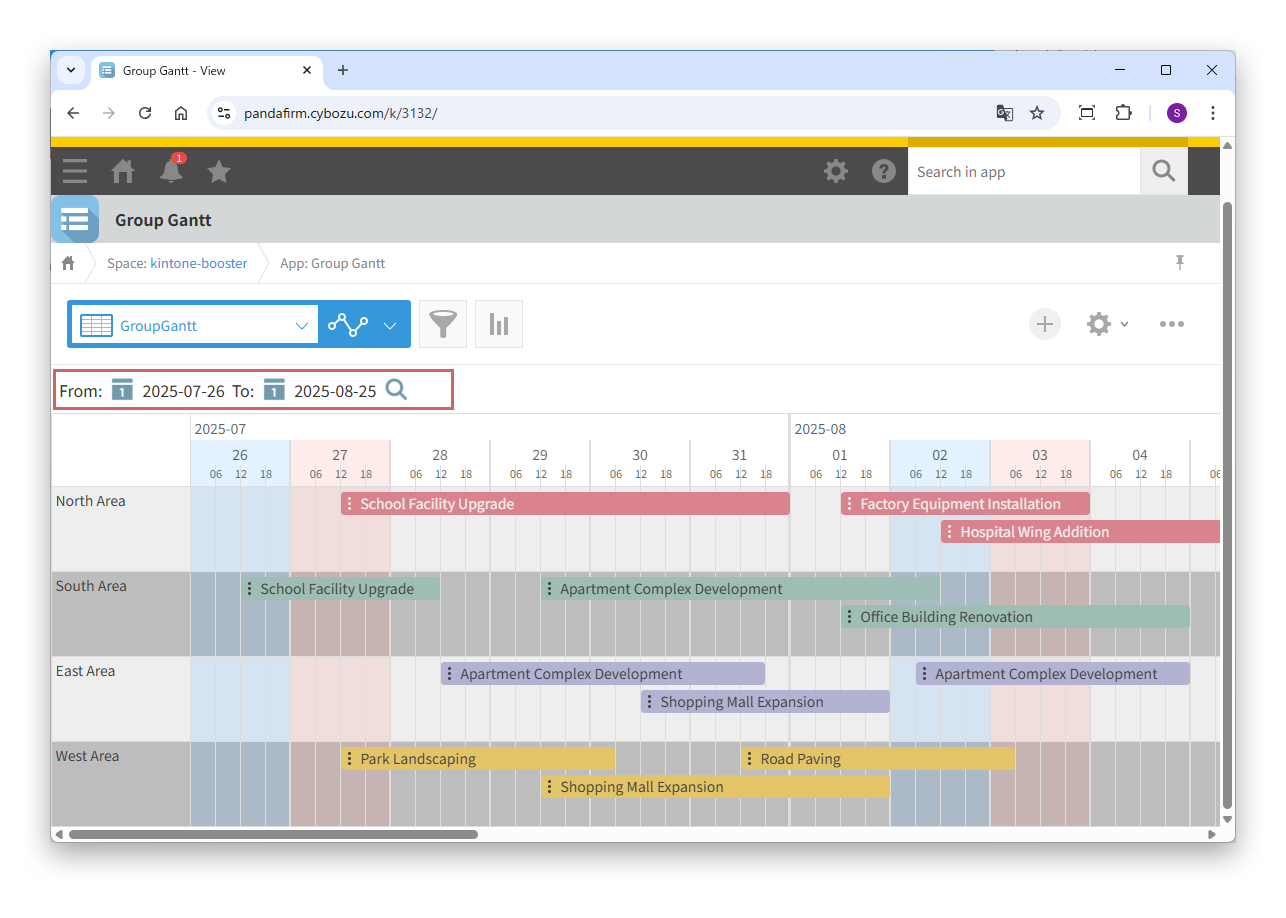
Show the Gantt chart

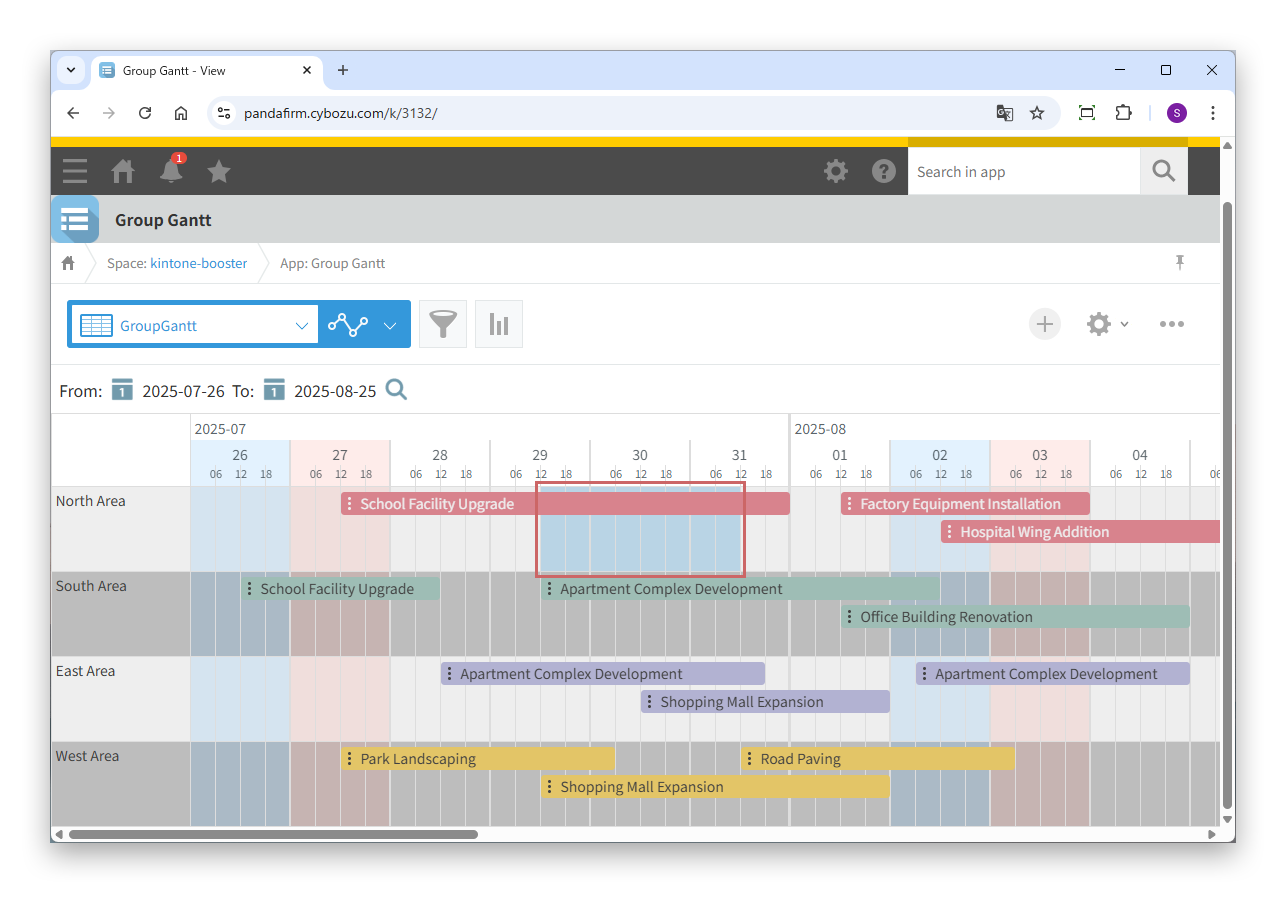
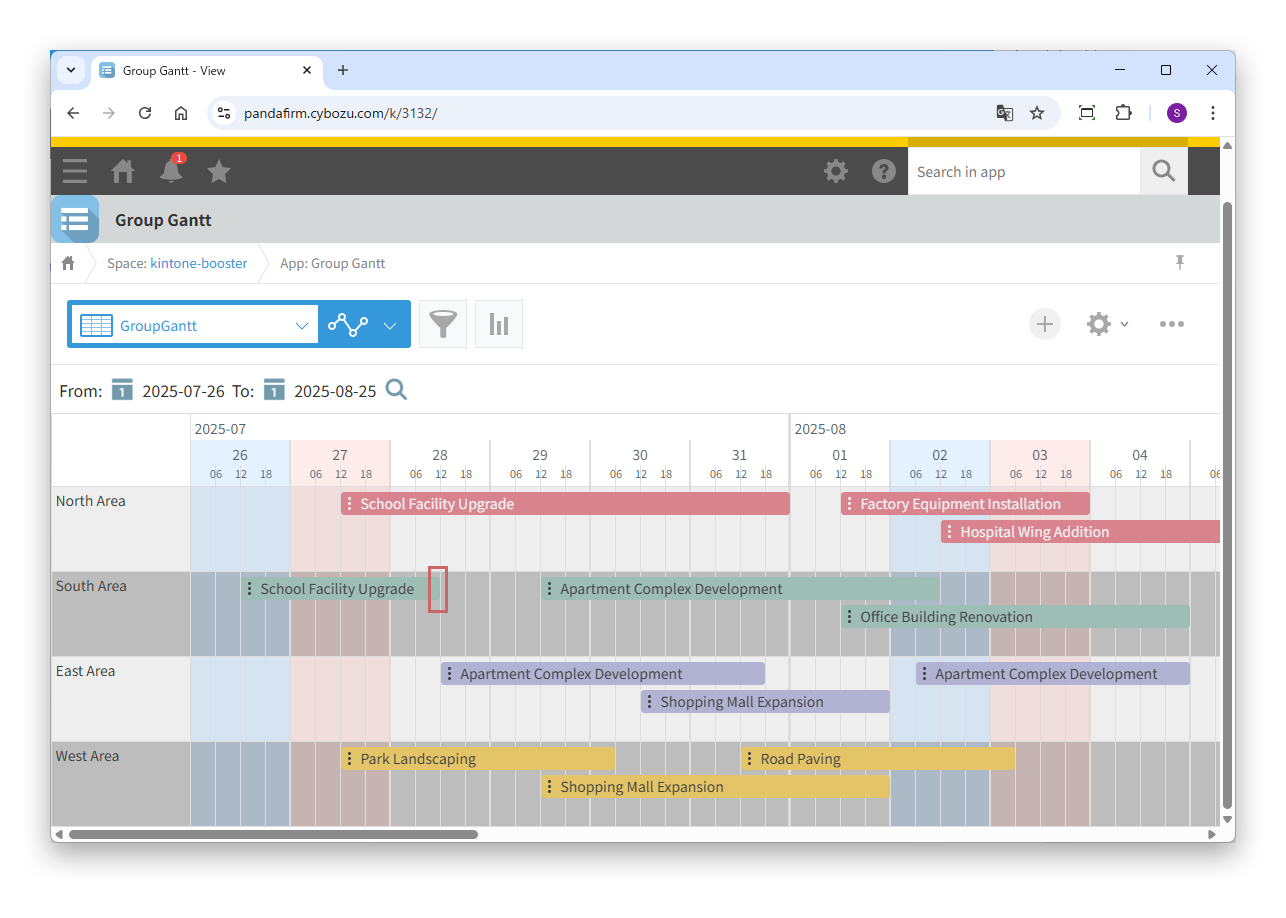
When you open the custom view specified on the settings screen, a Gantt chart for each group is shown. To change the period shown, select a date in the red-framed area of the image and click the magnifier button.

This plugin alone cannot change the background and text colors of tasks. To change them, you need Boost! Style.

On the event page of Boost! Style, select "Record Detail Page".

The filter conditions and sorting set for the view are also applied to the Gantt chart.

02

Add a record

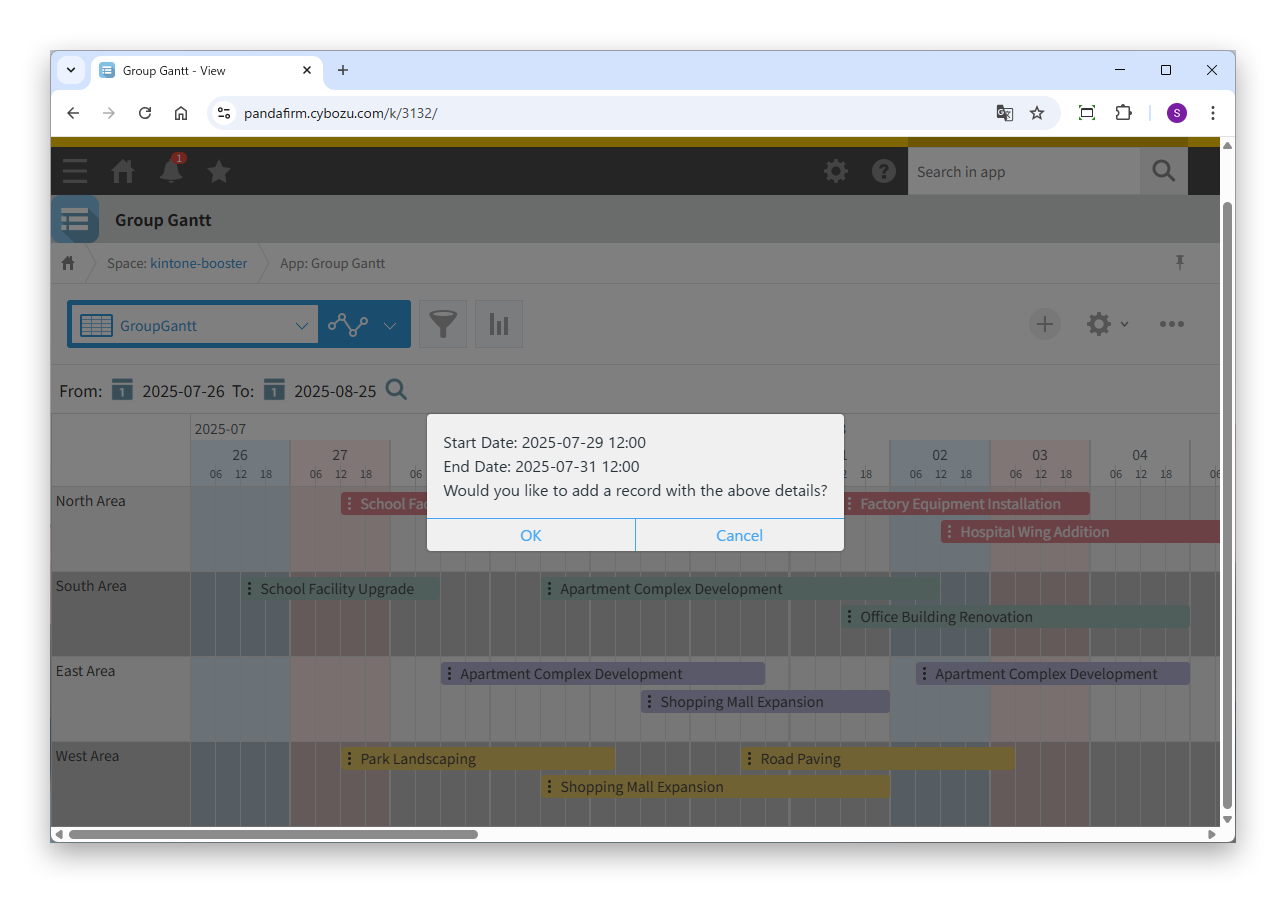
Drag over a part of a group row that has no task.

Click "OK" in the confirmation message, and the record add screen opens in a new window. When you save, the Gantt chart is updated automatically.

This operation is not available if calculated fields are specified for both the start date and end date.

03

Edit, reuse or delete a record

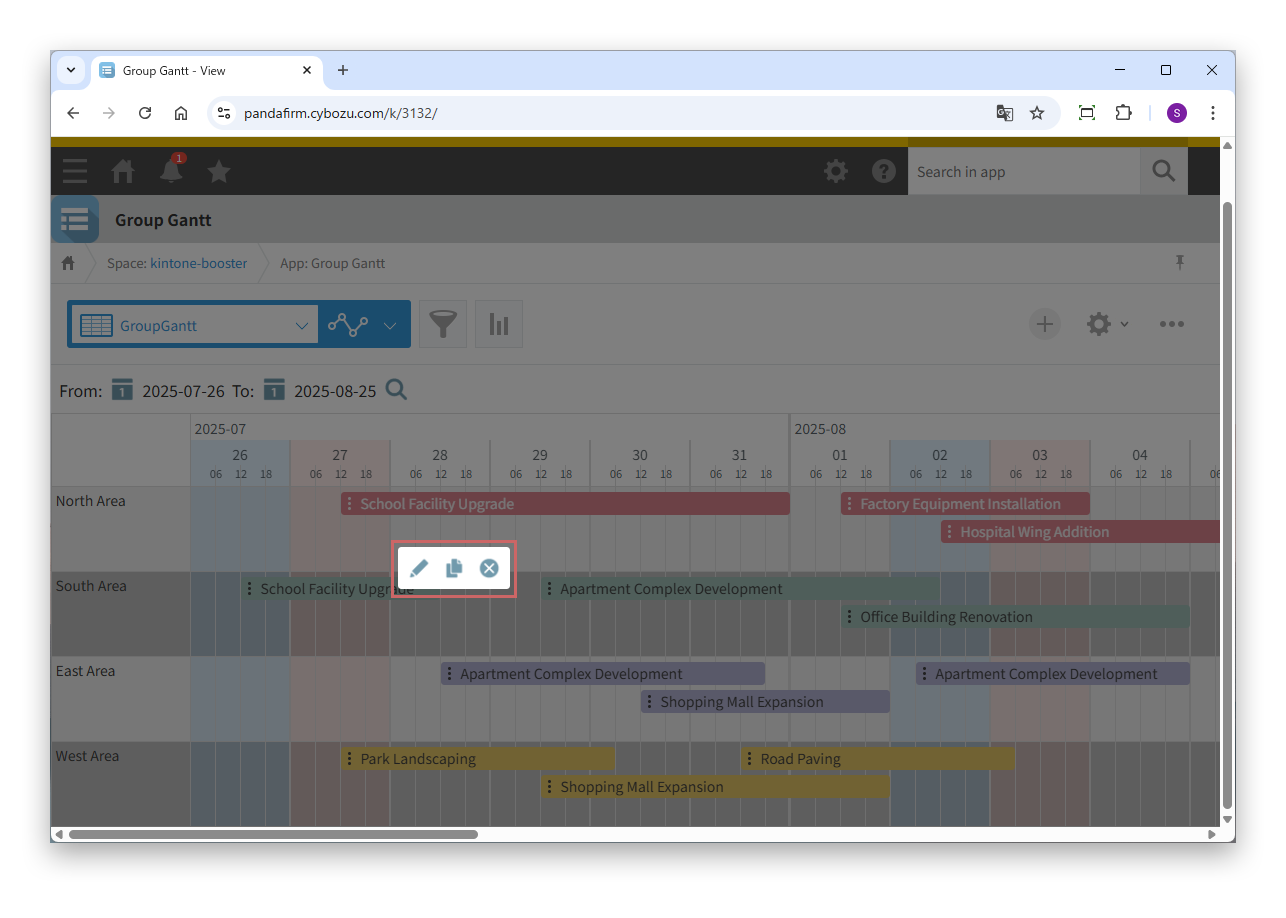
Right-click a task to show the "Edit", "Reuse" and "Delete" menu. Select "Edit" or "Reuse" to open the edit screen in a new window. When you save, the Gantt chart is updated automatically.

If you select "Disable Task Editing" on the settings screen, selecting "Edit" opens the detail screen.

04

Move a task

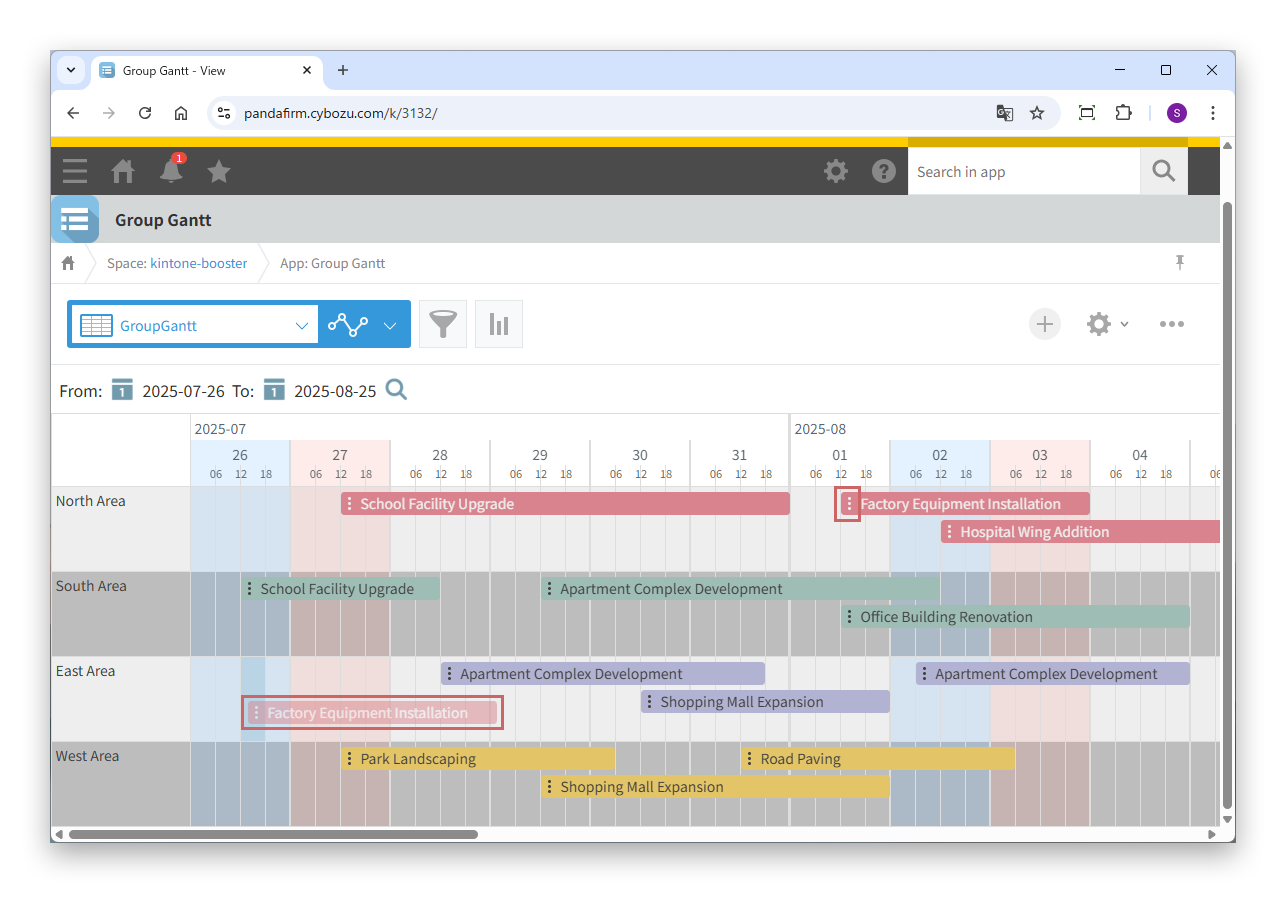
Hover over the left end of a task and drag to move the task. You can also move it to the row of another group.

This operation is not available if a field that cannot be edited, such as a calculated field, is specified for the start date.

05

Change the end date

Hover over the right end of a task and drag to change the end date.

This operation is not available if a field that cannot be edited, such as a calculated field, is specified for the end date.

06

Change the width of the group column

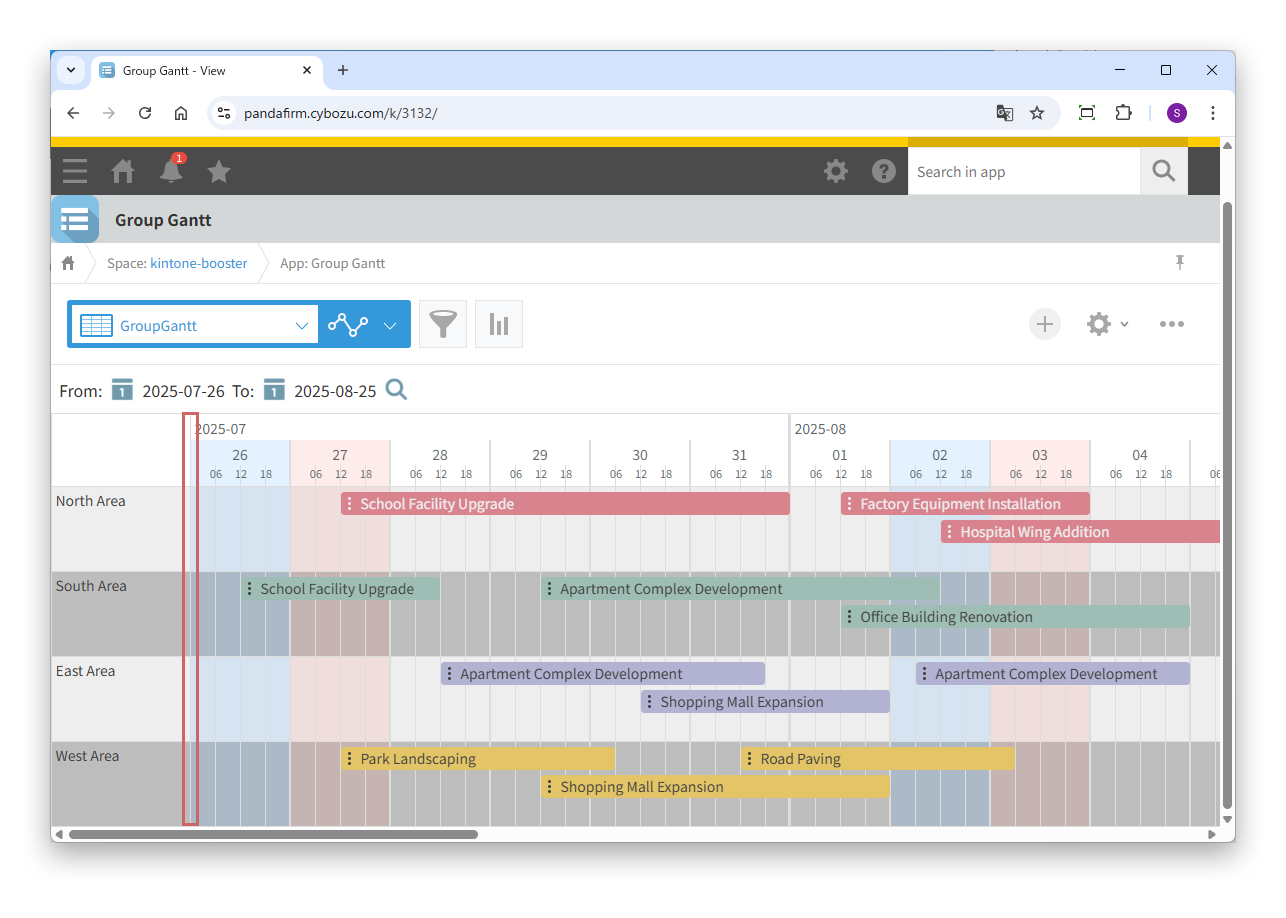
Hover over the right edge of a group name cell and drag to change the width of the group name column.

CUSTOMIZE

Customization

With this plugin, you can add your own processing in JavaScript using Boost! Events. When the records of each group have been extracted, you receive the row of that group and the records it contains.

For example, you can use the records of each group to calculate counts or totals and show them in the group row.