Boost!for kintone
Home / IMAP
PLUGIN

IMAP

This plugin imports received email from a specified email account. You can manage email responses centrally in a kintone app. Attachments are imported too, so you can also find files by date received or sender.

See the features

By using this product, you are deemed to have agreed to the Terms of Service.

SETTING

Setup

01

Specify the conditions

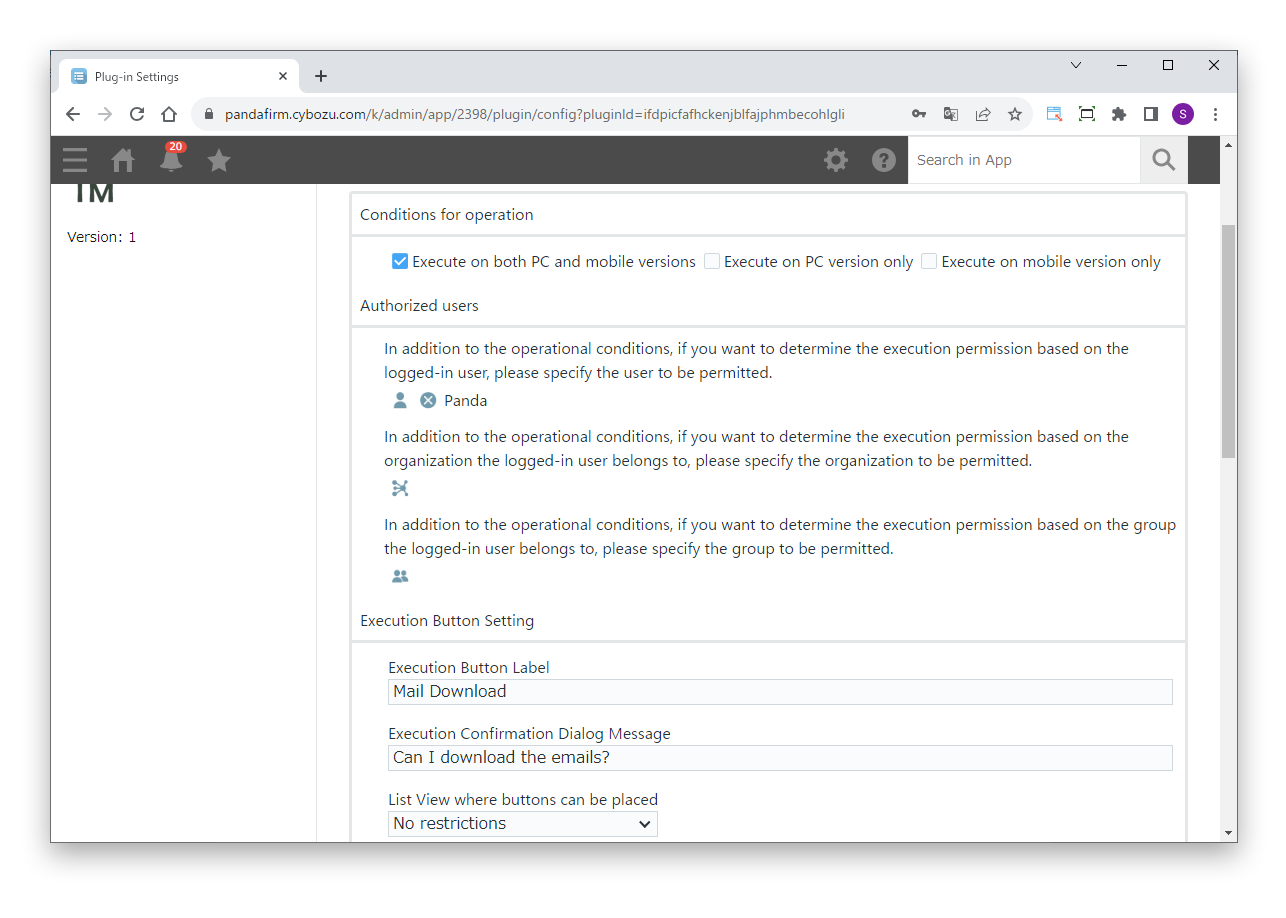
First, specify the users who can run the plugin and the execute button.

Settings

Authorized users
To allow execution based on the logged-in user, or the departments and groups the user belongs to, specify who is allowed.
Execute Button Label
Enter the label of the button that imports email.
Execution Confirmation Dialog Message
Enter the message shown before the import runs.
List View where buttons can be placed
Specify the views in which the execute button is shown.
02

Specify the settings

Next, specify the server that receives the email and the fields in which the imported email is saved.

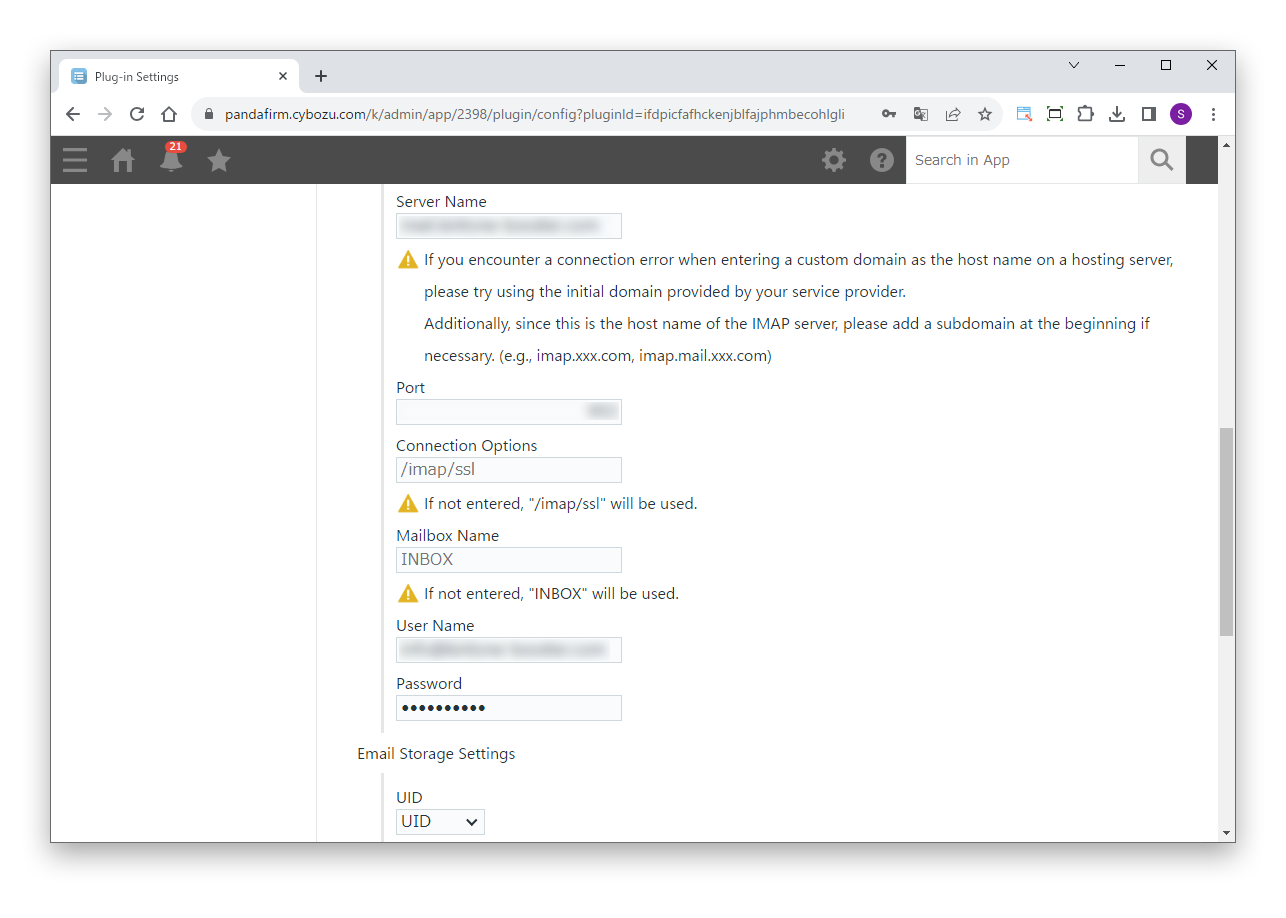
IMAP Server Settings

Server Name
Enter the host name of the IMAP server. Add a subdomain at the beginning if necessary (for example, imap.xxx.com).
Port
Enter the port number used for the IMAP connection.
Connection Options
Enter the connection options. If not entered, "/imap/ssl" is used.
Mailbox Name
Enter the mailbox to import. If not entered, "INBOX" is used.
User Name
Enter the user name of the email account.
Password
Enter the password of the email account.

Email Storage Settings

UID
Specify the field in which the email ID is saved.
Sender
Specify the field in which the sender is saved.
CC
Specify the field in which CC is saved. CC may contain multiple email addresses, so specify a text field.
BCC
Specify the field in which BCC is saved. BCC may contain multiple email addresses, so specify a text field.
Received DateTime
Specify the field in which the date and time received is saved.
Subject
Specify the field in which the subject is saved.
Body
Specify the field in which the body is saved.
Attachment Field
Specify the field in which the attachments are saved.

Enter the information of the IMAP server. POP server information is not used.

If entering your own domain as the server name on a hosting server causes a connection error, enter the initial domain provided by your hosting company.

HOW TO USE

How to use

01

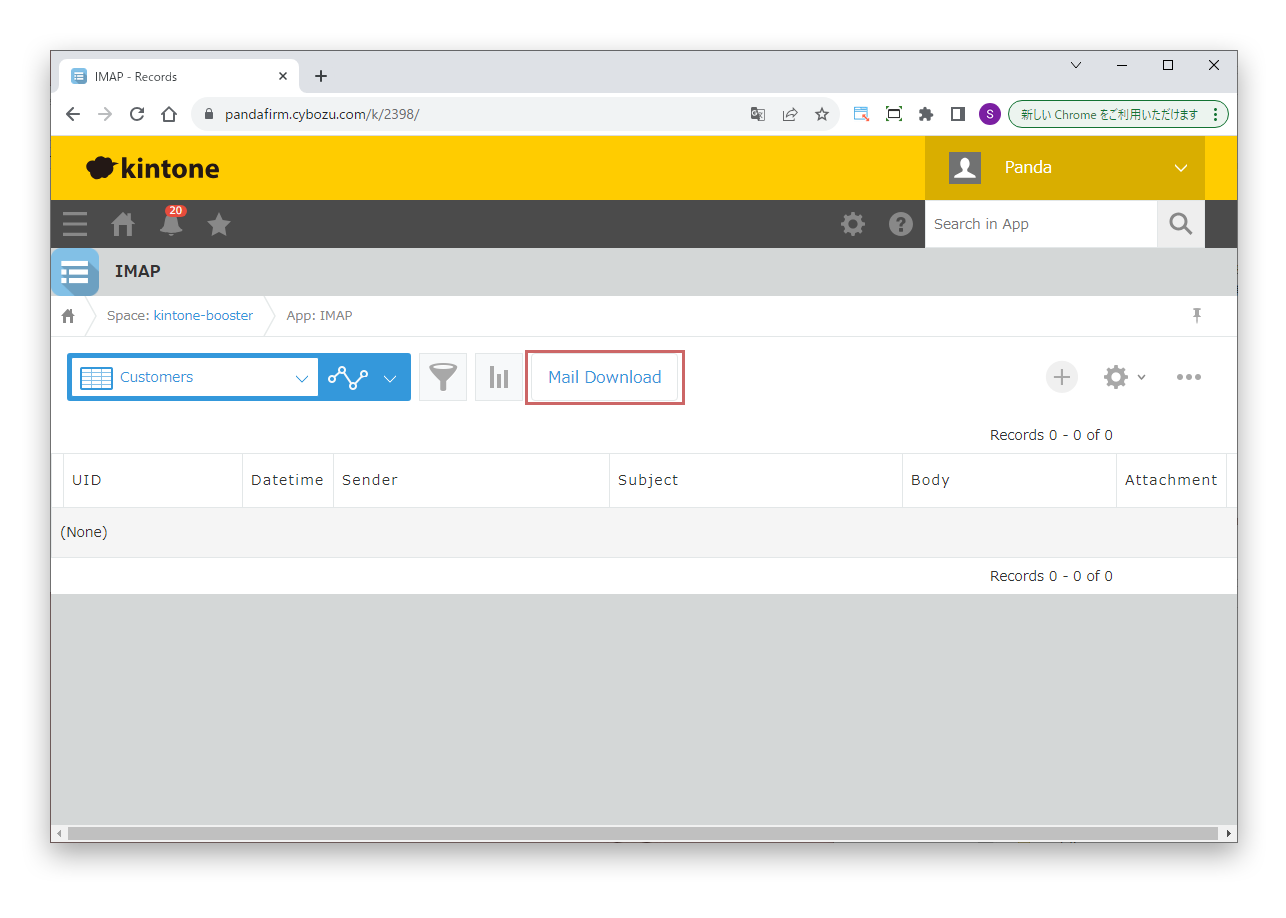
Show the execute button

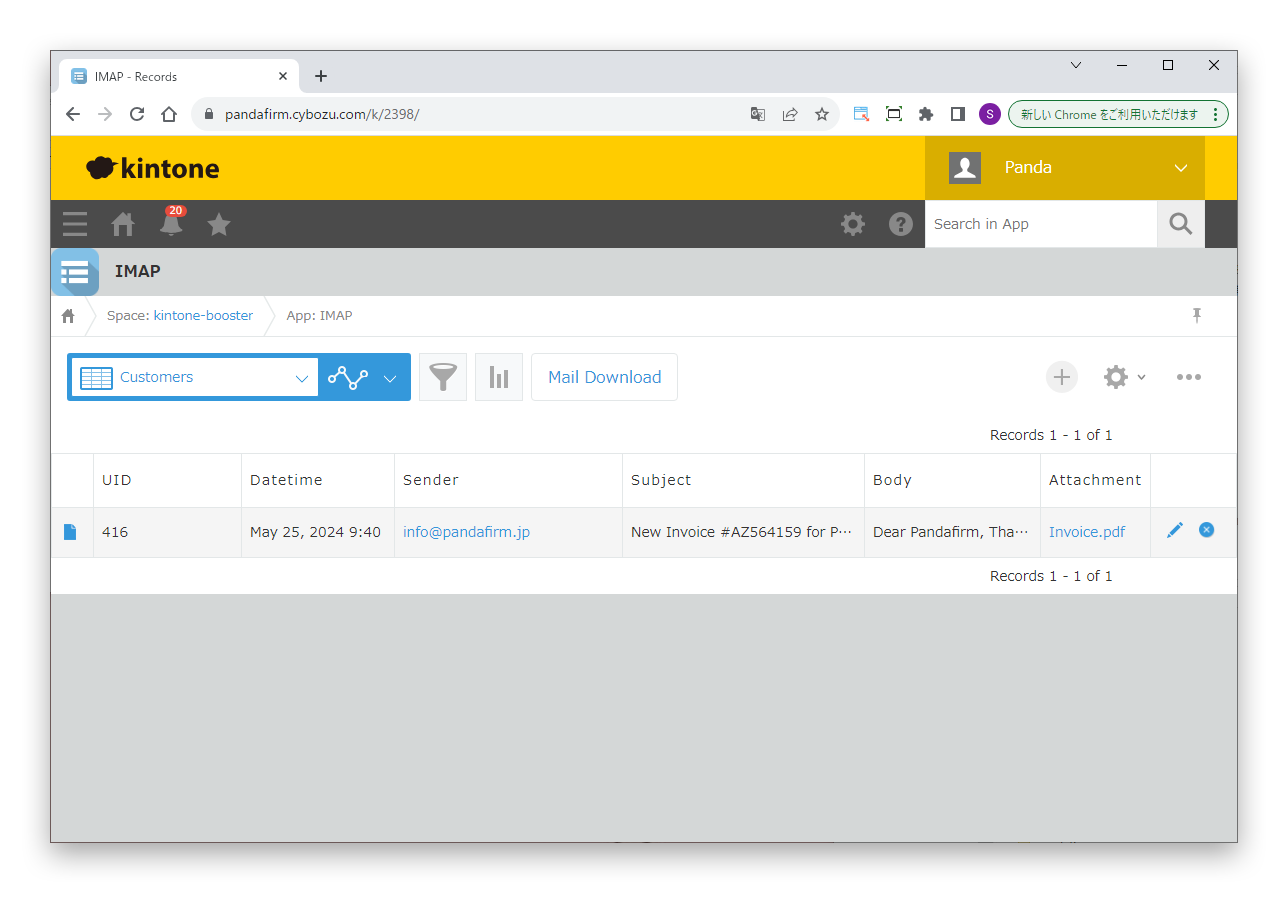
When you open the view specified on the settings screen, the button that imports email appears.

02

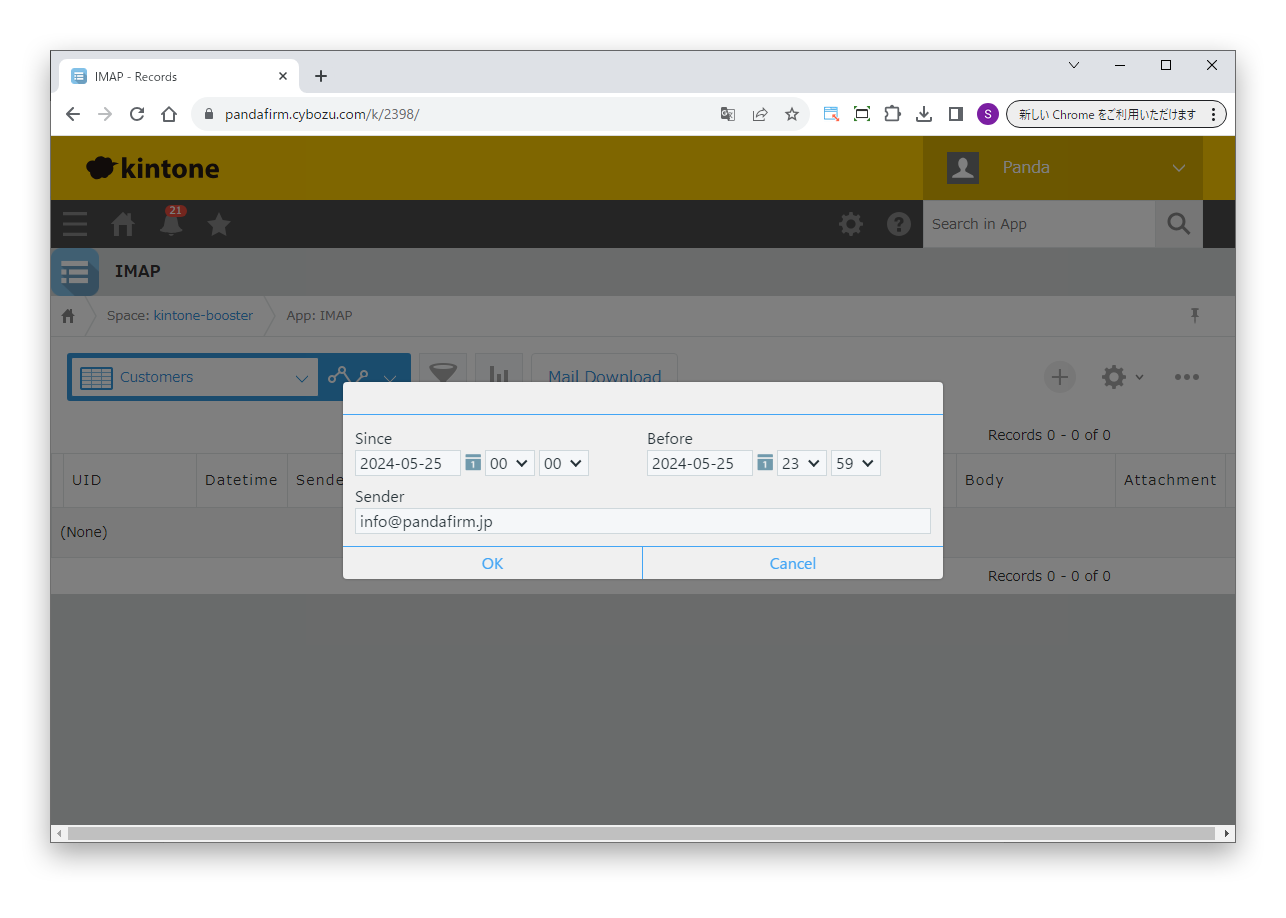
Specify the period and sender to import

Click the button to show the screen for entering the period and sender to import. The default period is 0:00 to 23:59 today.

If you leave the sender blank, all email in the specified period is imported.

03

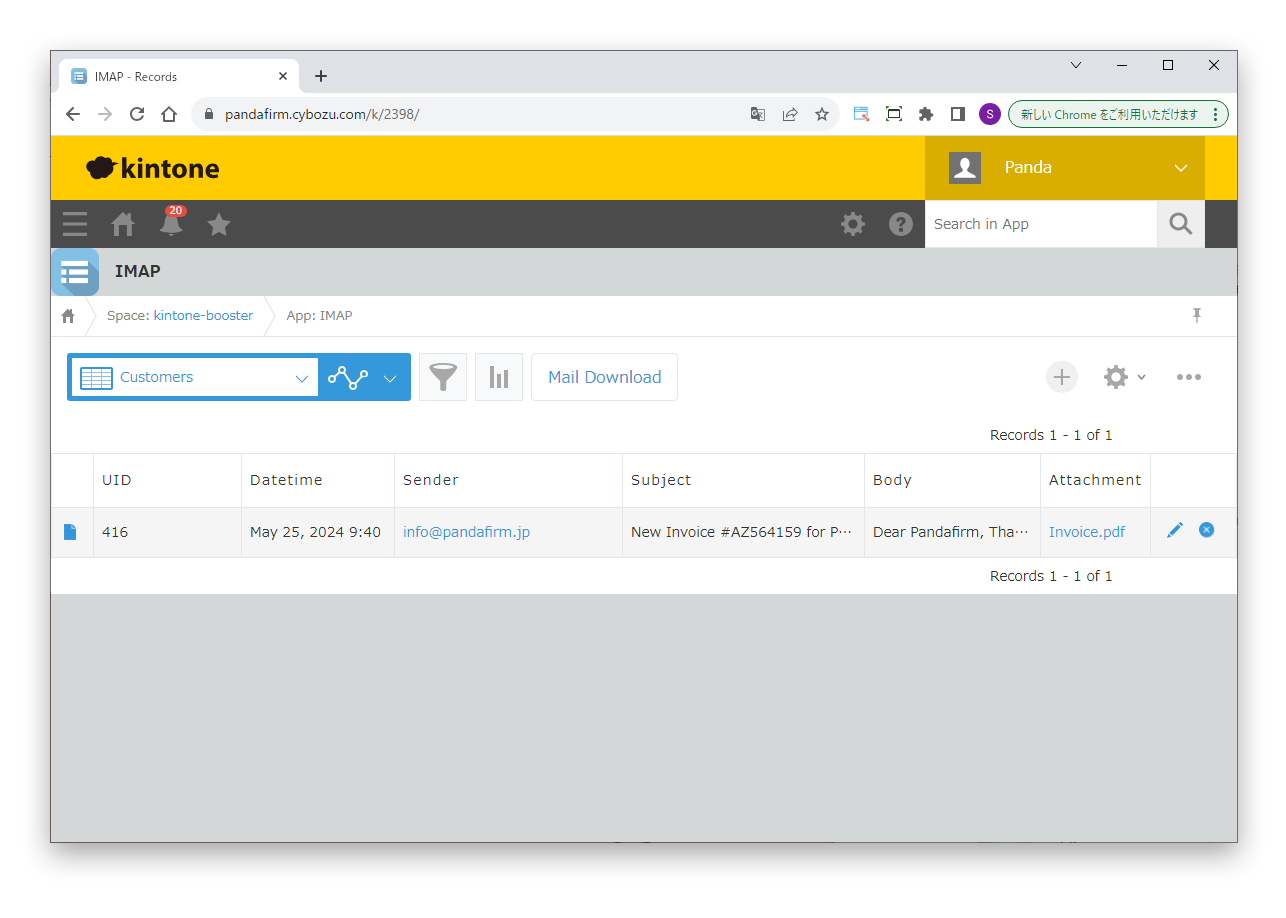
Import email

Click "OK" to import the email and save it in the fields specified on the settings screen.

The plugin does not check whether email has already been imported. If you import the same period again, the same email is registered again. Selecting "Prohibit duplicate values" for the email ID field prevents duplicates, but if already imported email is included, an error occurs and the import stops. Email is registered 100 at a time, so the records registered before the error remain.