Boost!for kintone
Home / Report / Layup
REPORT DESIGNER

Layup

Layup, the report layout tool used with Boost! Report, lets you lay out reports freely in your browser. With a spreadsheet-like interface, you can easily design printable reports and documents.

HOW TO USE

How to use

Layup starts when you click "Open the report layout tool" under "Template Settings" on the Boost! Report settings screen.

How to set up Boost! Report +
01

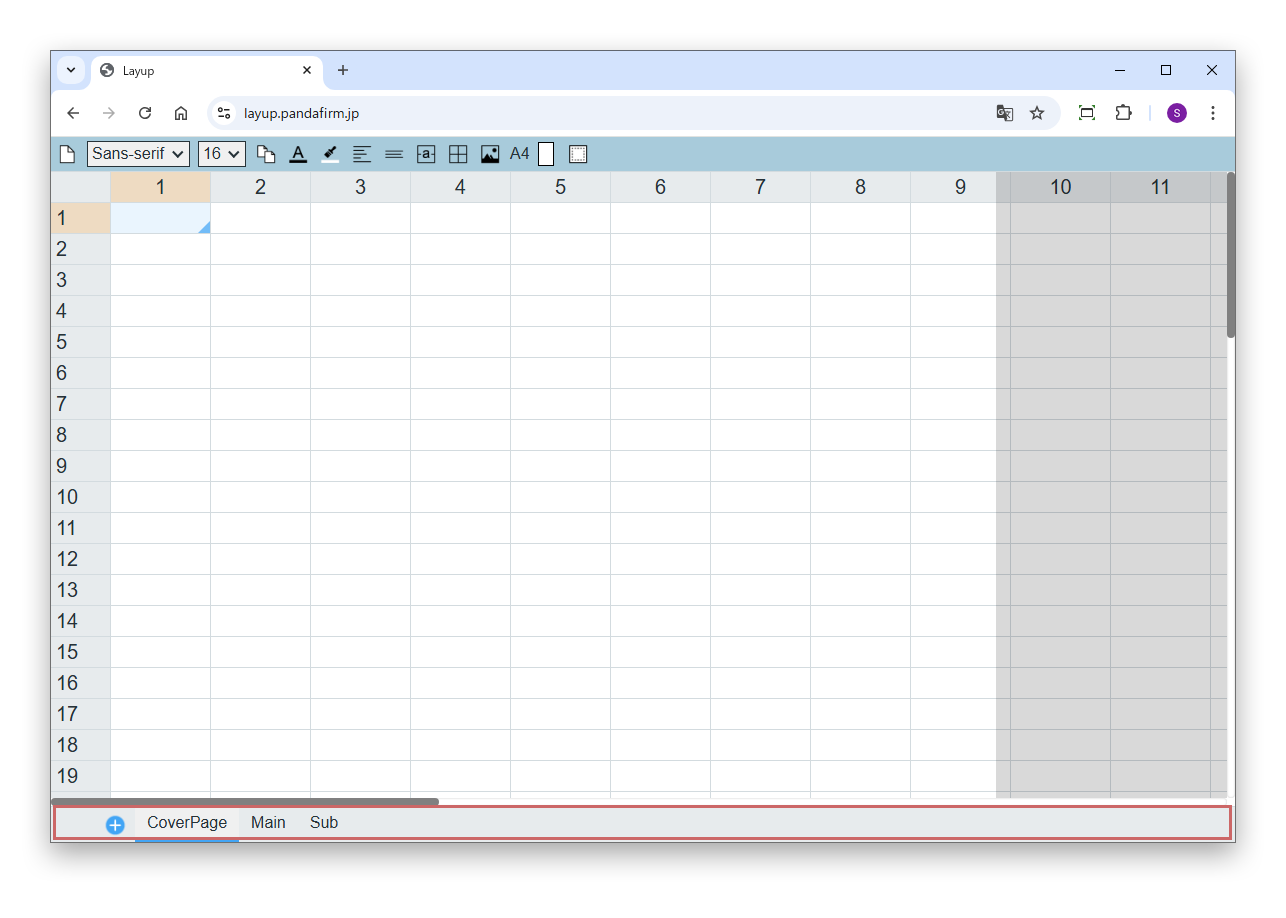
Create and switch sheets

You can manage multiple sheets with the tabs at the bottom of the screen. To add a sheet, click the "+" button.

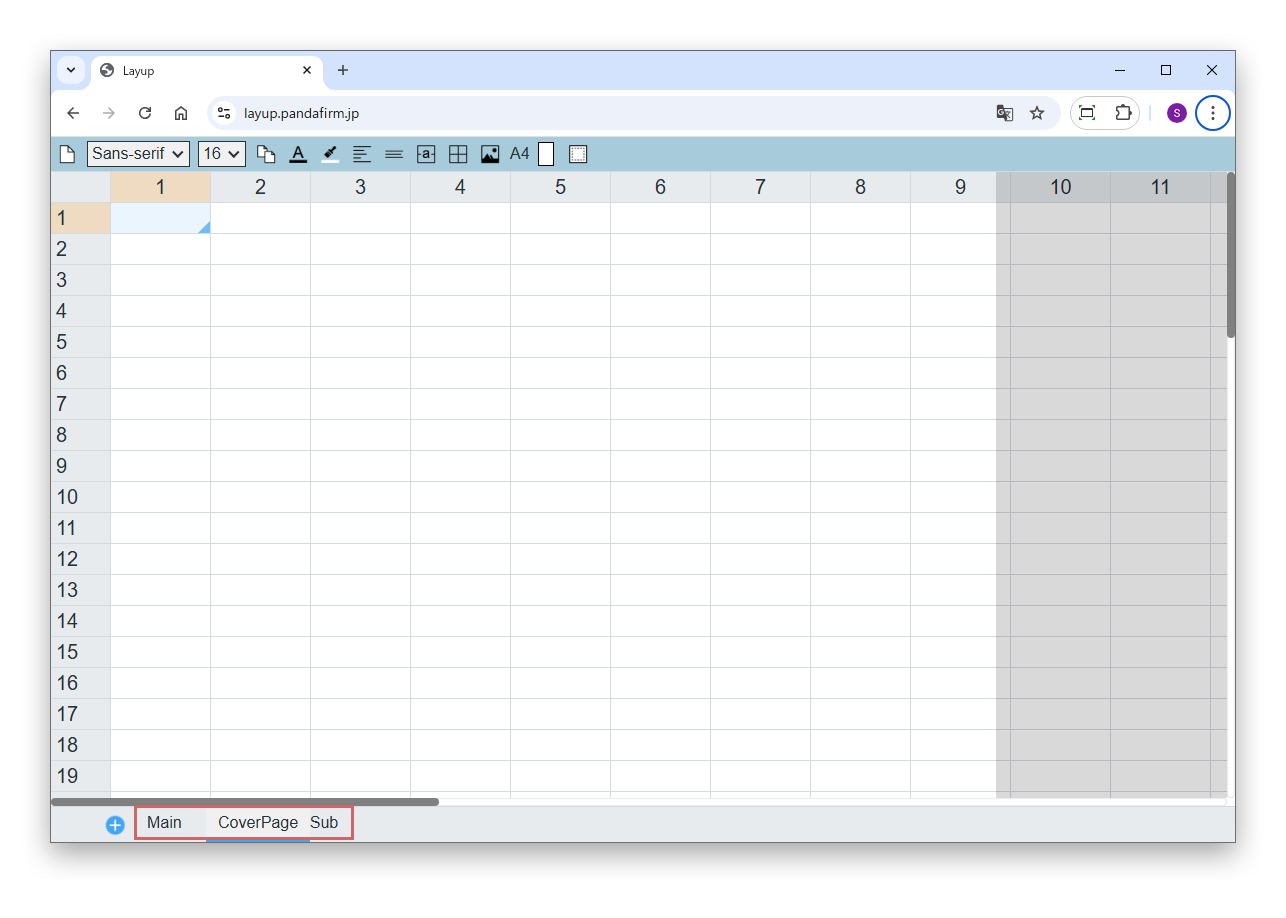
Double-click a tab to rename the sheet. Drag a tab to change the order of the sheets.

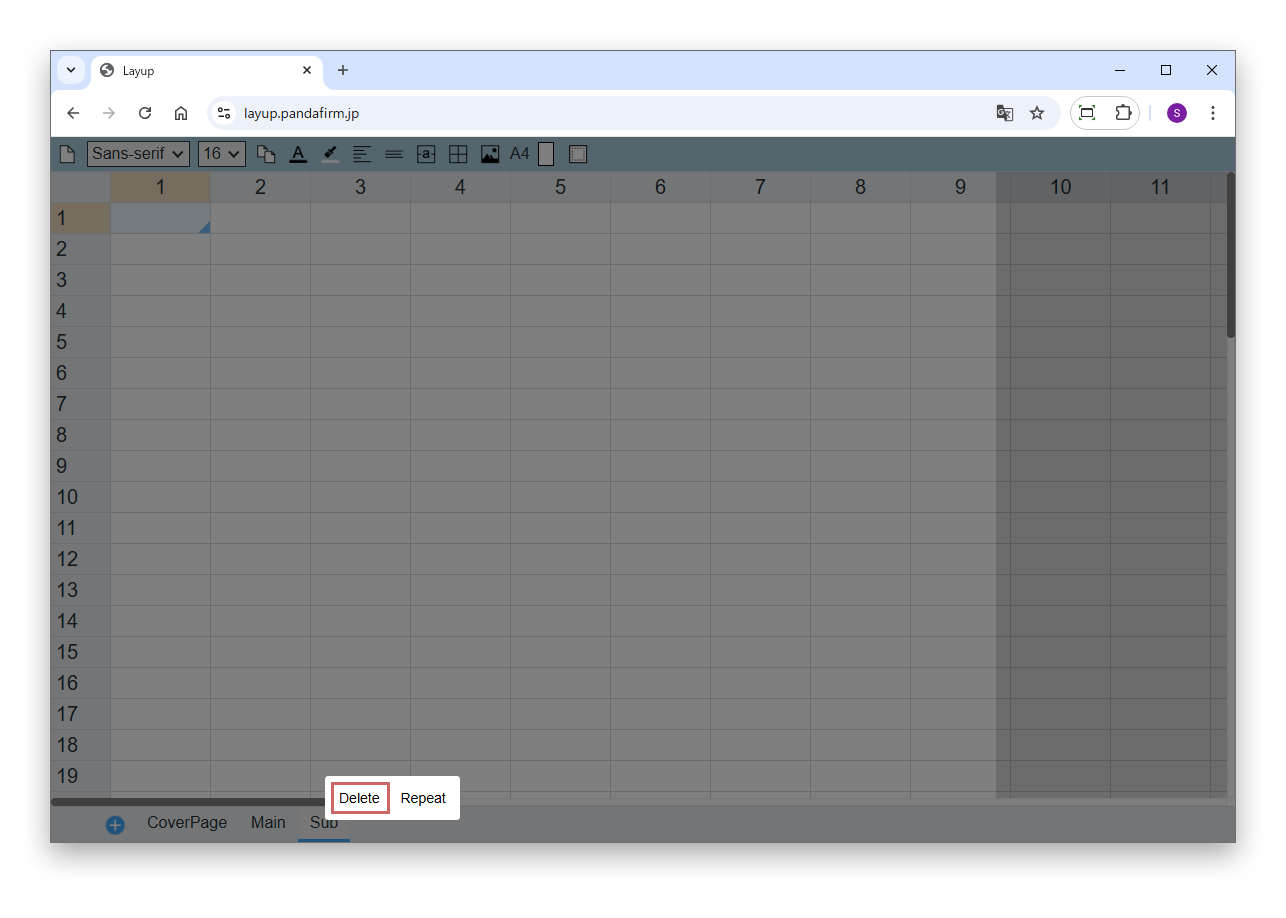
To delete a sheet, right-click the tab of the sheet and select "Delete" from the options shown.

02

Select and edit cells

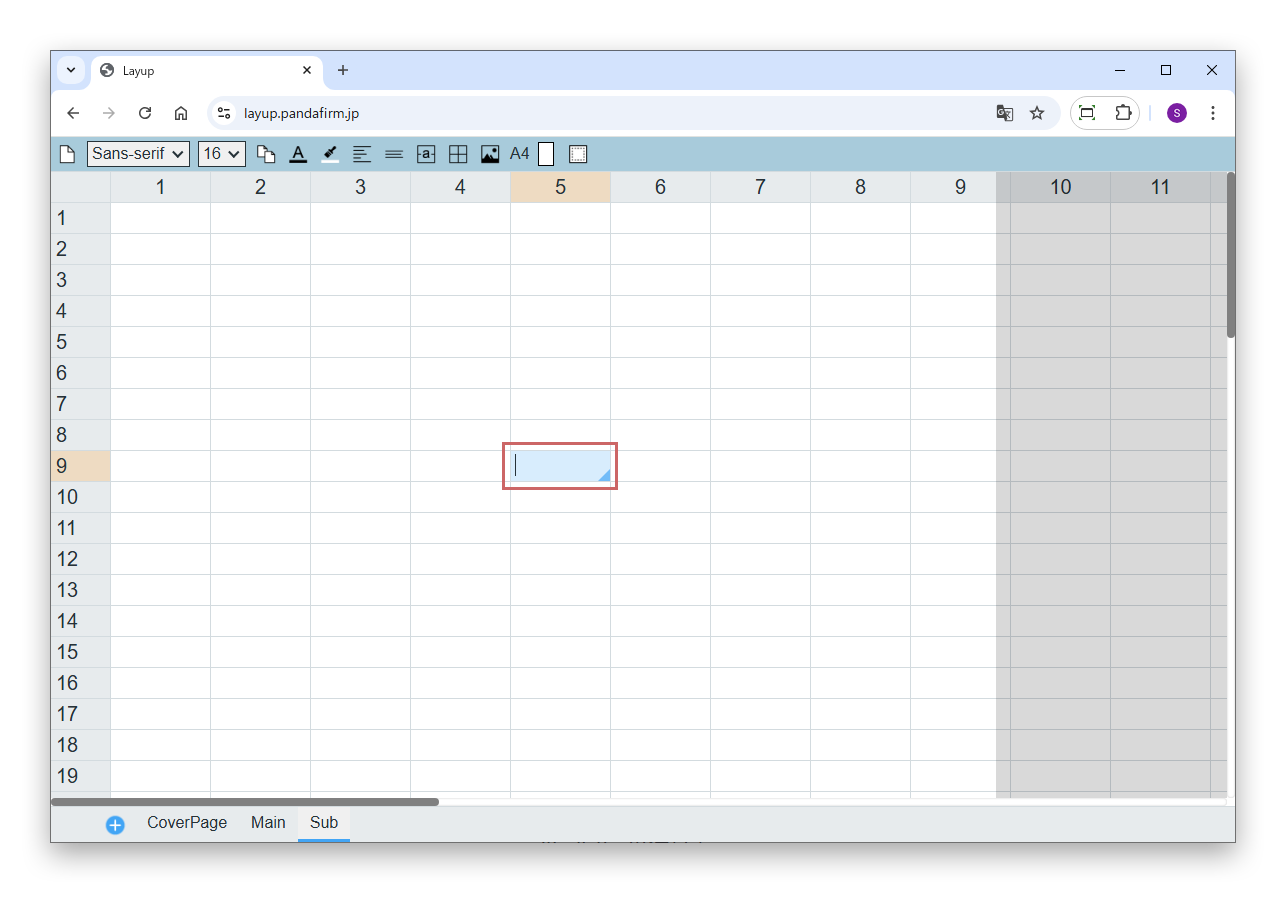
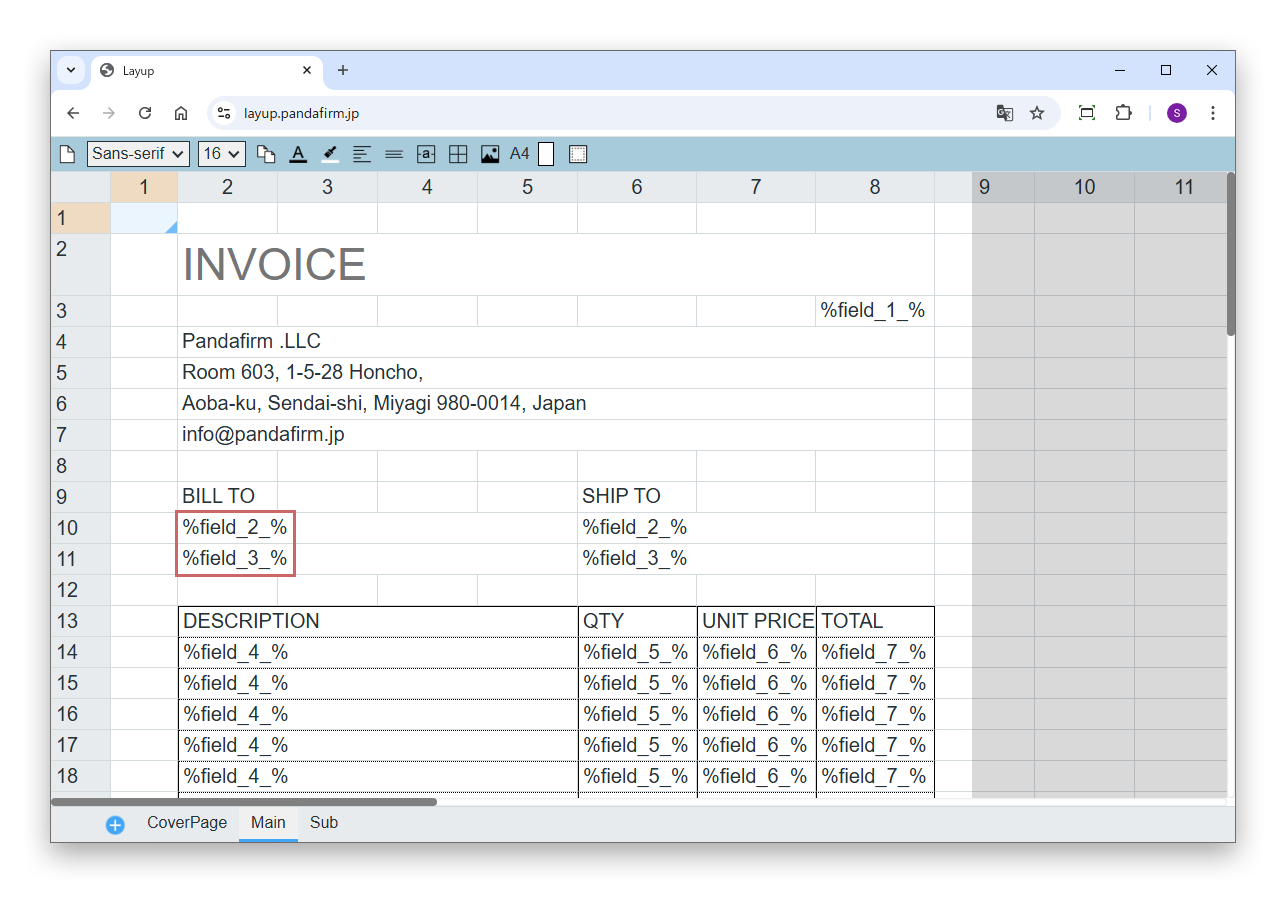
Click a cell to select it, and you can type directly. Double-click a cell to edit its content.

To insert a line break in a cell, press Enter while holding down the Alt key.

03

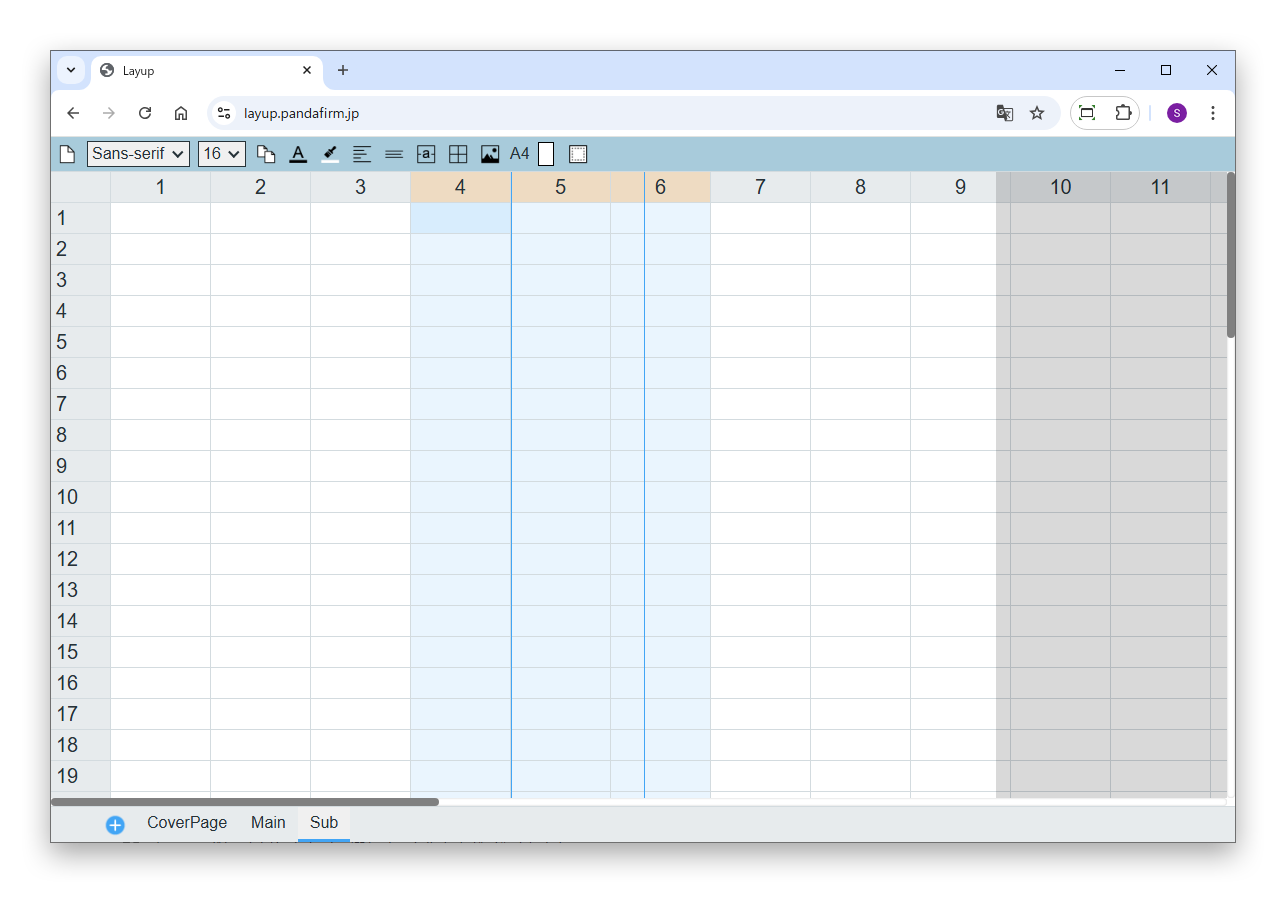
Adjust the width and height of cells

To change the width of a column, hover over the right edge of the column header, and drag when the cursor changes to a left-right arrow (↔). To change the height of a row, hover over the bottom edge of the row header, and drag when the cursor changes to an up-down arrow (↕).

04

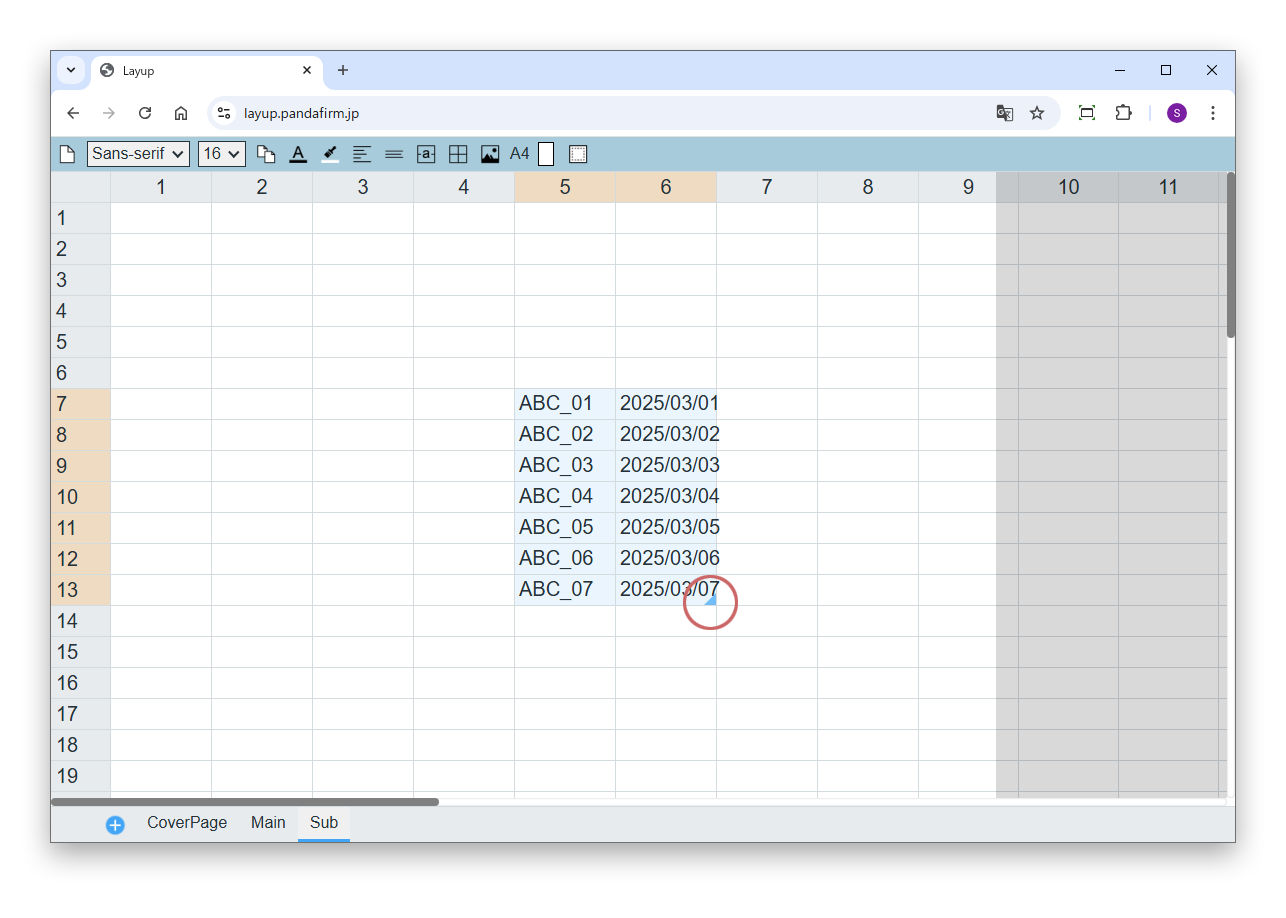
Use autofill

After entering values in consecutive cells, hover over the bottom-right corner of the selection and drag downward, and values are filled in automatically following the pattern you entered. Numbers, dates (in the "2026-01-01" or "2026/01/01" format) and text containing numbers such as "No.001" become sequential, and other values are copied as they are.

05

Use the toolbar

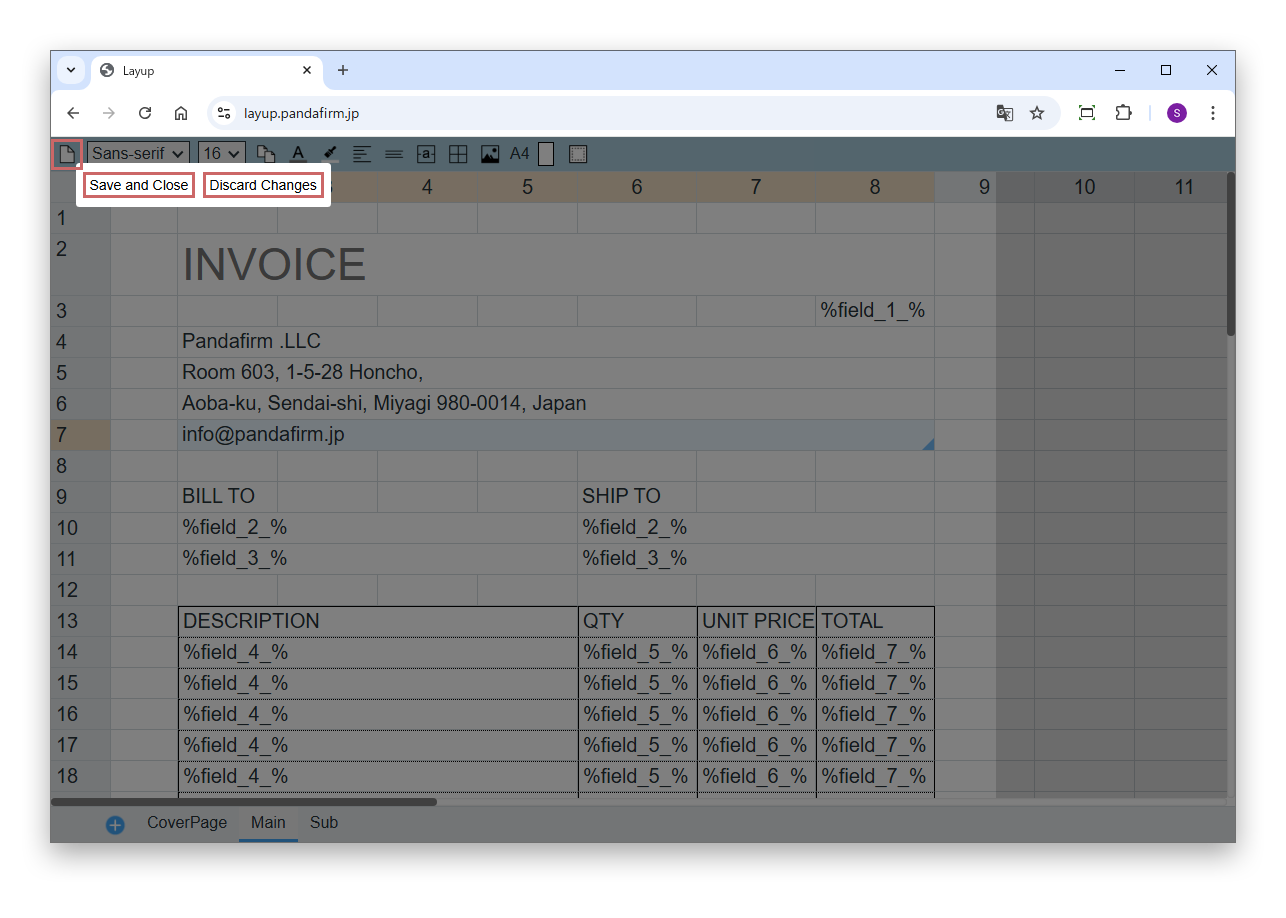
Click "Save and Close" to save your edits and close Layup.

Click "Discard Changes" to discard all unsaved edits and close Layup.

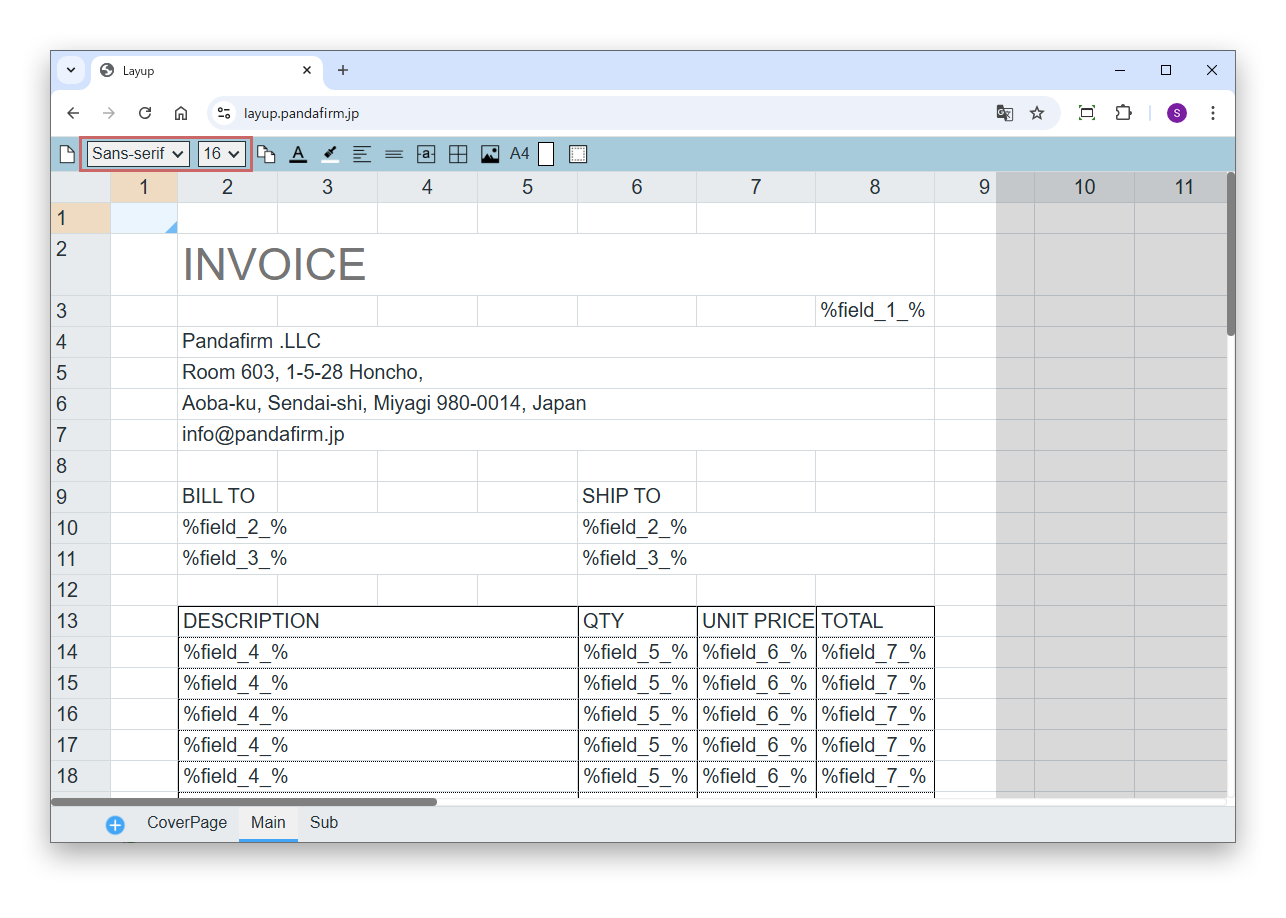
You can choose from two fonts, "Sans-serif" and "Serif". Select the font size from the drop-down list (12 to 96).

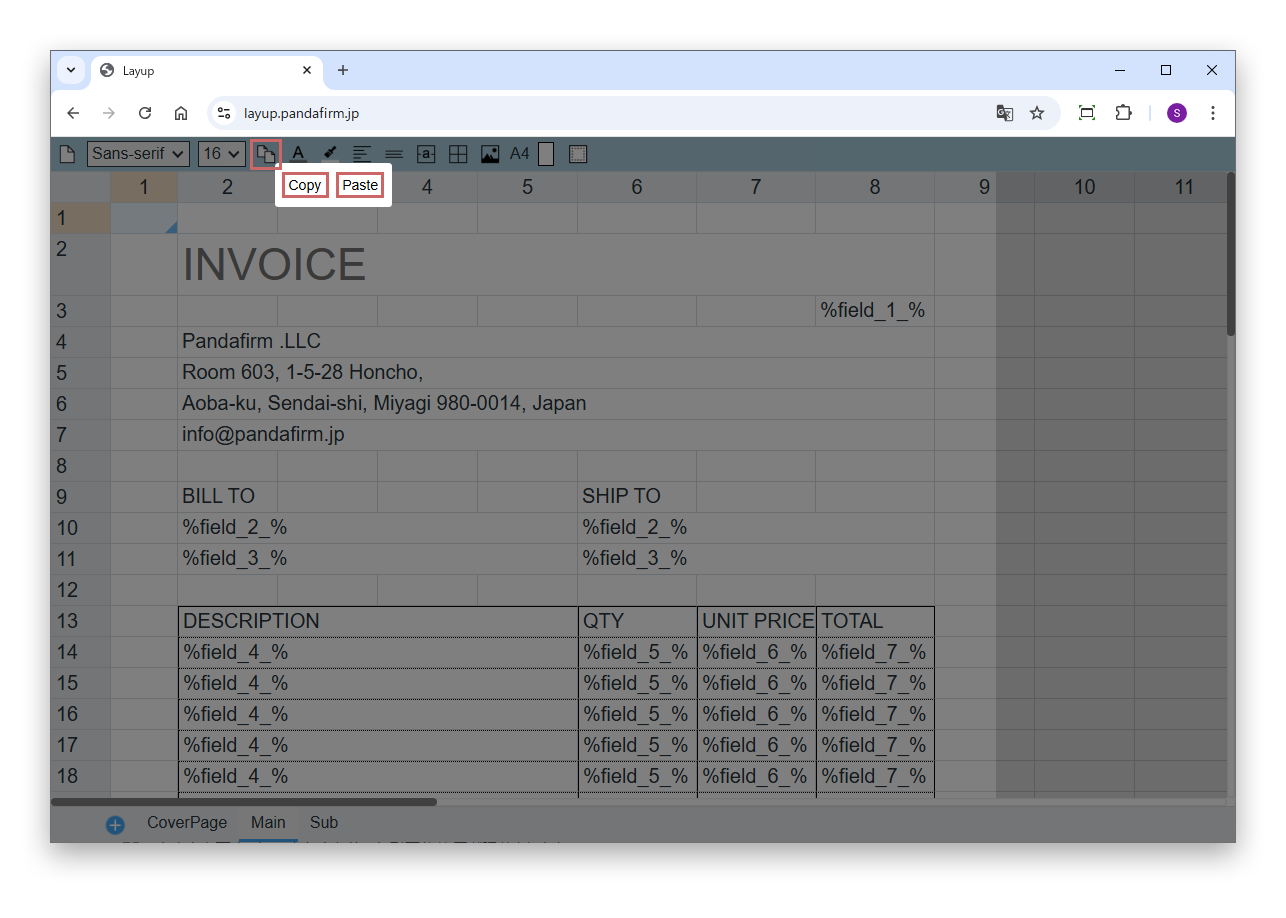
Click "Copy" to copy the content of the selected cells. Click "Paste" to paste the copied content.

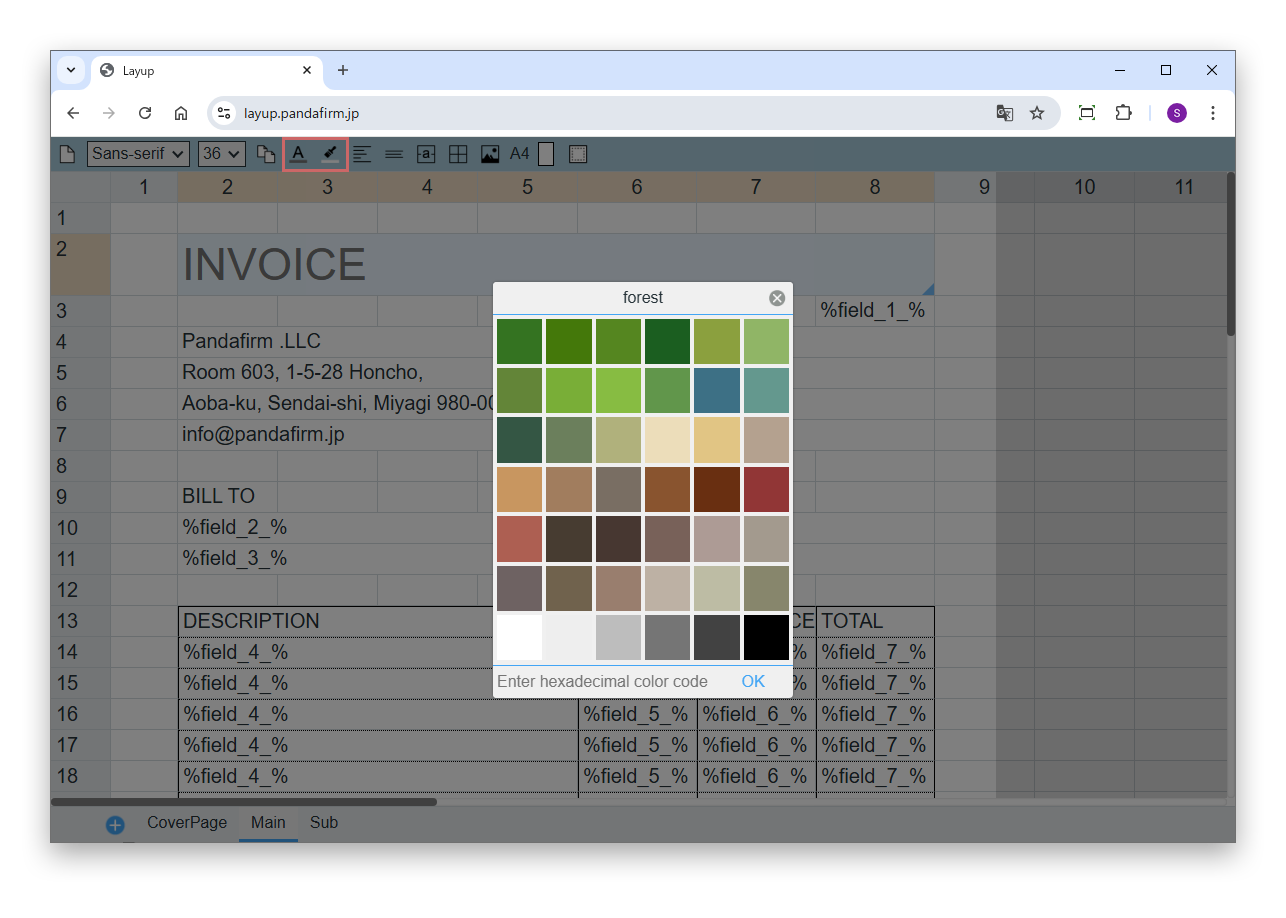
Select the text color and background color with the color picker.

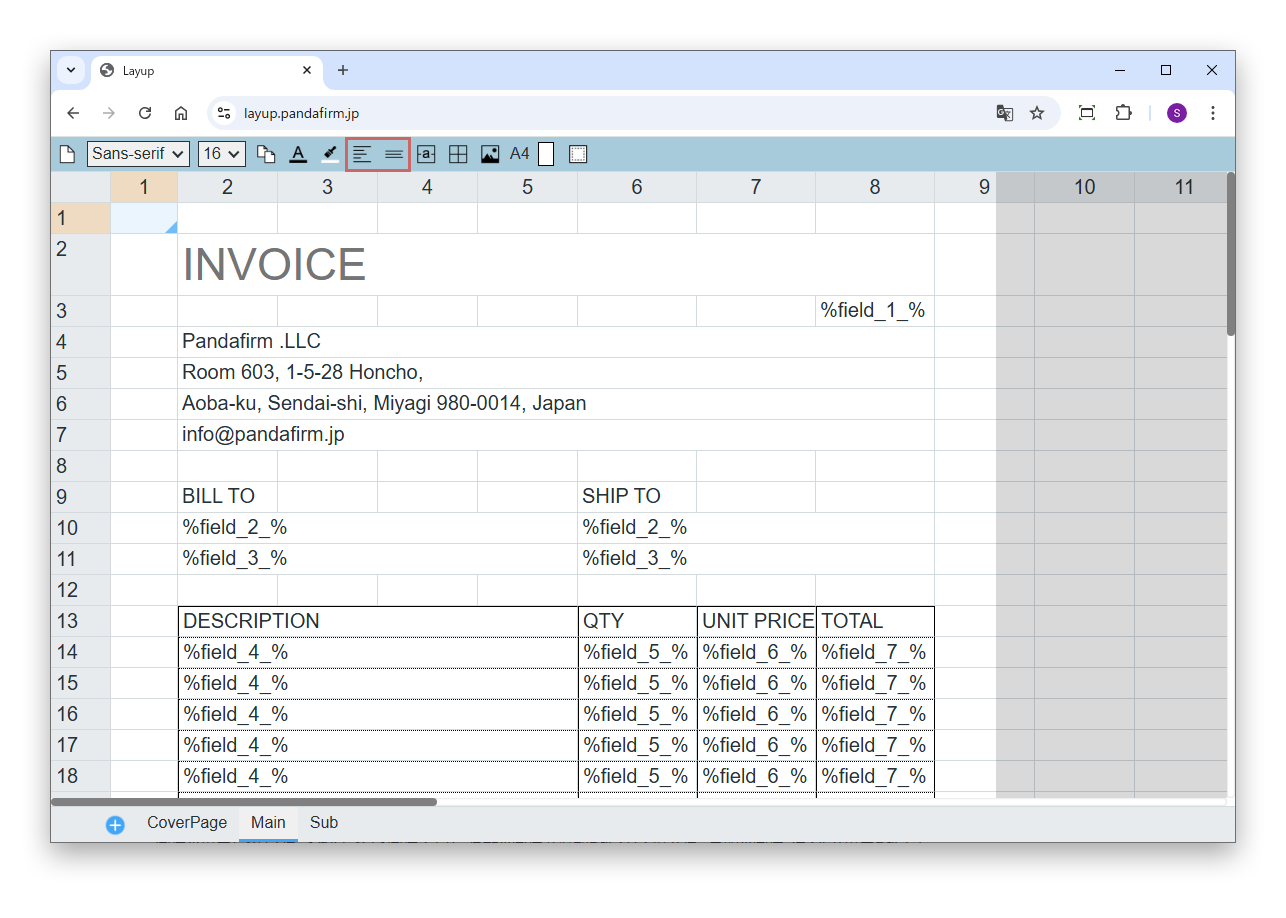
Specify the text alignment with the vertical and horizontal buttons. Horizontally, choose from "Left", "Center" and "Right"; vertically, choose from "Top", "Middle" and "Bottom".

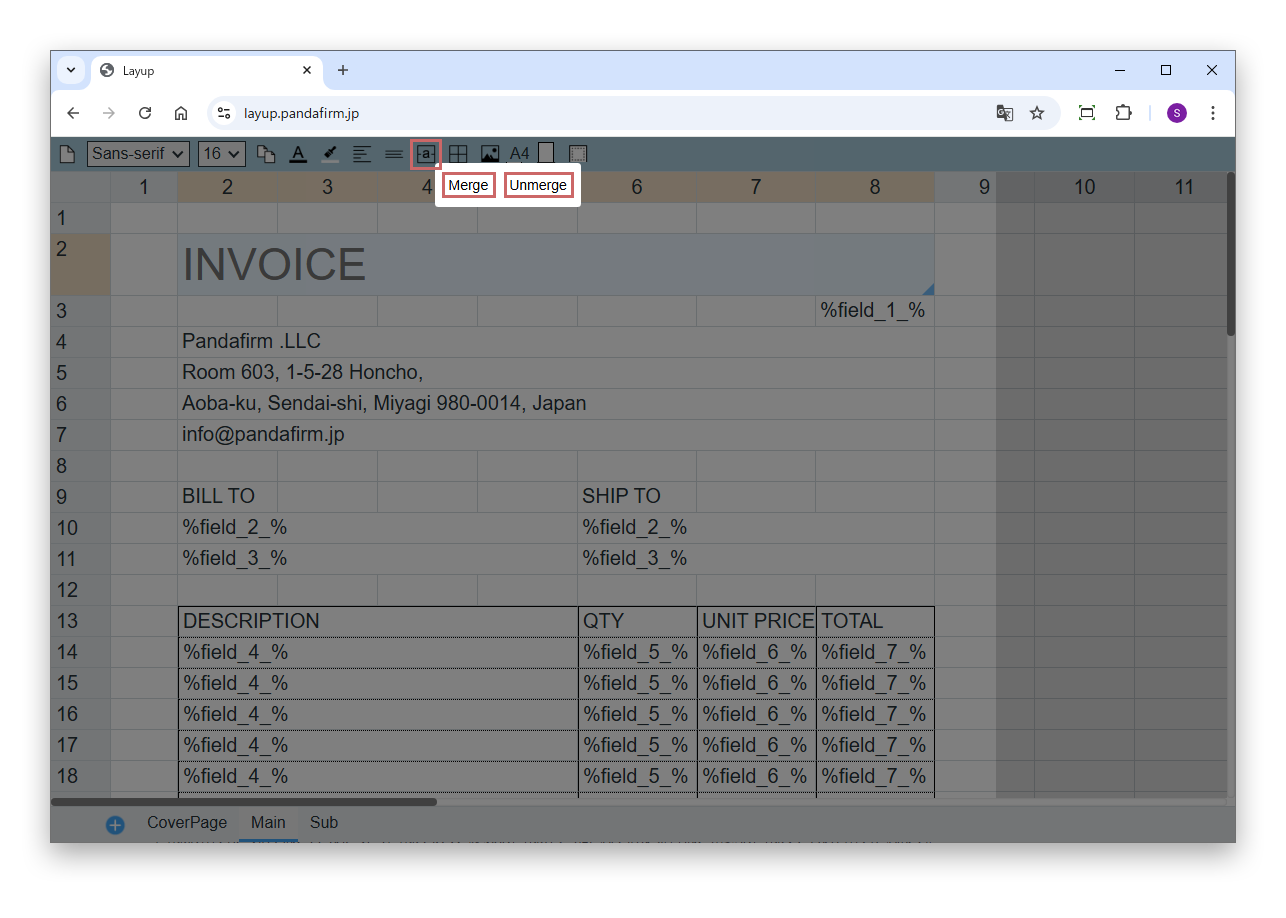
Click "Merge" to merge the selected cells. Click "Unmerge" to unmerge them.

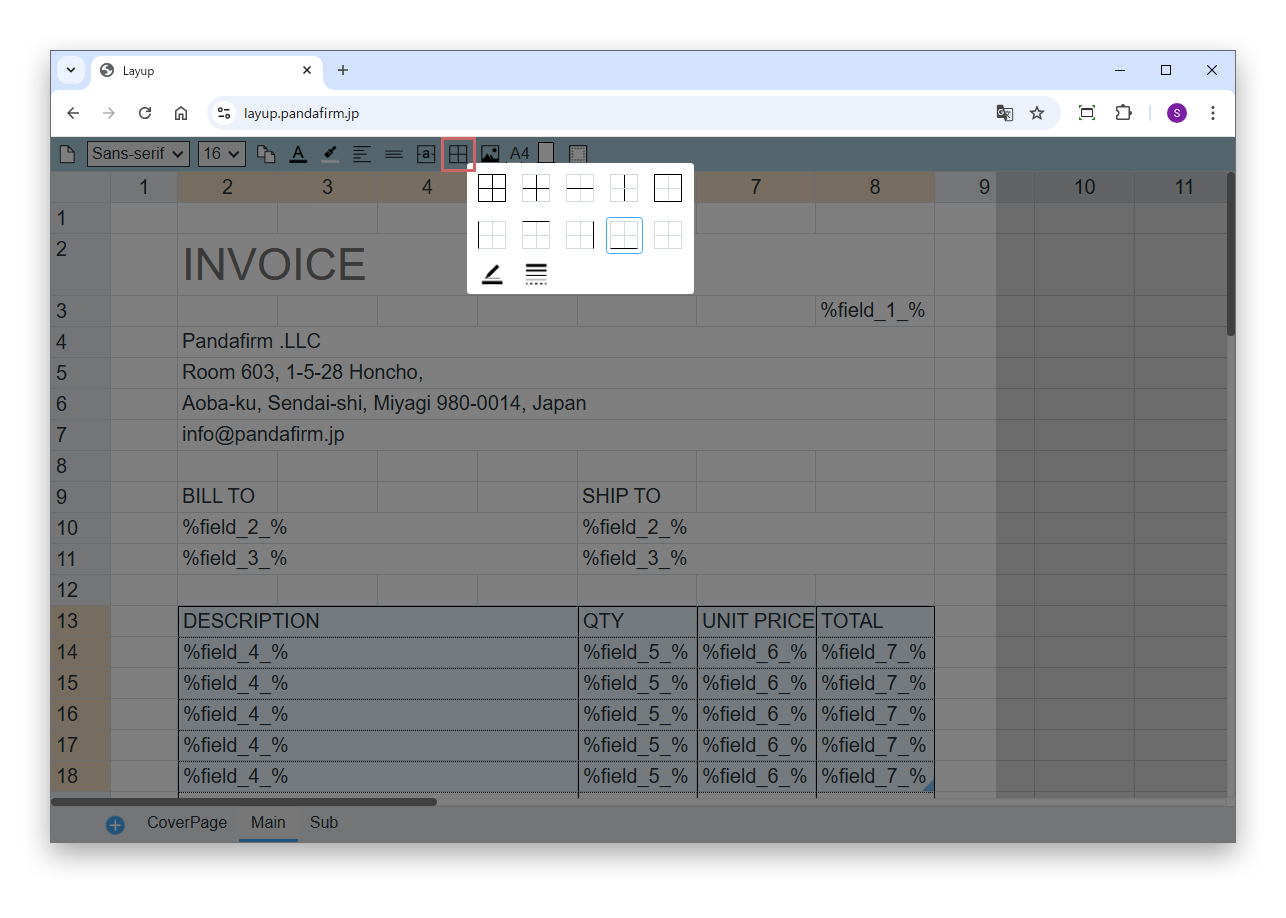
Border settings are applied to the selected cells immediately.

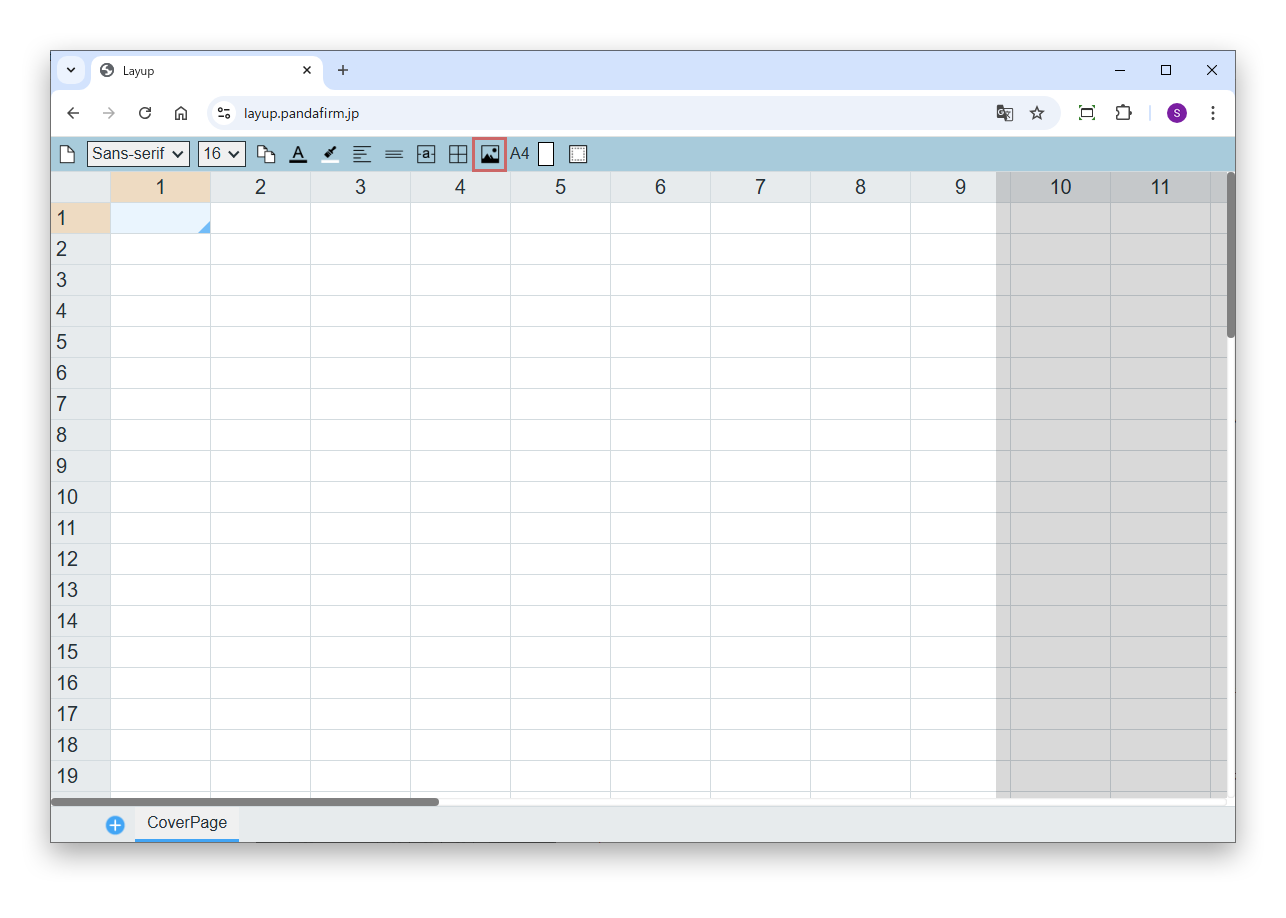
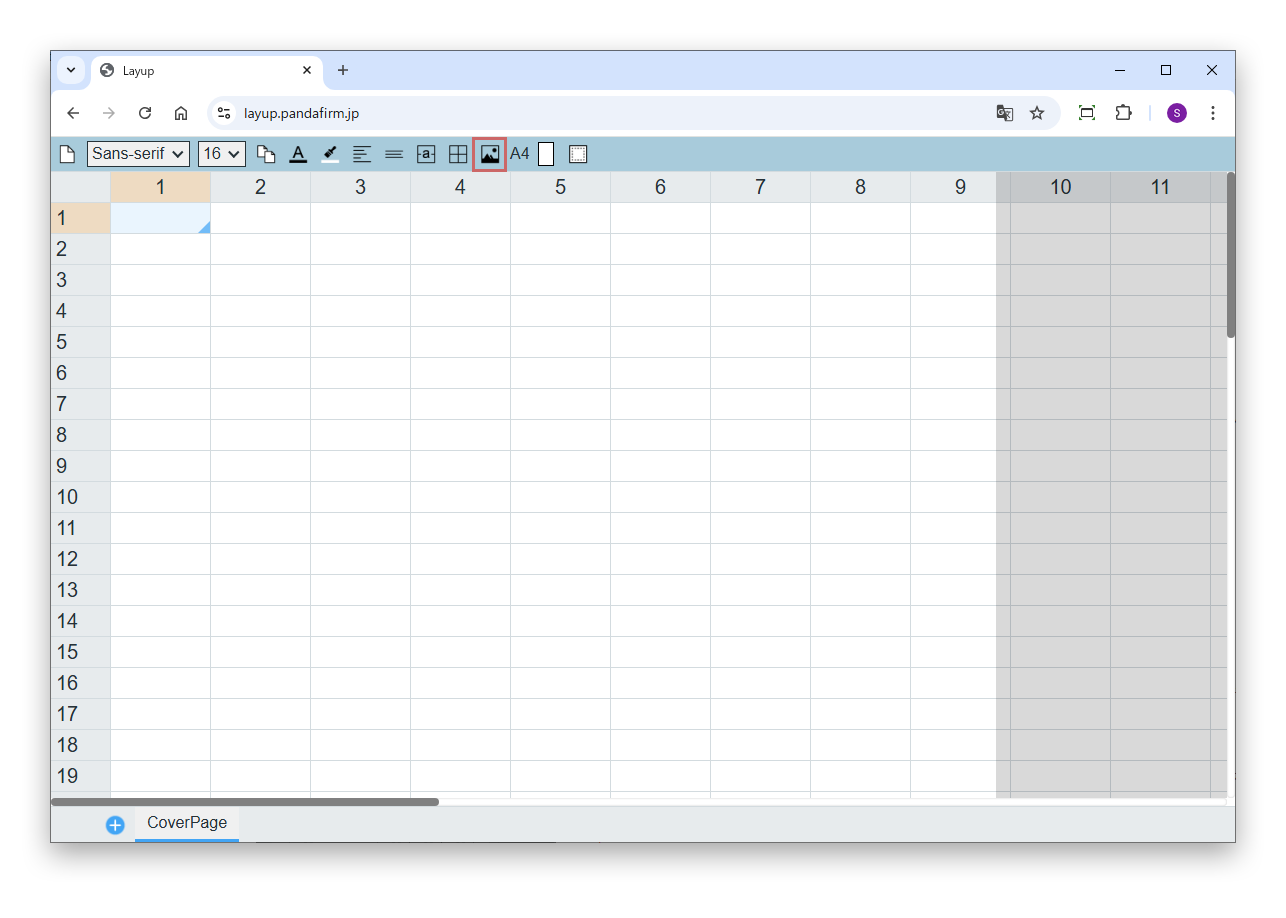
Click the image button to place an image on the sheet. The steps are described in "Place an image" on this page.

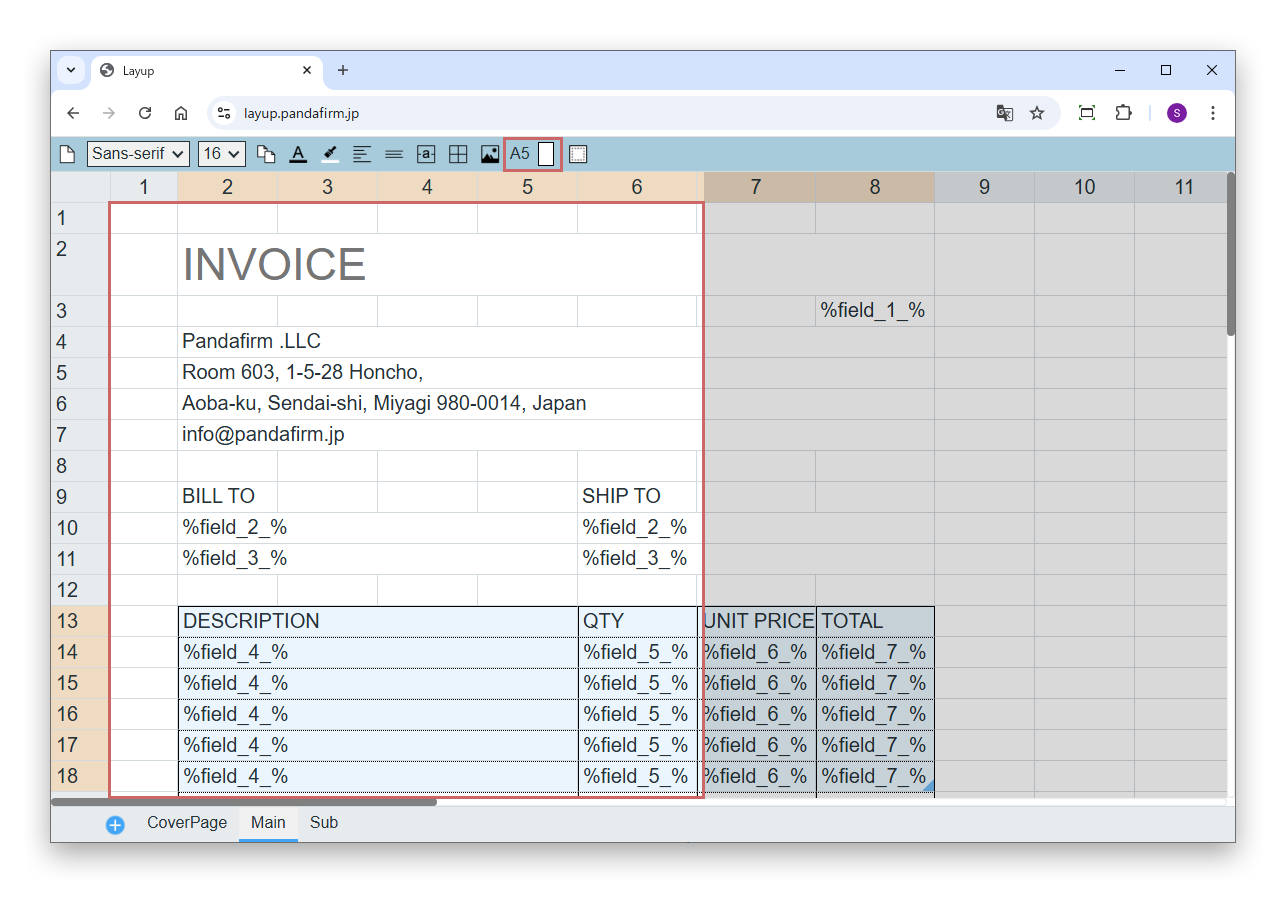
Select the paper size from A3, A4, A5, B3, B4 and B5, in portrait or landscape. When you change the paper size, the printable area (the red frame on the sheet) is adjusted accordingly.

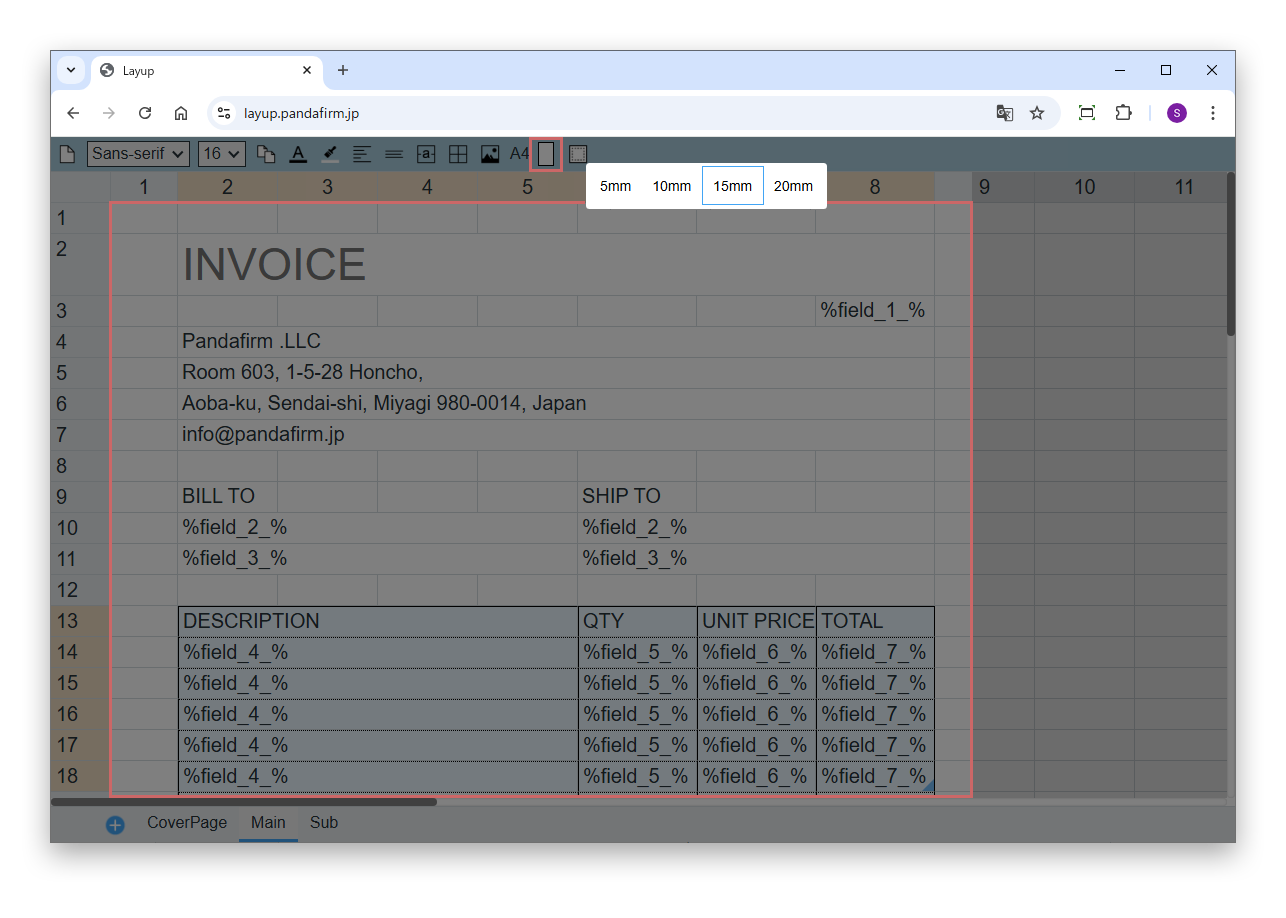
Select the margin from 5 mm, 10 mm, 15 mm and 20 mm. When you change the margin, the printable area is adjusted accordingly.

06

Embed field values

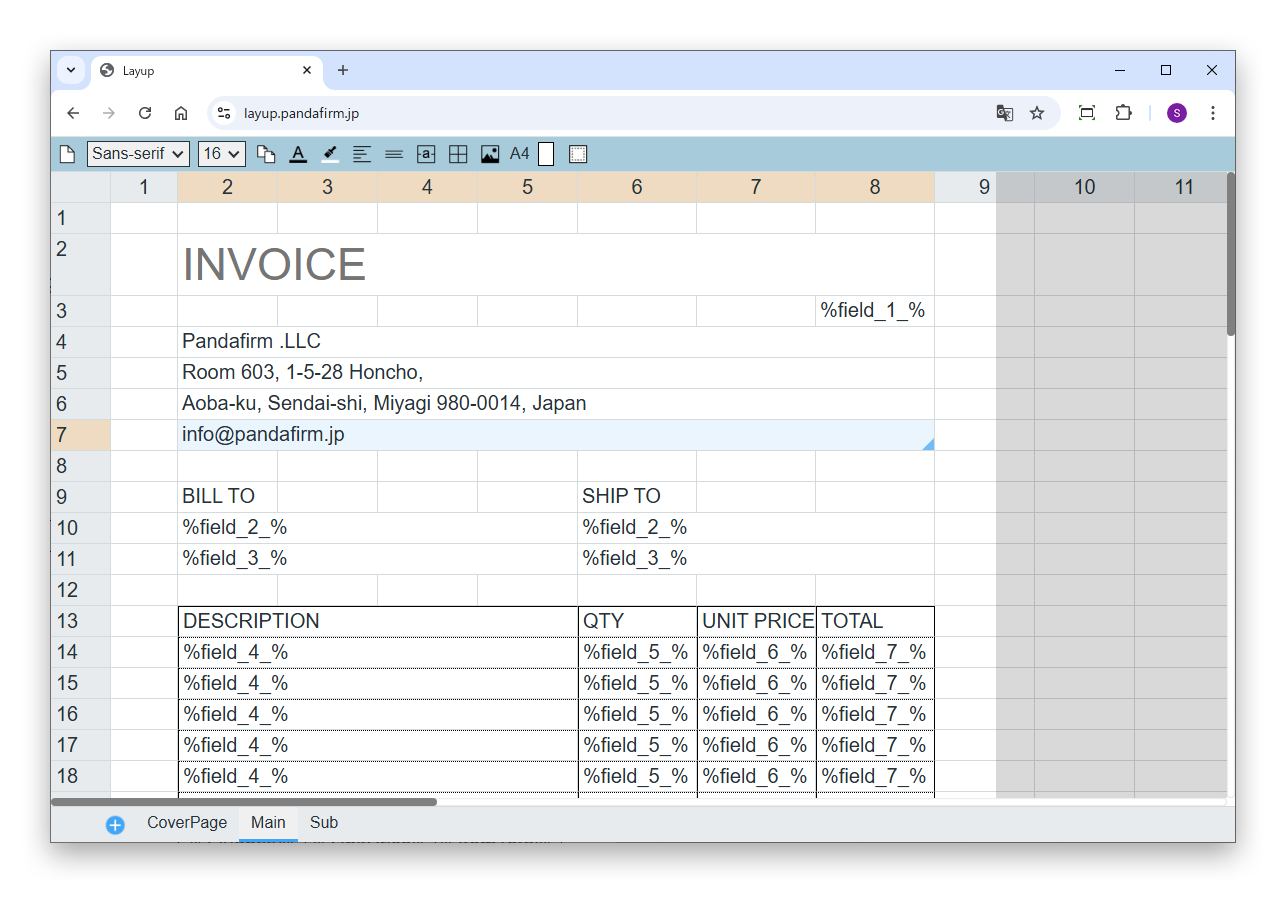
In a cell where a field value is to be printed, enter the field code of the field enclosed in "%" (for example, %InvoiceDate%).

For fields in a table, the values of the first row, the second row and so on are printed in order from the top in the cells where the field code is entered. If the number of rows is not fixed, prepare as many cells with the field code as the number of rows you want to print on one page. If there are fewer rows than cells, the remaining cells are left blank. If there are more rows than cells, set the sheet to repeat as described in "Repeat a sheet".

In a cell where an attachment field is specified, the first image file among the saved files is printed to fit the cell while keeping its aspect ratio. If no image file is saved, the cell is left blank.

If fields in the same table are entered on multiple sheets, the rows continue across the sheets. For example, if you prepare cells for 10 rows on the first sheet, rows 11 and later are printed on the second sheet. If all rows have been printed on the first sheet, the cells on the second sheet are left blank.

07

Place an image

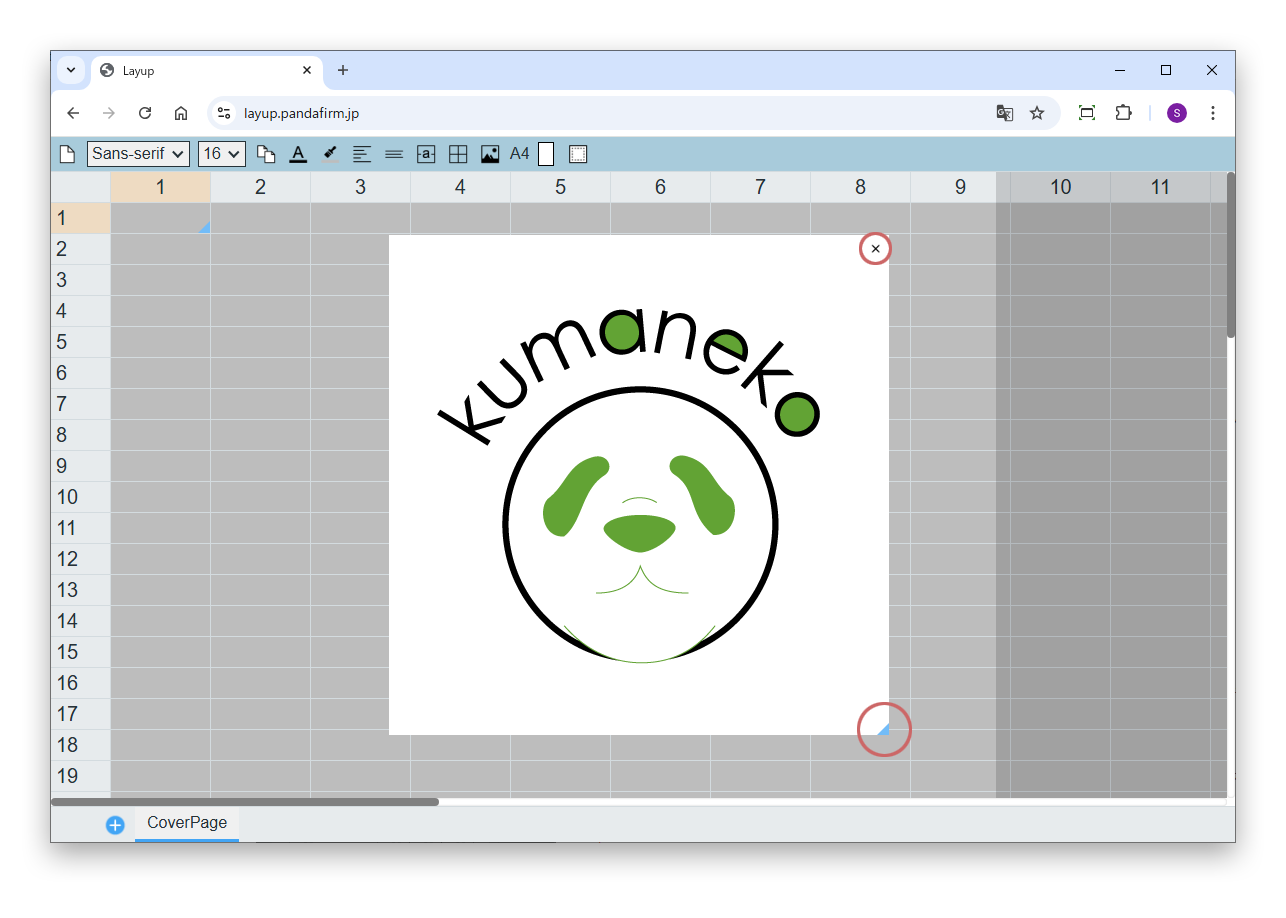
To place an image on the sheet, click the image button on the toolbar.

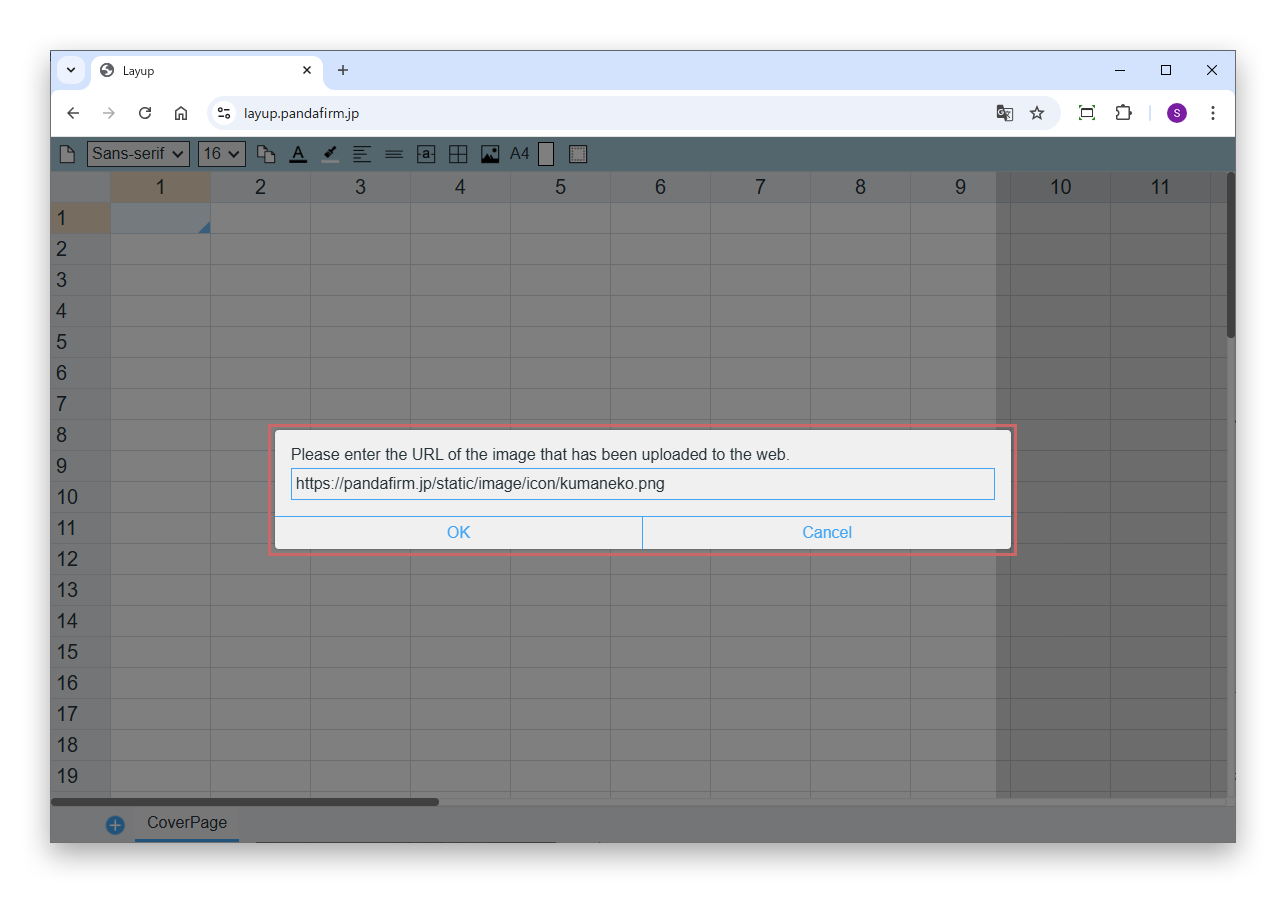
When the prompt window appears, enter the URL of the image.

Image files on your computer, or images in places that cannot be reached from the internet such as an internal network, cannot be specified. Enter the URL of an image published on the internet.

To delete a placed image, click the "x" button at the top right. To change the size, drag the resize handle at the bottom right; to change the position, drag the image itself.

08

Repeat a sheet

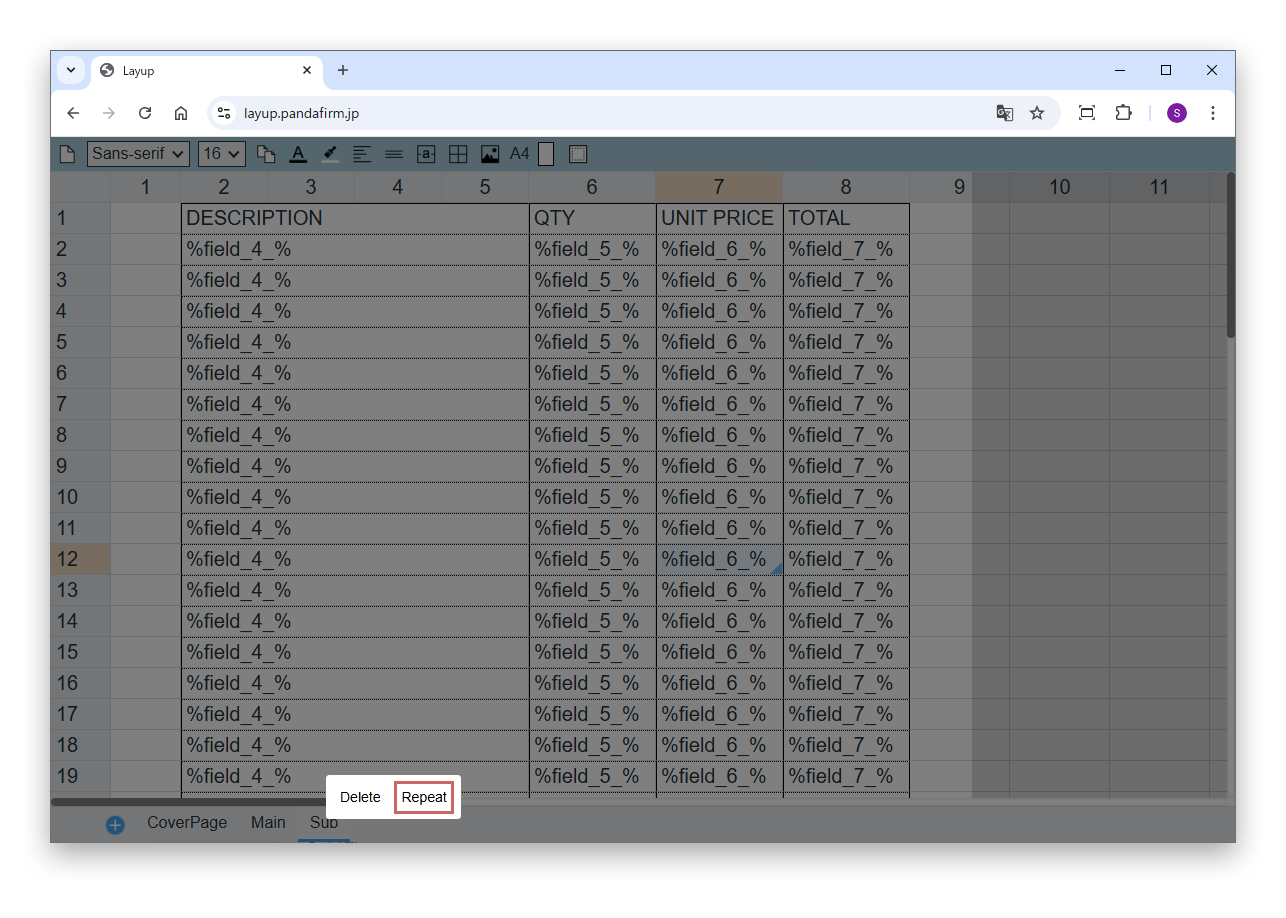
If a table has more rows than the cells prepared on the sheet, use the sheet repeat feature.

Right-click the tab of the sheet and select "Repeat" from the options shown.

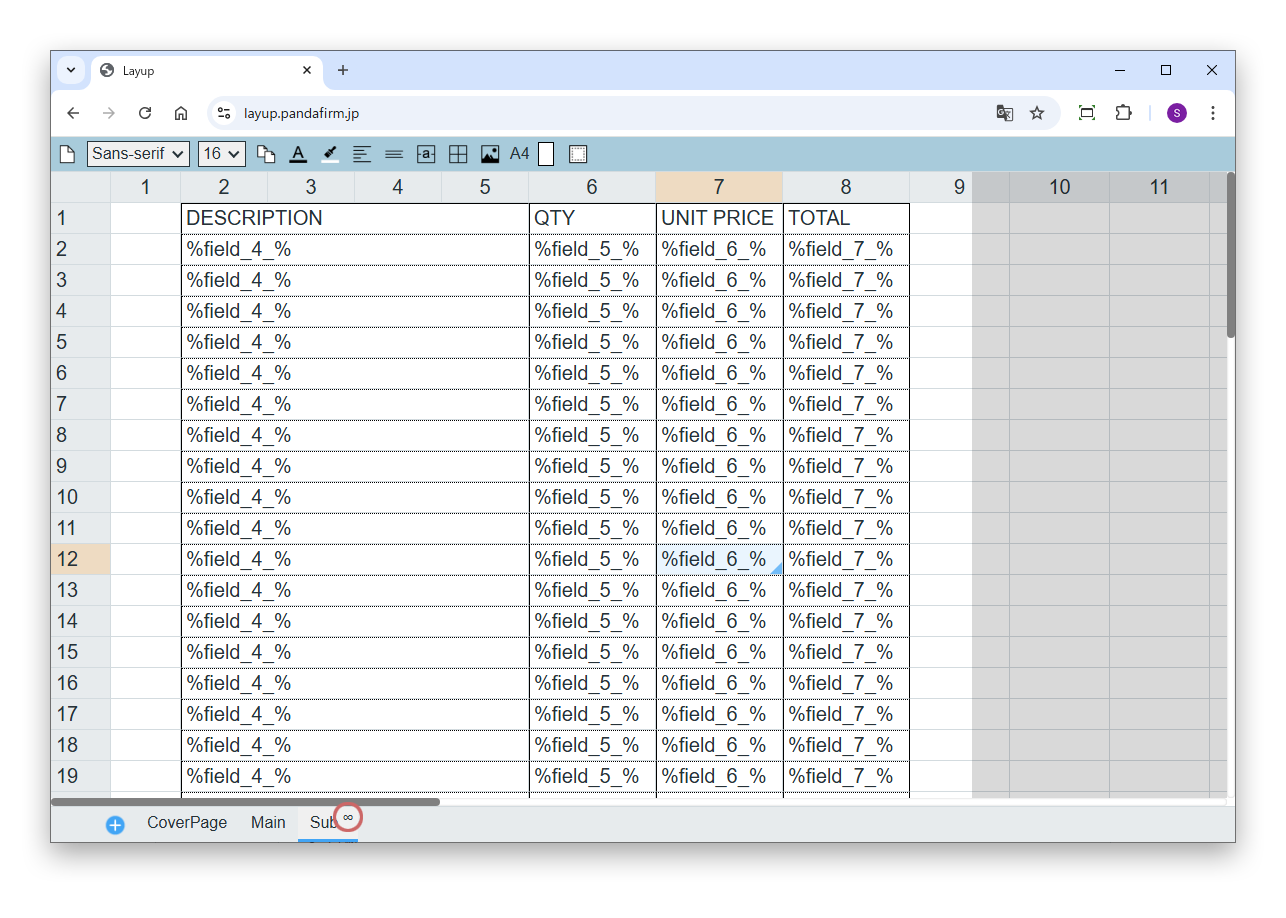
A sheet set to repeat is copied and output on the next page until all rows of the table have been printed. Headings, borders and so on are printed on every page, so you can create statements that span multiple pages. An ∞ mark appears on the tab of the sheet. To turn it off, select "Repeat" again.

09

Use functions

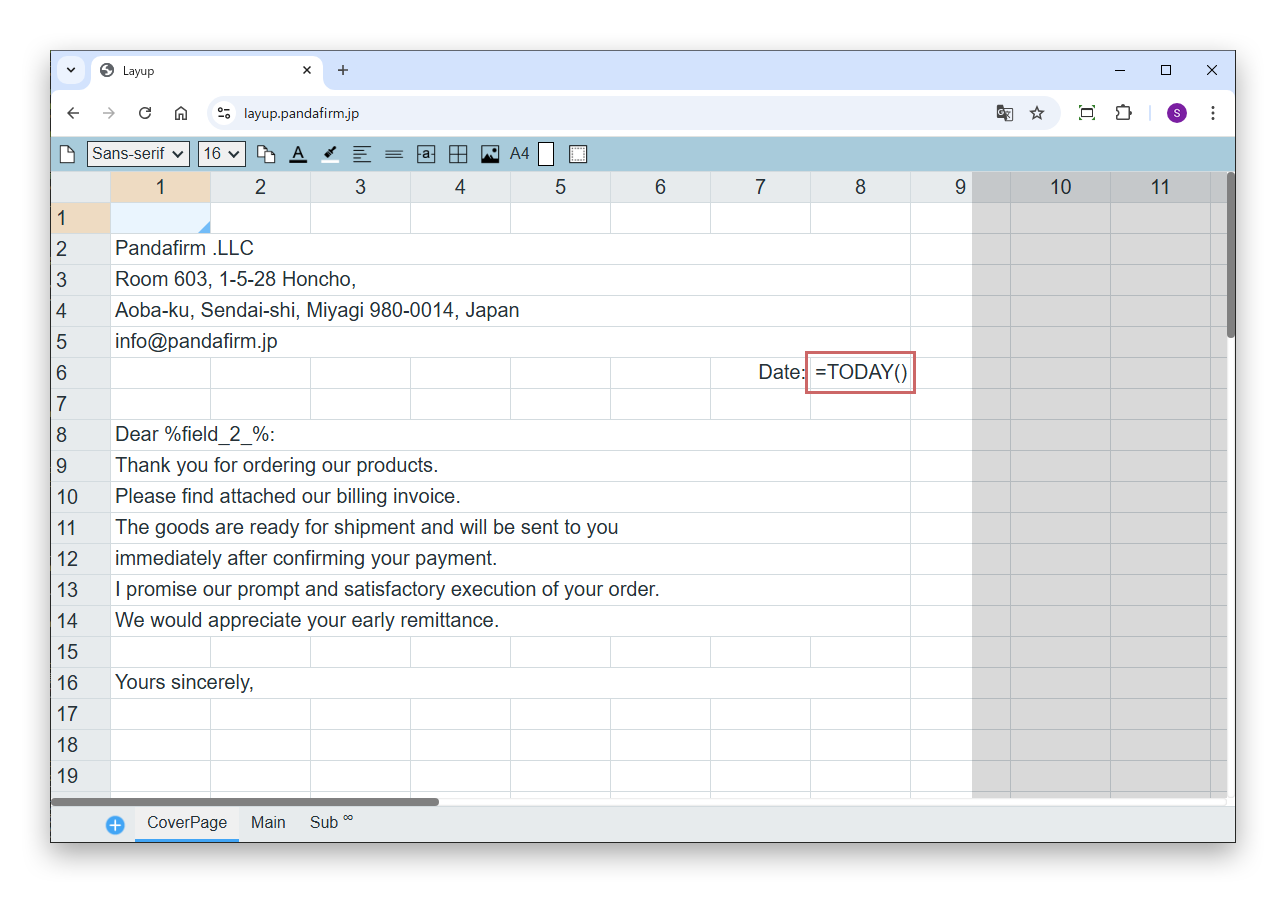
In Layup, you can use functions for the output date and for date formats. To enter a function, start with "=". The available functions are TODAY and DATE_FORMAT.

Functions

TODAY(format)
Returns today's date in the specified format. Enclose the format in double quotation marks. If the format is omitted, the date is returned in the "Y-m-d" format.
DATE_FORMAT(date, format)
Converts a date to the specified format and returns it. Specify "%field code%" for the date, and enclose the format in double quotation marks. If the value cannot be read as a date, the cell is left blank.

In the format, you can use Y (4-digit year), y (2-digit year), m (2-digit month), d (2-digit day), H (24-hour), h (12-hour), i (2-digit minutes), s (2-digit seconds) and w (day of the week). The following examples print, from the top, the output date and the date in the field (InvoiceDate) in the "10/08/2026" format.

=TODAY("m/d/Y")
=DATE_FORMAT(%InvoiceDate%, "m/d/Y")

To print a calculated date, a number with thousands separators and so on, save the calculation result in a field with Boost! Action before output, and embed that field.

Save calculation results in fields with Boost! Action +