Create a project
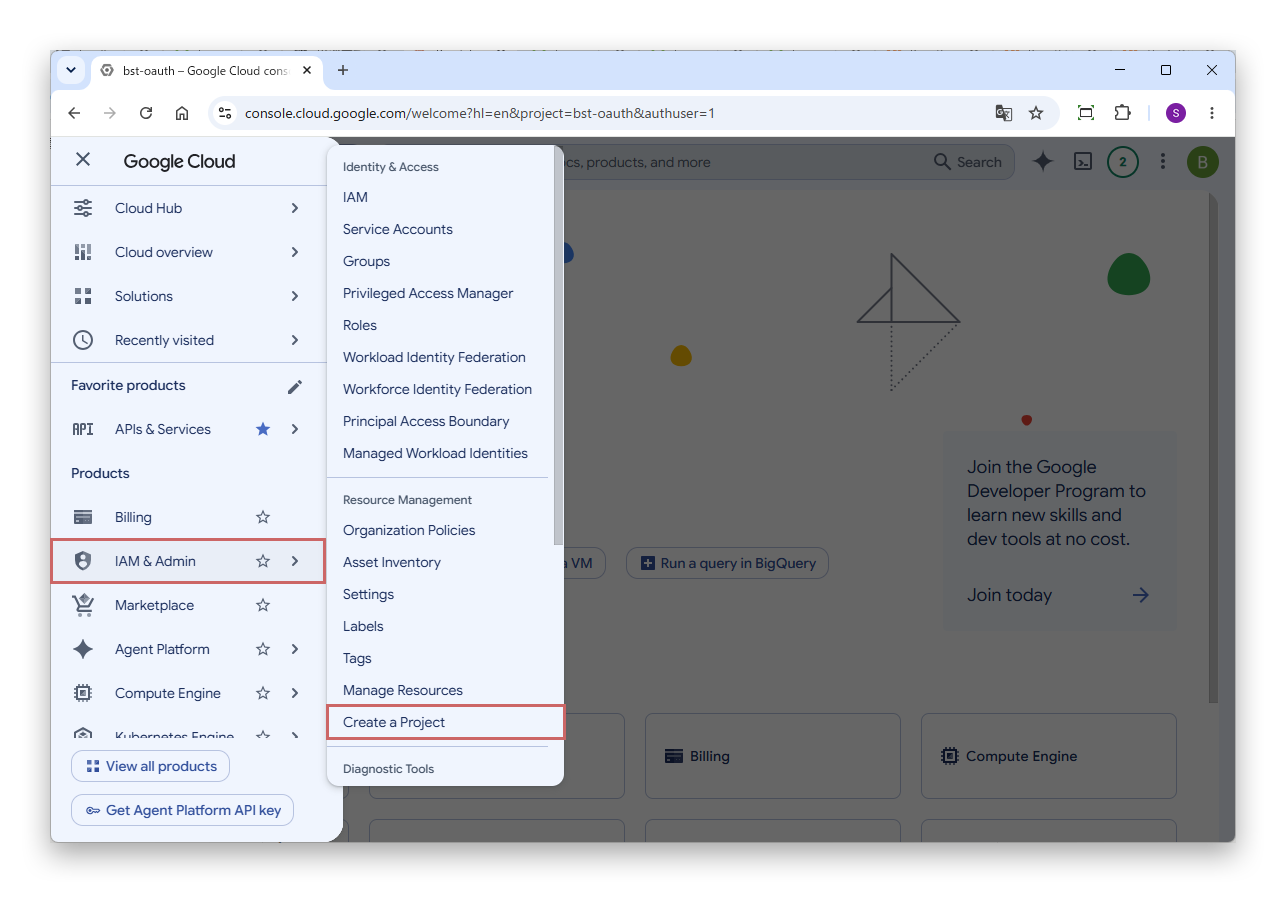
Go to the Google Cloud Console and select "IAM & Admin" > "Create a project" from the navigation menu.
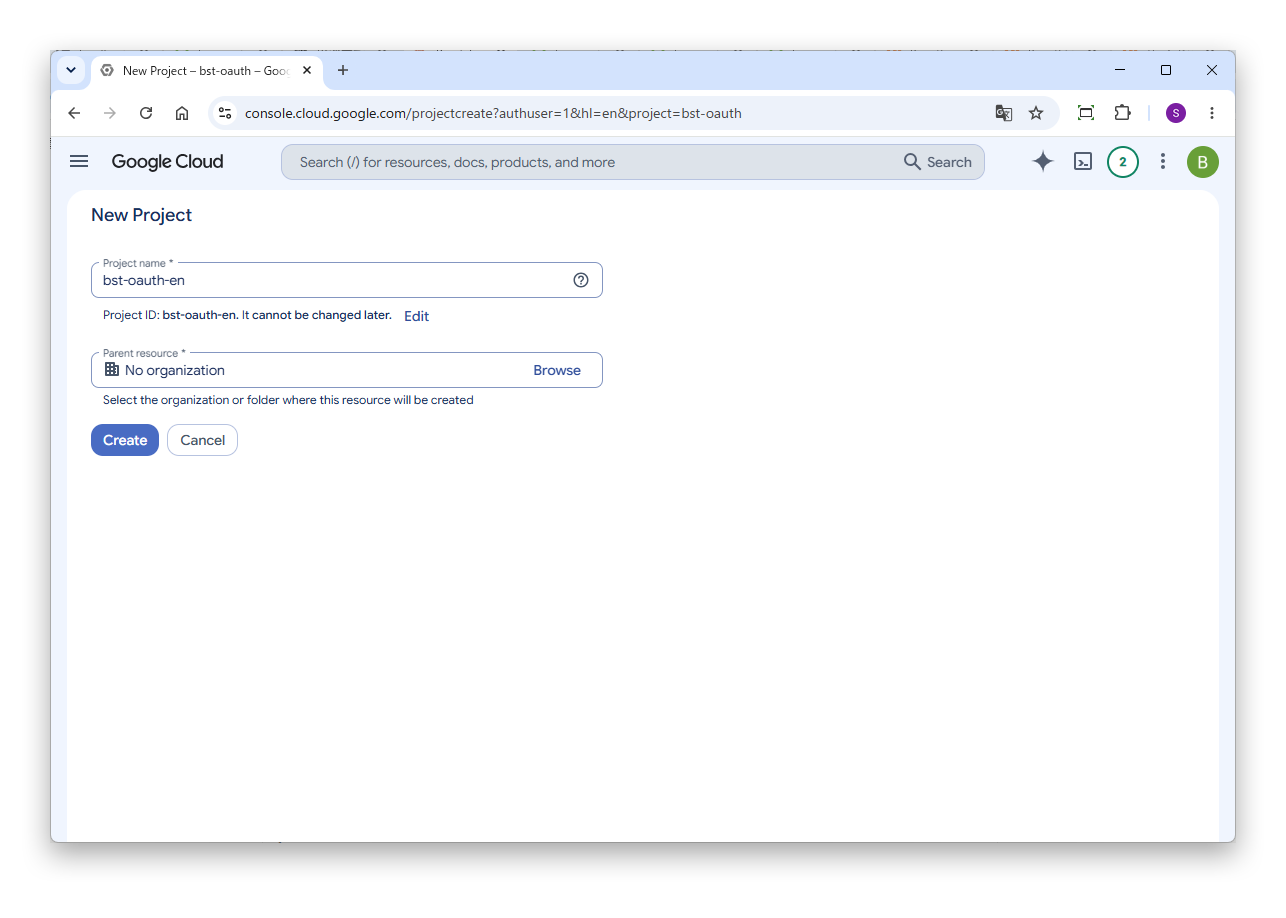
On the "New Project" screen, enter any project name and click "Create".
Boost! OAuth Mail and Boost! OAuth IMAP authenticate with a token instead of an ID and password. This page introduces how to get, in Google Cloud, the client ID and client secret needed to obtain that token.

Go to the Google Cloud Console and select "IAM & Admin" > "Create a project" from the navigation menu.
On the "New Project" screen, enter any project name and click "Create".
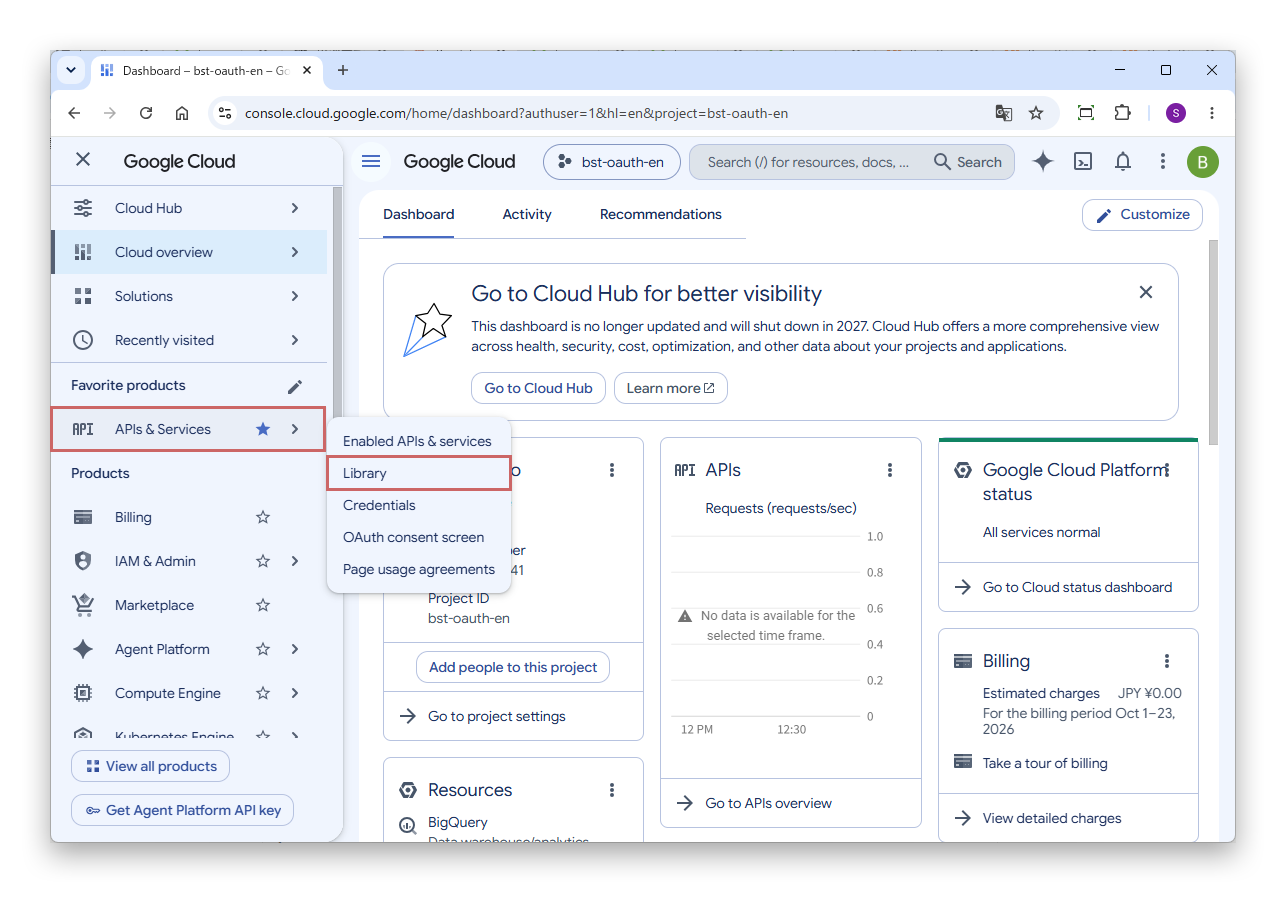
Select "APIs & Services" > "Library" from the navigation menu.
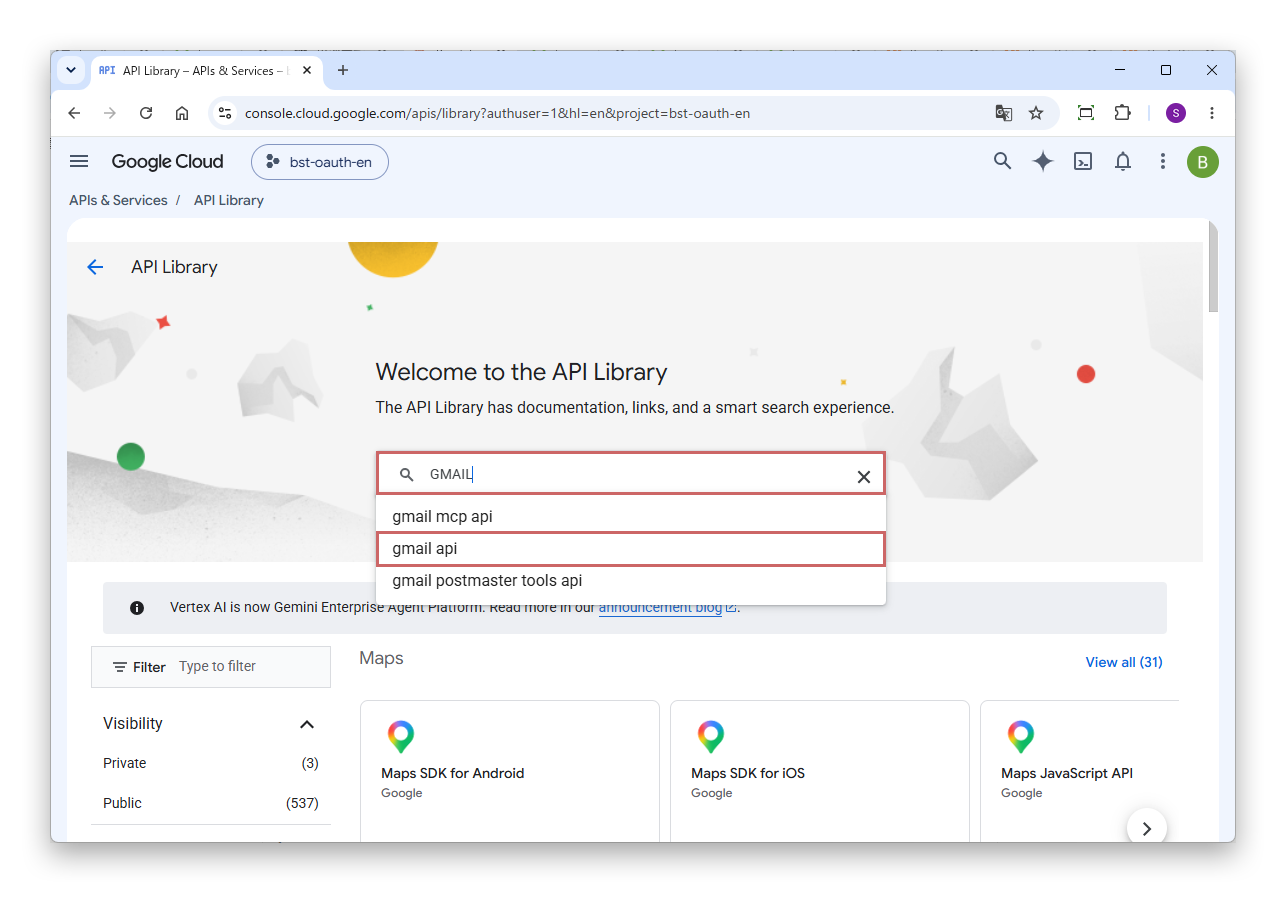
Enter "GMAIL" in the search box in the center of the screen and select "gmail api" from the list shown.
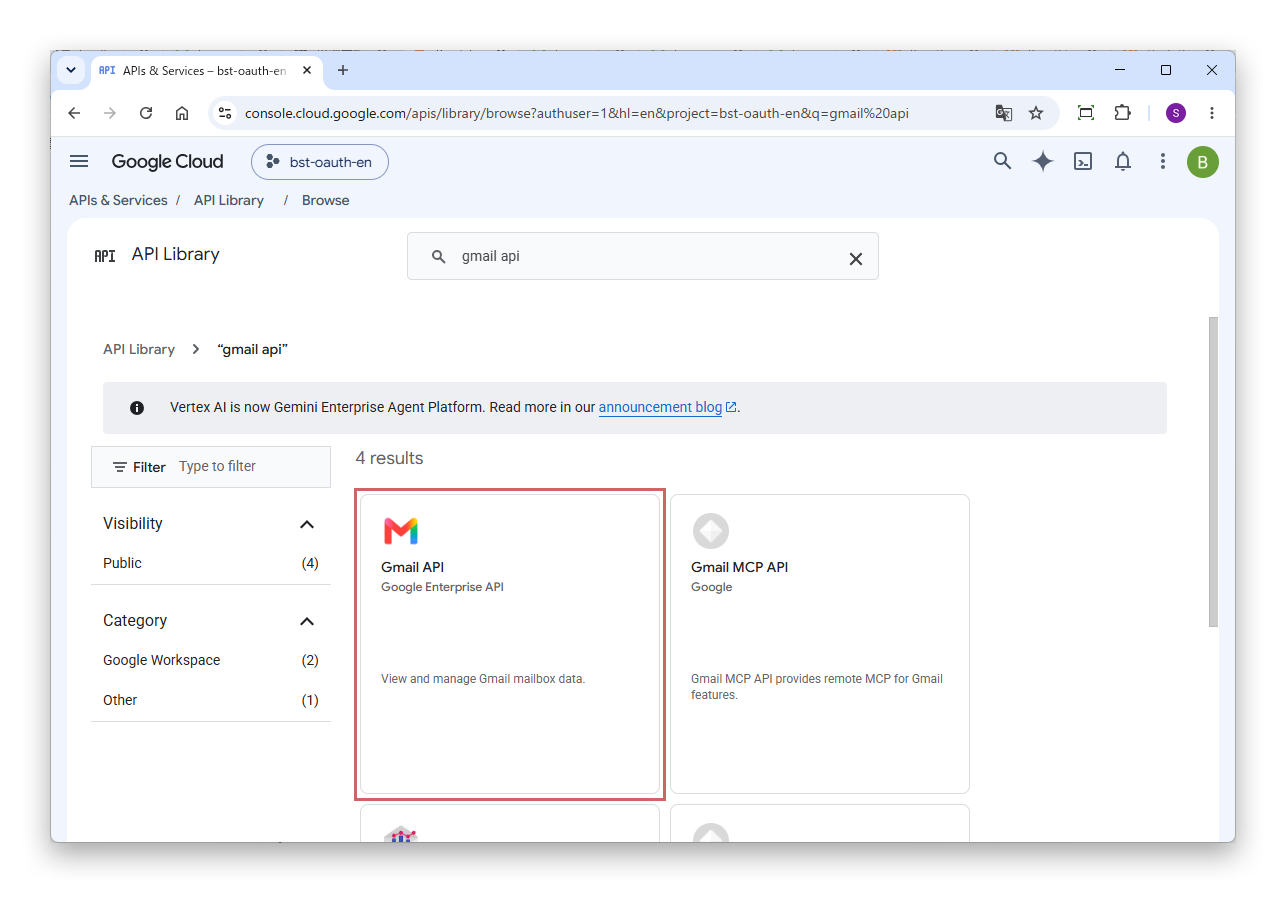
Click "Gmail API" in the list shown.
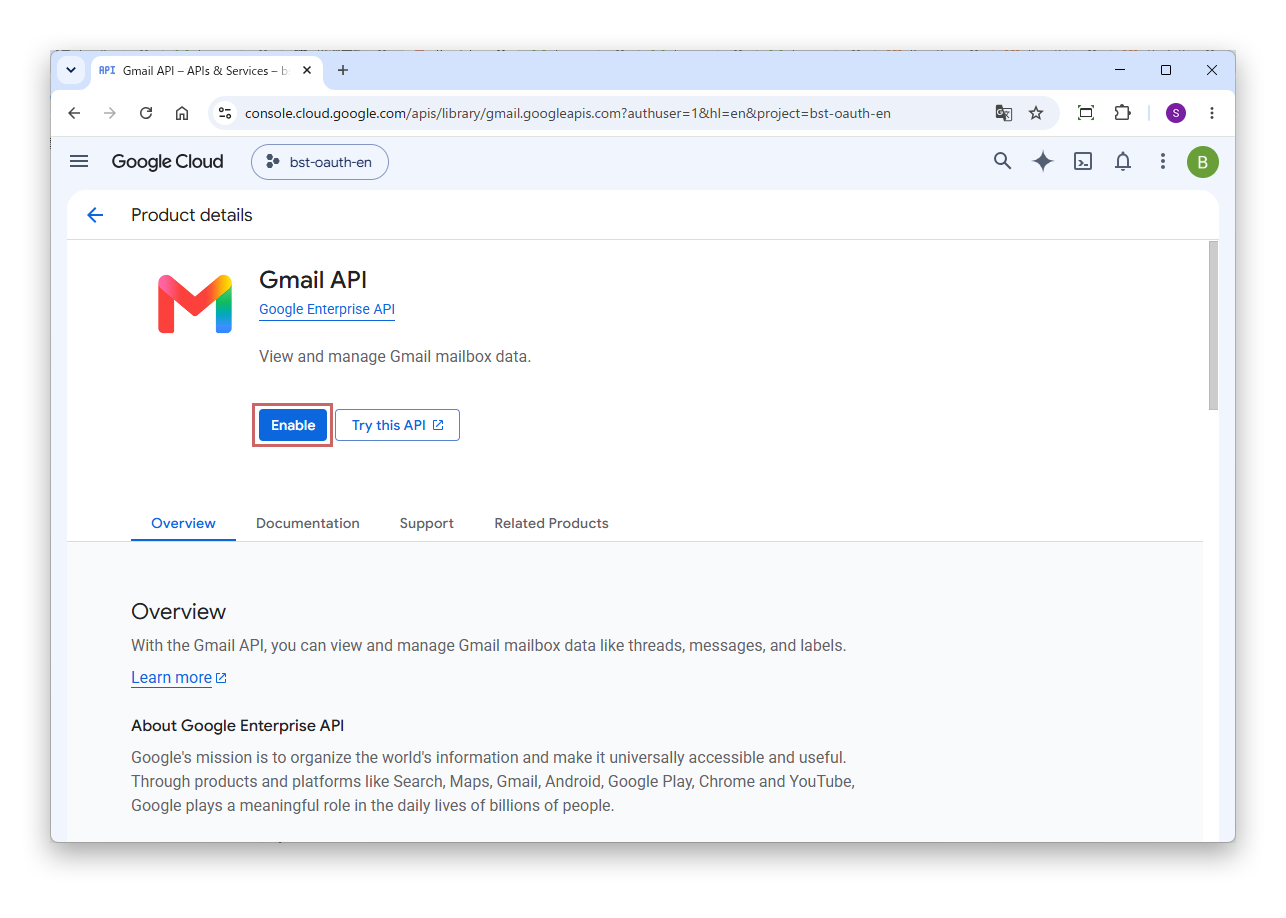
On the "Product details" screen, click "Enable".
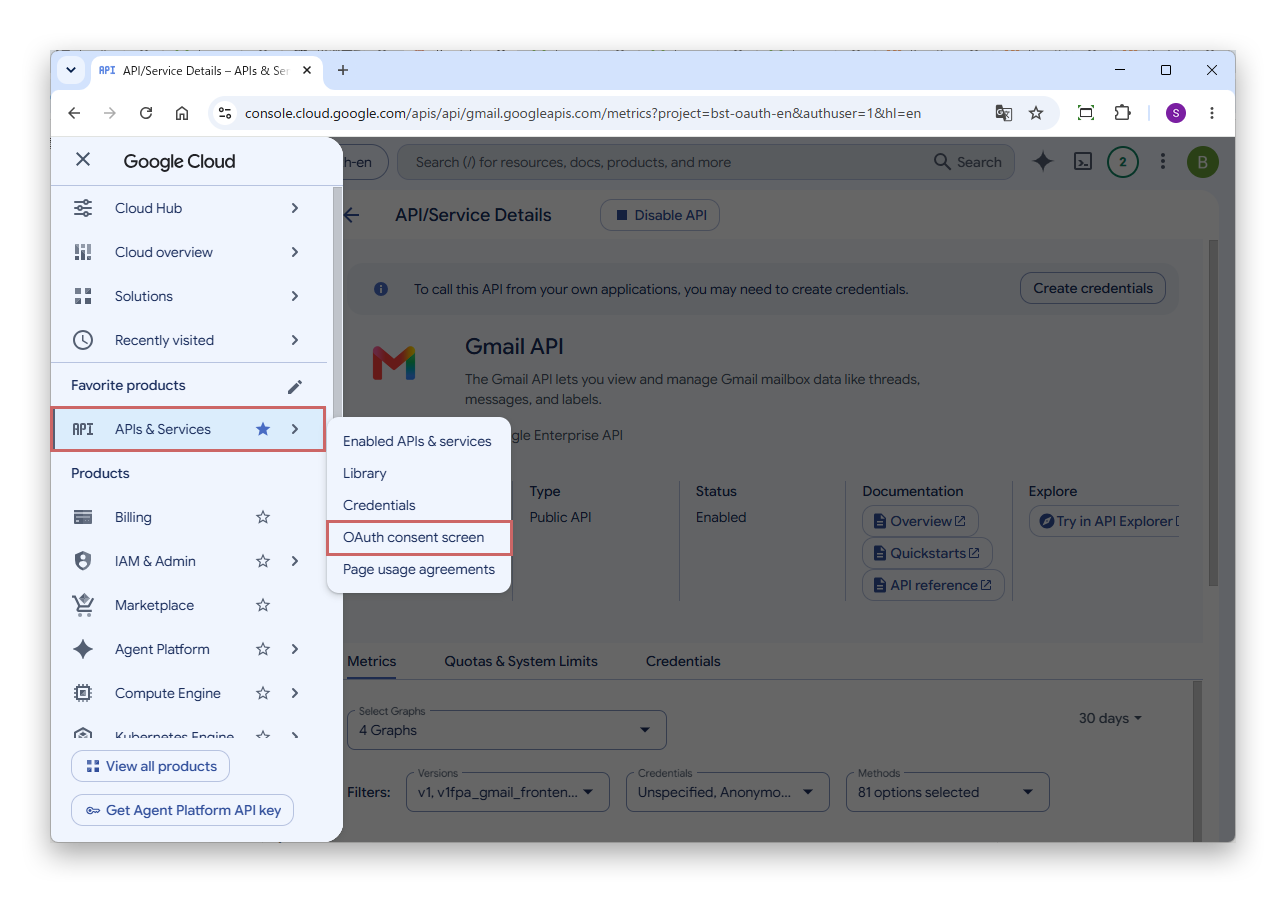
Select "APIs & Services" > "OAuth consent screen" from the navigation menu.
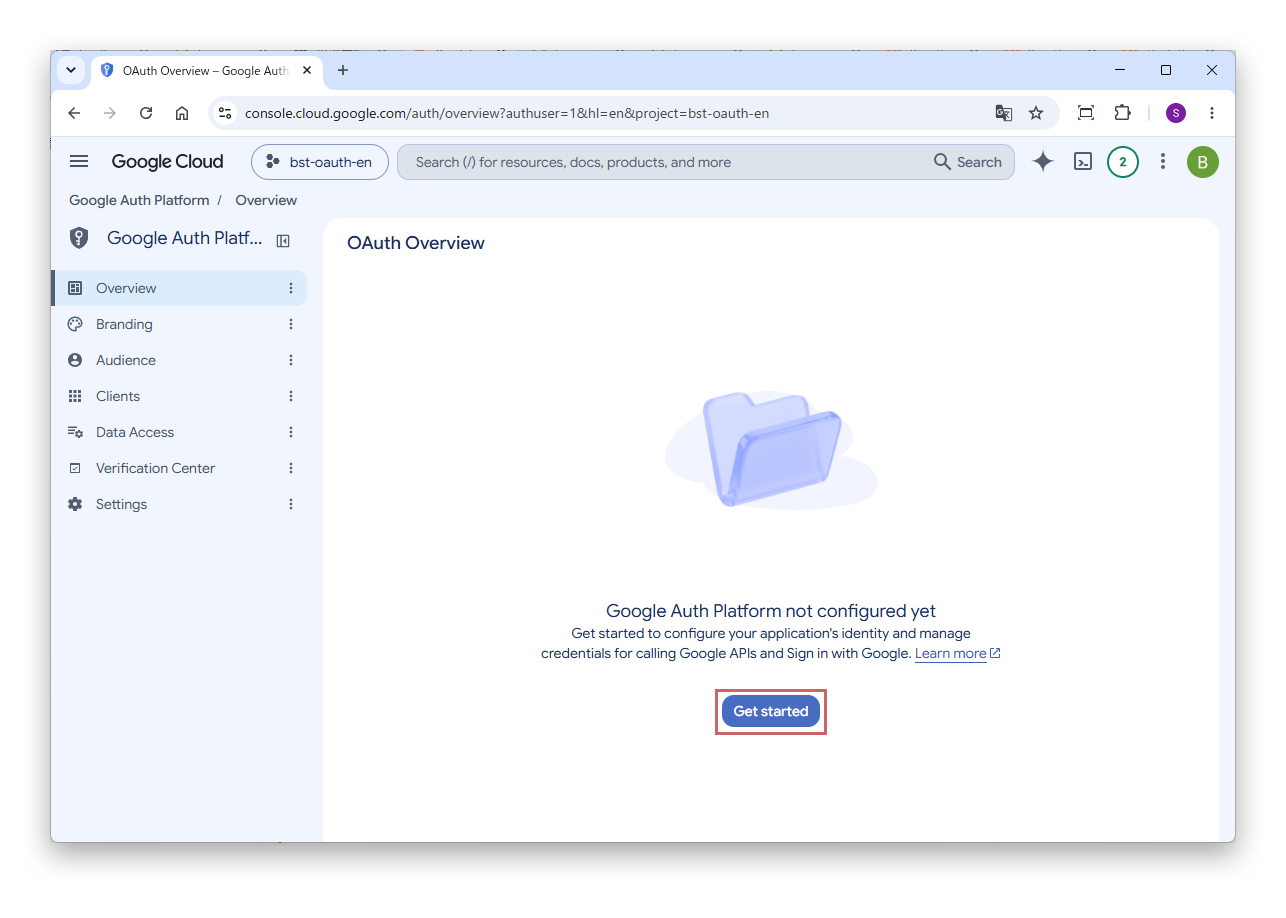
When the Google Auth Platform screen appears, click "Get started".
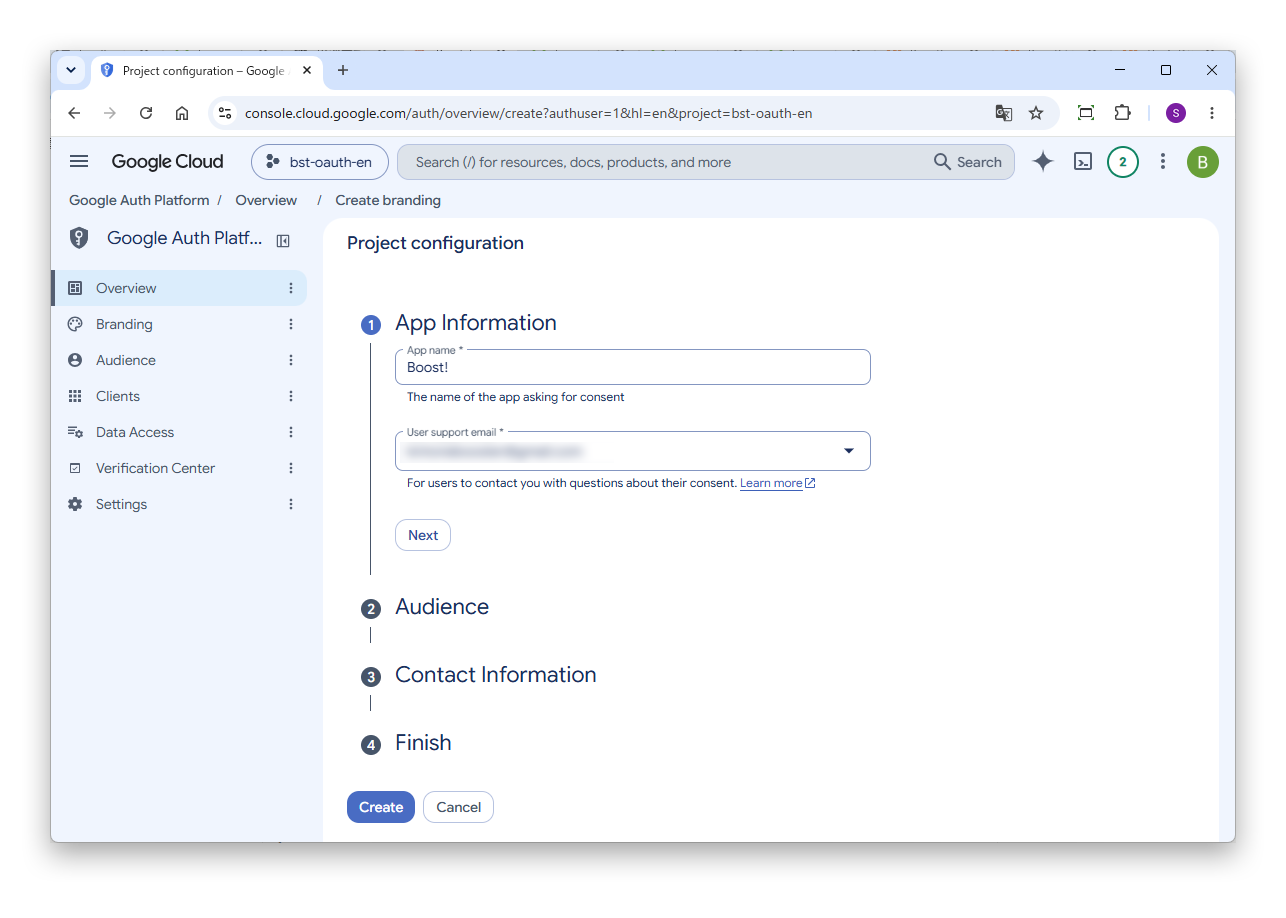
Under "App Information", enter the following and click "Next".
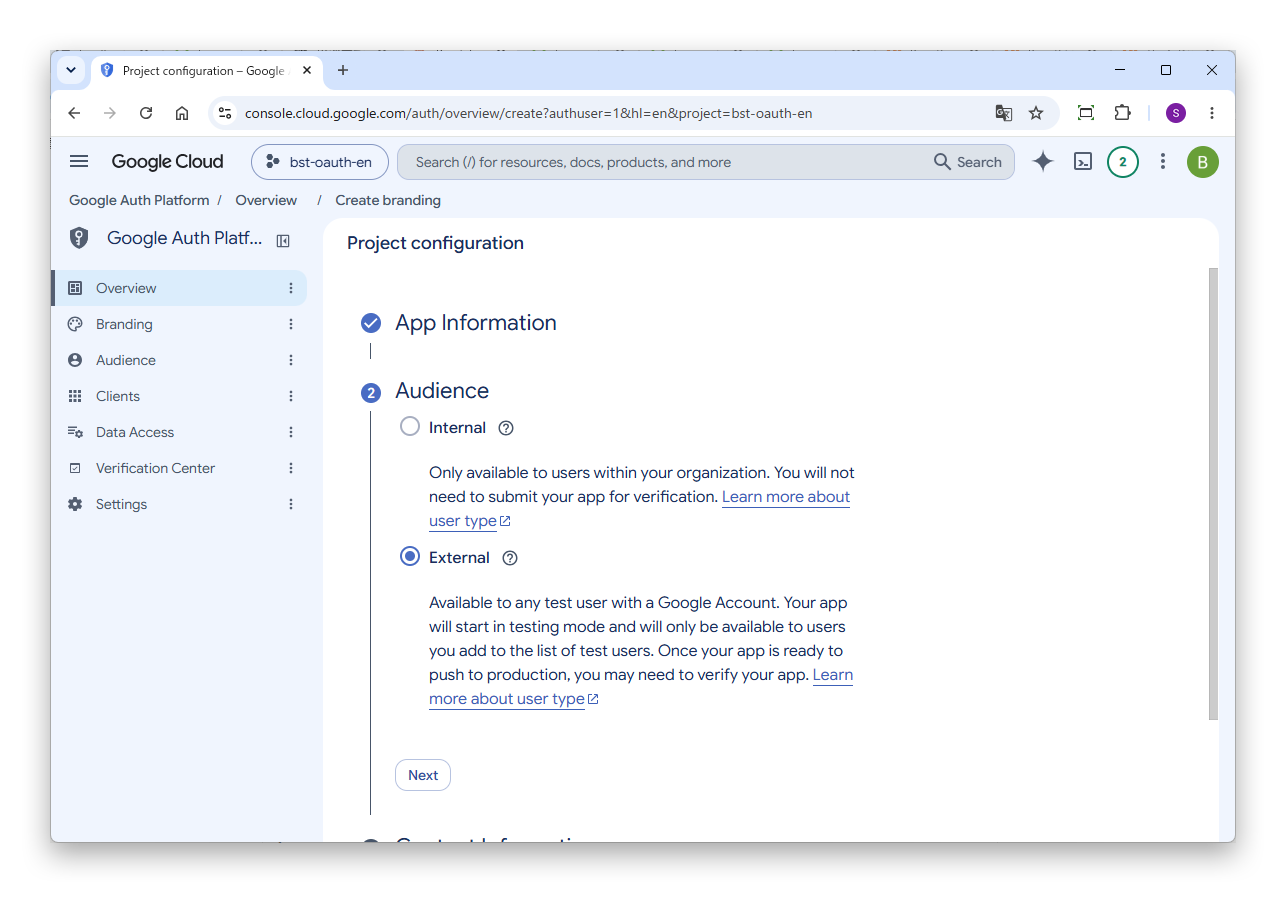
Under "Audience", select "External" and click "Next".
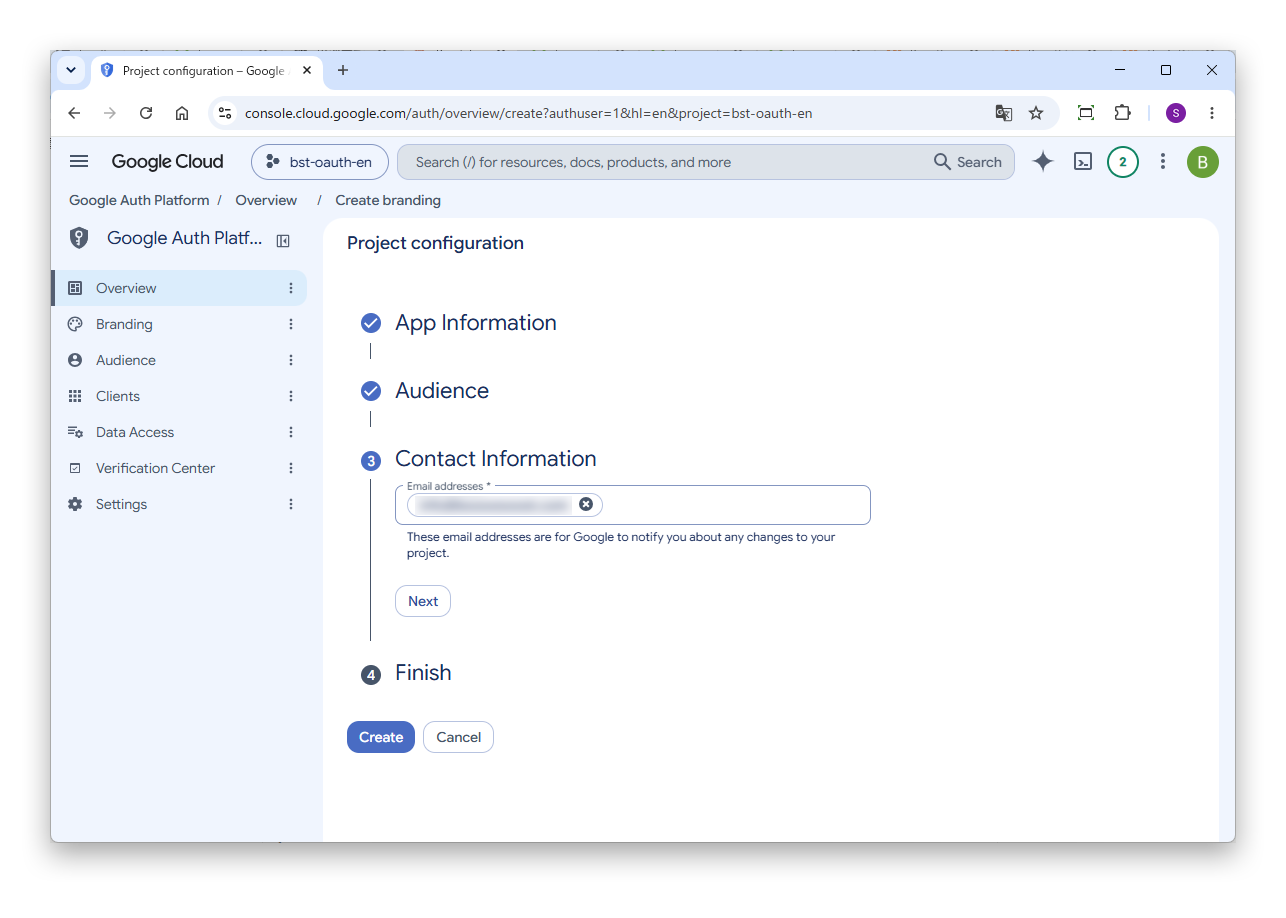
Under "Contact Information", enter the email address at which you receive notices from Google, and click "Next".
Notices, for example when unused clients are deleted, are sent to this email address. Enter an email address that you check regularly.
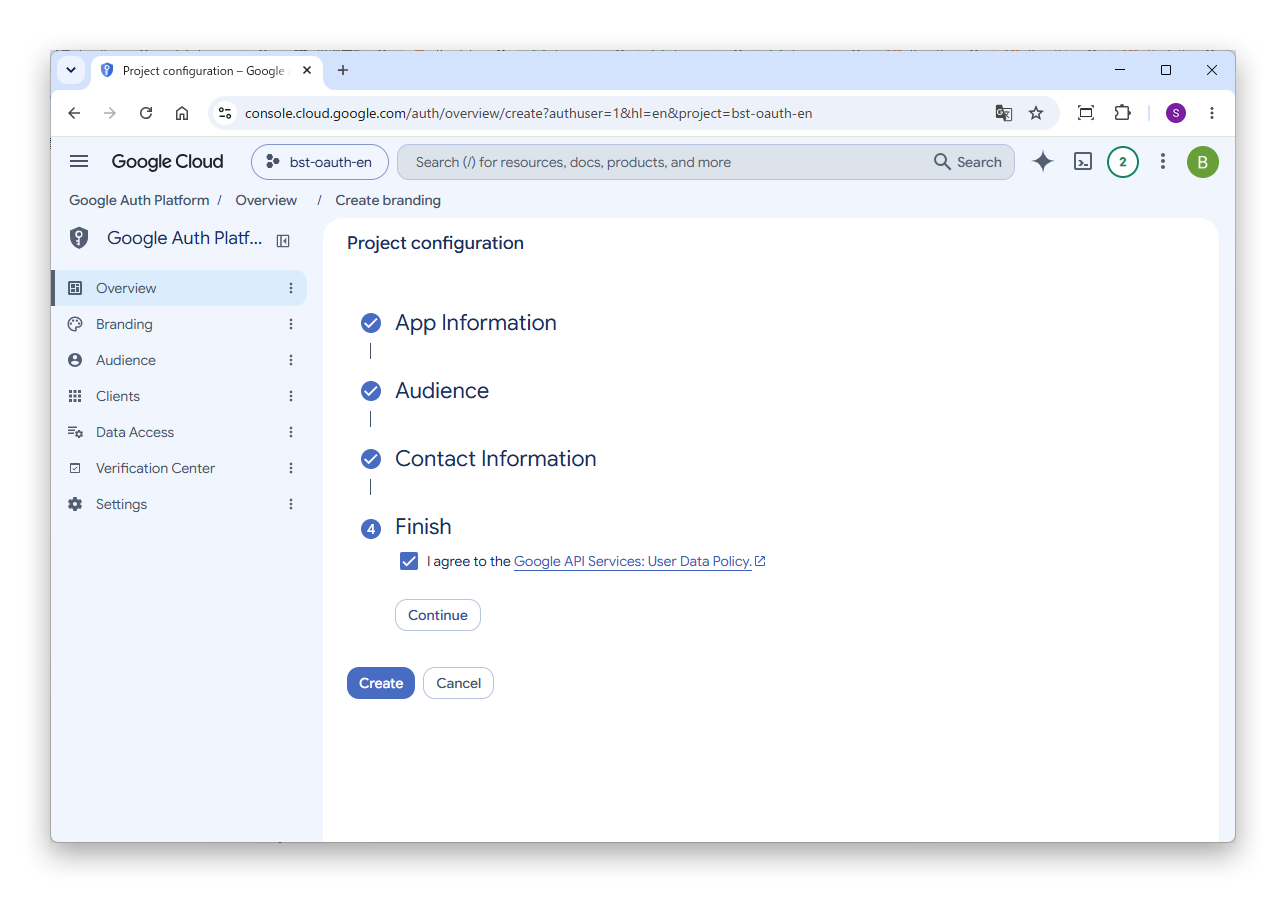
Under "Finish", select the check box to agree to the "Google API Services: User Data Policy", click "Continue", then click "Create".
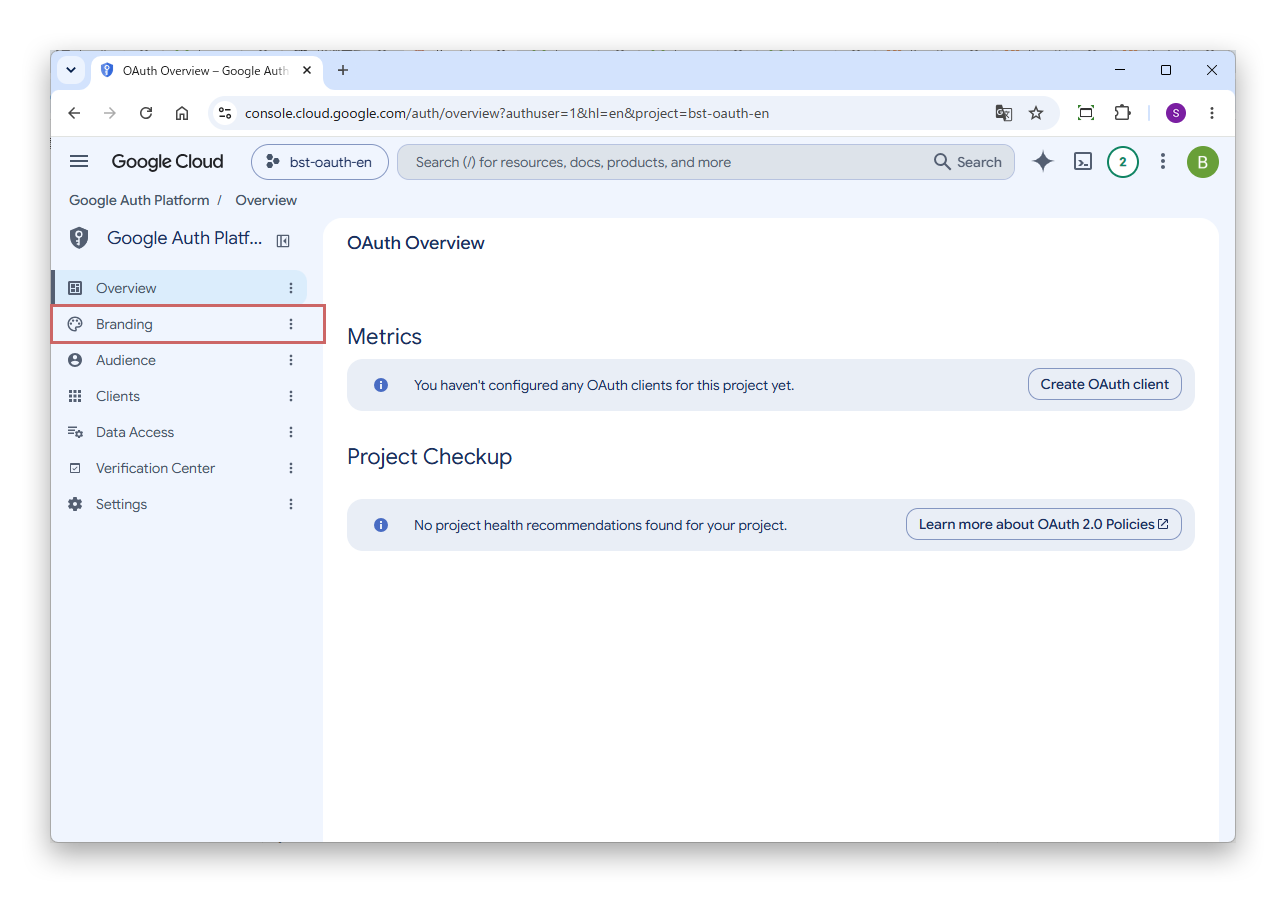
When creation is complete, the "OAuth Overview" screen appears. Select "Branding" from the menu on the left.
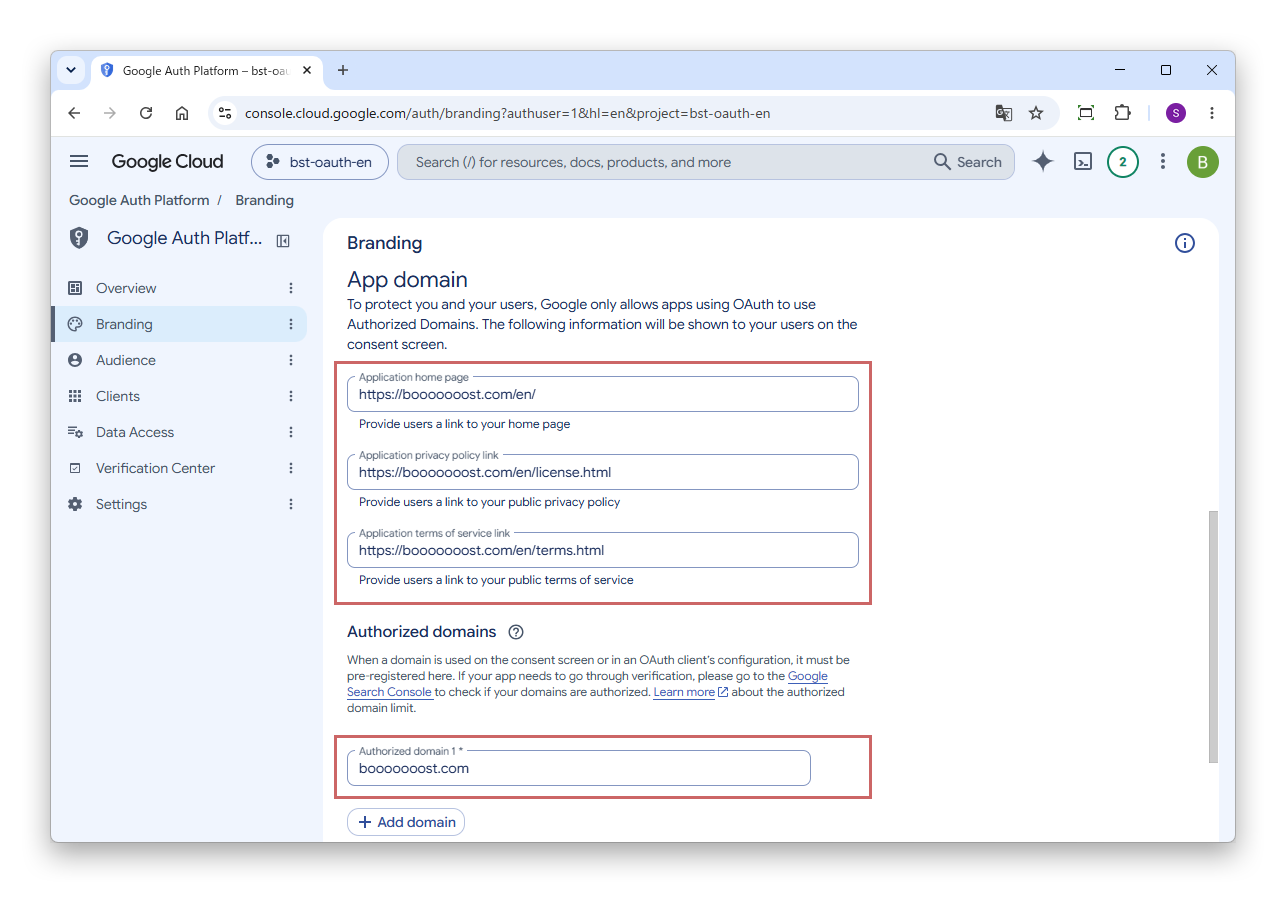
Enter the following in "App domain" and "Authorized domains". For authorized domains, click "Add domain" to show the input box.
https://booooooost.com/en/https://booooooost.com/en/license.htmlhttps://booooooost.com/en/terms.htmlbooooooost.com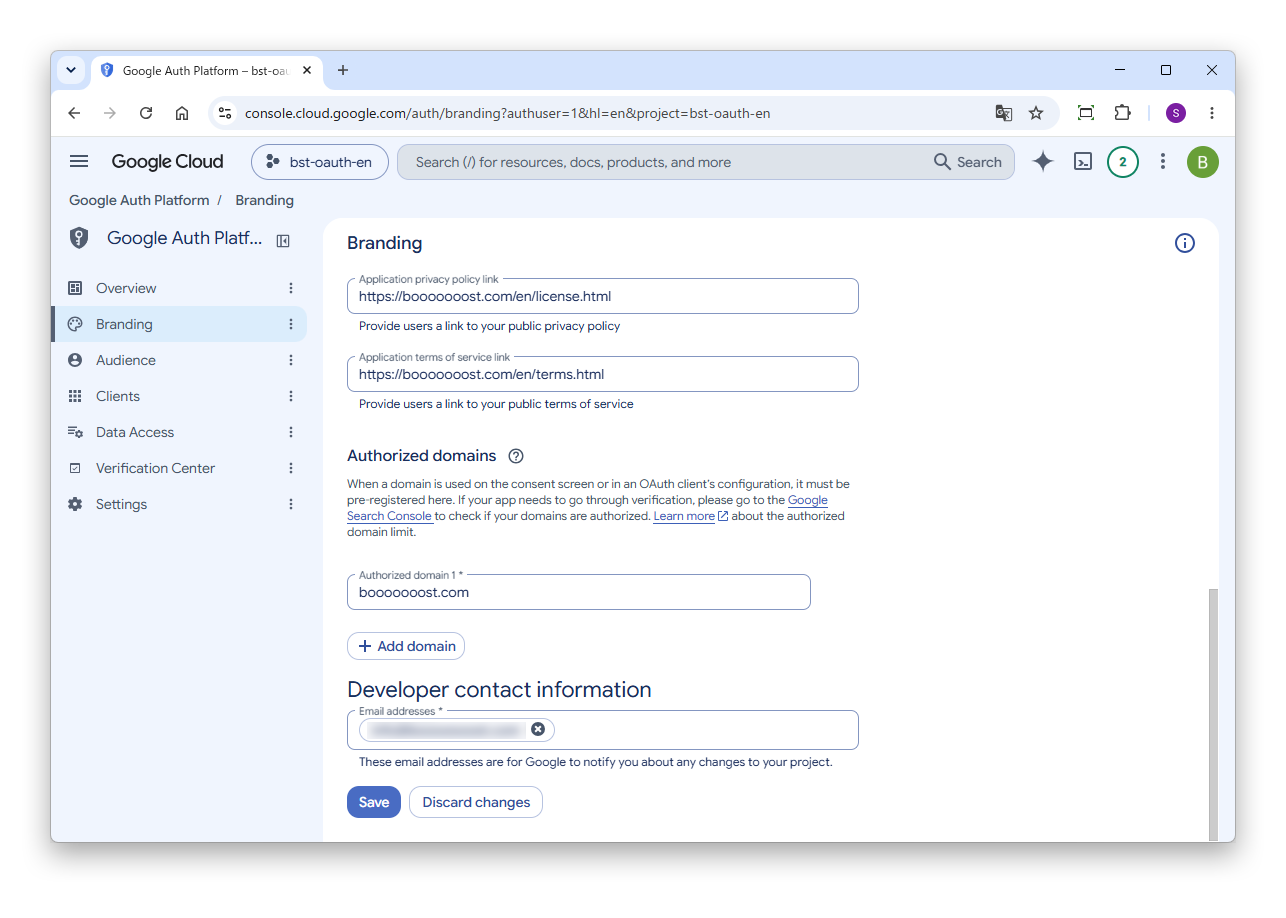
When you have finished entering, click "Save".
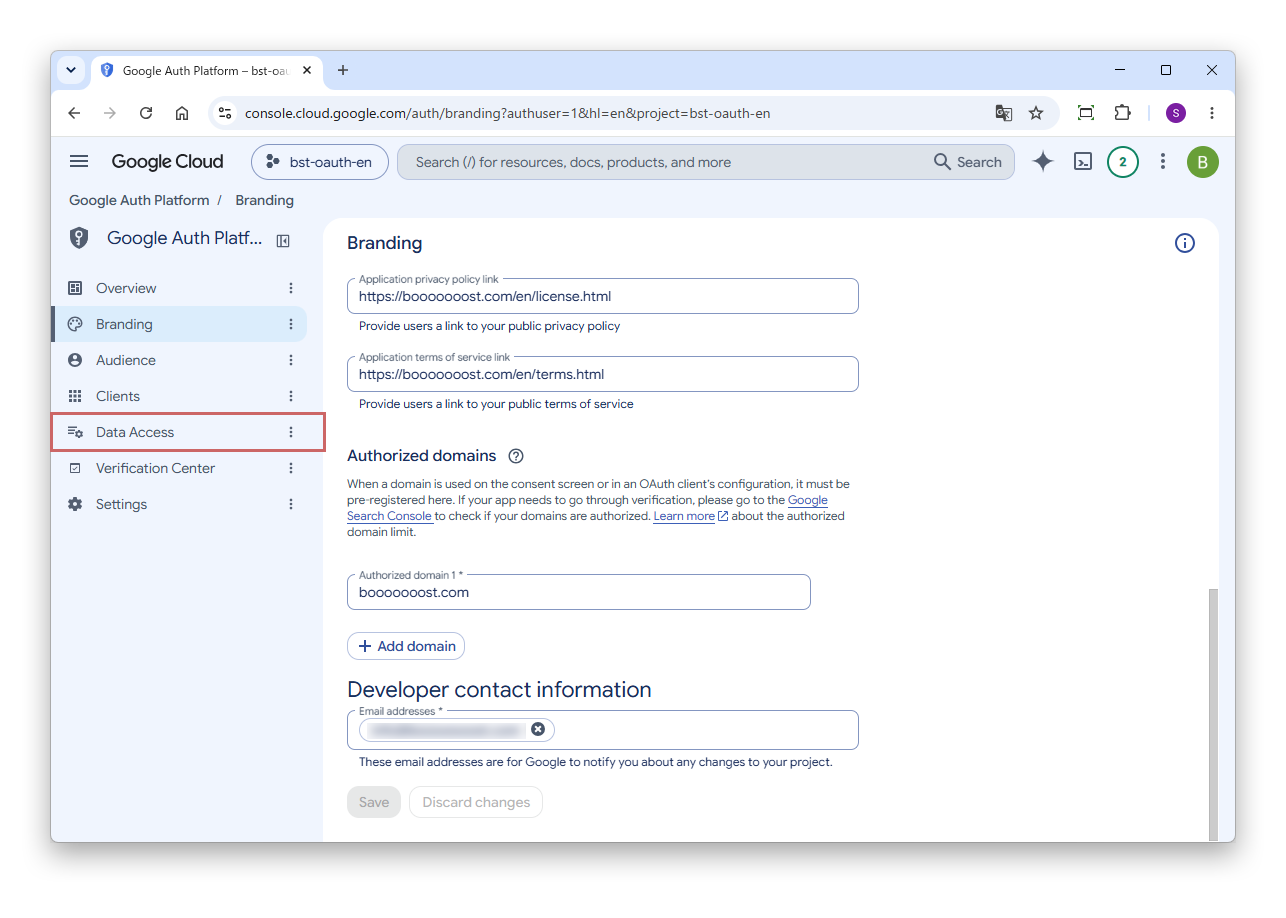
Select "Data Access" from the menu on the left.
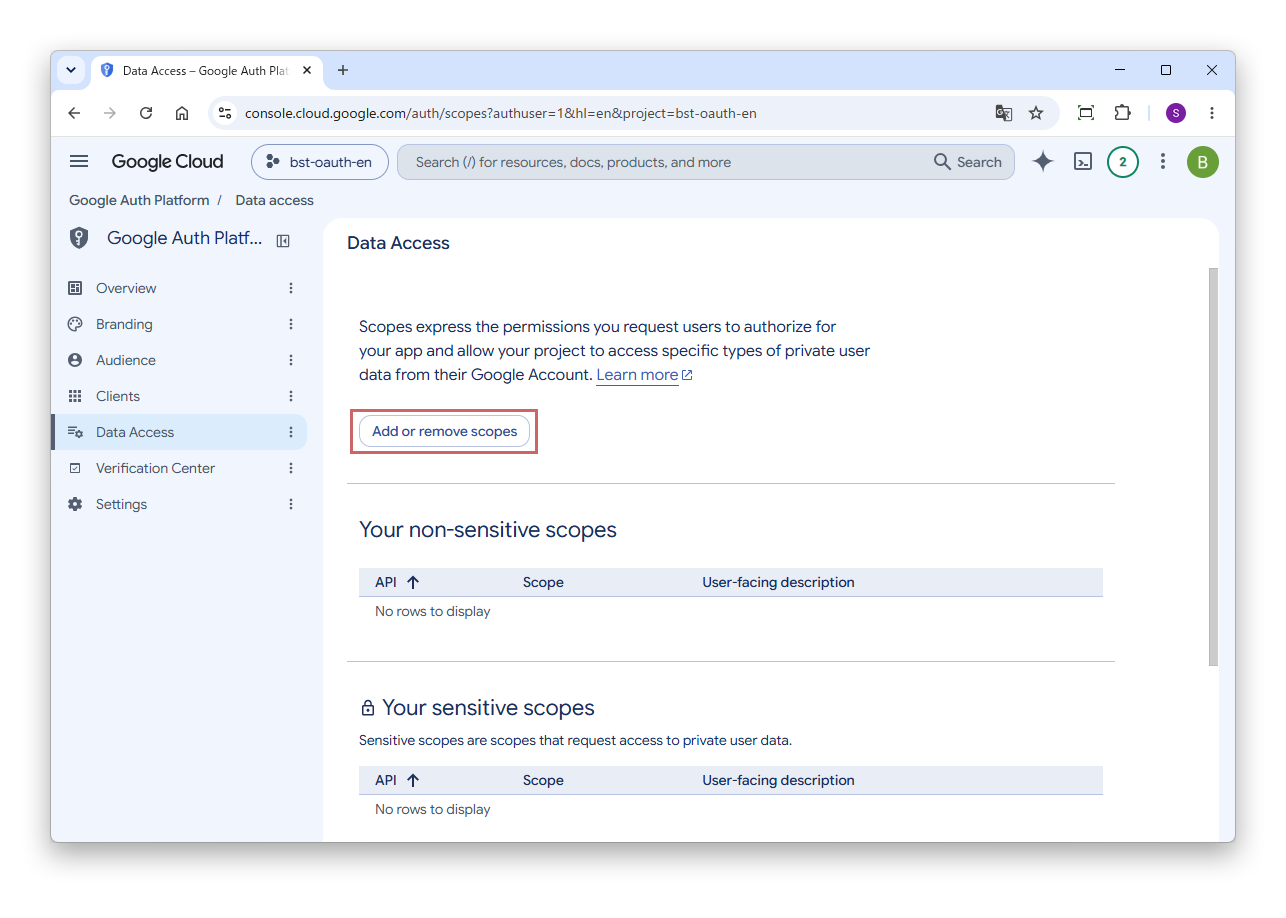
Click "Add or remove scopes".
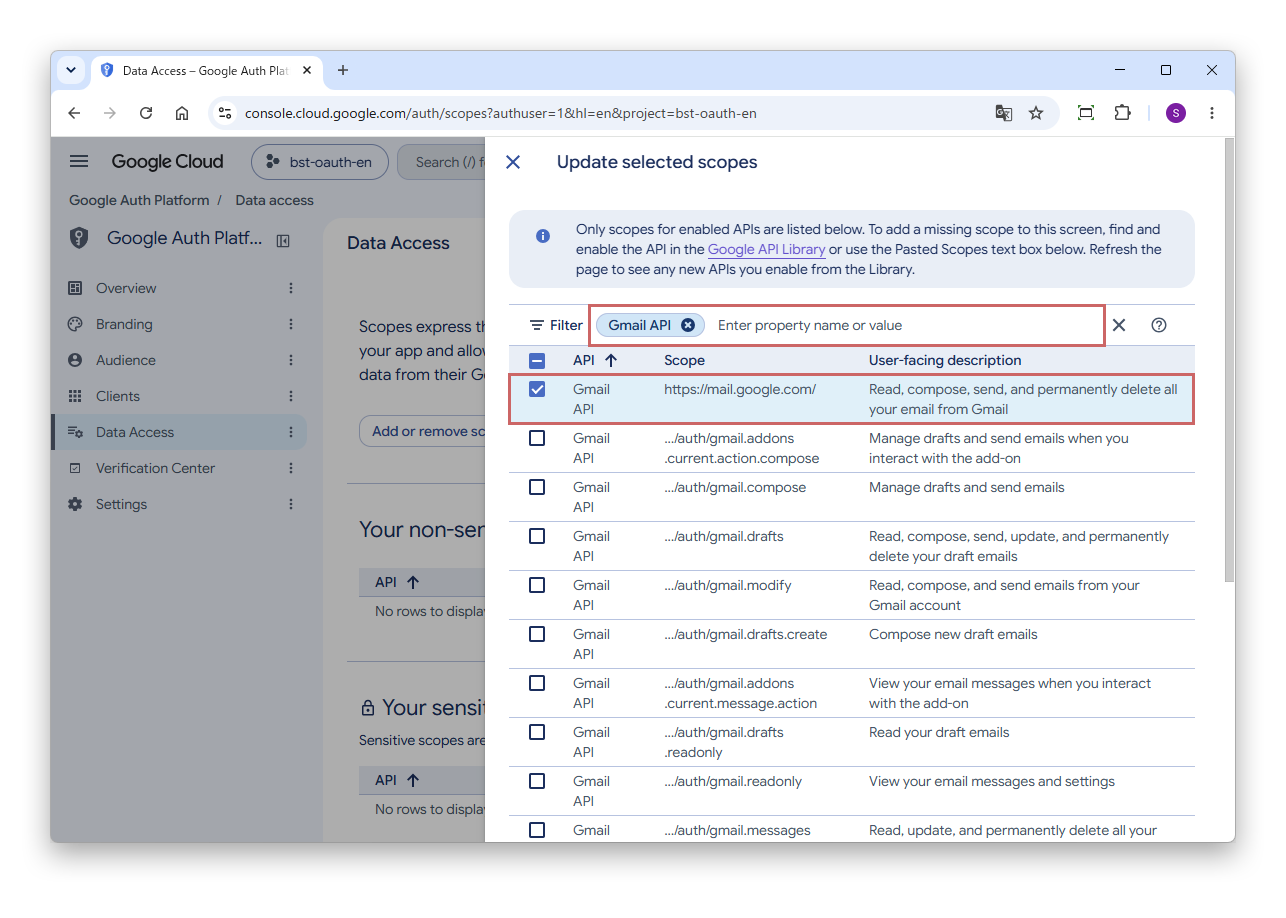
On the "Update selected scopes" screen, set the filter to "Gmail API" and select the row whose scope is "https://mail.google.com/". Click "Update" at the bottom of the screen.
Boost! OAuth Mail and Boost! OAuth IMAP use this scope for both sending and receiving email. They do not work with other scopes.
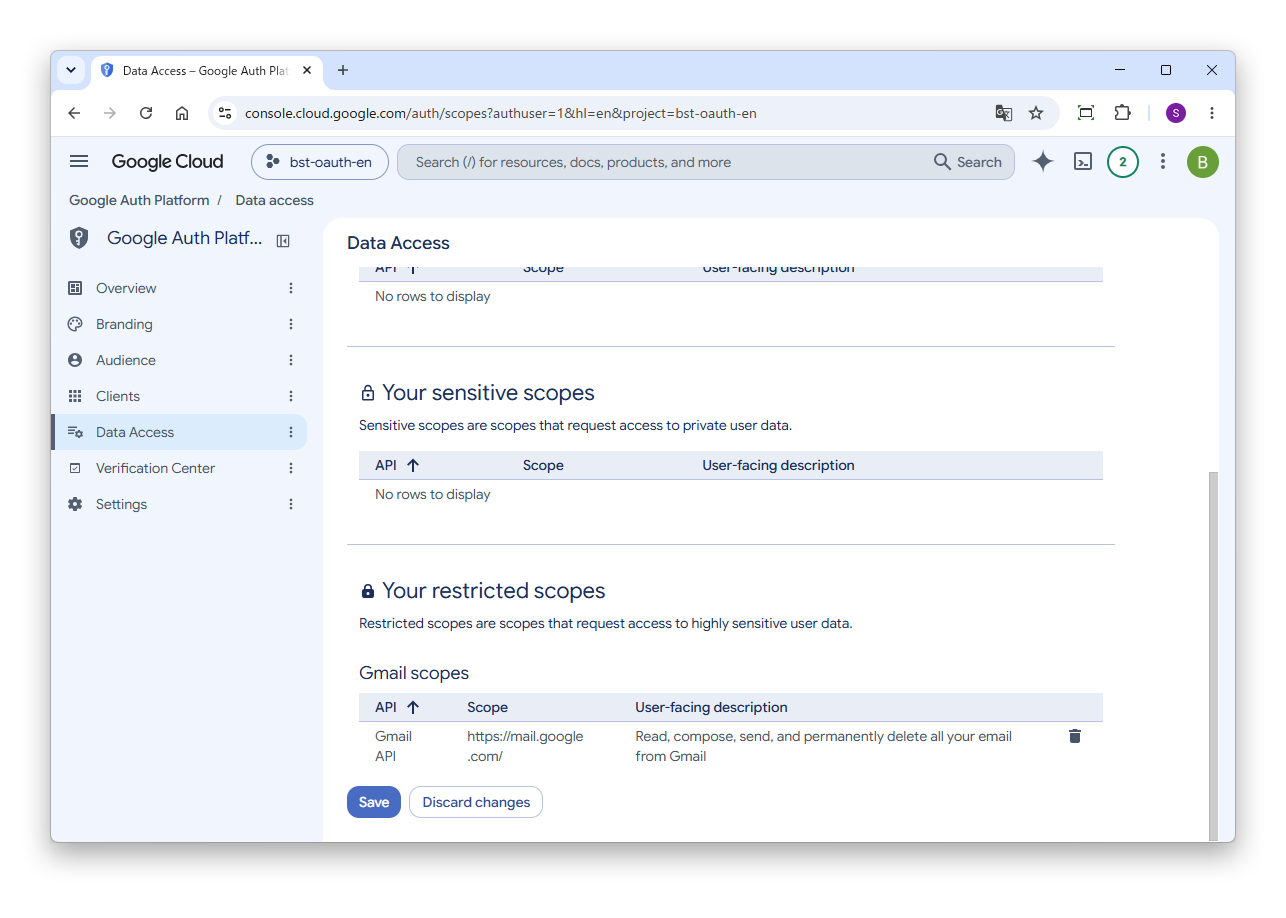
When the added scope appears under "Your restricted scopes", click "Save".
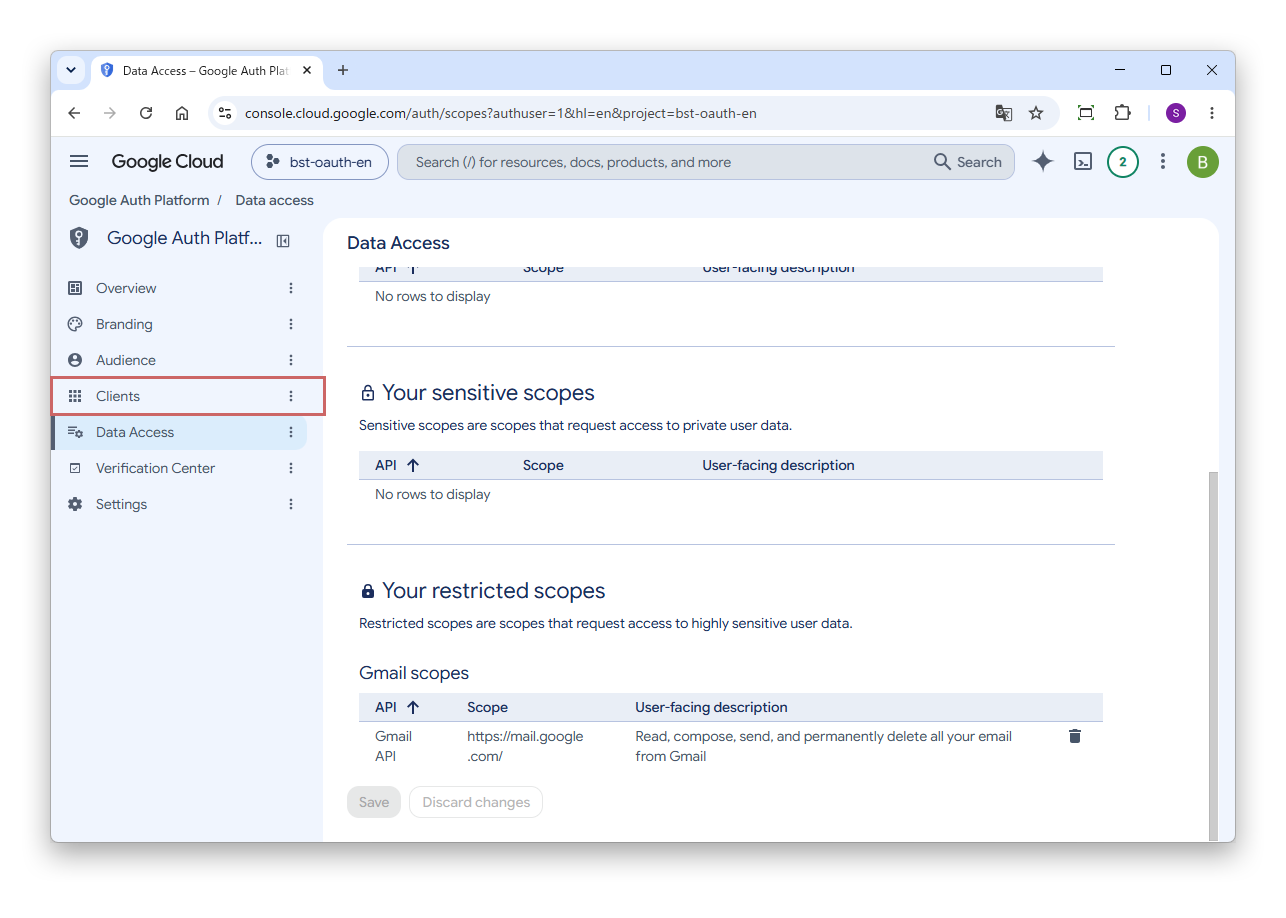
Select "Clients" from the menu on the left.
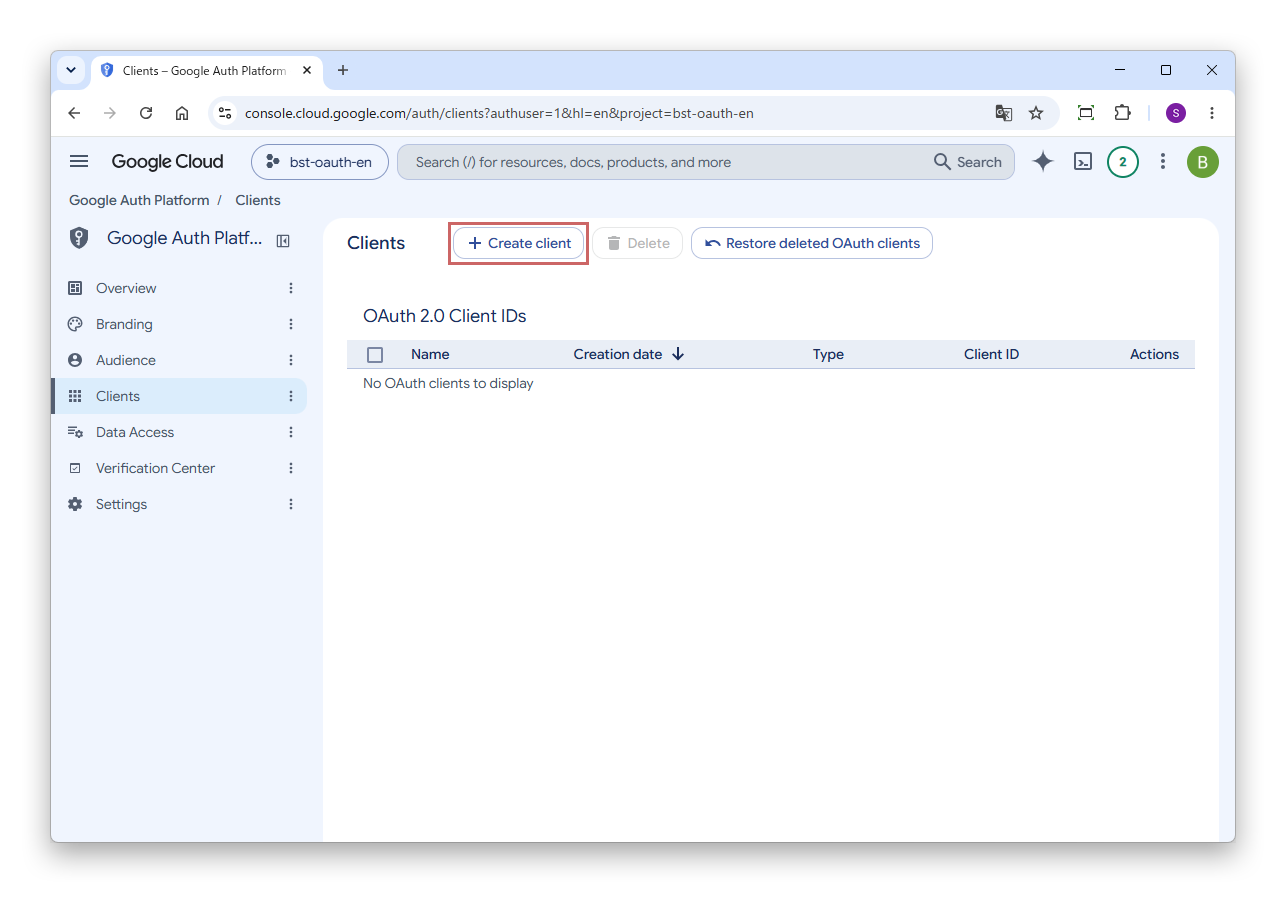
Click "Create client".
Clients that have not been used for six months are deleted automatically by Google. Within 30 days of deletion, you can restore them with the "Restore deleted OAuth clients" button.
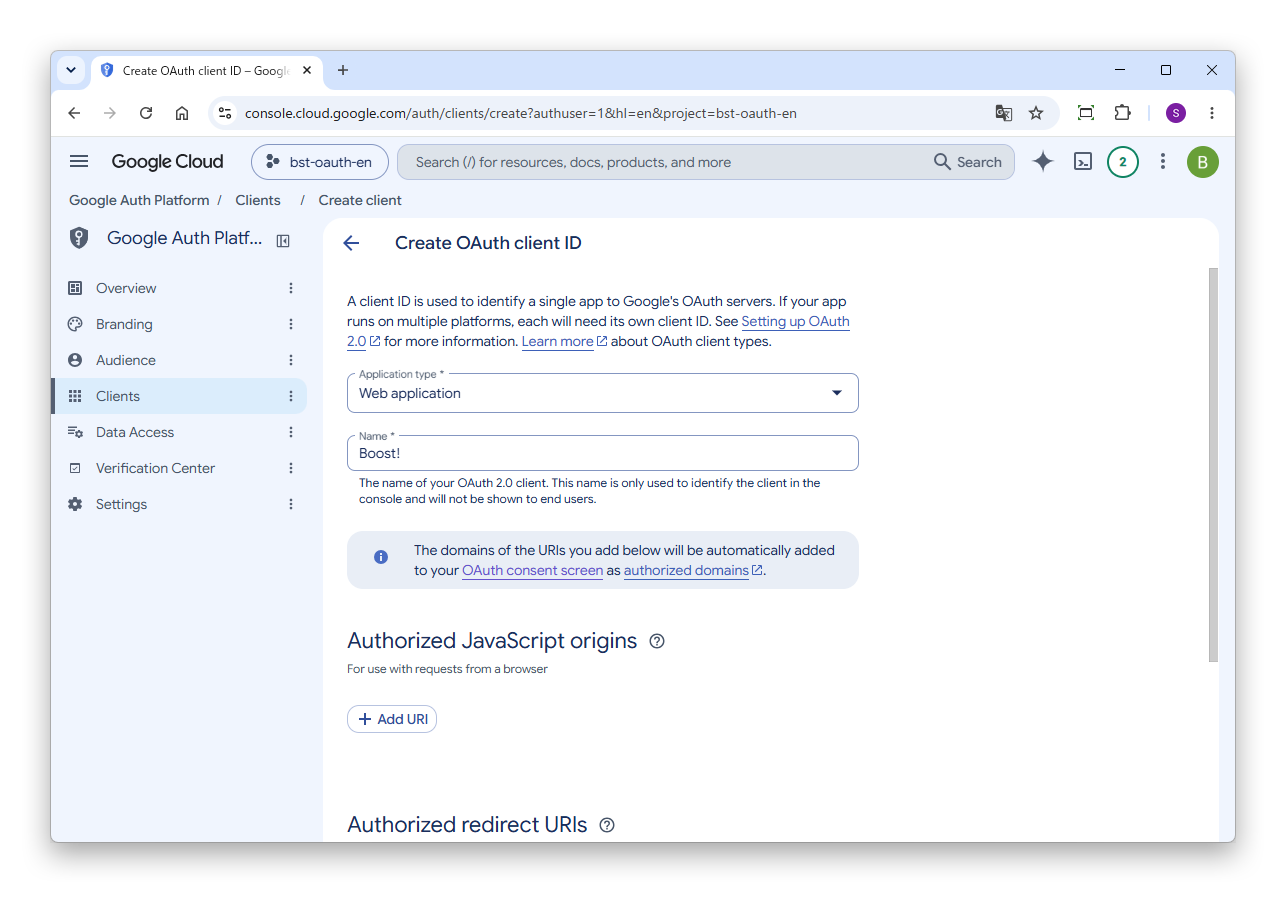
Select "Web application" for "Application type" and enter any name in "Name".
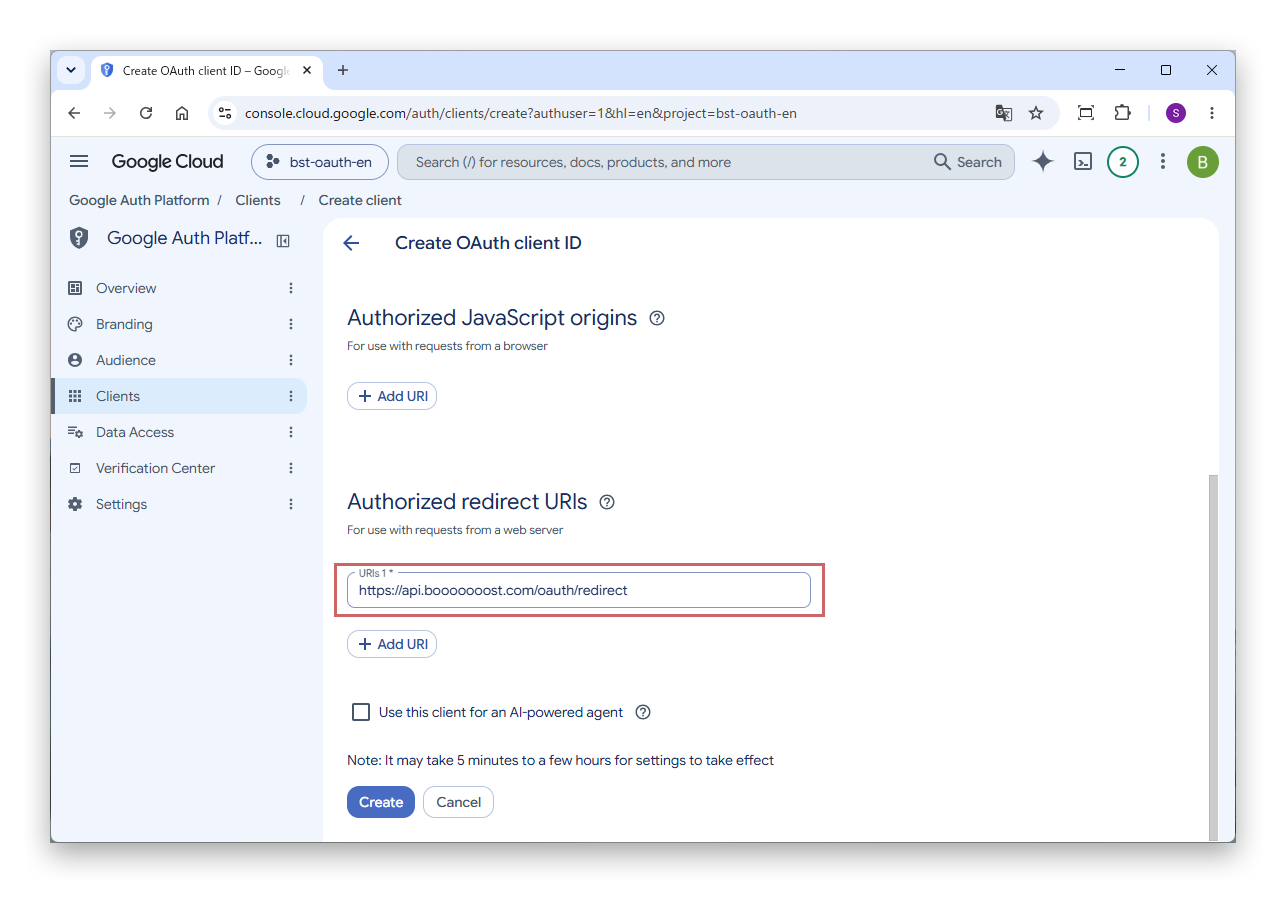
Click "Add URI" under "Authorized redirect URIs", enter the following URL, and click "Create".
https://api.booooooost.com/oauth/redirectEnter the URL in "Authorized redirect URIs", not in "Authorized JavaScript origins" above it.
It may take from five minutes to a few hours for the settings to take effect. If you cannot authenticate right after creating the client, wait a while and try again.
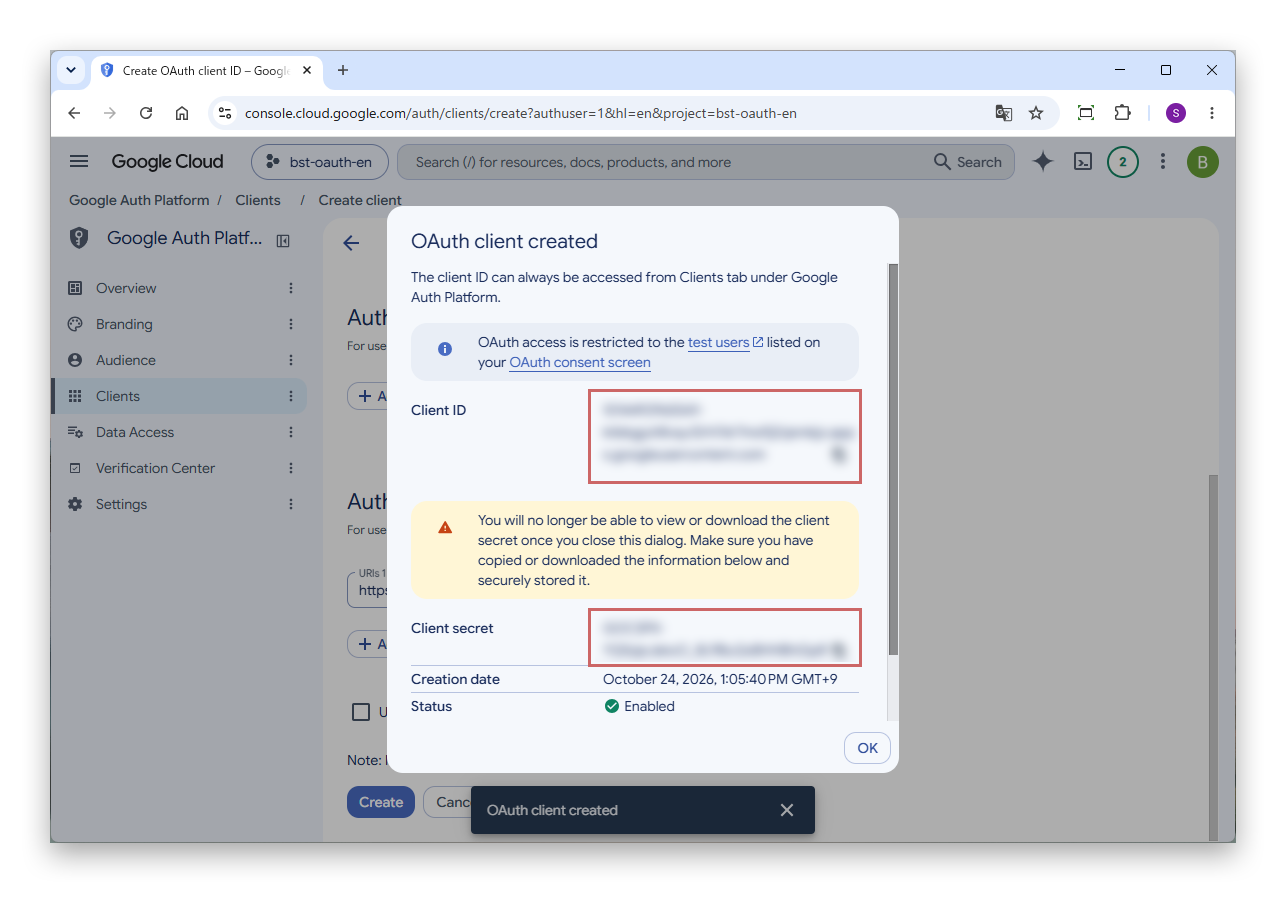
When creation is complete, the client ID and client secret are shown. Copy each of them.
The client secret is never shown again once you close this screen. Be sure to copy it on this screen.
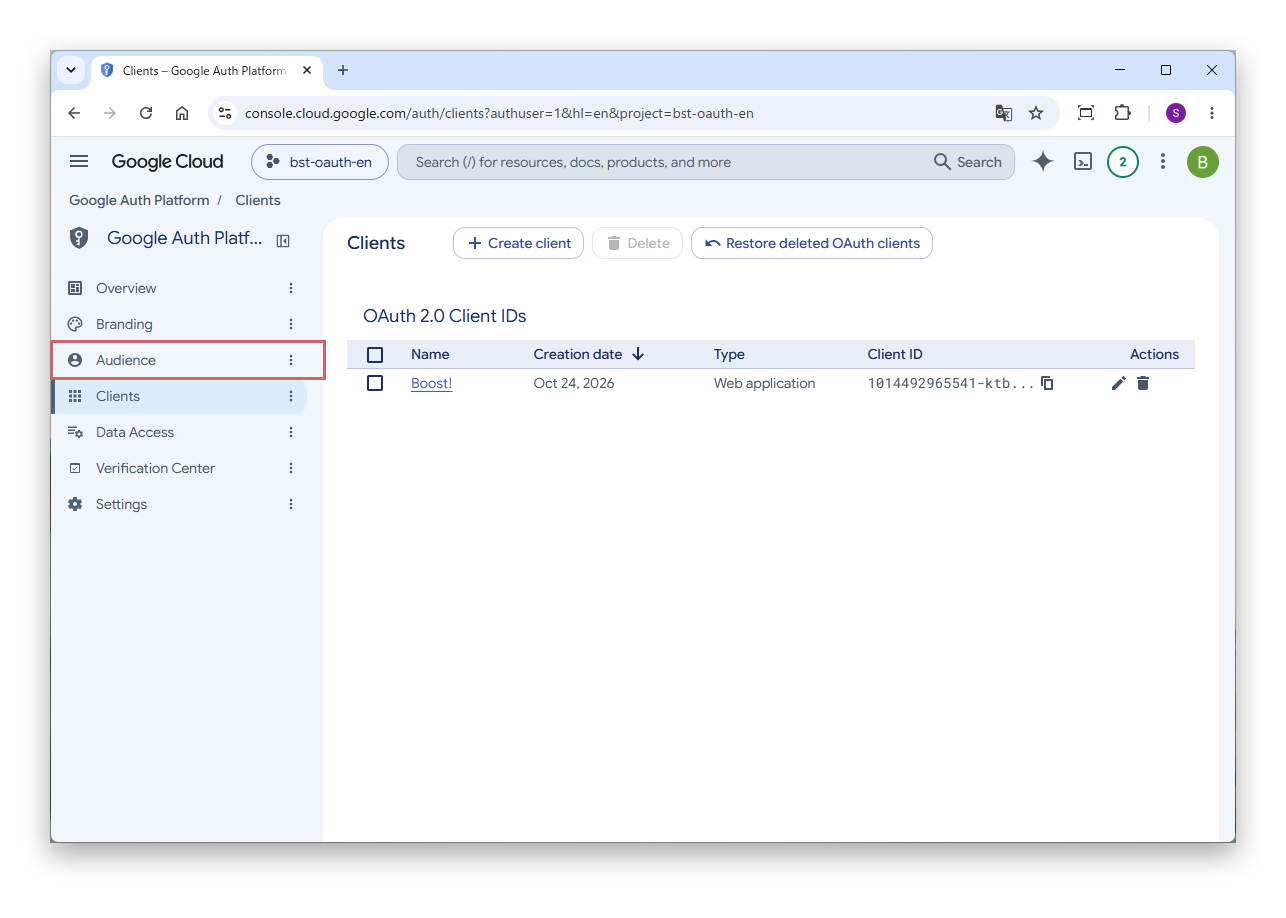
Click "OK", and the client you created is shown in the list. Select "Audience" from the menu on the left.
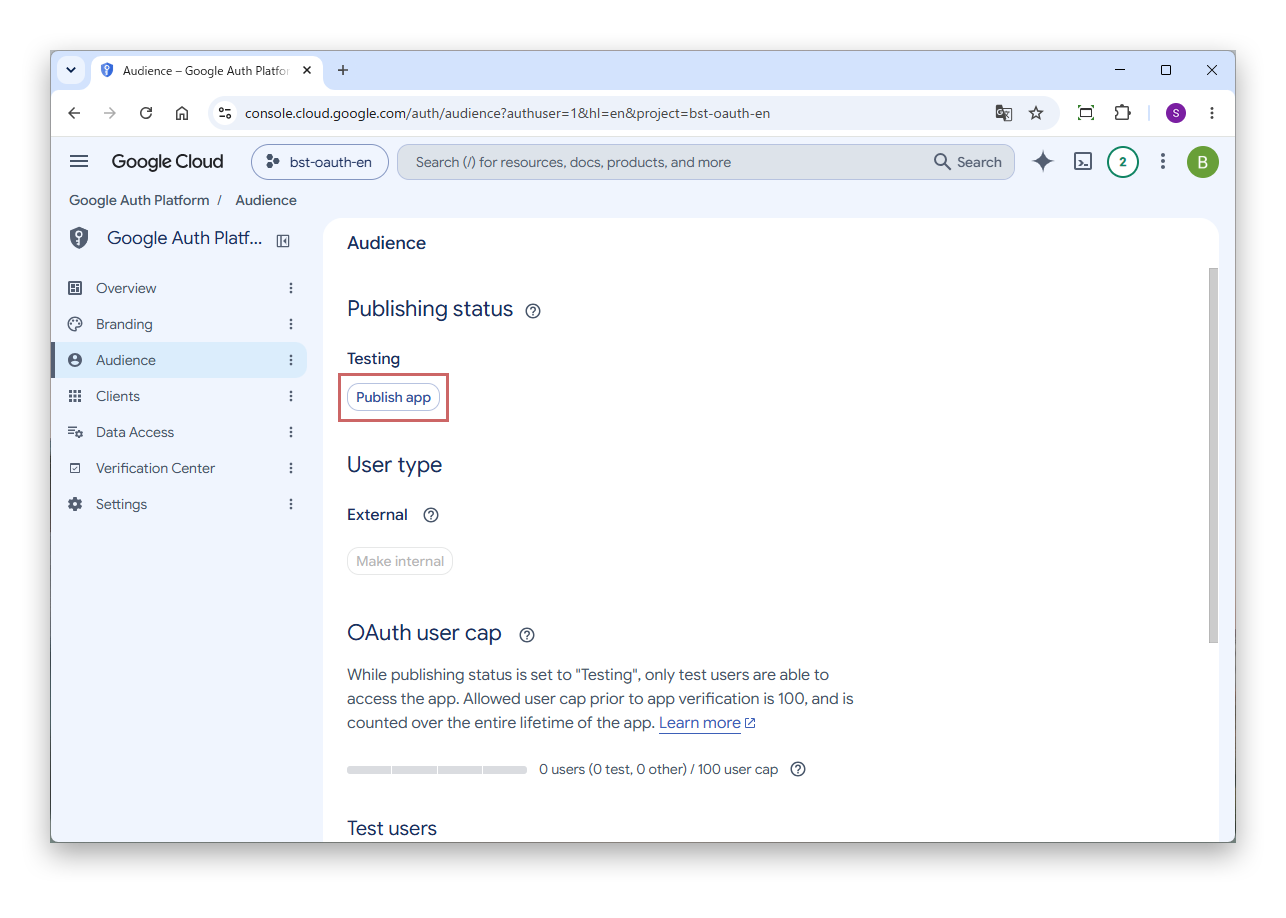
Under "Publishing status", click "Publish app".
While the status is "Testing", only accounts registered as test users can authenticate, and the tokens obtained expire in seven days. Be sure to publish the app.
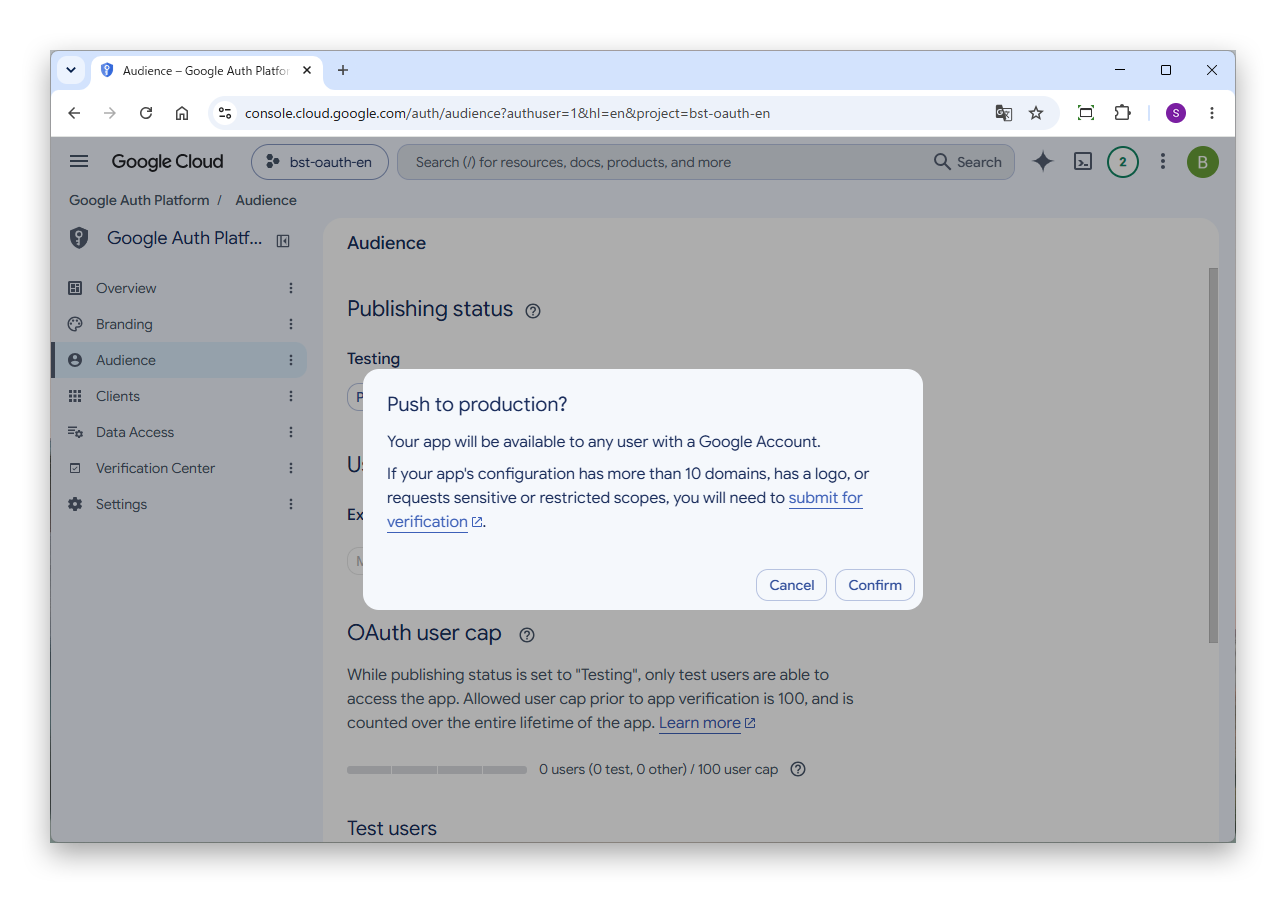
On the confirmation screen, click "Confirm".
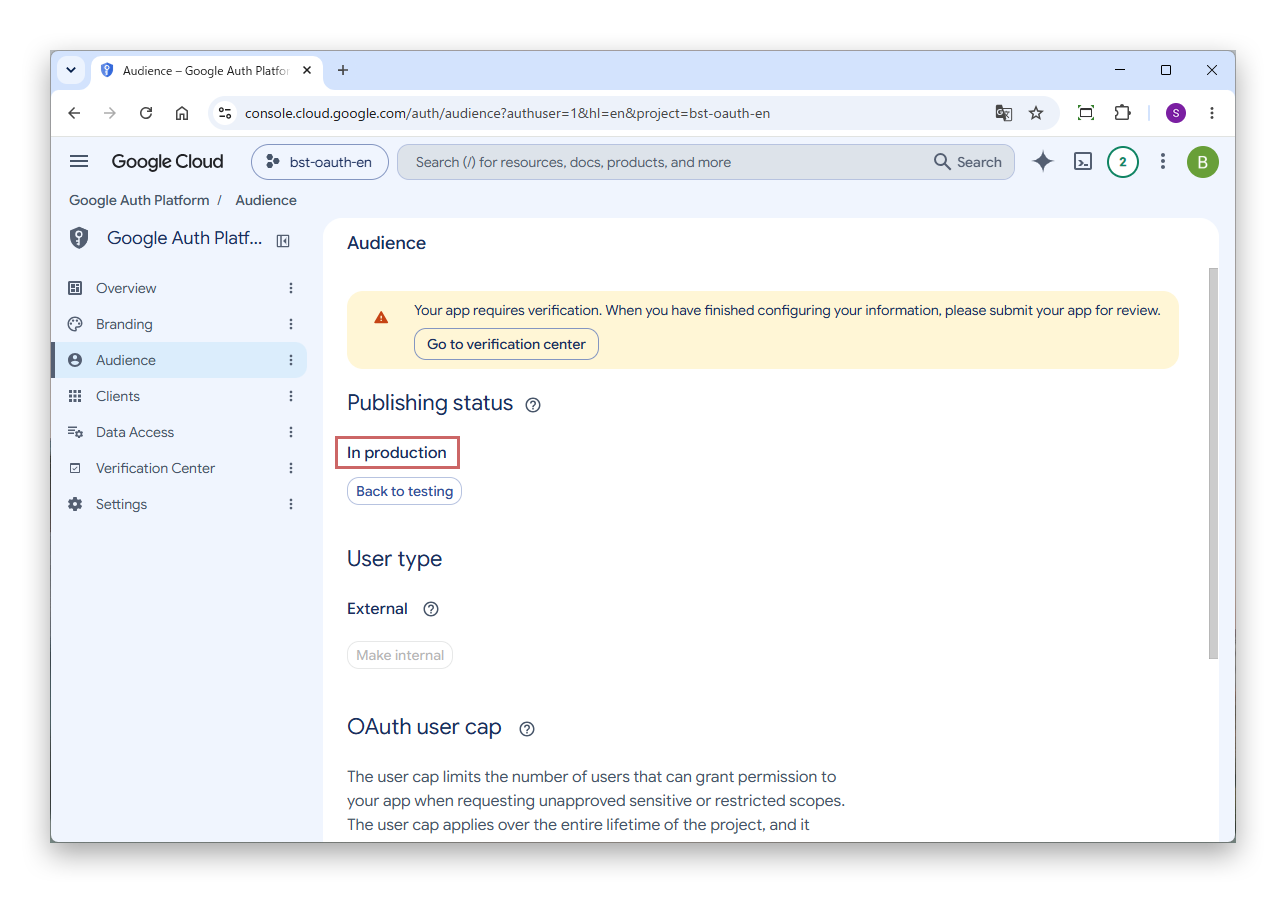
The "Publishing status" changes to "In production".
A message saying that the app needs verification appears at the top of the screen, but you do not need to go through verification. For an application that has not been verified, a warning screen appears during authentication.
One client ID can authenticate one email account per kintone environment. If you authenticate another account with the same client ID, the account authenticated earlier can no longer be used.
To use separate sender (or receiving) accounts, get a new client ID for each account, enter it in each setting, and authenticate. You can add one with the "Create client" button under "Clients" in the same project.