Boost!for kintone
Home / Echo
PLUGIN

Echo

This plugin creates web pages that publish kintone records externally. The conditions and fields of the records shown on the web page follow the settings of the referenced view (table or calendar format). You can also switch the display with Boost! Style, or add and edit records on the web page in conjunction with Boost! Injector.

See the features

By using this product, you are deemed to have agreed to the Terms of Service.

SETTING

Setup

01

Specify the content to show

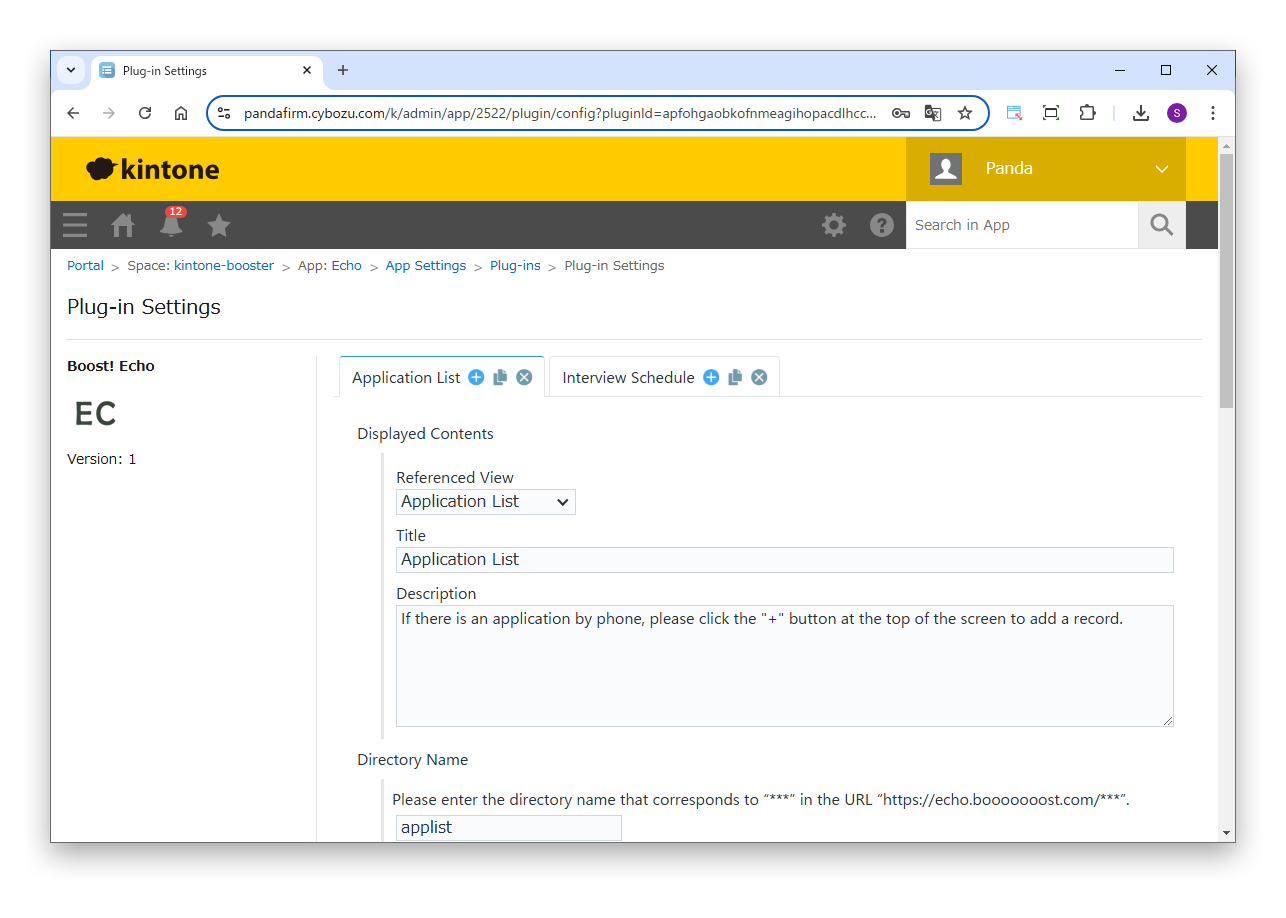
On the plugin settings screen, specify the content shown on the web page.

Settings

Referenced View
Specify the view (table or calendar format) on which the conditions and fields of the records shown on the web page are based.
Title
Enter the title shown in the header area at the top of the page.
Description
Enter the description shown in the header area at the top of the page.
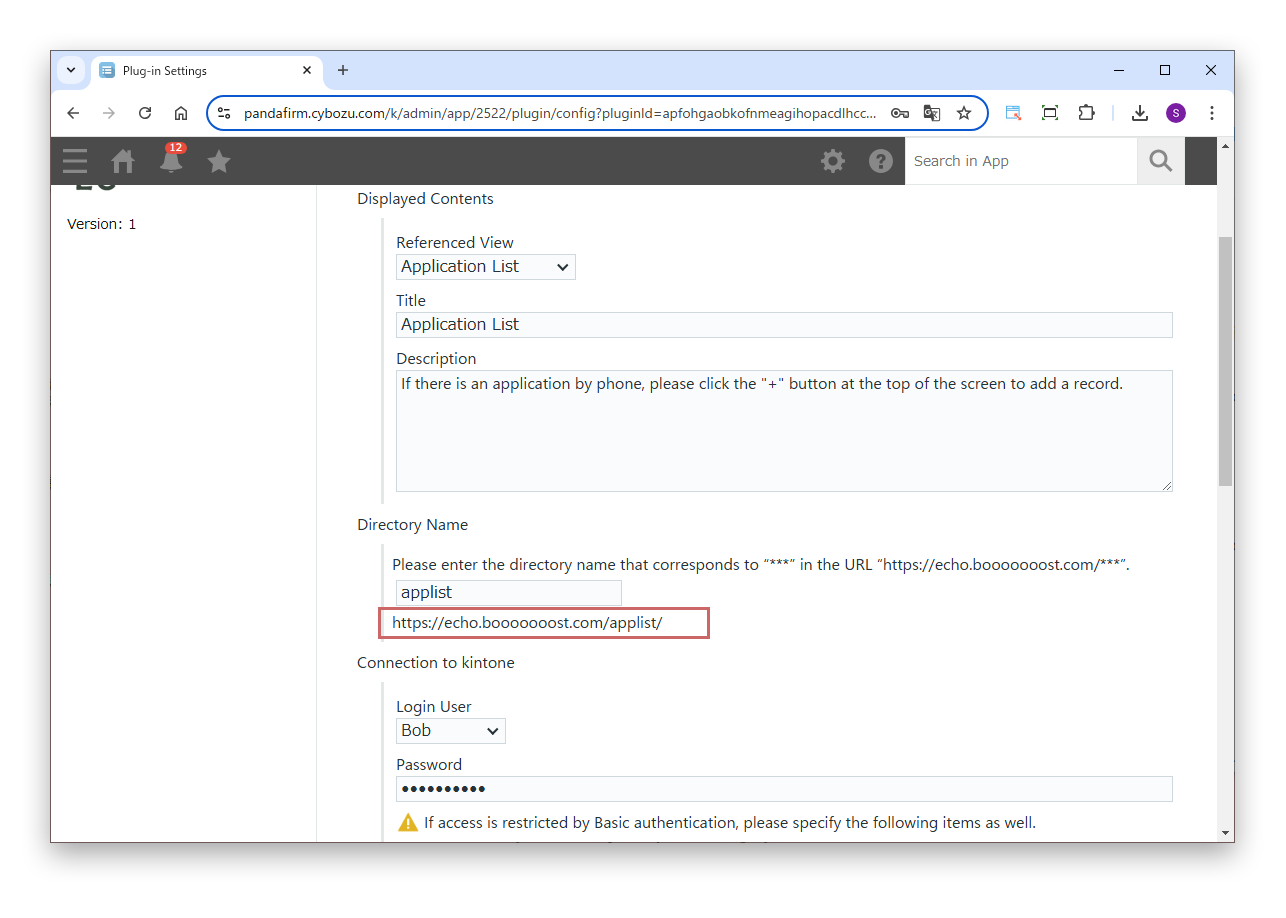
Directory Name

Enter the "directory name" part of the web page URL. You can use lowercase letters, numbers and symbols.

https://echo.booooooost.com/directory-name/
02

Specify the kintone connection and access control

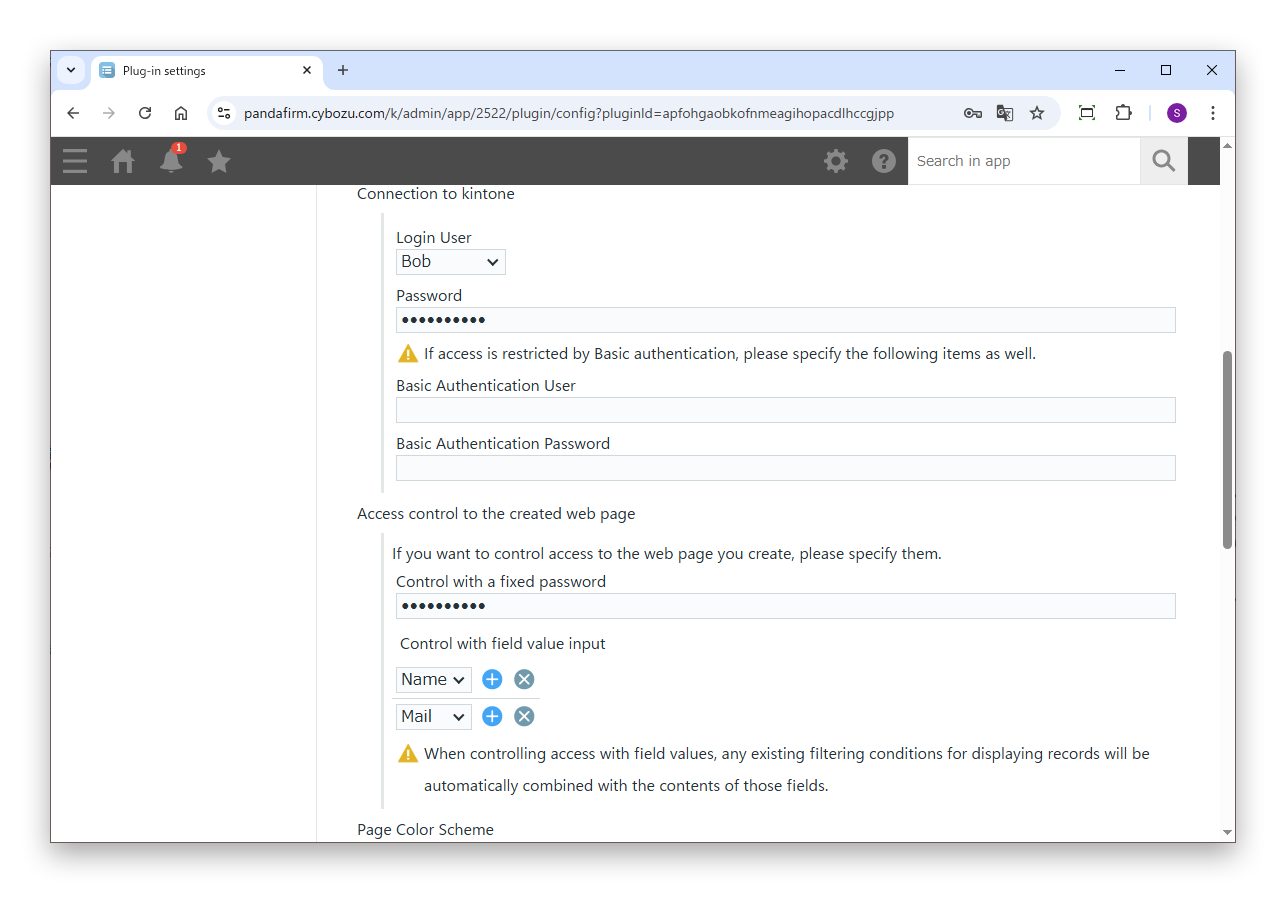
Next, specify the user who connects to kintone and how access to the web page is restricted.

Settings

Login User
Specify the user who accesses kintone to retrieve records.
Password
Enter the login password of the login user.
Basic Authentication User
If Basic authentication is set, enter the Basic authentication user name.
Basic Authentication Password
If Basic authentication is set, enter the Basic authentication password.
Control with a fixed password
To restrict access to the web page with a fixed password, enter that password.
Control with field value input
To restrict access to the web page with the field values of registered records, specify that field.

If you specify "Control with field value input", the entered field value is automatically added to the filter conditions of the records shown.

03

Specify the colors and linkage

If necessary, specify the colors of the web page and the linkage with other plugins.

Settings

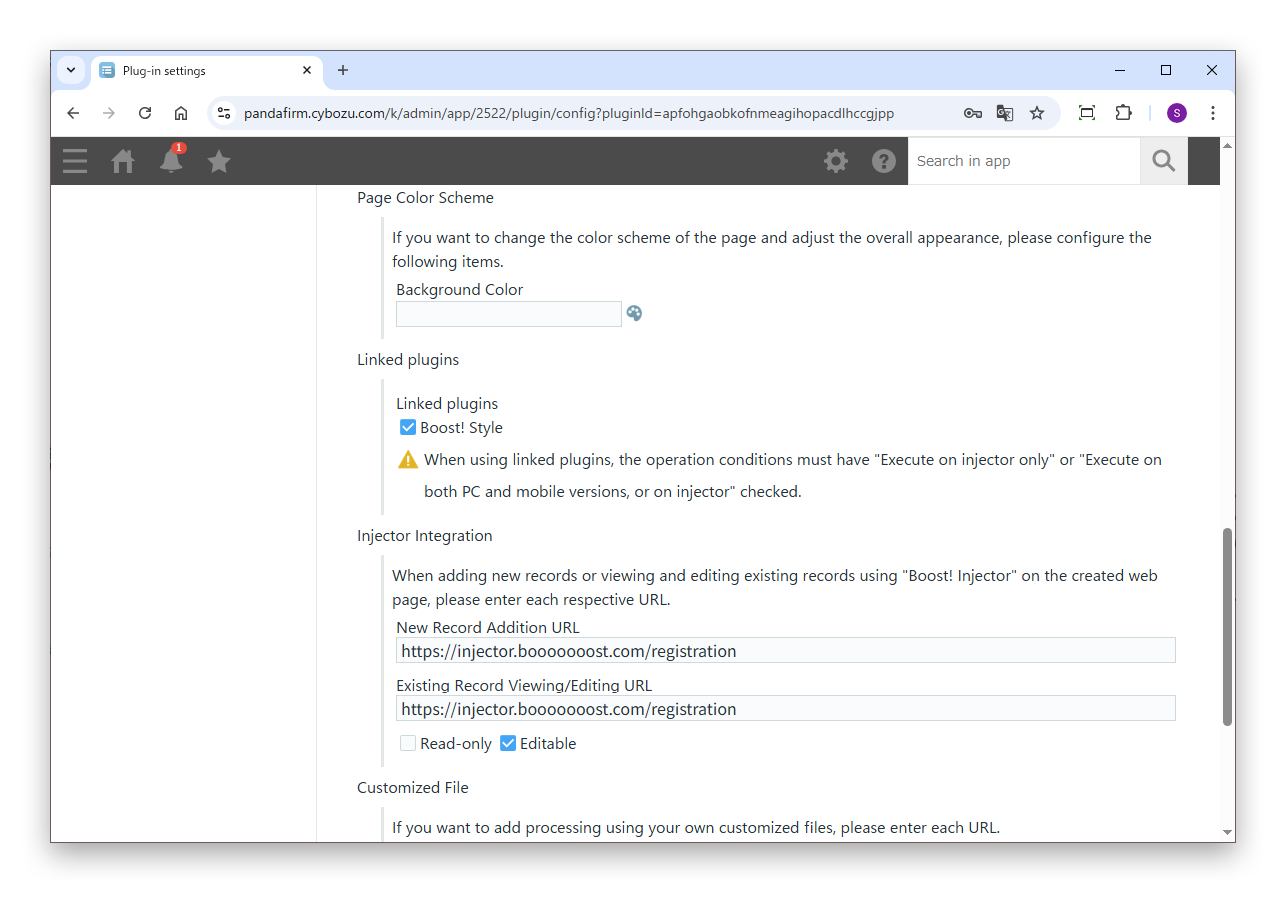
Background Color
To change the background color of the web page, specify the color.
Linked plugins

Select this to run Boost! Style installed in the app on the web page.

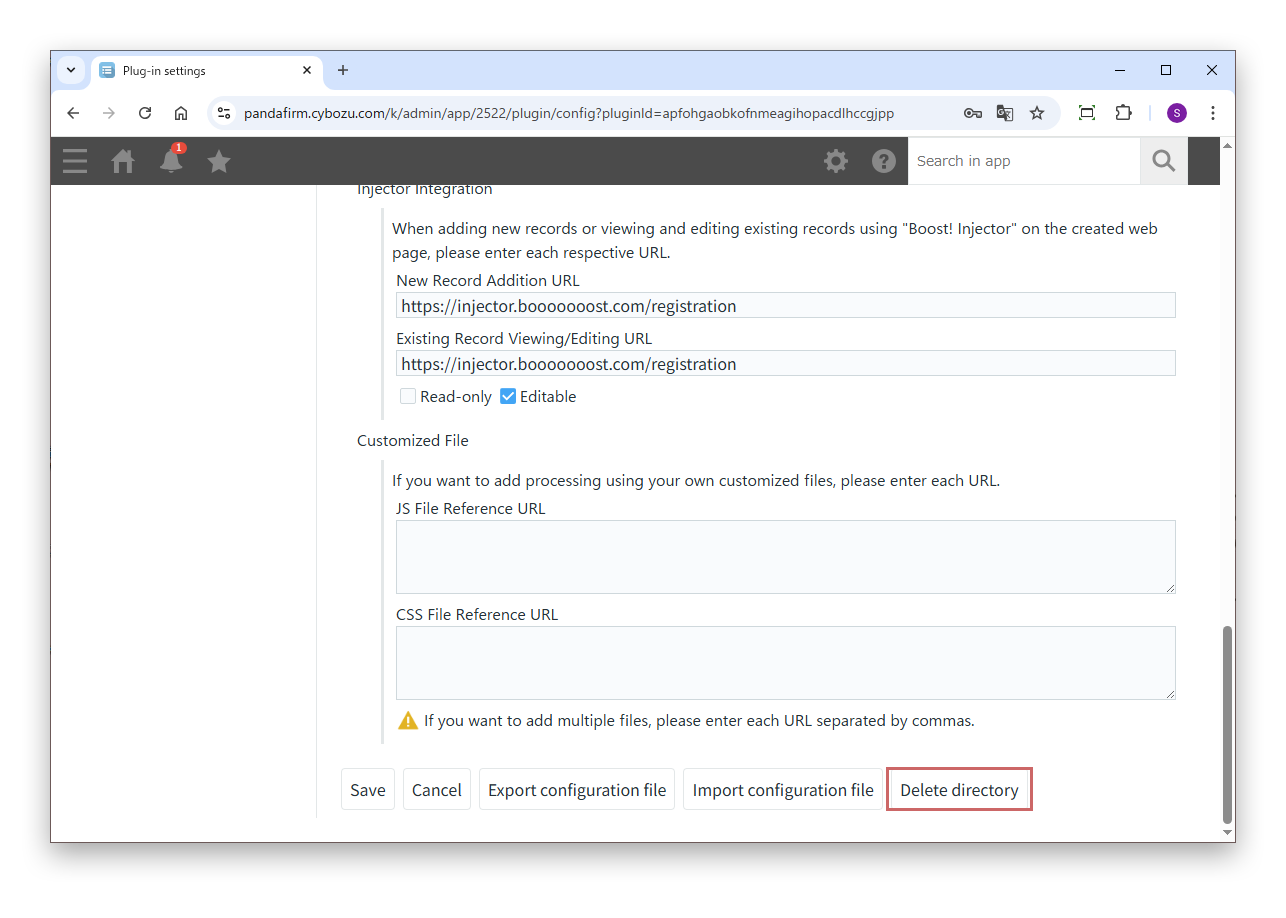
Injector Integration

To add records, or view and edit records, on the web page, enter the URL of the Boost! Injector web form used for each. The web form for viewing and editing can also be made view-only.

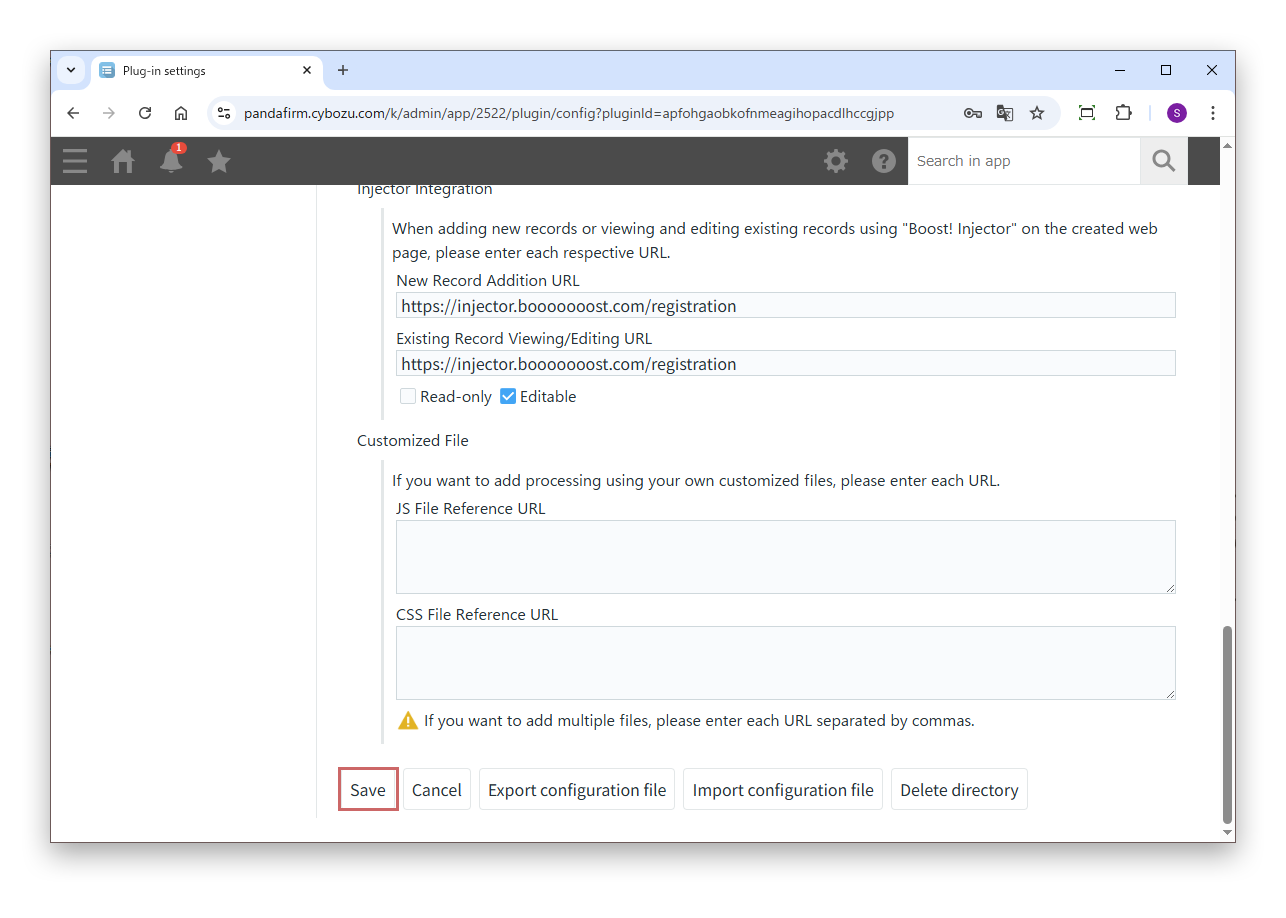
JS File Reference URL
To add processing with your own JavaScript files, enter their URLs. Separate multiple files with commas.
CSS File Reference URL
To change the style of the screen with your own CSS files, enter their URLs. Separate multiple files with commas.

To use a linked plugin, select "Execute on injector only" or "Execute on both PC and mobile versions, or on injector" in the conditions for operation of Boost! Style.

If you change the settings of a linked plugin, save the settings of this plugin again as well.

04

Save the settings

When the settings are complete, click "Save" on the plugin settings screen.

05

Check the web page

When saving is complete, the web page is created automatically. Open the URL shown in the directory name field and check the content.

The records shown on the web page are retrieved from kintone via the Boost! server (162.43.20.8). If you restrict IP addresses in kintone, allow this IP address.

06

Delete a directory

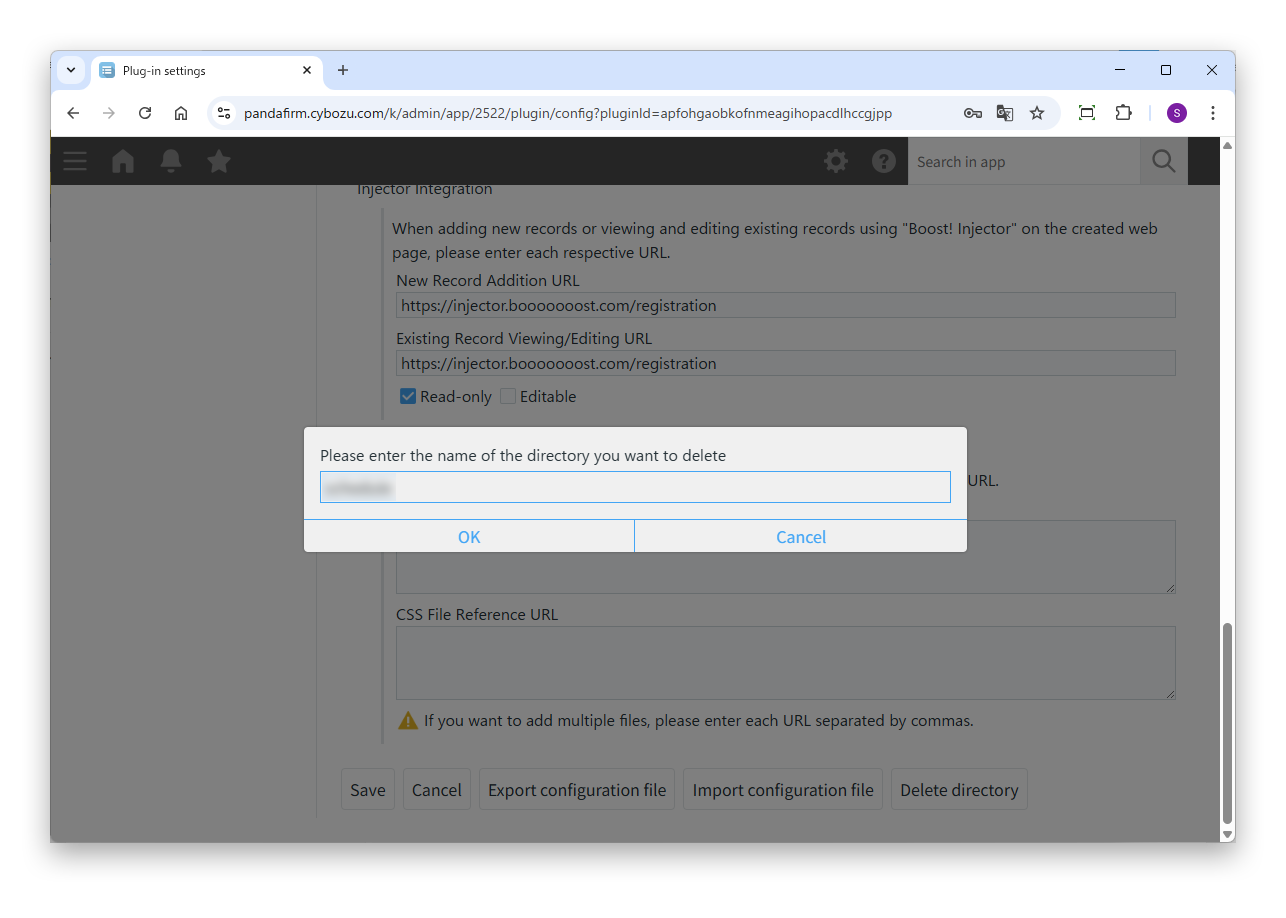
When you stop using the plugin, delete the directory you created. Click "Delete directory".

In the input box that appears, enter the name of the directory to delete.

HOW TO USE

How to use

01

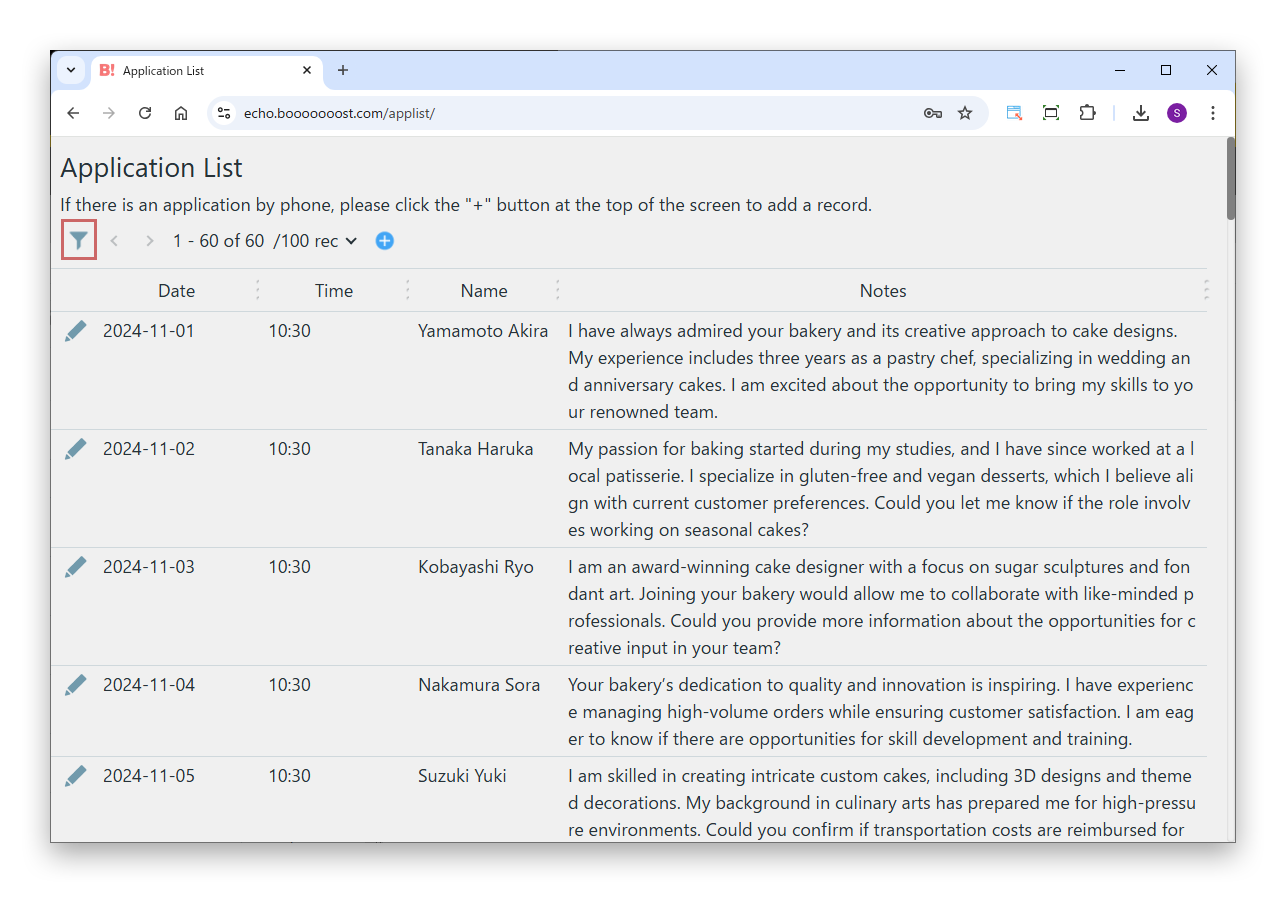
Show the web page

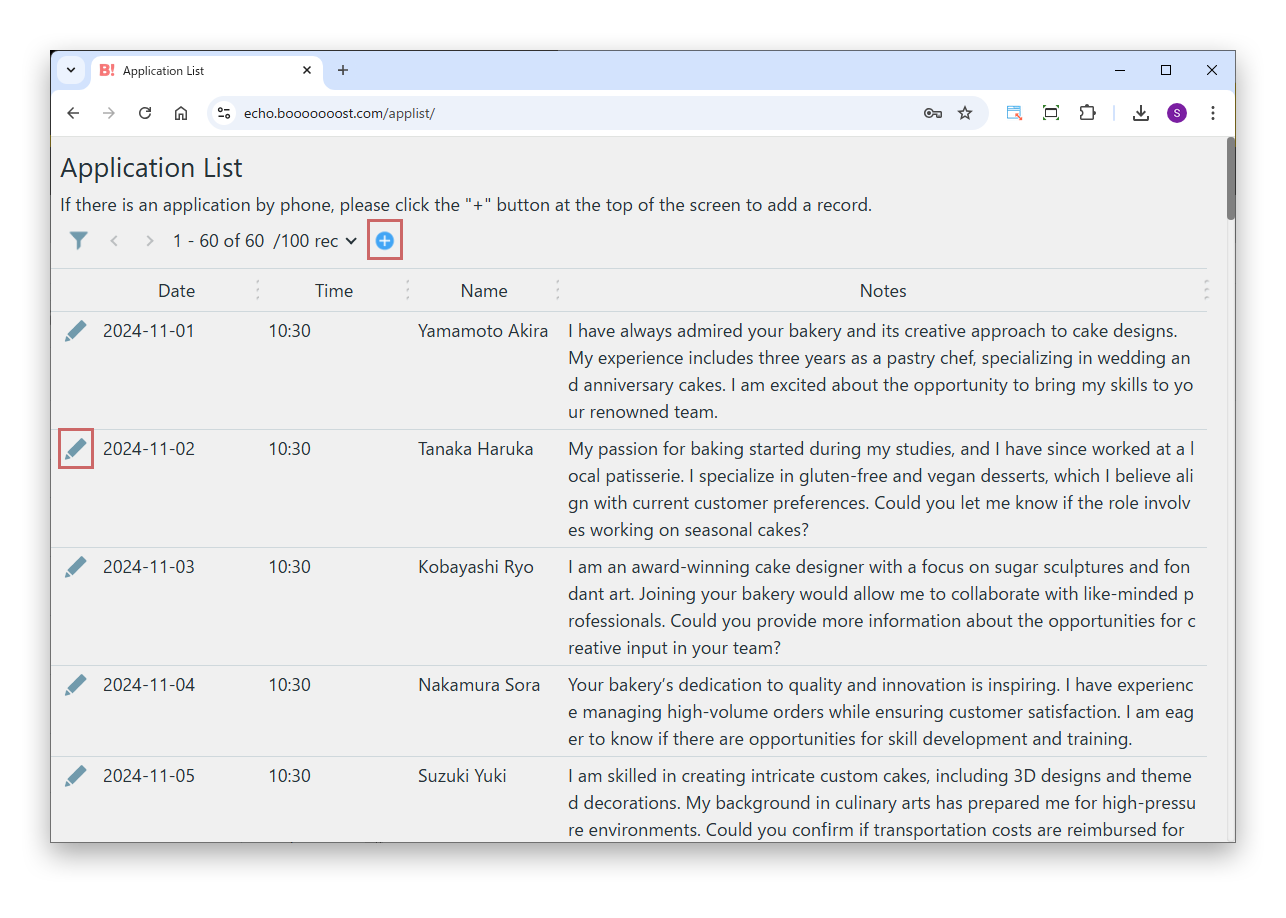
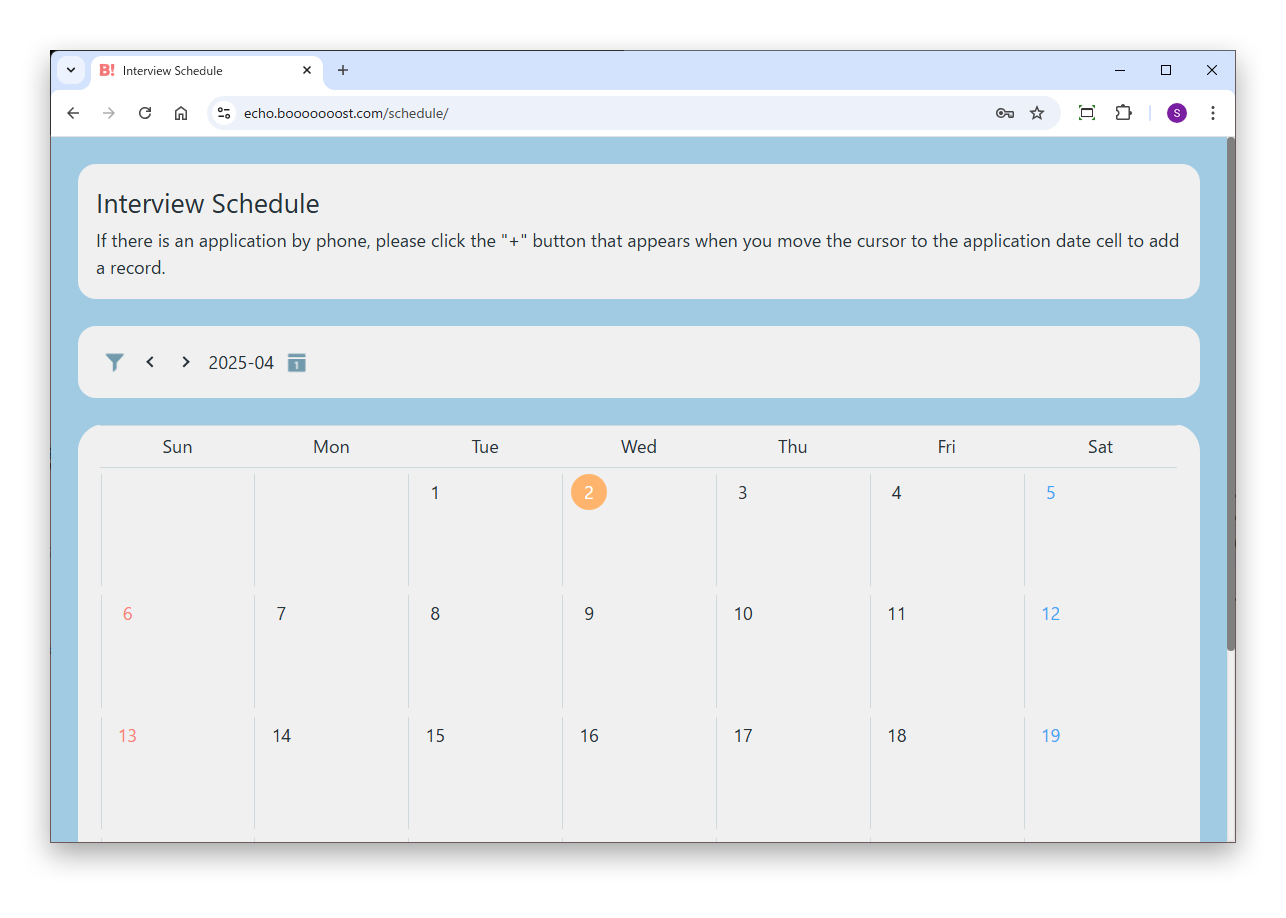
When you open the web page you created, the kintone view is shown. Click the funnel icon to filter further.

The records shown on the web page are retrieved from kintone via the Boost! server (162.43.20.8). If you restrict IP addresses in kintone, allow this IP address.

If you have not purchased a license by the end of the three-month trial period, this plugin can no longer be used.

02

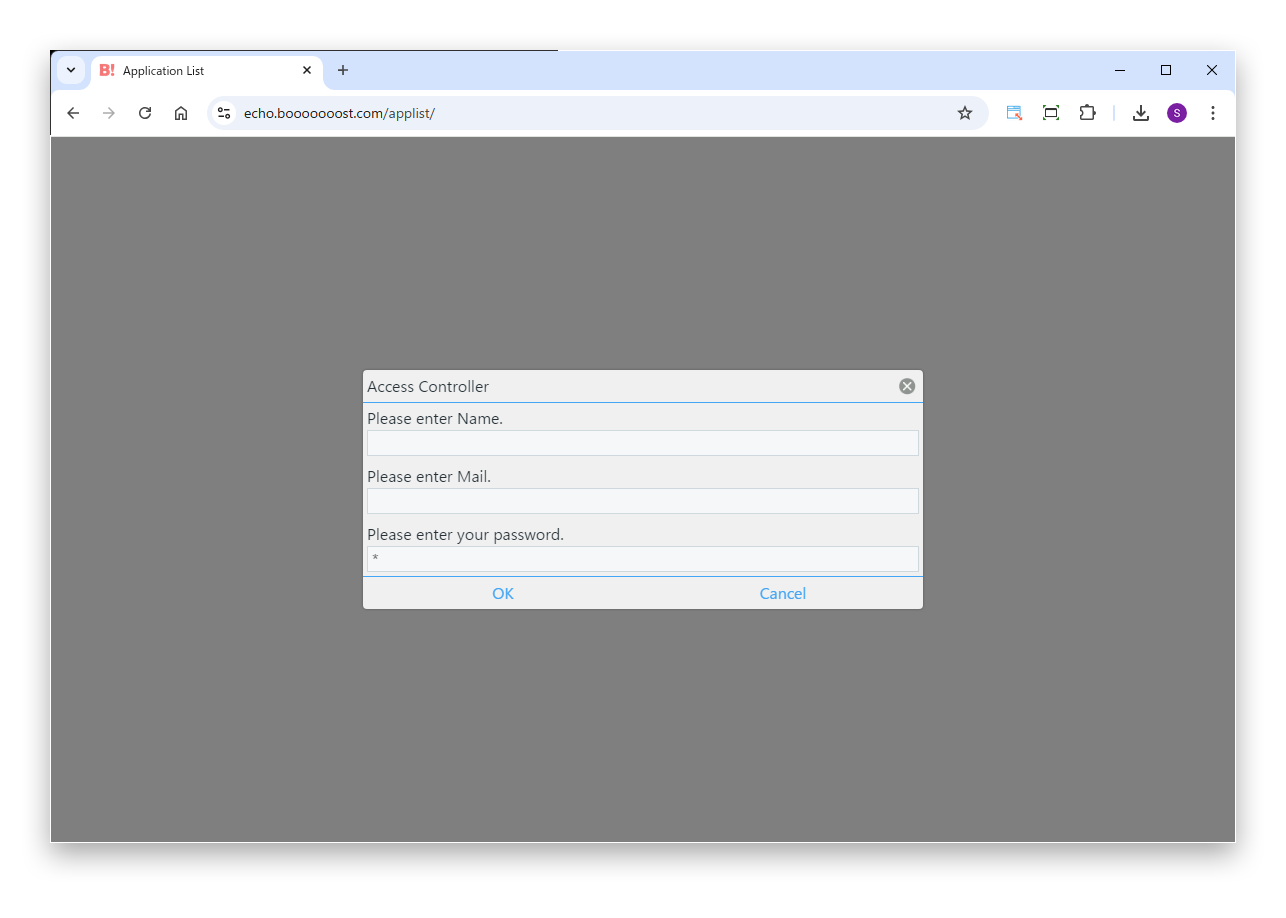
Restrict access

If you restrict access with a fixed password or a field value, an input screen appears when the web page is opened.

03

Add and edit records

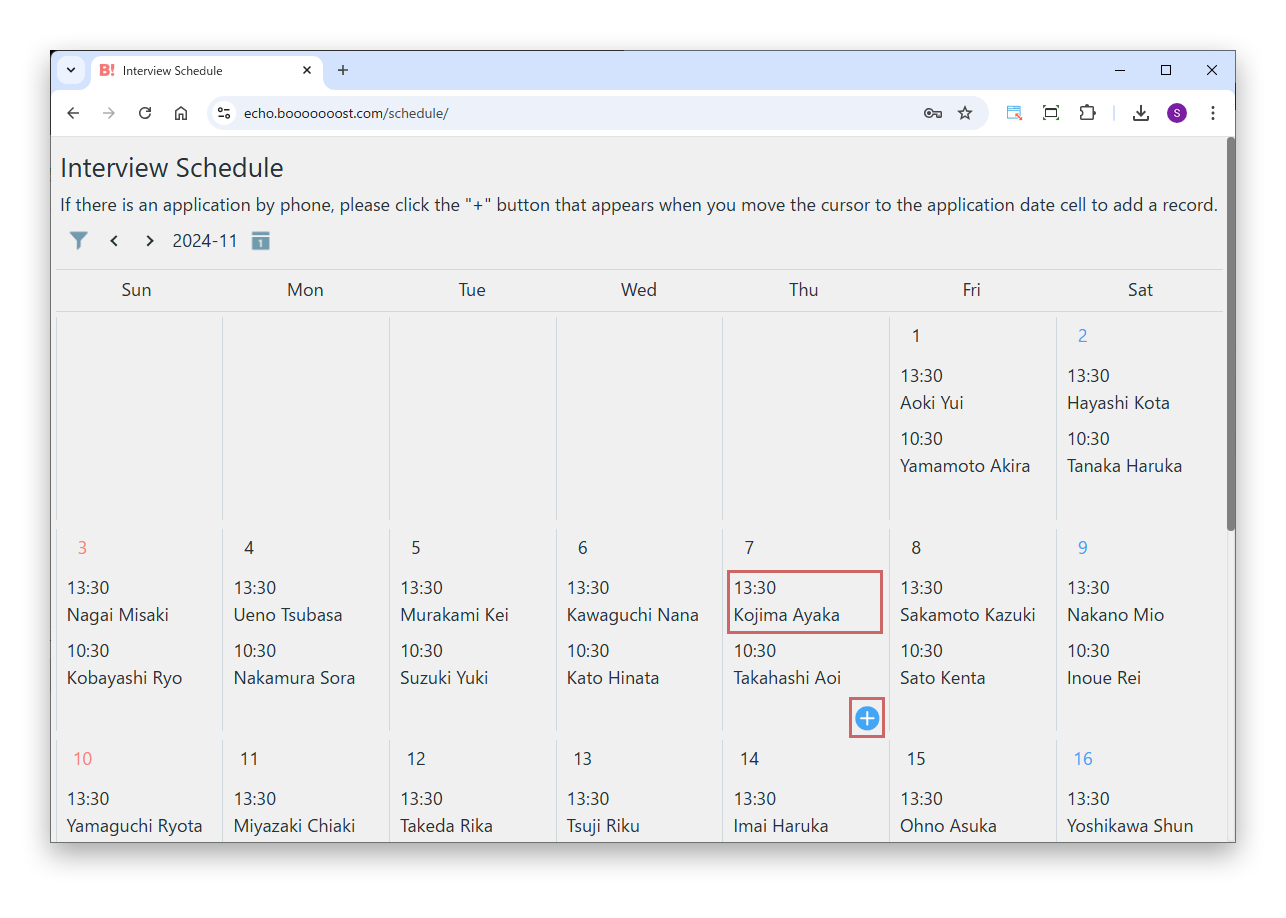
When linked with Boost! Injector, buttons for adding and editing records appear in the view.

In a calendar-format view, hover over a date cell to show the add button.

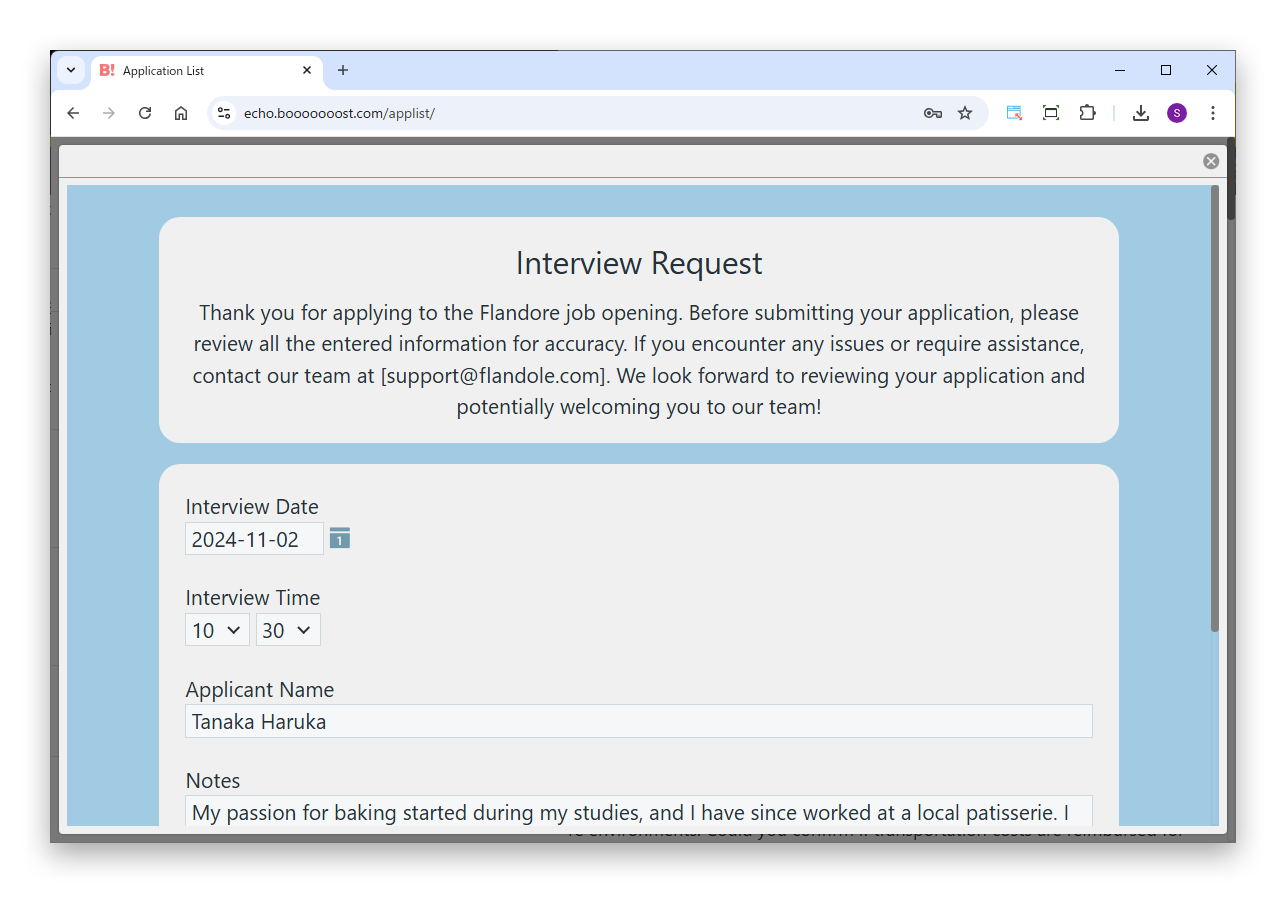
Click the button to open the Boost! Injector web form, where you can add and edit records on the web page.

04

Change the background color

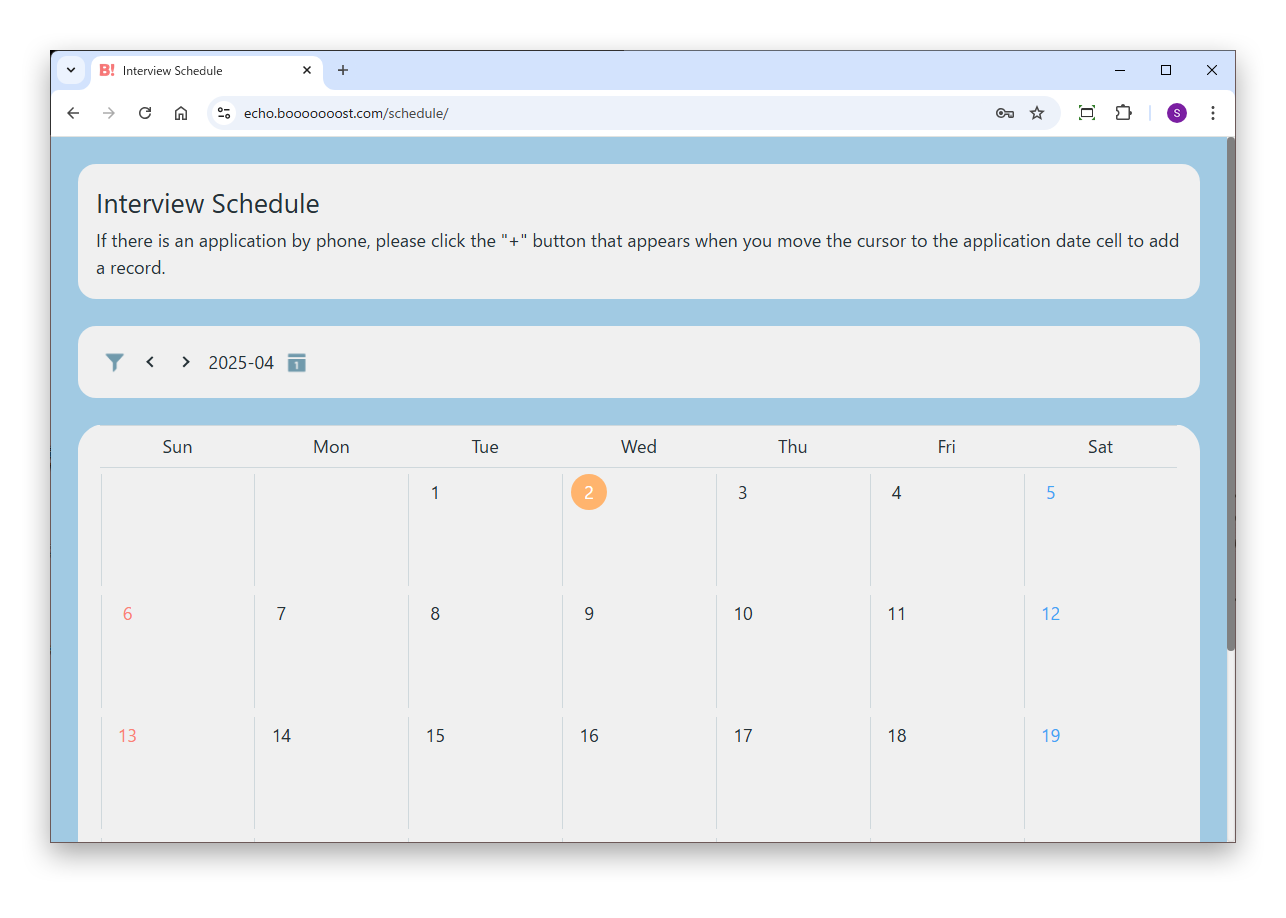
When you specify a background color, the web page is shown in colors like these.

CUSTOMIZE

Customization

With this plugin, you can add your own processing in JavaScript using Boost! Events. Before records are shown on the web page and when the display is complete, you receive the records shown and the elements in which they are placed.

For example, you can process record values before they are shown, or add your own decorations and information to the view or calendar after it is shown.