 Boost!
Open the web form editor
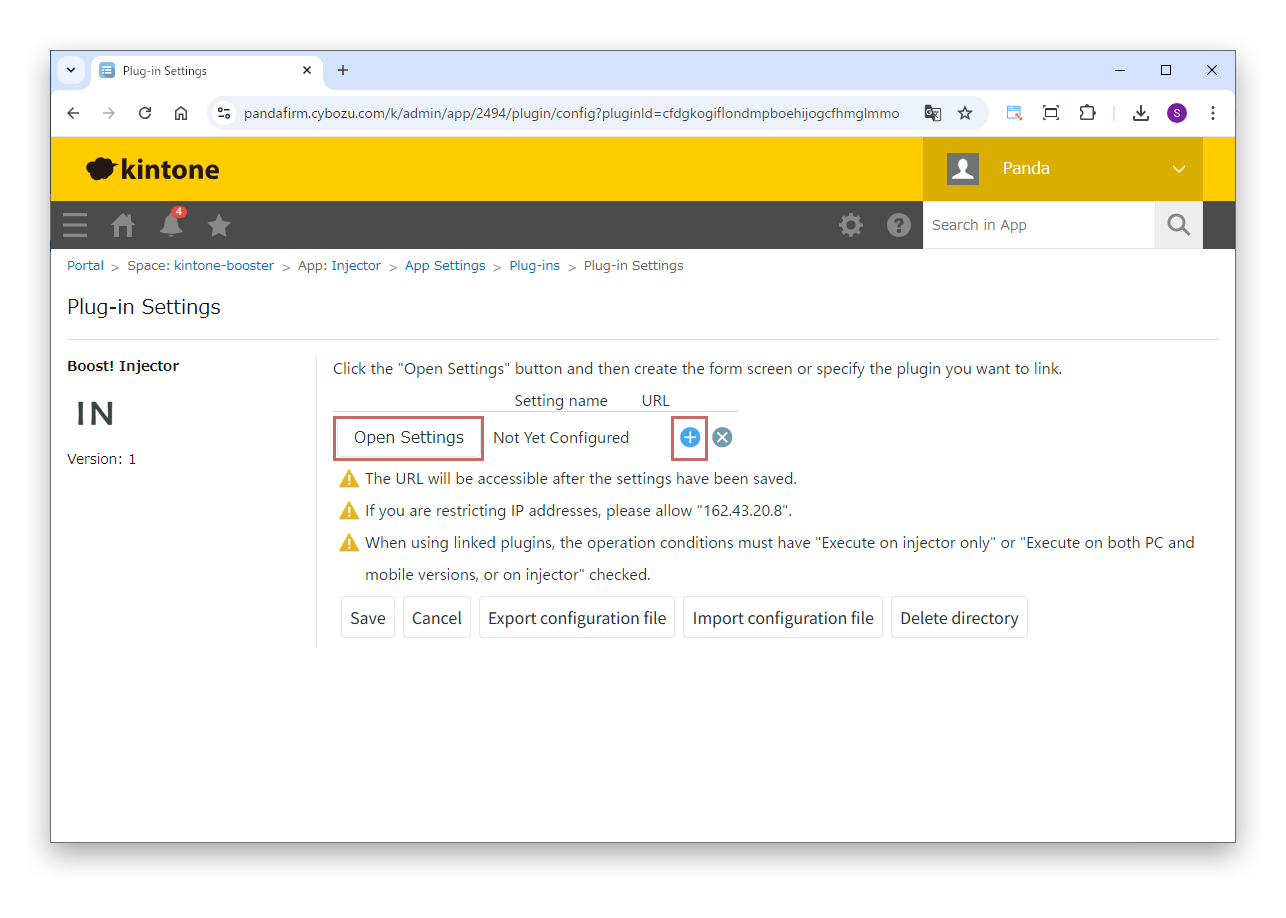
On the plugin settings screen, click "Open Settings" to open the web form editor. To add a web form, click the add (+) button.
This plugin creates web forms linked to kintone. Boost! Style and Boost! Action can run so that fields are shown or hidden and input is assisted automatically according to what is entered. Boost! Mail, Boost! Submit and other plugins can also run when a record is saved.
By using this product, you are deemed to have agreed to the Terms of Service.
On the plugin settings screen, click "Open Settings" to open the web form editor. To add a web form, click the add (+) button.
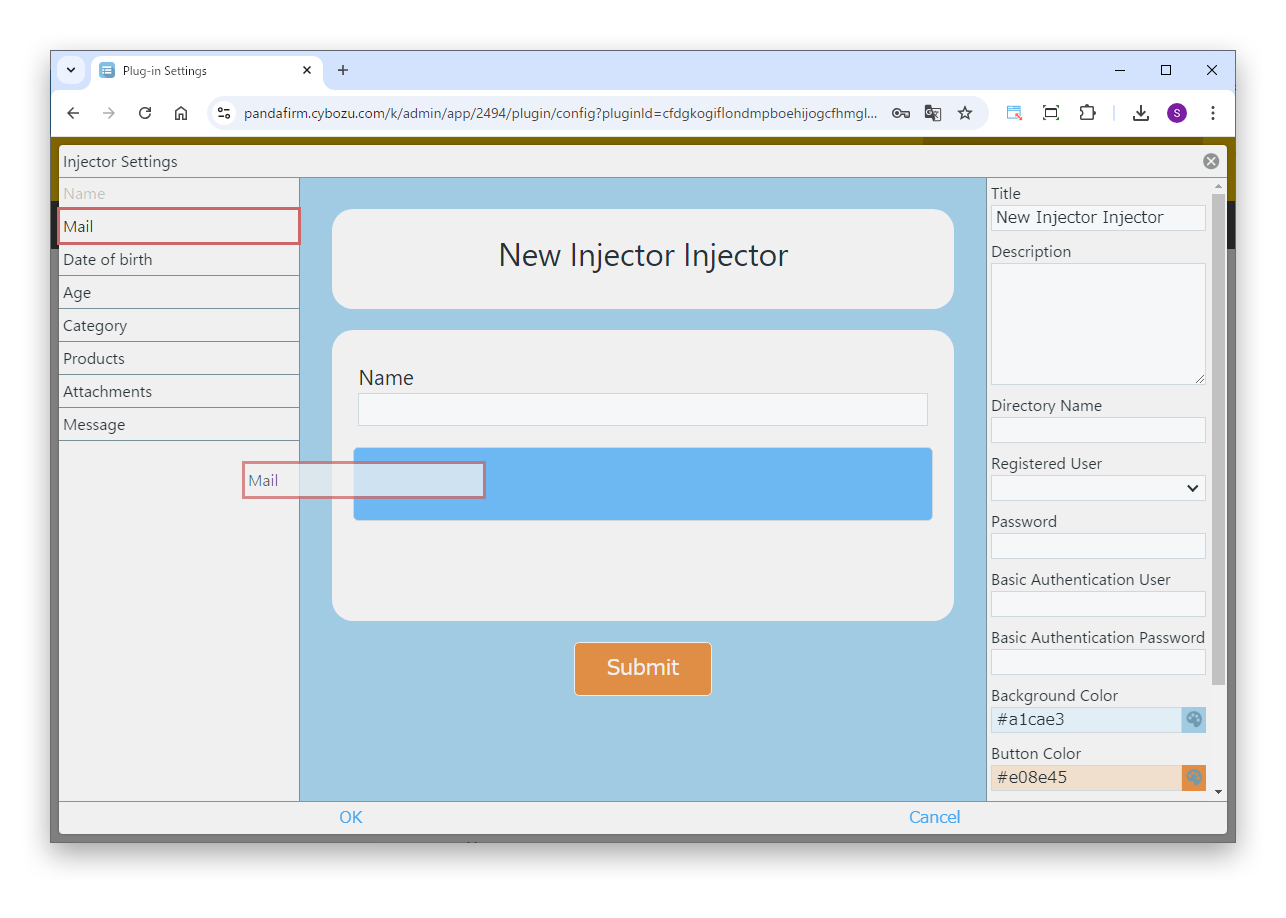
When the web form editor appears, drag fields from the field list on the left onto the form to create the input form. You can change the order of the placed fields by dragging, and delete them with the trash button that appears when you hover over them.
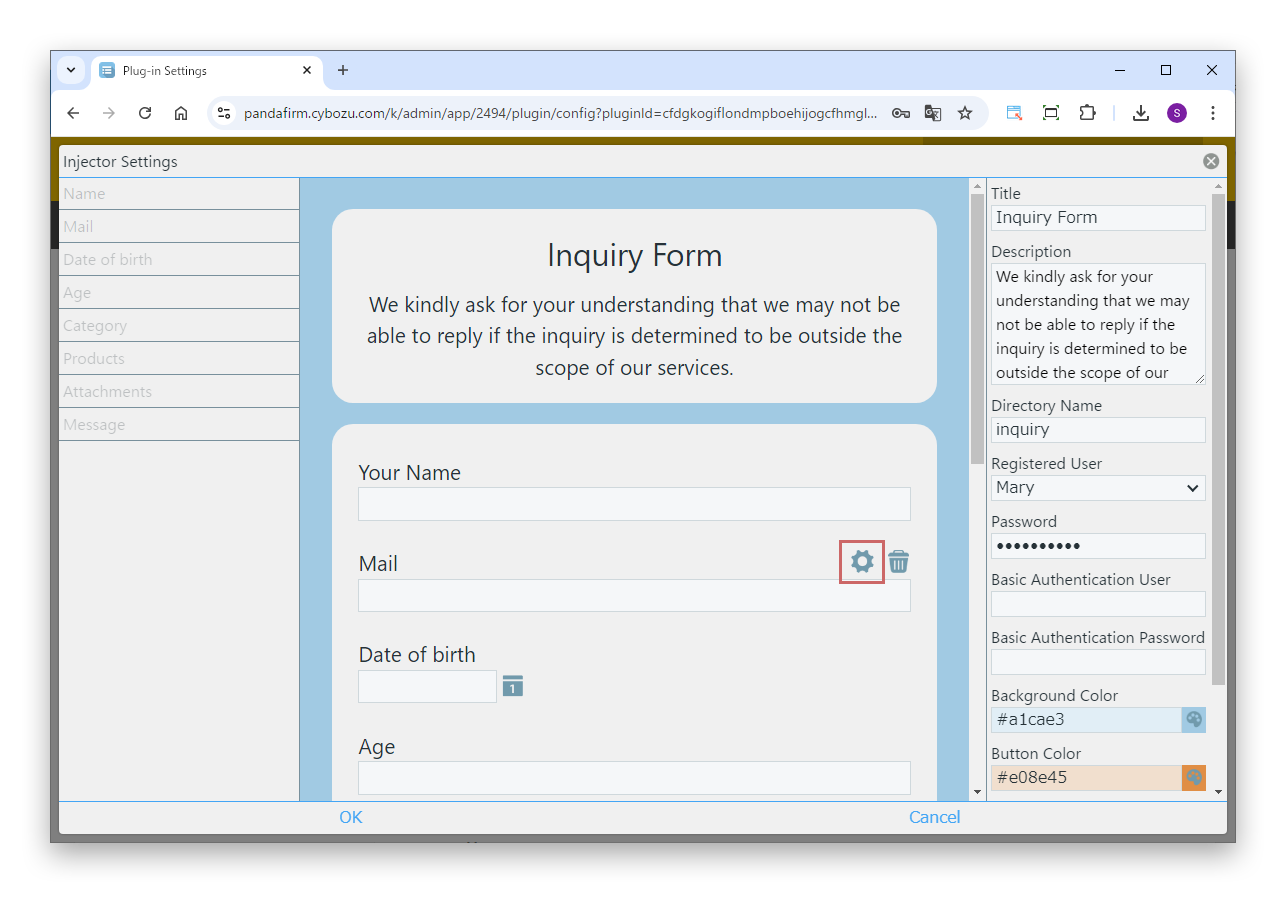
Click the gear button that appears when you hover over a placed field.
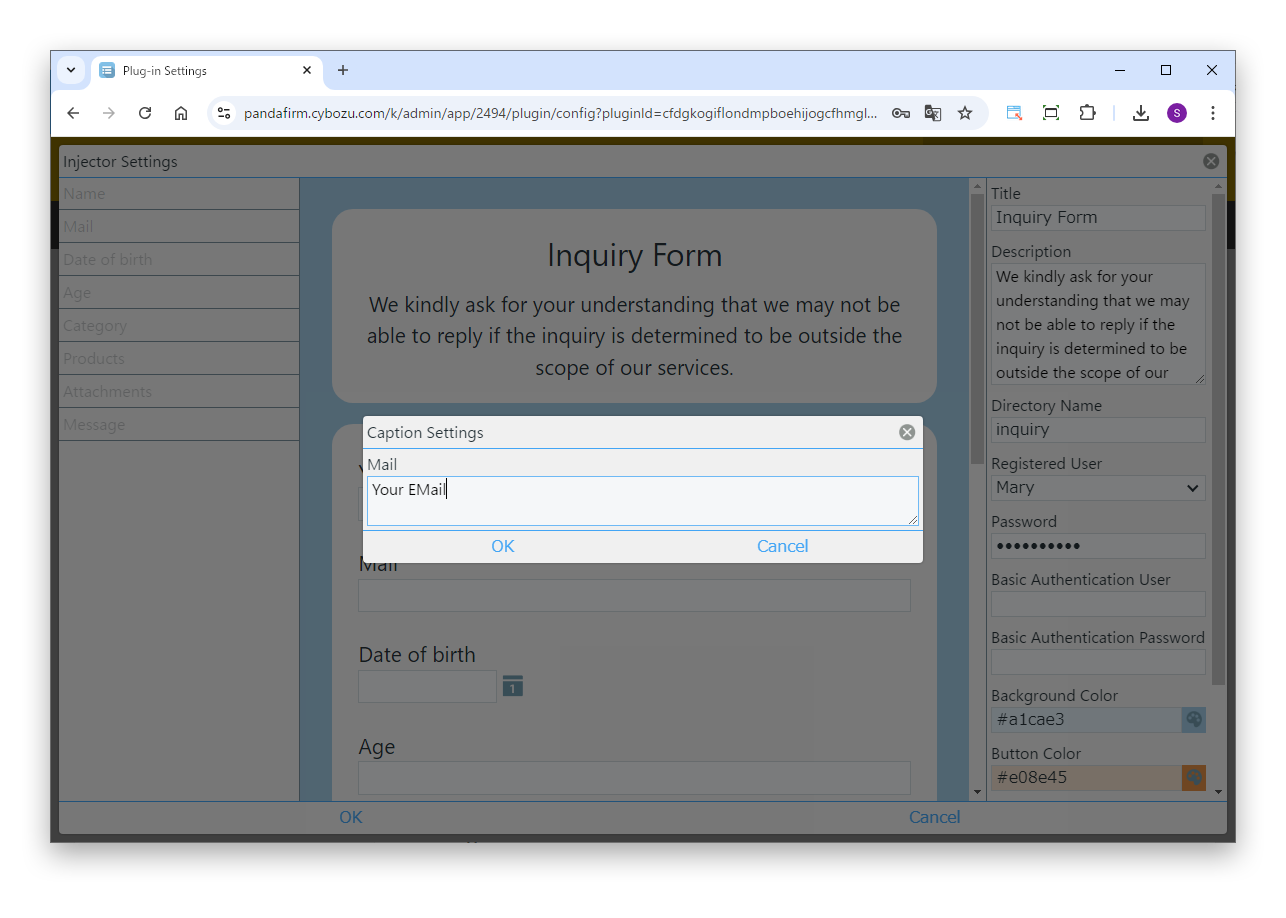
Change the field name in the input box that appears. To undo the change, leave the input box blank.
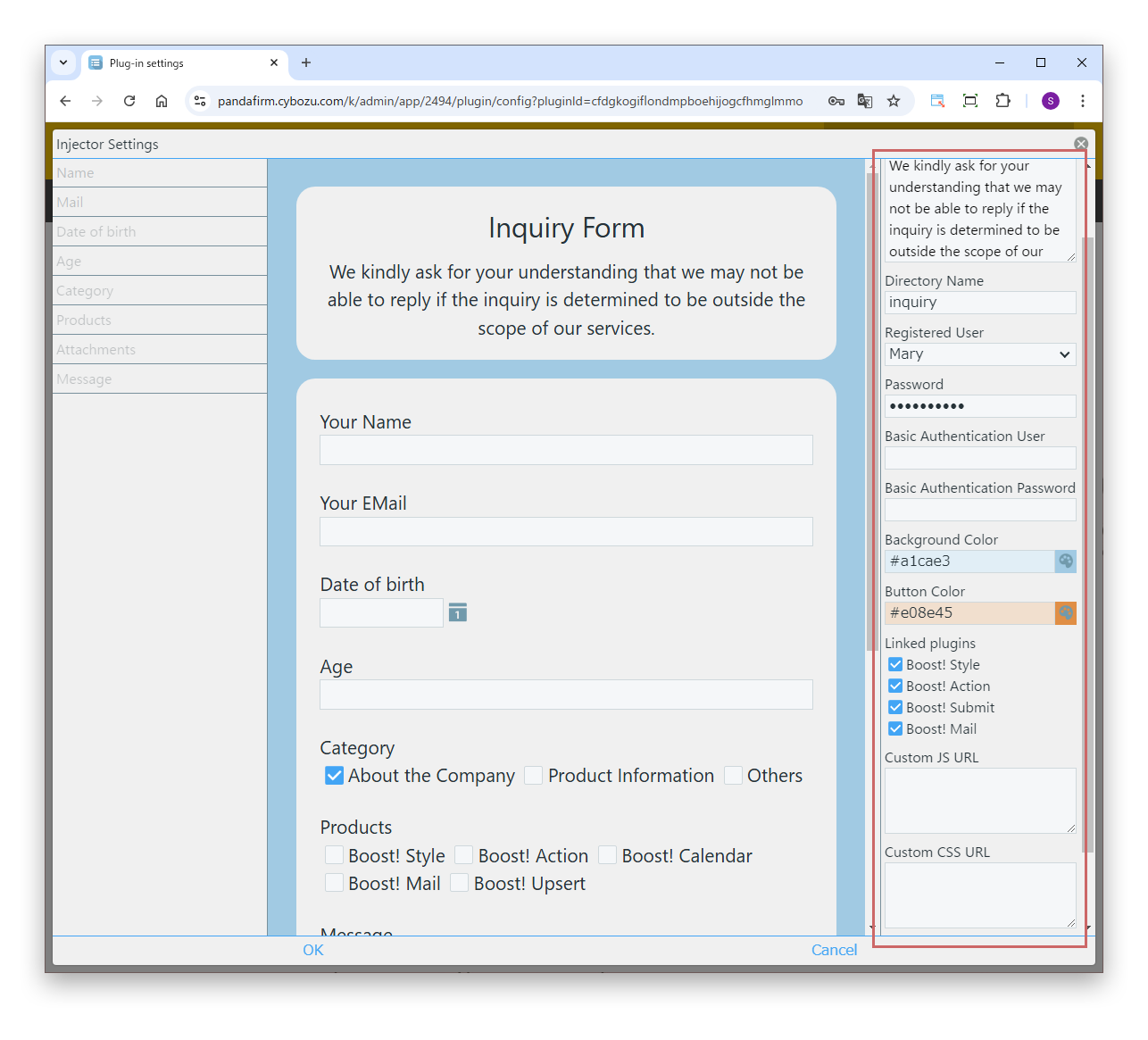
Specify the settings on the right of the screen.
Enter the "directory name" part of the web form URL. You can use lowercase letters, numbers and symbols.
https://injector.booooooost.com/directory-name/Specify which of the Boost! plugins installed in the app run on the web form. For the plugins you can specify, see the list of linked plugins.
To use a plugin other than Boost! Decoder as a linked plugin, select "Execute on injector only" or "Execute on both PC and mobile versions, or on injector" in the conditions for operation of that plugin.
If you change the settings of a linked plugin, save the settings of this plugin again as well.
The following plugins can be specified as linked plugins.
Boost! Style/
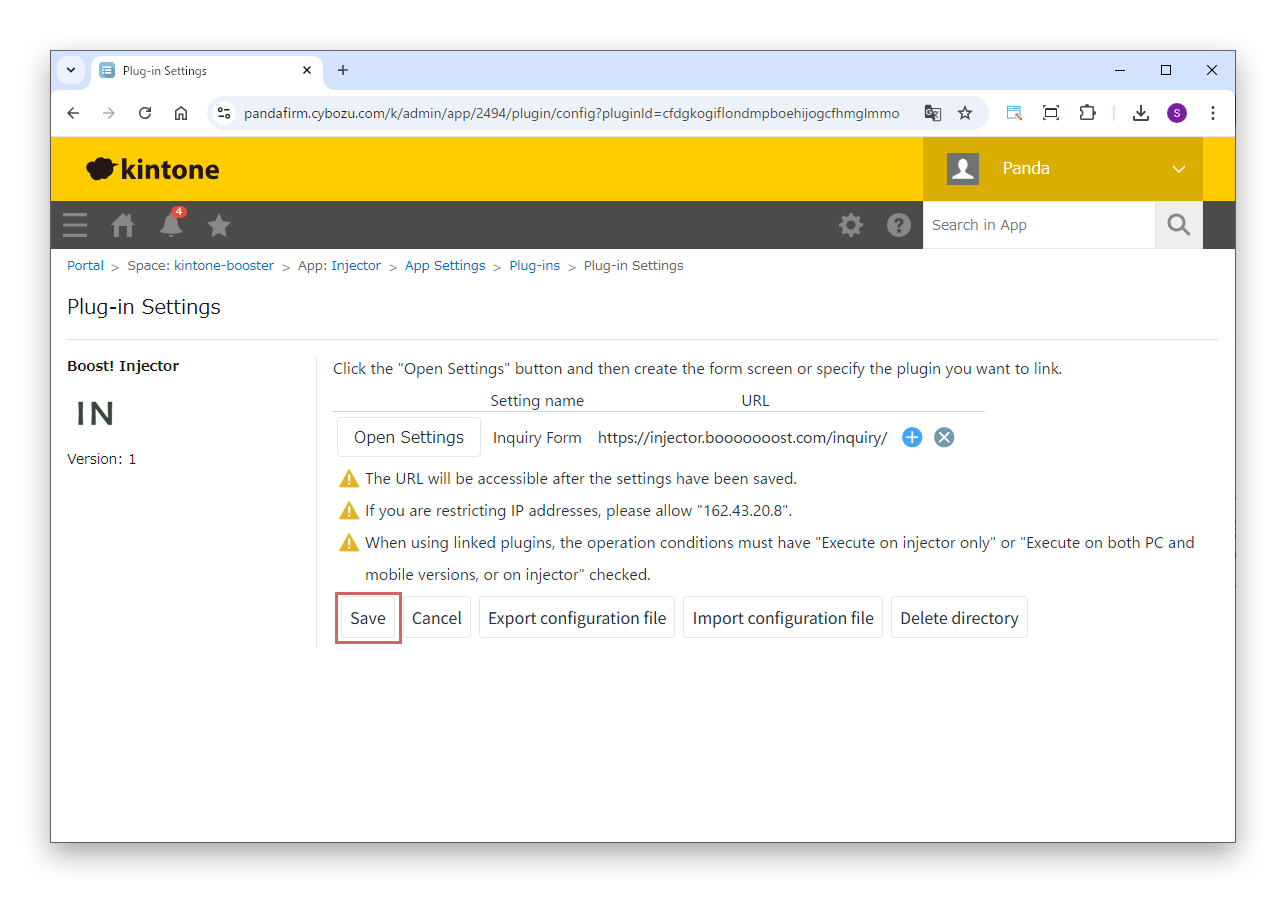
When the settings are complete, click "OK", then click "Save" on the plugin settings screen.
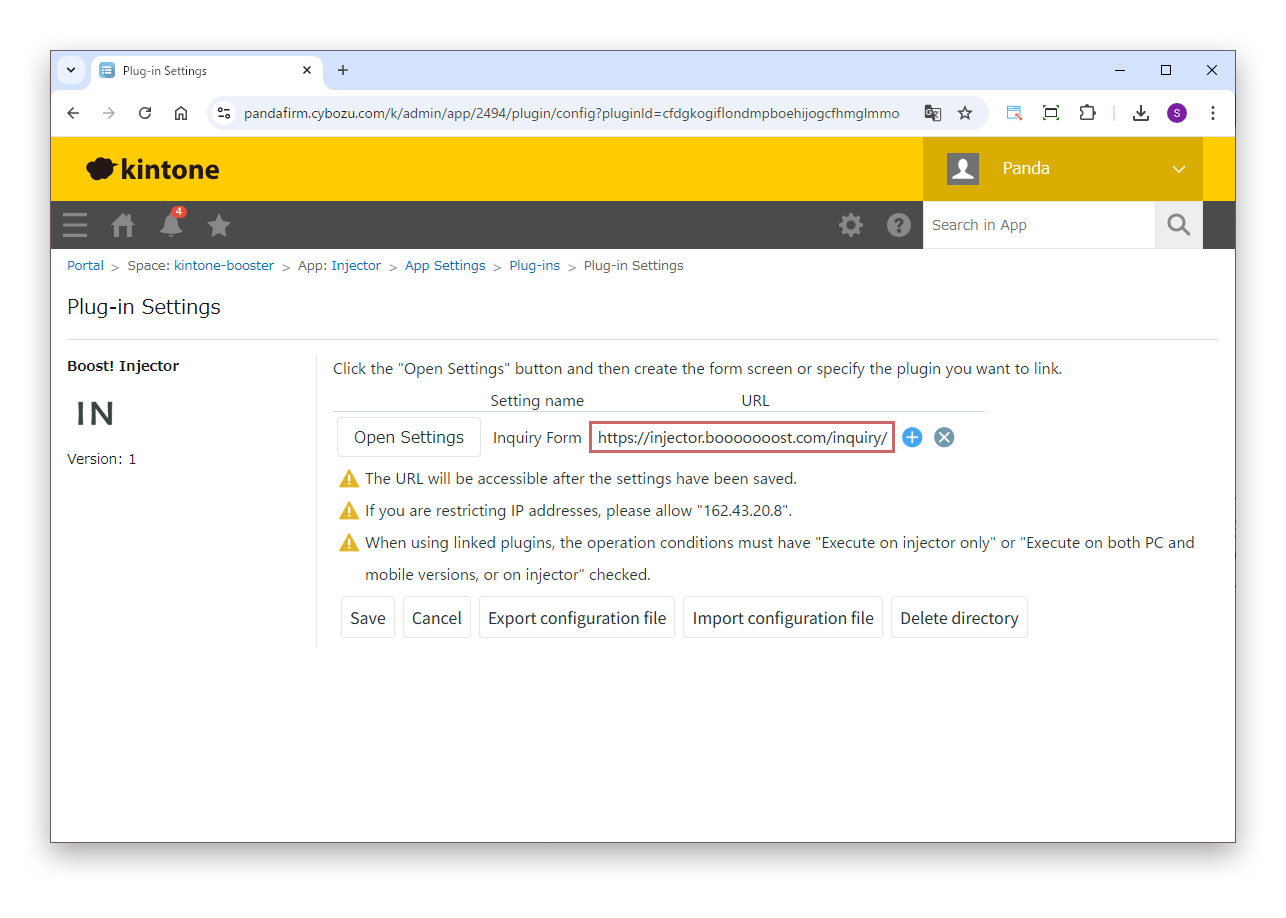
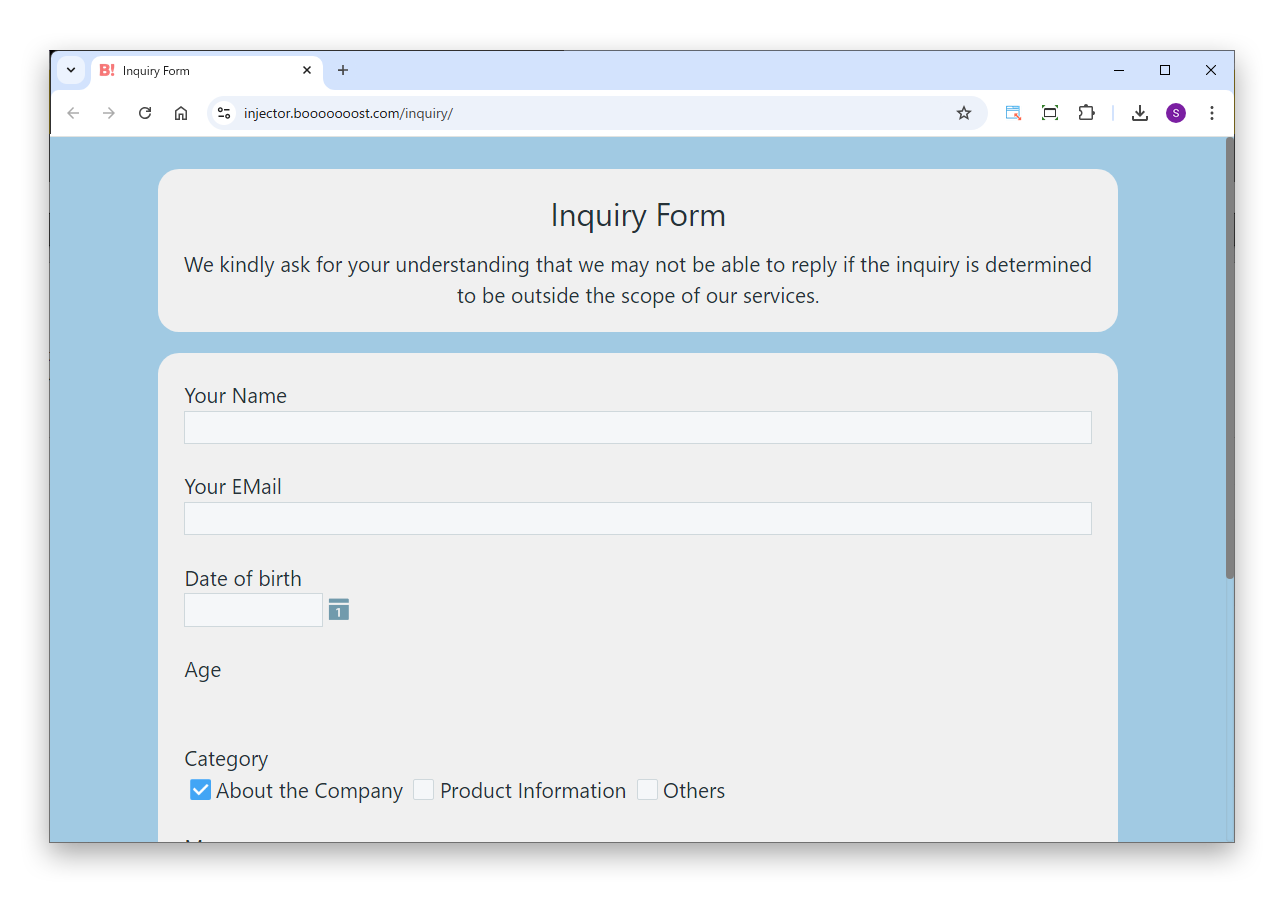
When saving is complete, the web form is created automatically. Open the URL shown in the URL field and check the content.
Data submitted through the web form is registered in kintone via the Boost! server (162.43.20.8). If you restrict IP addresses in kintone, allow this IP address.
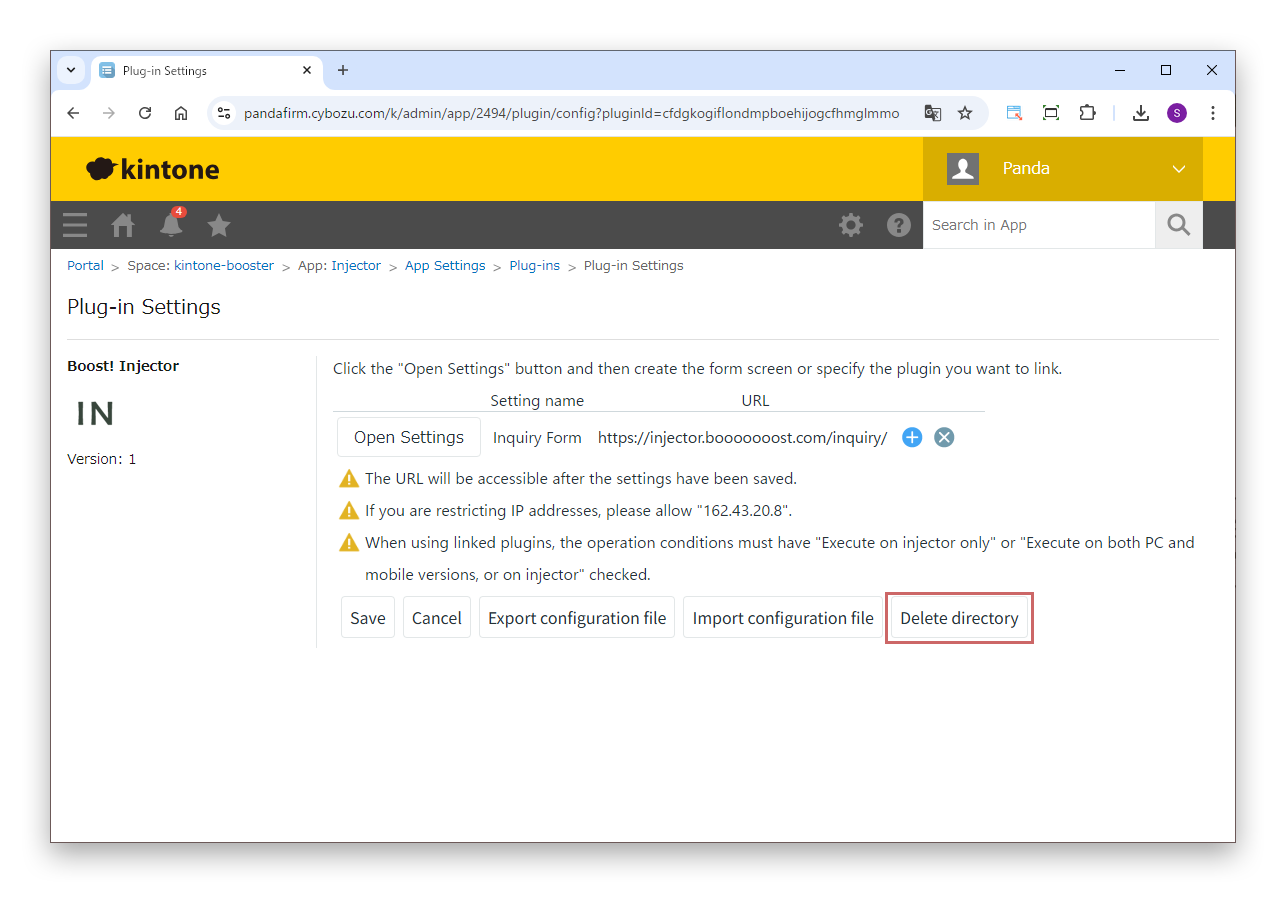
When you stop using the plugin, delete the directory you created. Click "Delete directory".
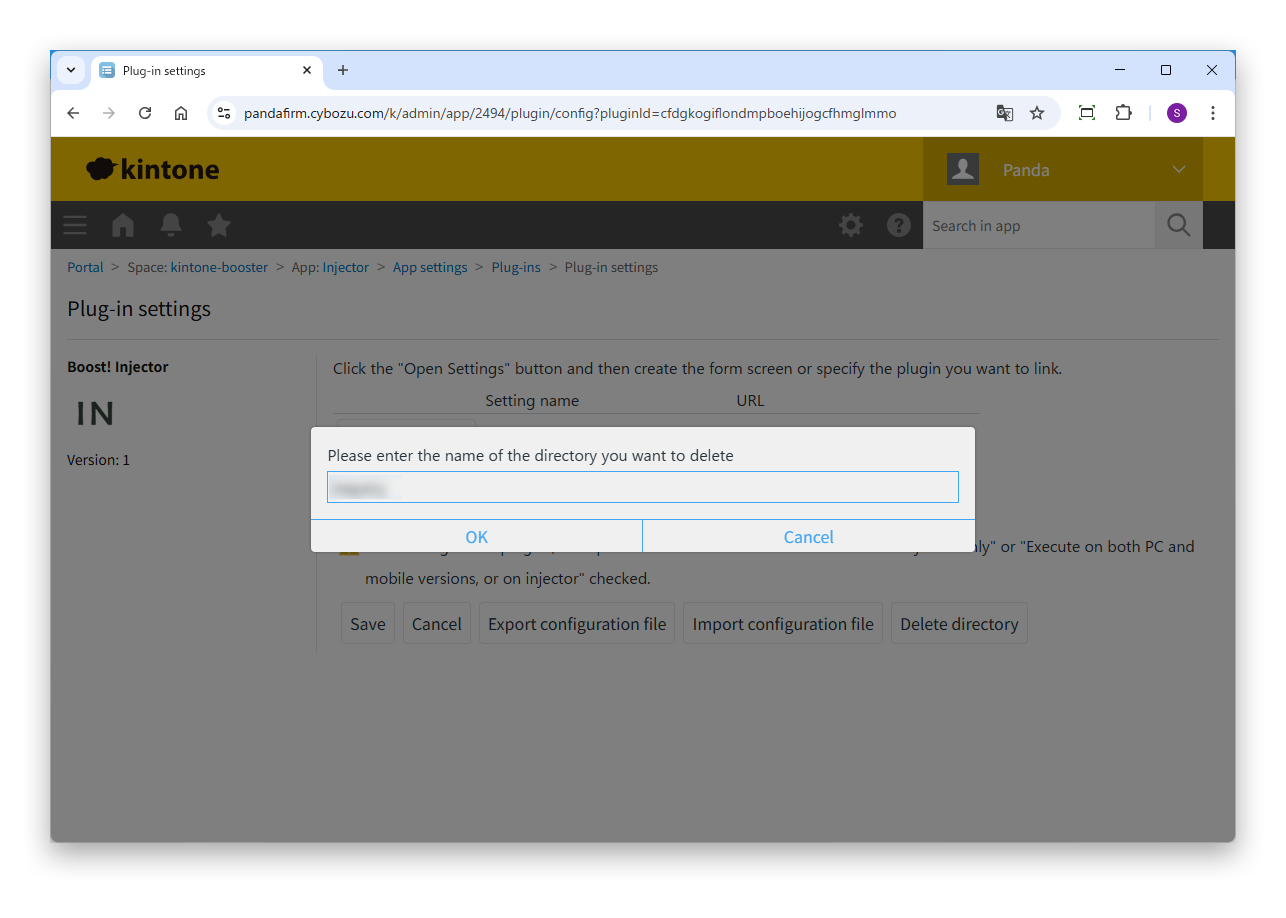
In the input box that appears, enter the name of the directory to delete.
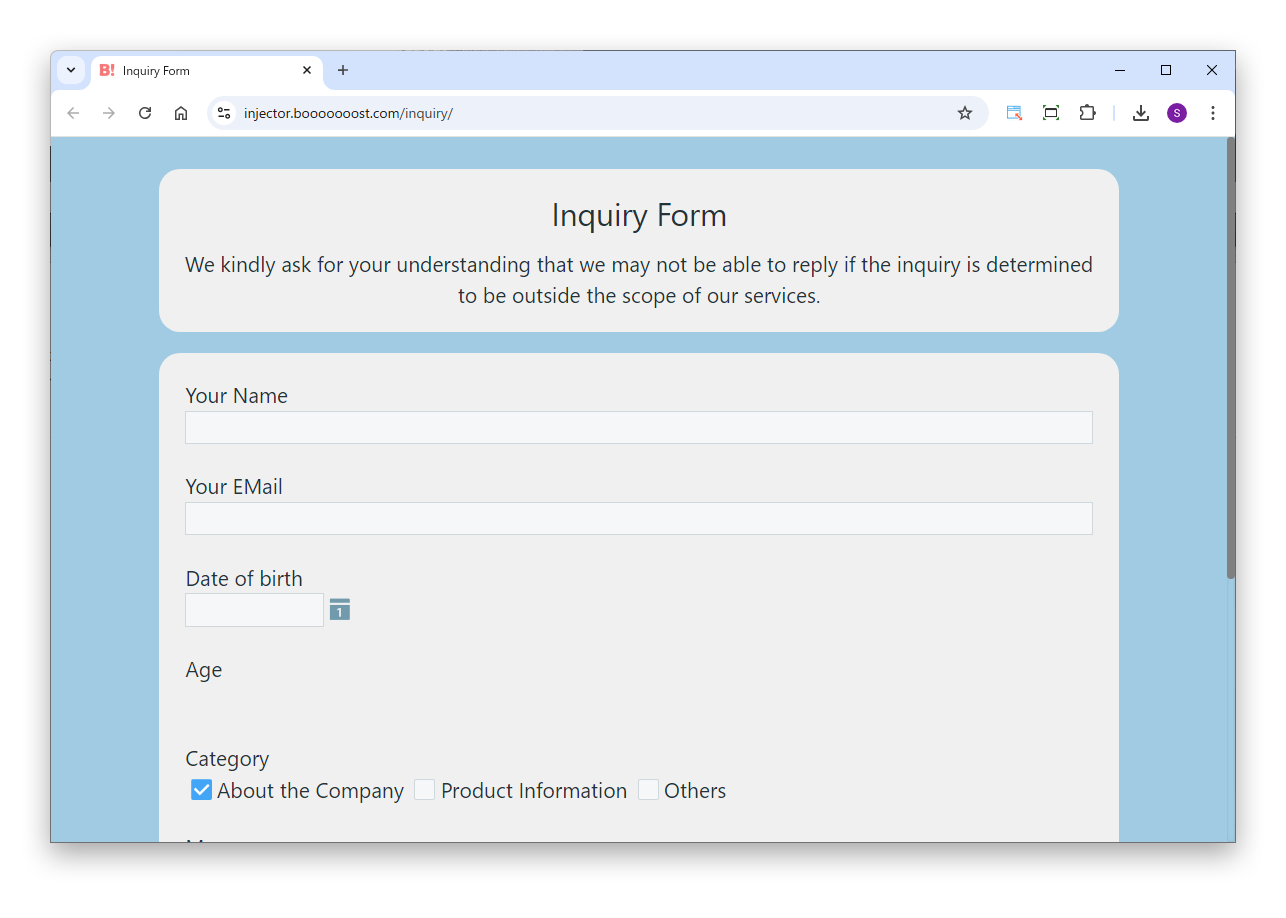
Open the web form you created and register records.
Data submitted through the web form is registered in kintone via the Boost! server (162.43.20.8). If you restrict IP addresses in kintone, allow this IP address.
To protect personal information, birthday, phone number and email address are excluded from the user information retrieved in web forms. These values cannot be retrieved by linked plugins or other means.
If you have not purchased a license by the end of the three-month trial period, this plugin can no longer be used.
With this plugin, you can add your own processing in JavaScript using Boost! Events. You can build detailed behavior that the standard features alone cannot achieve, at moments such as when the web form is shown, filled in and submitted.
For example, you can enter default values before the form is shown, or rewrite the values of other fields according to what is entered. You can also check the content before table rows are added, duplicated or deleted, or before submitting, and cancel the operation if the conditions are not met. You can also continue processing with the registered record after a successful submission.