Boost!for kintone
Home / Lookup
PLUGIN

Lookup

This plugin changes the filter conditions of lookup fields dynamically and copies the table of the source record. It can also copy multiple records of the datasource app into a table at once. It is useful when the standard lookup is not enough.

See the features

By using this product, you are deemed to have agreed to the Terms of Service.

SETTING

Setup

01

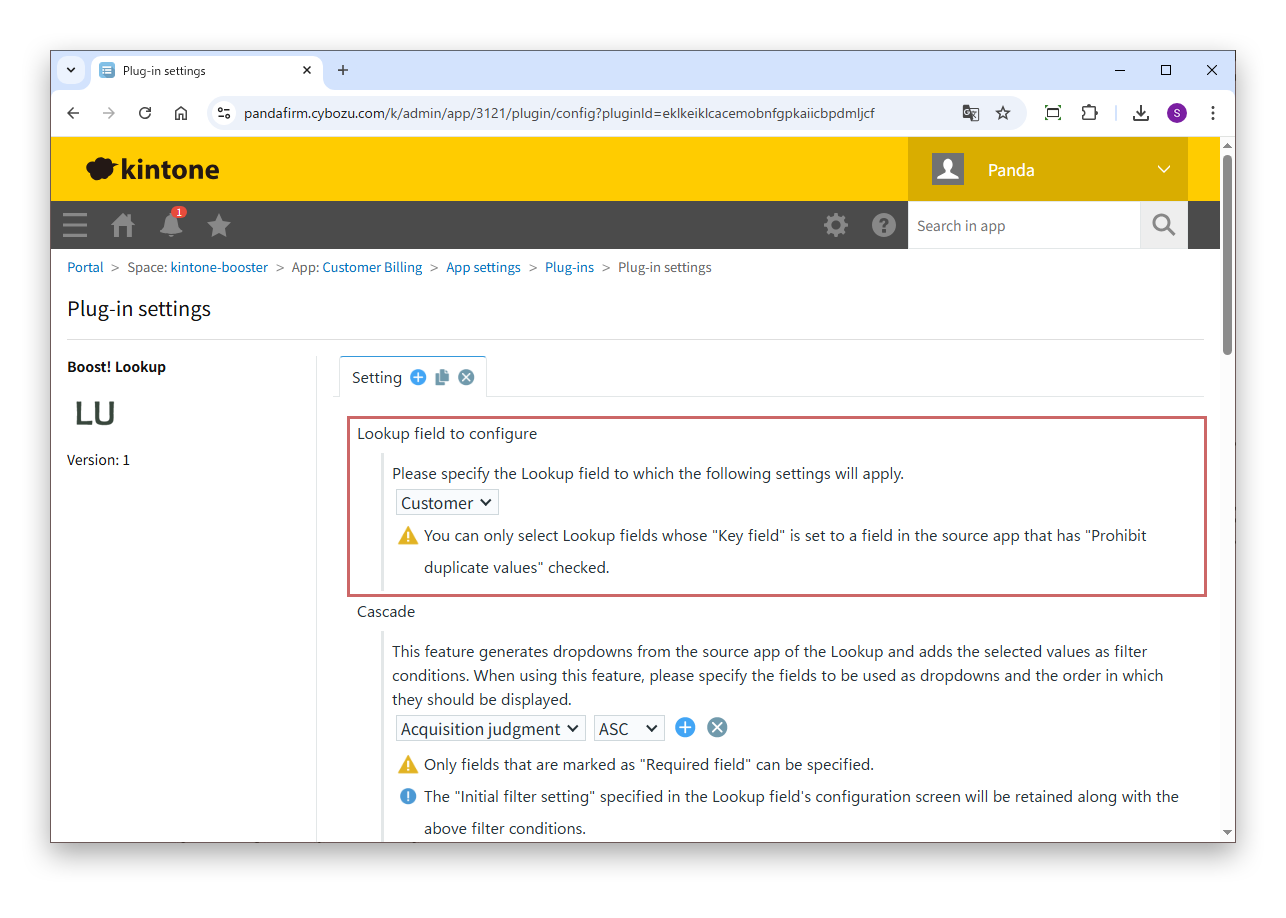
Specify the lookup field

First, specify the lookup field to which this plugin adds features.

Settings

Lookup field to configure
Specify the lookup field to which features are added.

You can only specify lookup fields whose "Key field" is set to a field in the datasource app that has "Prohibit duplicate values" selected.
02

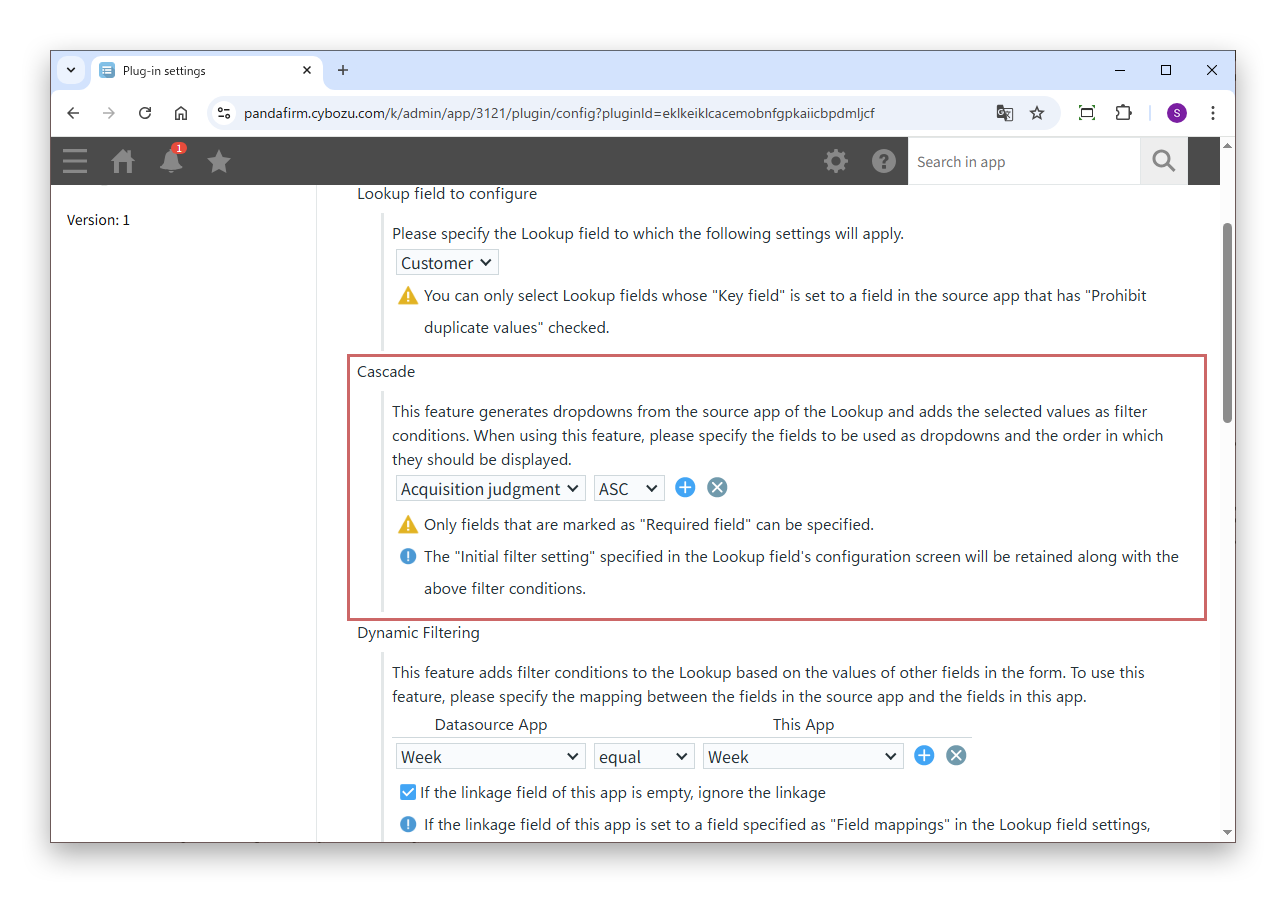
Specify Cascade

Specify this to create drop-downs from the values of fields in the datasource app and add the selected values to the lookup filter conditions.

Settings

Fields and Sort Order
Specify the fields of the datasource app to use as drop-downs and the sort order of the options. If you specify multiple fields, a drop-down is shown for each field.

Only fields with "Required field" selected can be specified.

The "Filter" specified on the lookup settings screen is also applied as it is.

03

Specify Dynamic Filtering

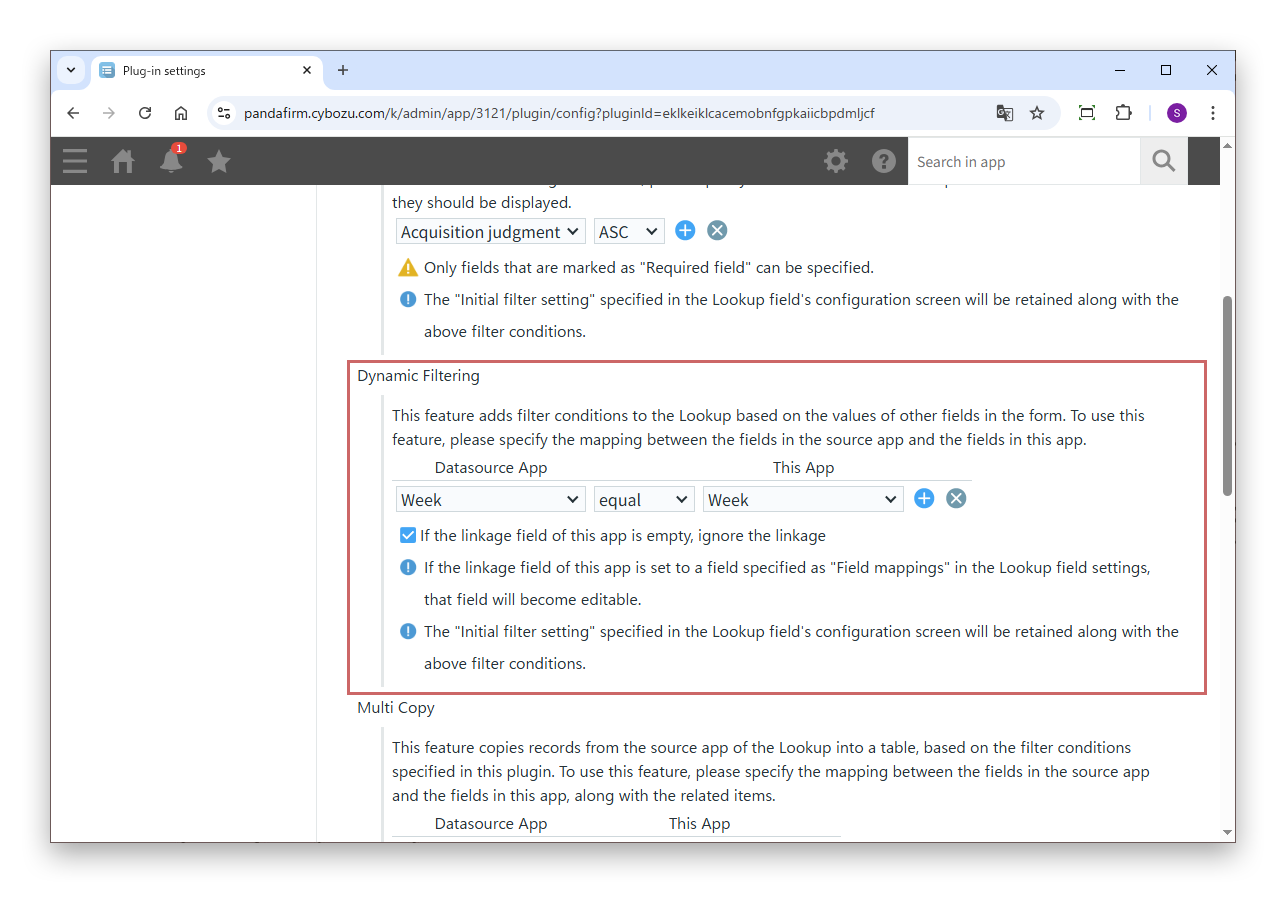
Specify this to add the values of other fields entered in the record to the lookup filter conditions.

Settings

Datasource App
Specify the field of the datasource app used for filtering and the comparison condition.
This App
Specify the field of this app in which the value to compare is entered.
If the linkage field of this app is empty, ignore the linkage
Select this to filter without that condition when the field of this app is empty.

If you specify a field set in the lookup "Field mappings" as a field of this app, you can enter values in that field.

04

Specify Multi Copy

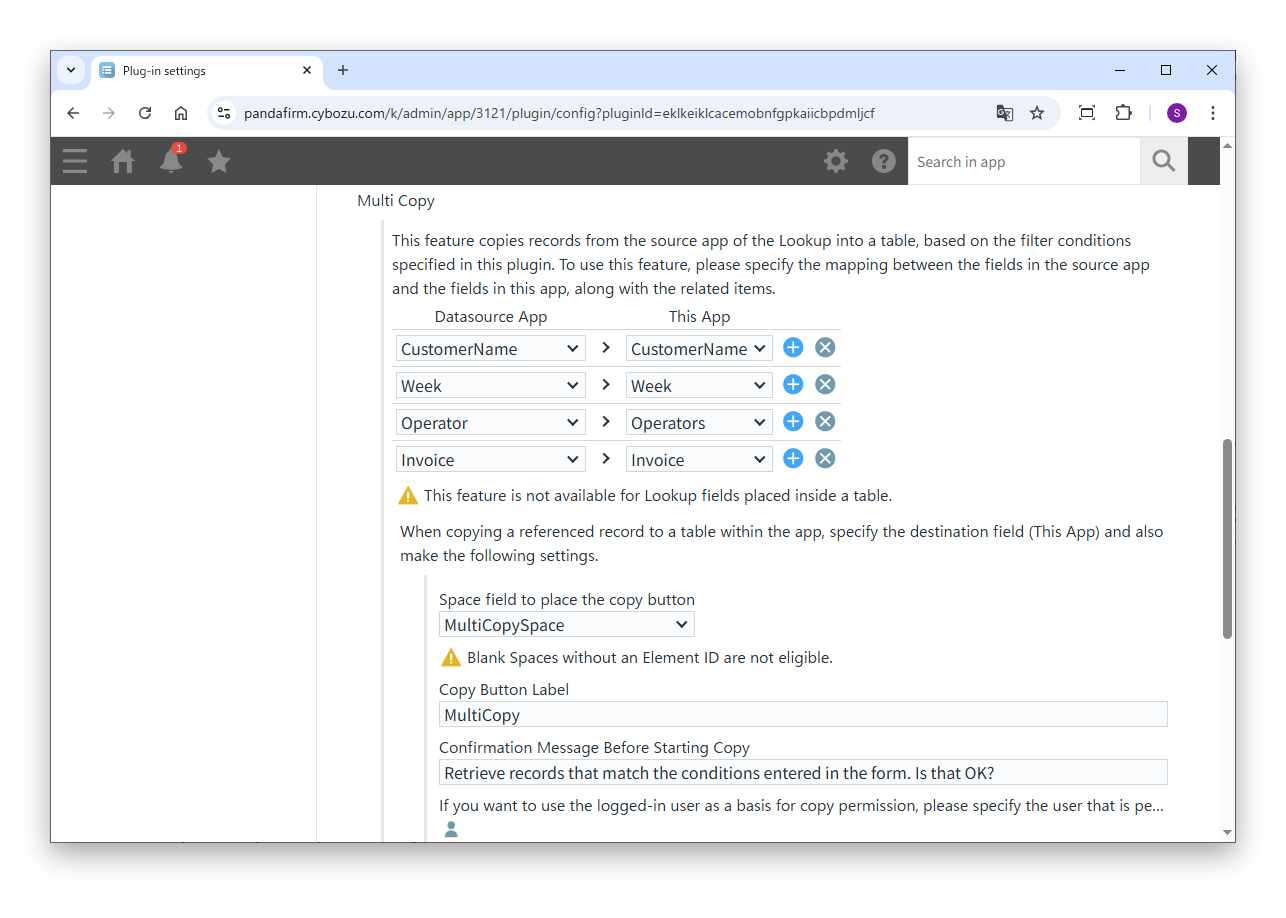
Specify this to select records that match the filter conditions in the datasource app and copy them into a table at once.

Settings

Datasource App
Specify the fields of the datasource app to copy from.
This App
Specify the fields in the table of this app to copy to.
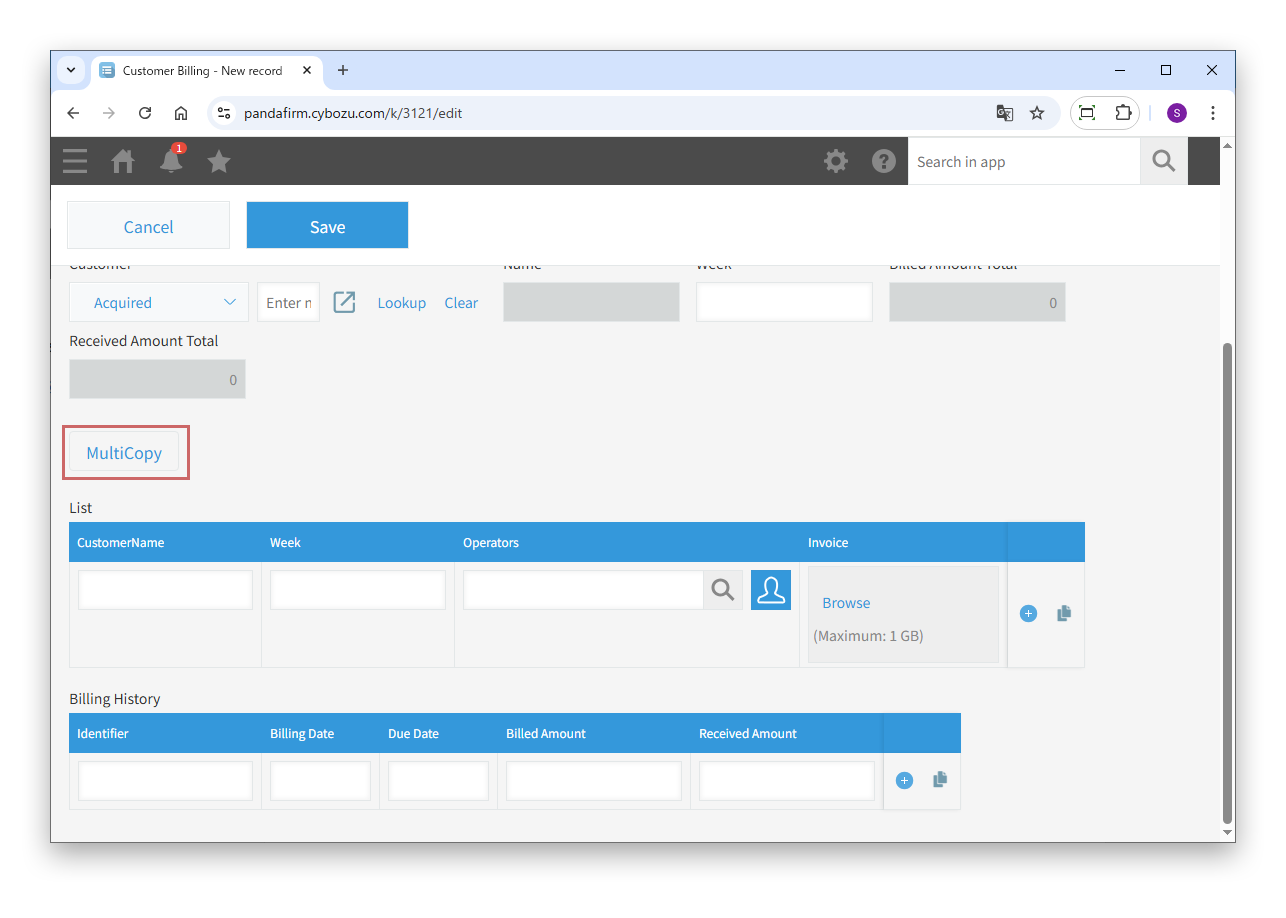
Space field to place the copy button
Specify the Blank space in which the copy button is shown. Only Blank spaces with an element ID can be specified.
Copy Button Label
Enter the label of the copy button.
Confirmation Message Before Starting Copy
Enter the confirmation message shown before copying.
Users, departments, and groups allowed to copy
To allow copying based on the logged-in user, or the departments and groups the user belongs to, specify who is allowed.

It cannot be used with lookup fields in tables.

If the fields to copy include an attachment field, install Boost! Attachment in this app and enable "Copy Table Rows" or "Table Sorting". This is because standard features cannot put files into attachment fields in tables. These features work only in the PC version, so attachments cannot be copied in the mobile version.

05

Specify Table Copy

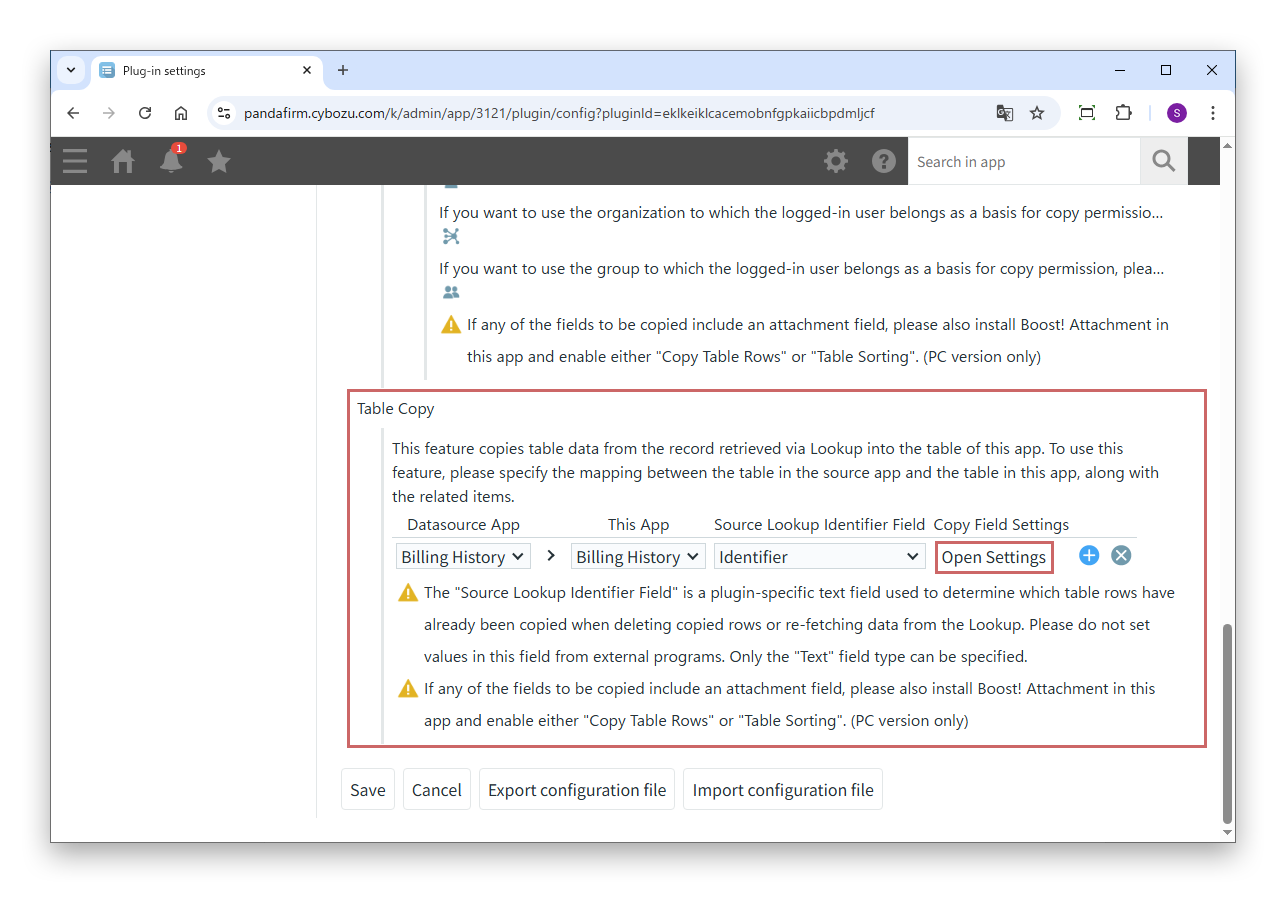
Specify this to copy the table of the record retrieved by the lookup into the table of this app.

Settings

Datasource App
Specify the table of the datasource app to copy from.
This App
Specify the table of this app to copy to.
Source Lookup Identifier Field
Specify the field used to identify copied rows. Prepare a text field in the destination table.
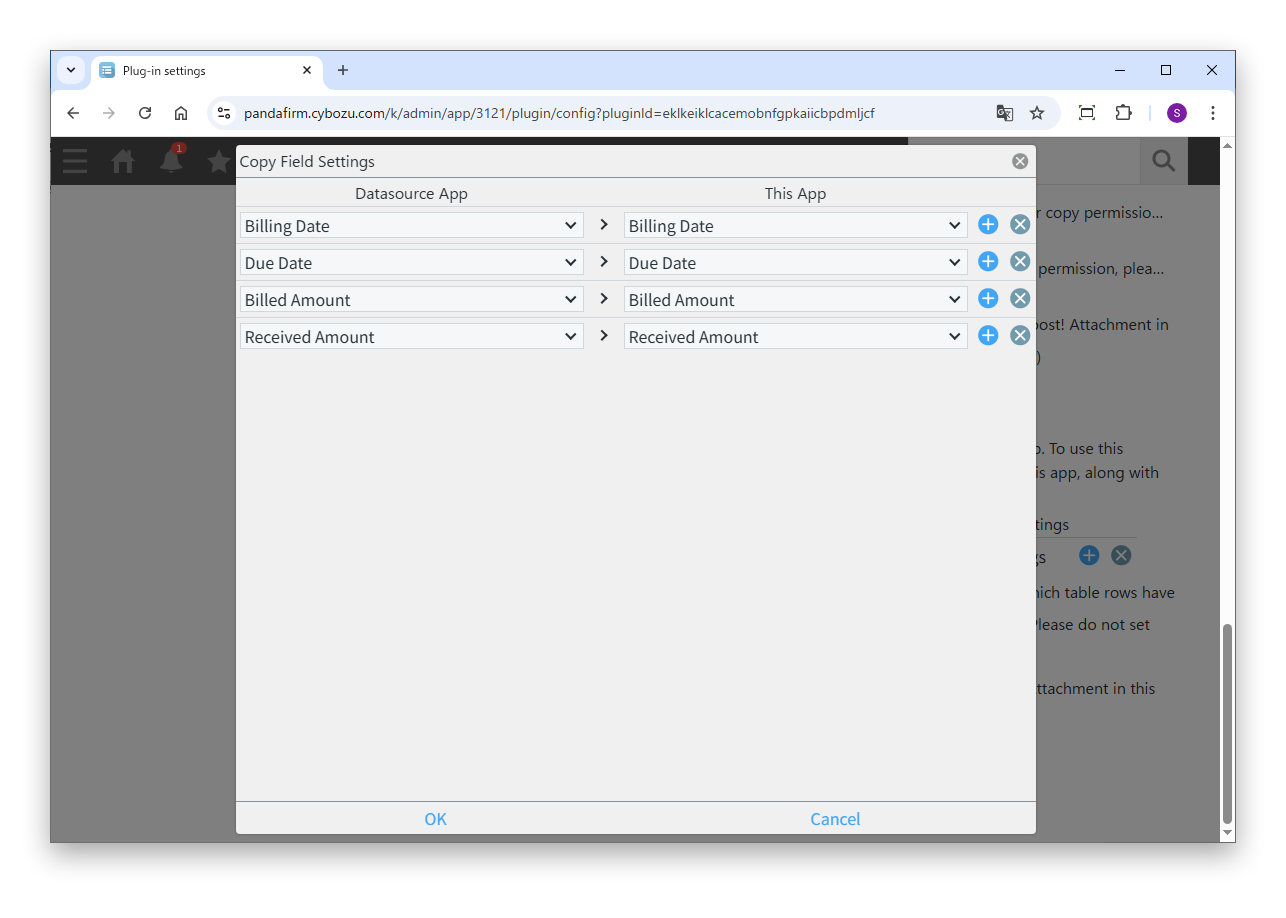
Copy Field Settings
Click "Open Settings" and specify the combinations of fields to copy.

The source lookup identifier field is dedicated to this plugin. Do not change its value with other programs.

If the fields to copy include an attachment field, install Boost! Attachment in this app and enable "Copy Table Rows" or "Table Sorting". This is because standard features cannot put files into attachment fields in tables. These features work only in the PC version, so attachments cannot be copied in the mobile version.

On the screen that appears, specify the combinations of fields in the table of the datasource app and fields in the table of this app.

HOW TO USE

How to use

01

Filter with Cascade

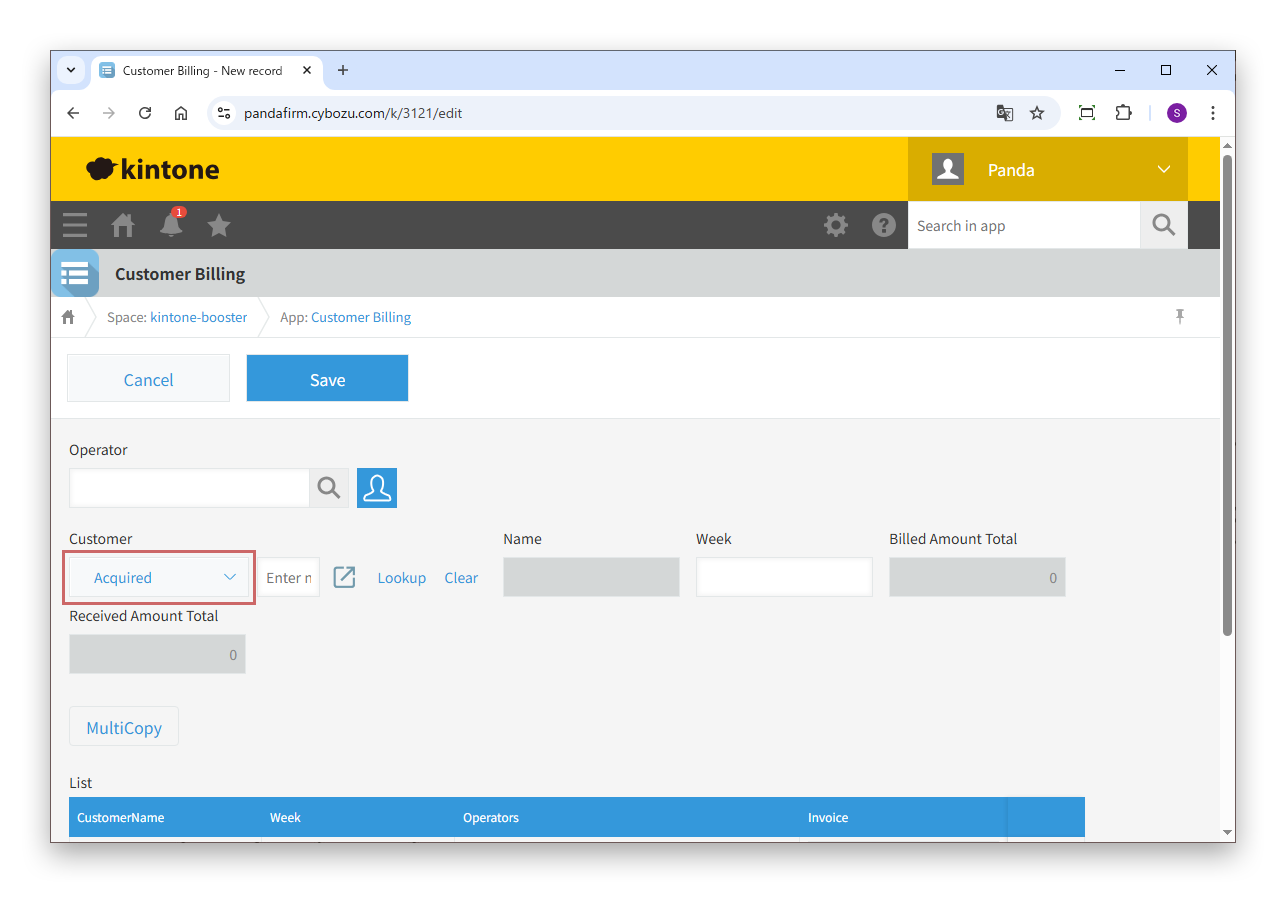
Drop-downs for filtering appear next to the lookup field.

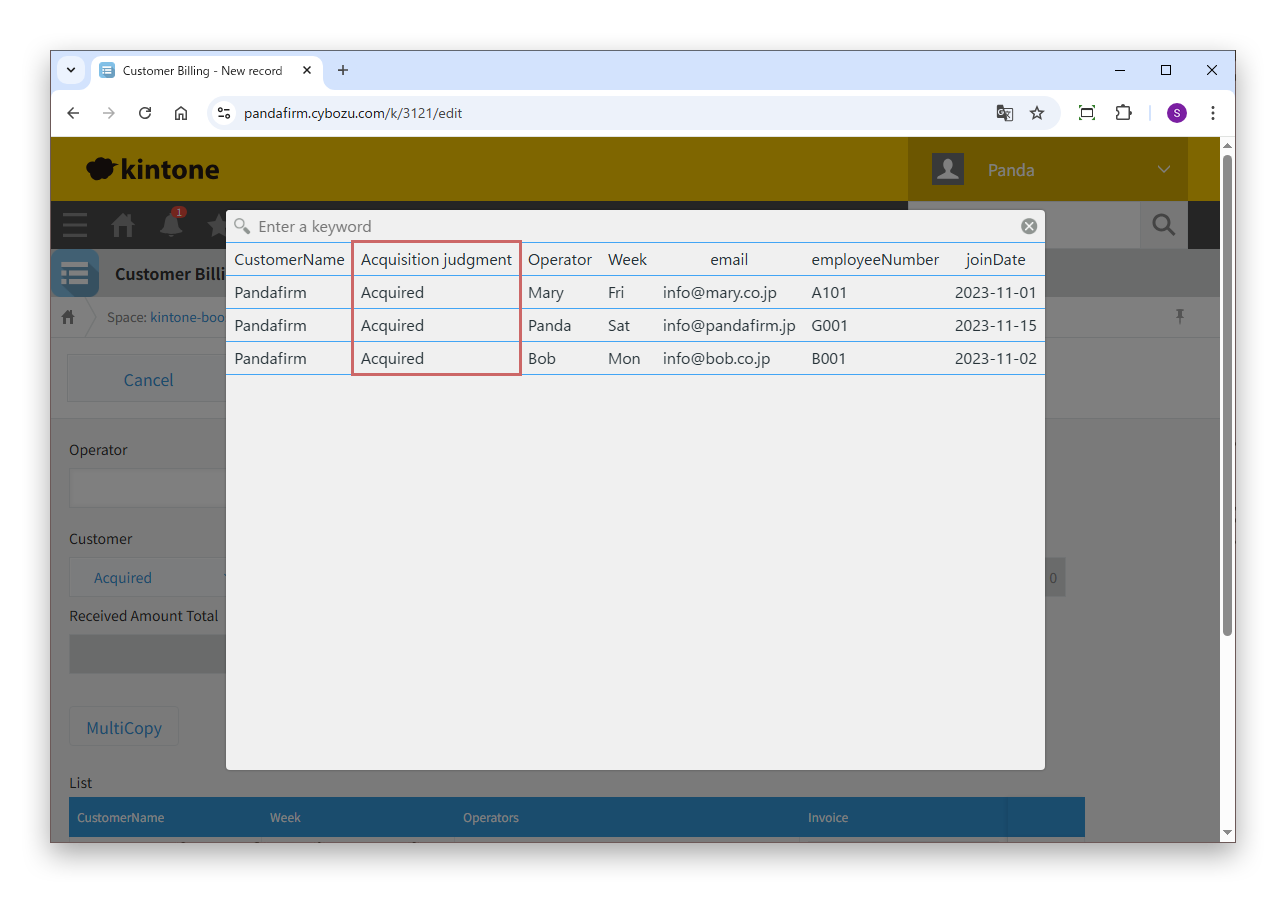
Select values in the drop-downs and click "Lookup", and the records are filtered by the selected values in addition to the lookup "Filter".

If Dynamic Filtering is also specified, its conditions are added as well.

02

Filter with Dynamic Filtering

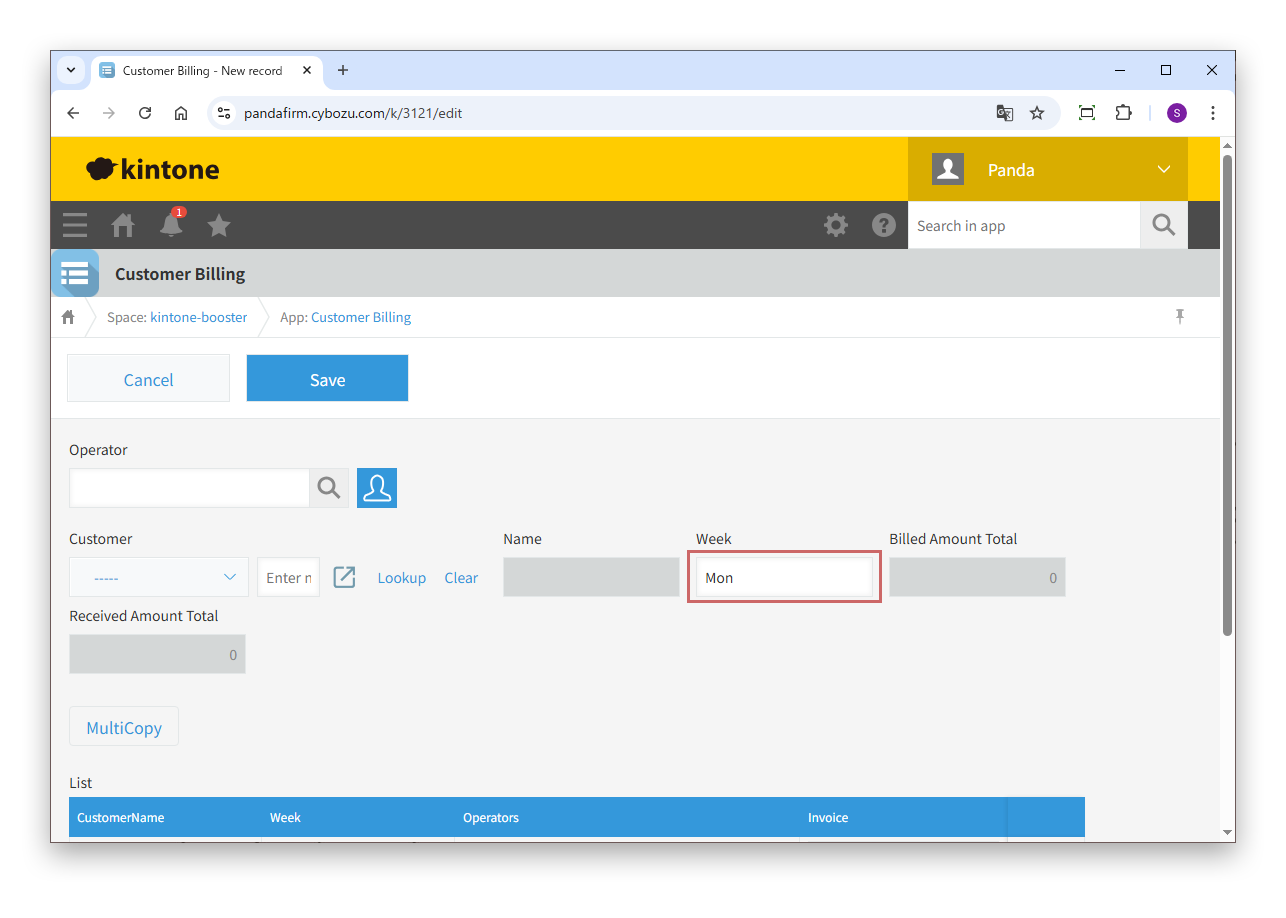
Enter values in the fields specified for Dynamic Filtering.

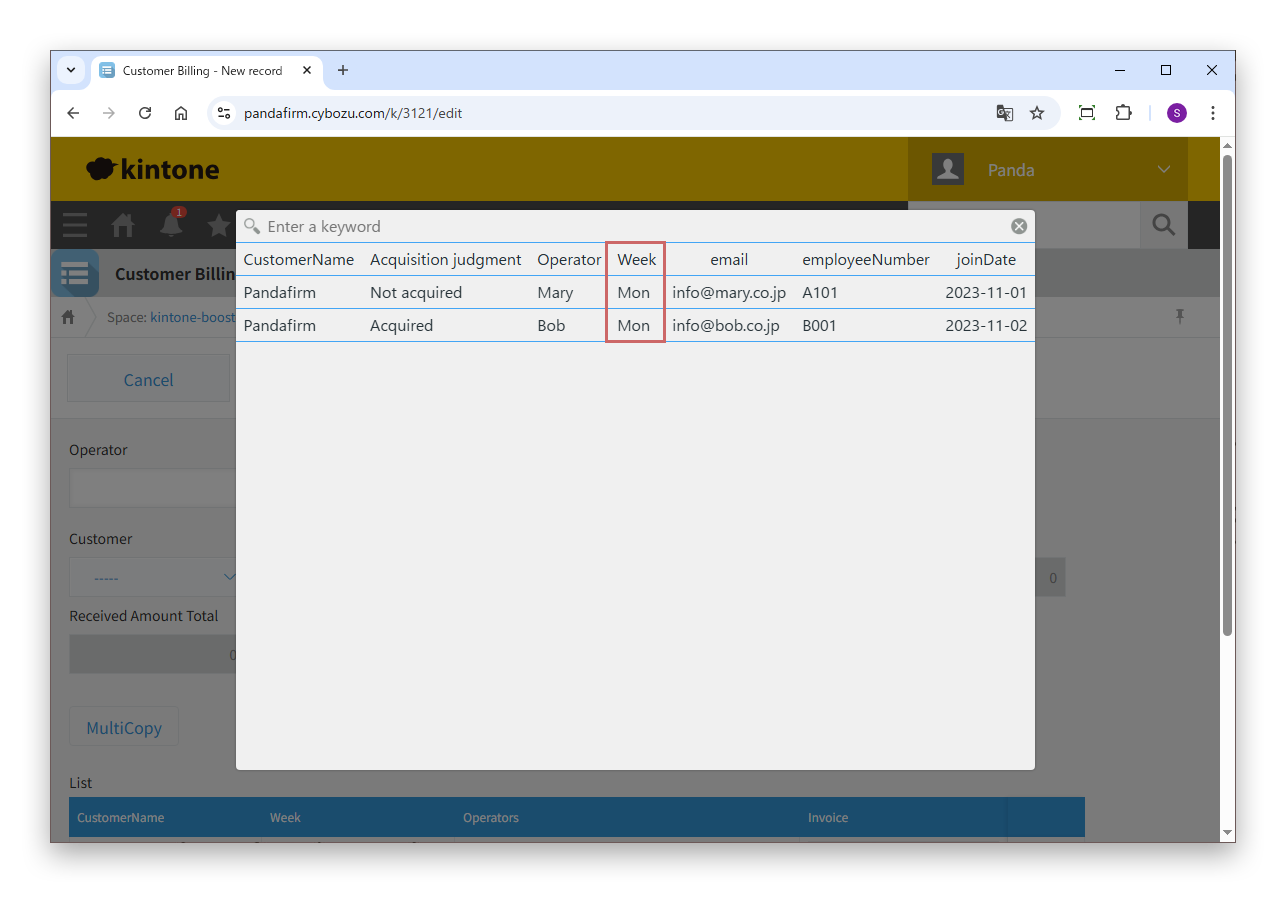
Click "Lookup", and the records are filtered by the entered values in addition to the lookup "Filter".

If Cascade is also specified, its conditions are added as well.

03

Copy multiple records into a table

The copy button appears in the specified Blank space.

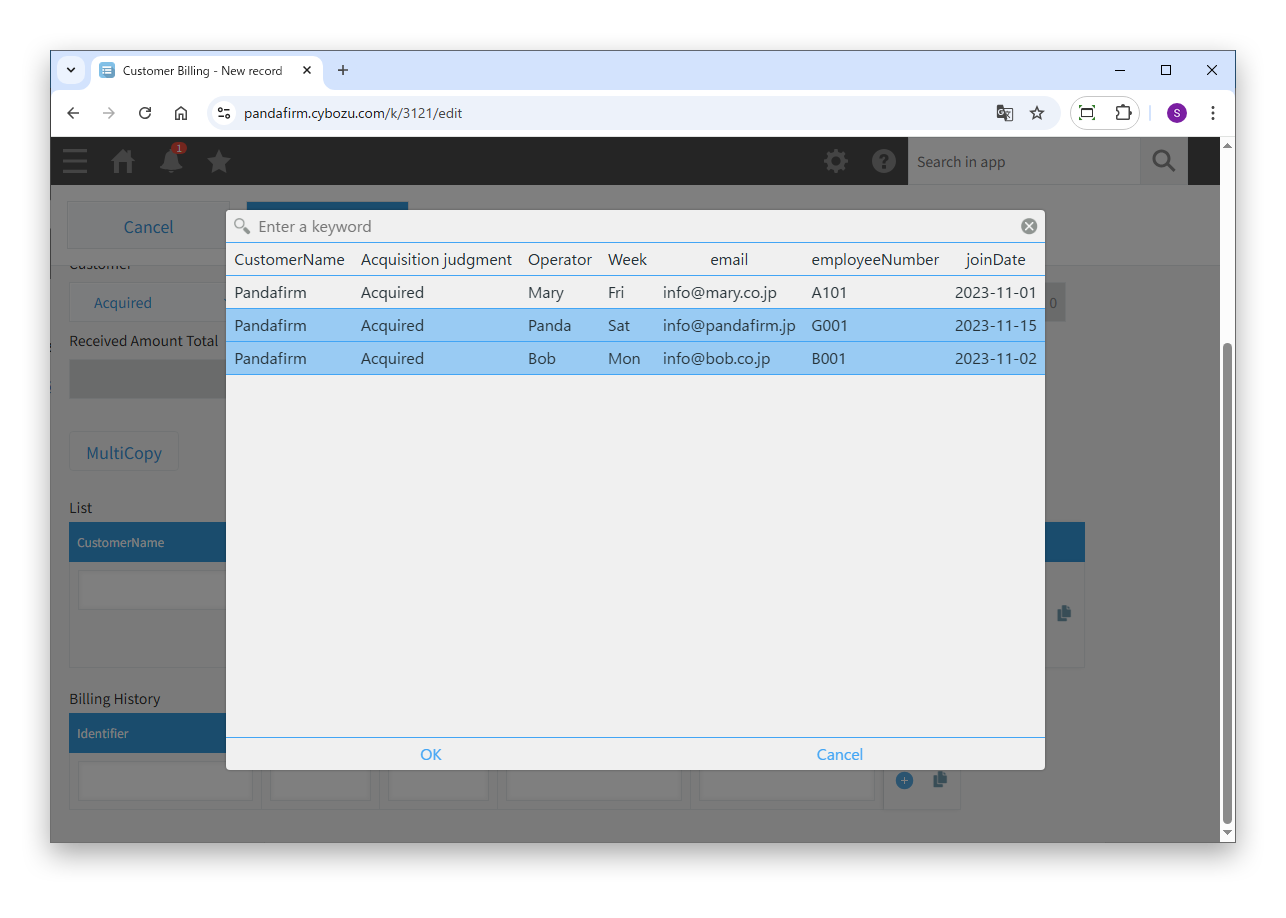
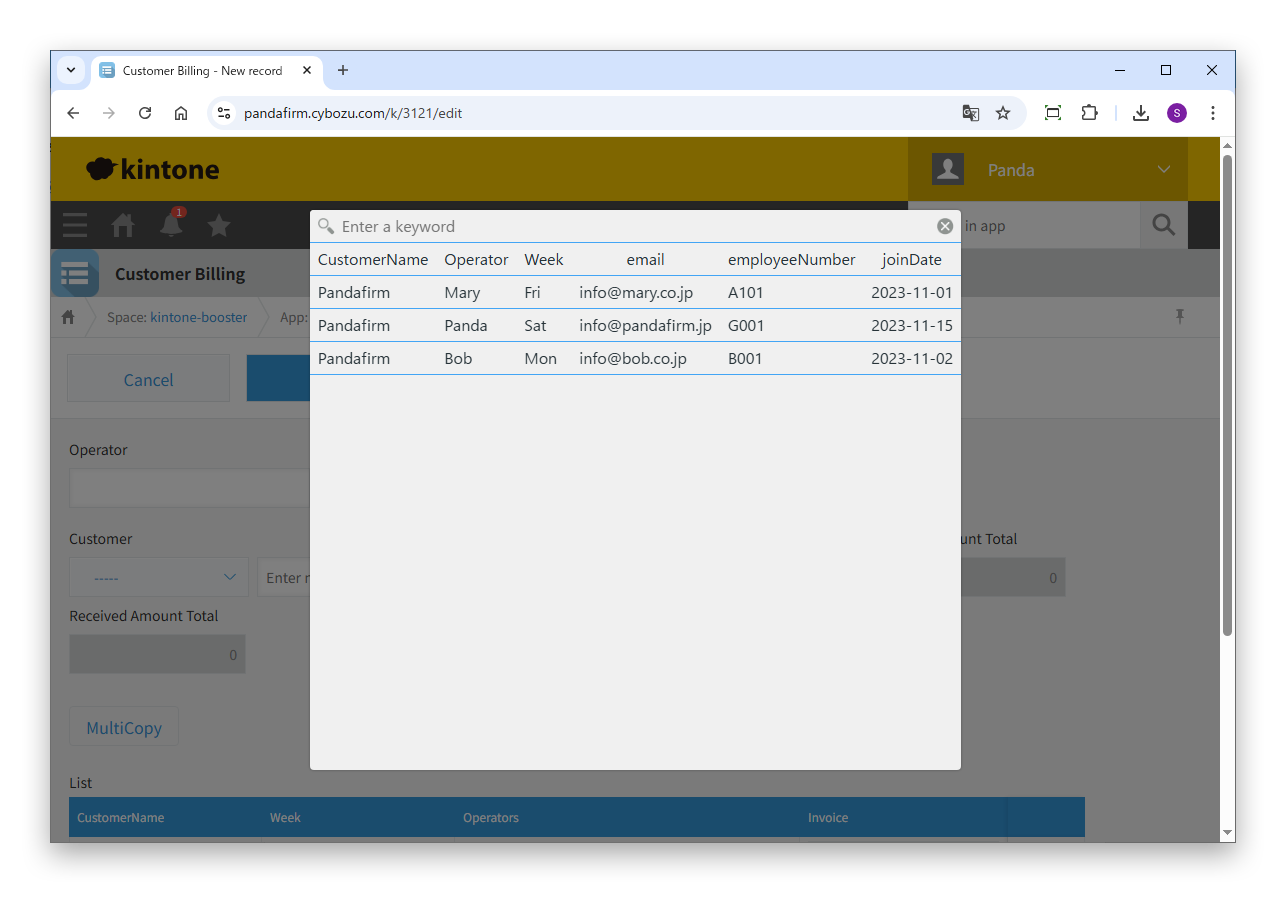
Click the copy button to show the screen for selecting the records to copy. The records on the selection screen are filtered by the same conditions as when "Lookup" is clicked.

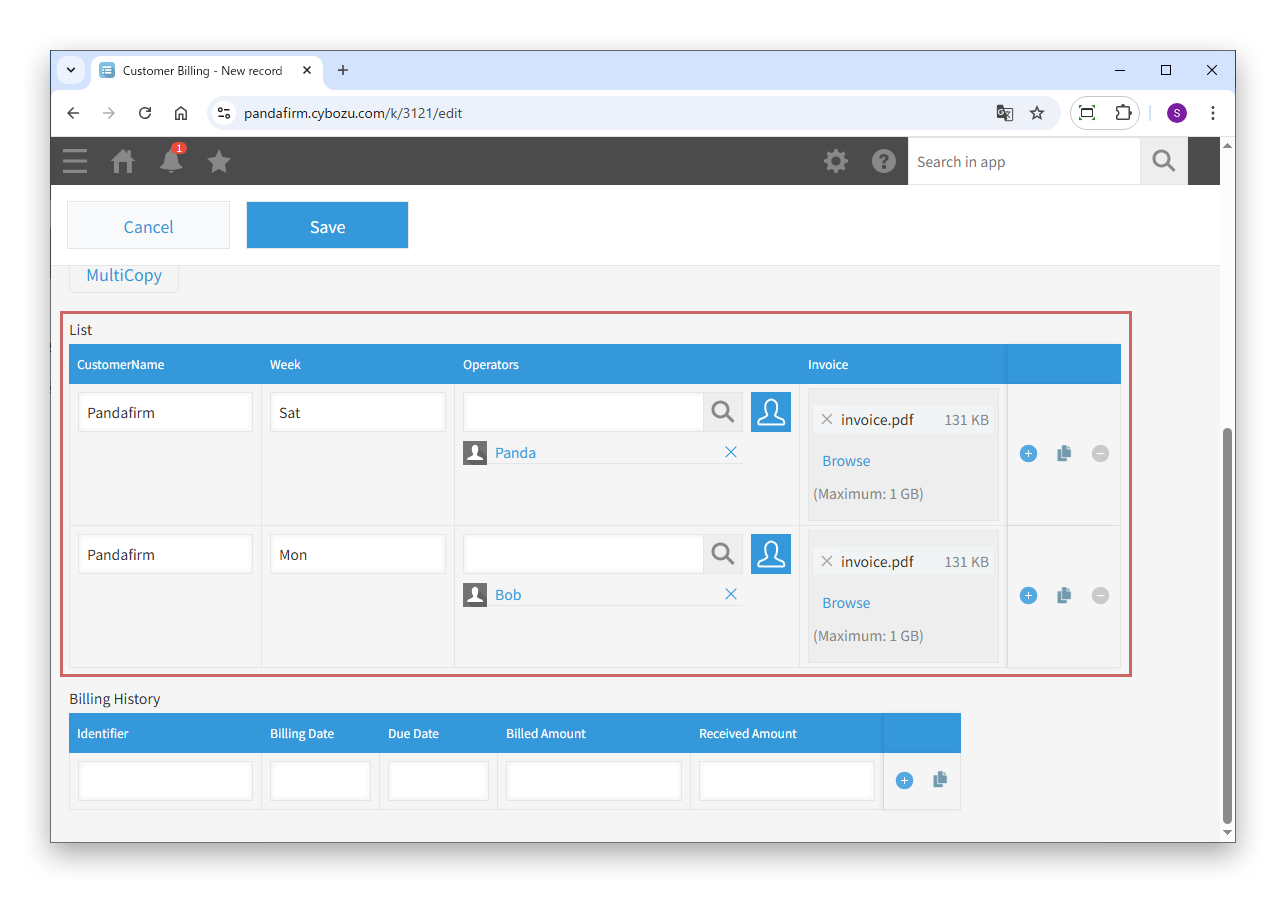
The selected records are added to the table as rows.

Existing rows remain. If the last row is empty, that row is deleted before the records are added.

04

Copy the source table

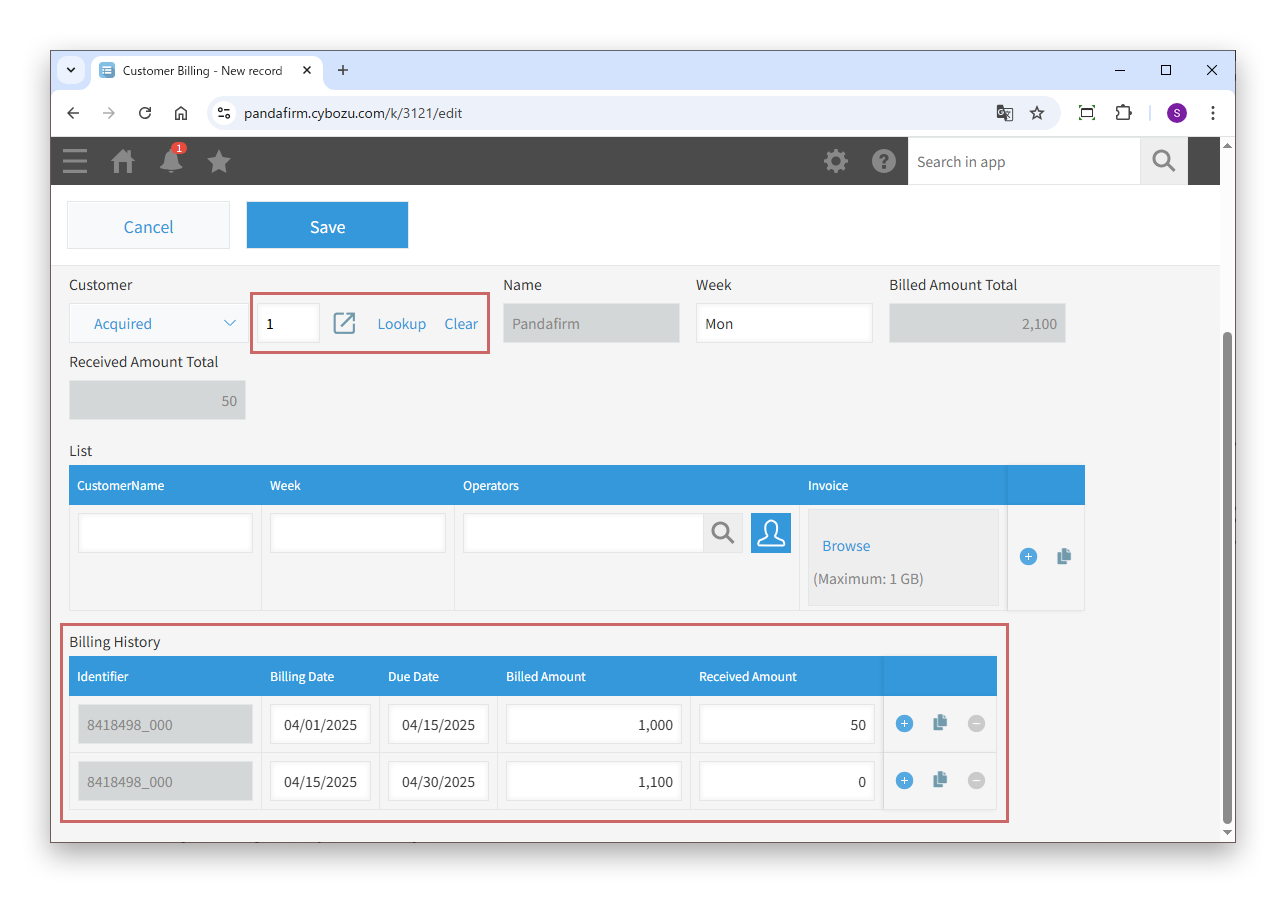
When a record is retrieved by the lookup, the table of that record is copied into the table of this app.

When the lookup is retrieved again, the previously copied rows are deleted and replaced with new rows. Rows added manually remain.