Boost!for kintone
Home / Submit
PLUGIN

Submit

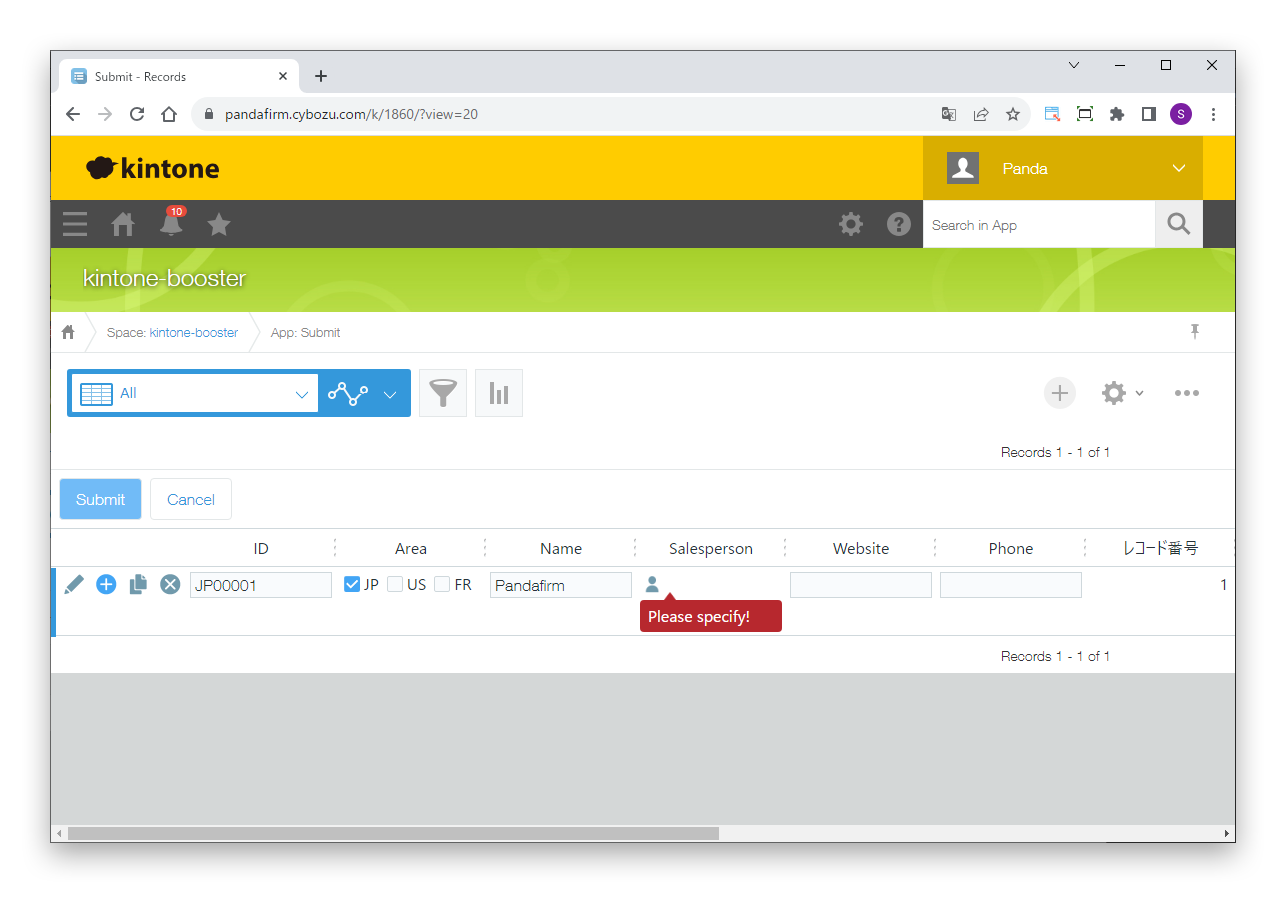
This plugin performs error checks and automatic numbering based on conditions when a record is saved or a process action runs. It can also show pop-ups that prompt for input or ask you to confirm what you entered. It works with the plugins in the Boost! series, so it can also run when records are saved through a plugin.

See the features

By using this product, you are deemed to have agreed to the Terms of Service.

SETTING

Setup

01

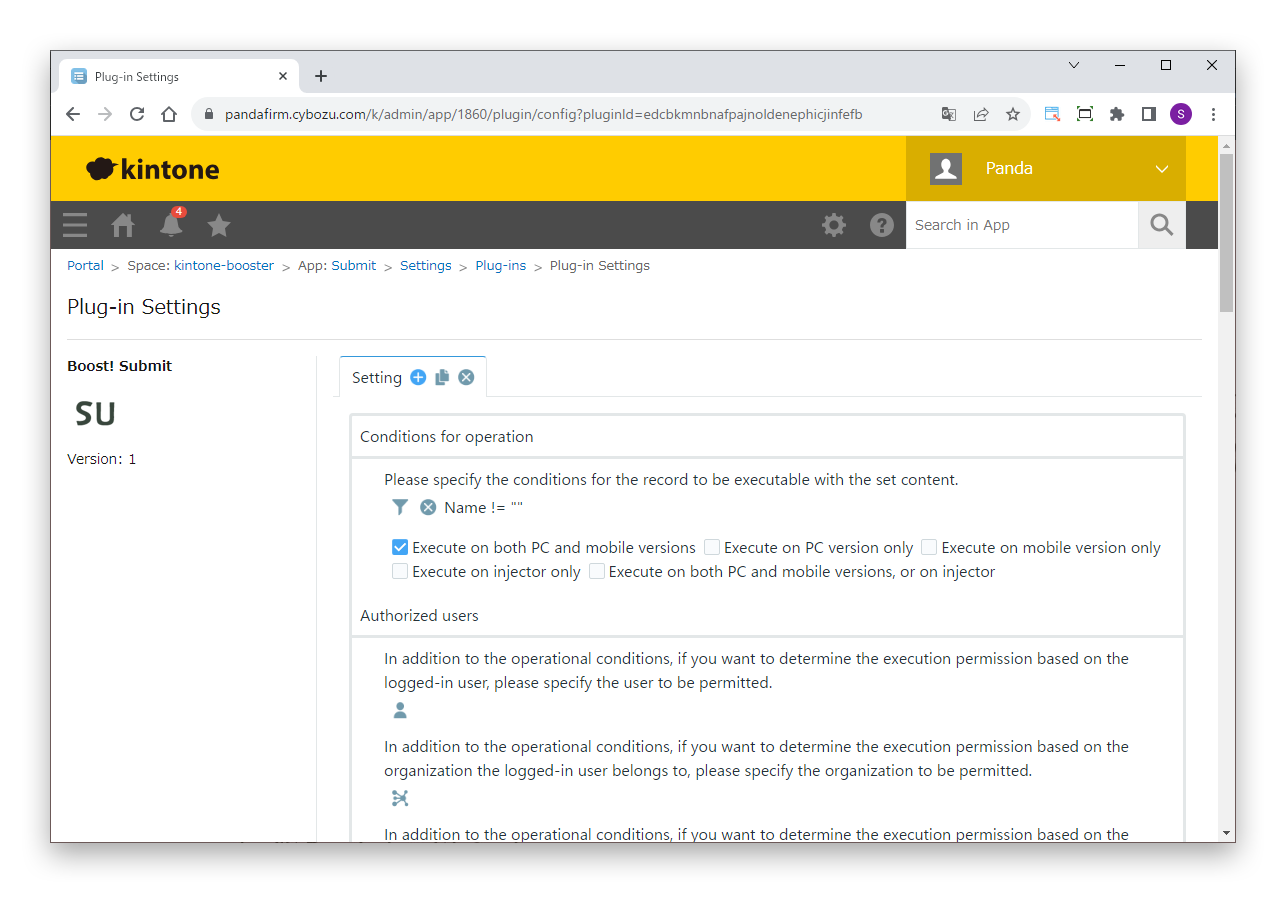
Specify the conditions

First, specify the conditions under which the process runs.

Settings

Conditions for operation
Specify the conditions of the records to process.
Authorized users
To allow execution based on the logged-in user, or the departments and groups the user belongs to, in addition to the conditions for operation, specify who is allowed.
Action Available Event
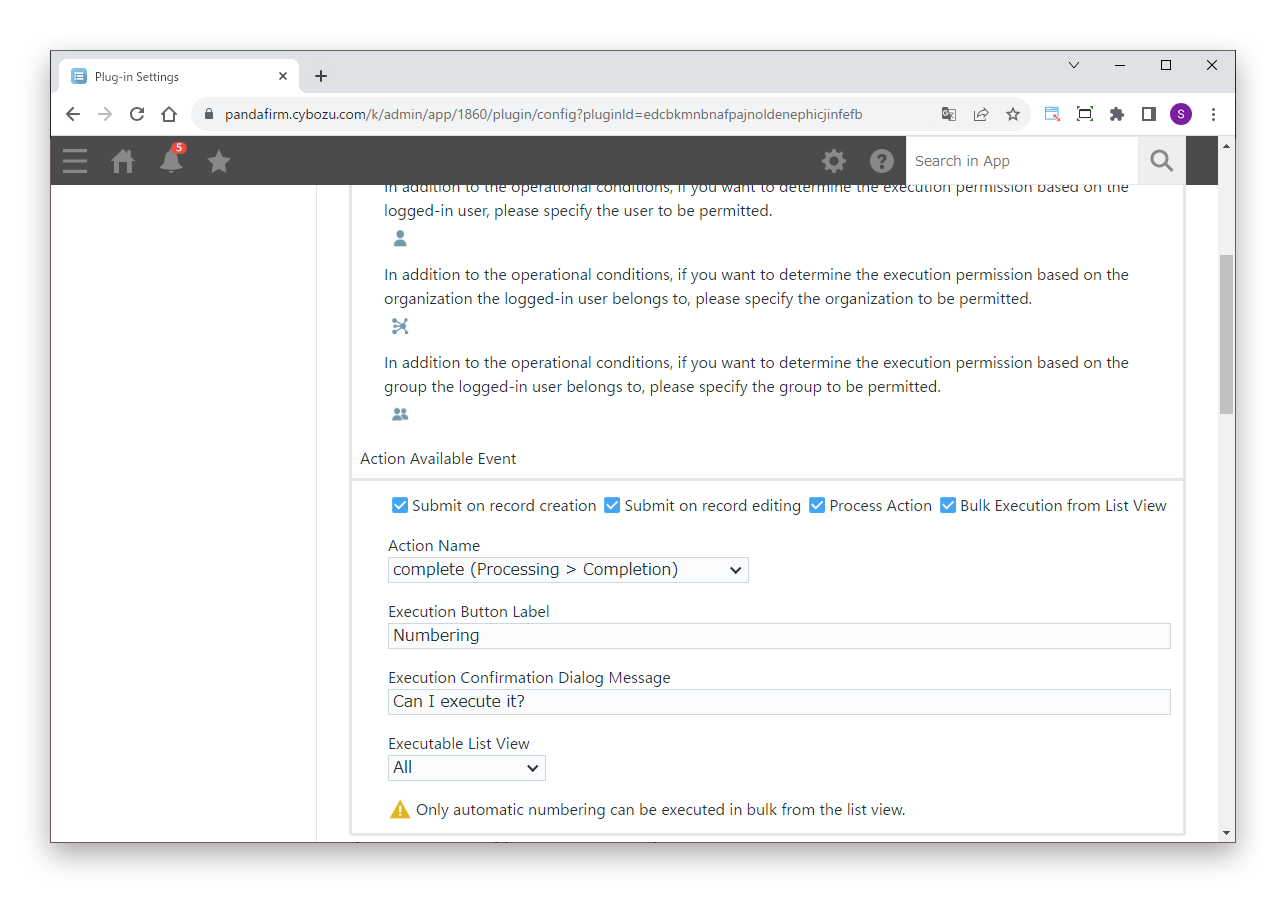
Specify the event that runs the process (Submit on record creation, Submit on record editing, Process Action, or Bulk Execution from List View).

For details on the injector, see the Boost! Injector page.
02

Specify the items for the event

Some events have additional items to specify.

Settings

Action Name
If you specify "Process Action" as the event, specify the action name.
Execute Button Label
If you specify "Bulk Execution from List View" as the event, enter the label of the execute button.
Execution Confirmation Dialog Message
If you specify "Bulk Execution from List View" as the event, enter the message of the confirmation dialog.
Executable List View
If you specify "Bulk Execution from List View" as the event, specify the views in which the execute button is shown.

Only automatic numbering can run with "Bulk Execution from List View".

Some fields cannot be overwritten when a process action runs.

Fields that can be overwritten when a process action runs +
03

Specify the settings

Next, specify the process to run when the conditions are met.

Settings

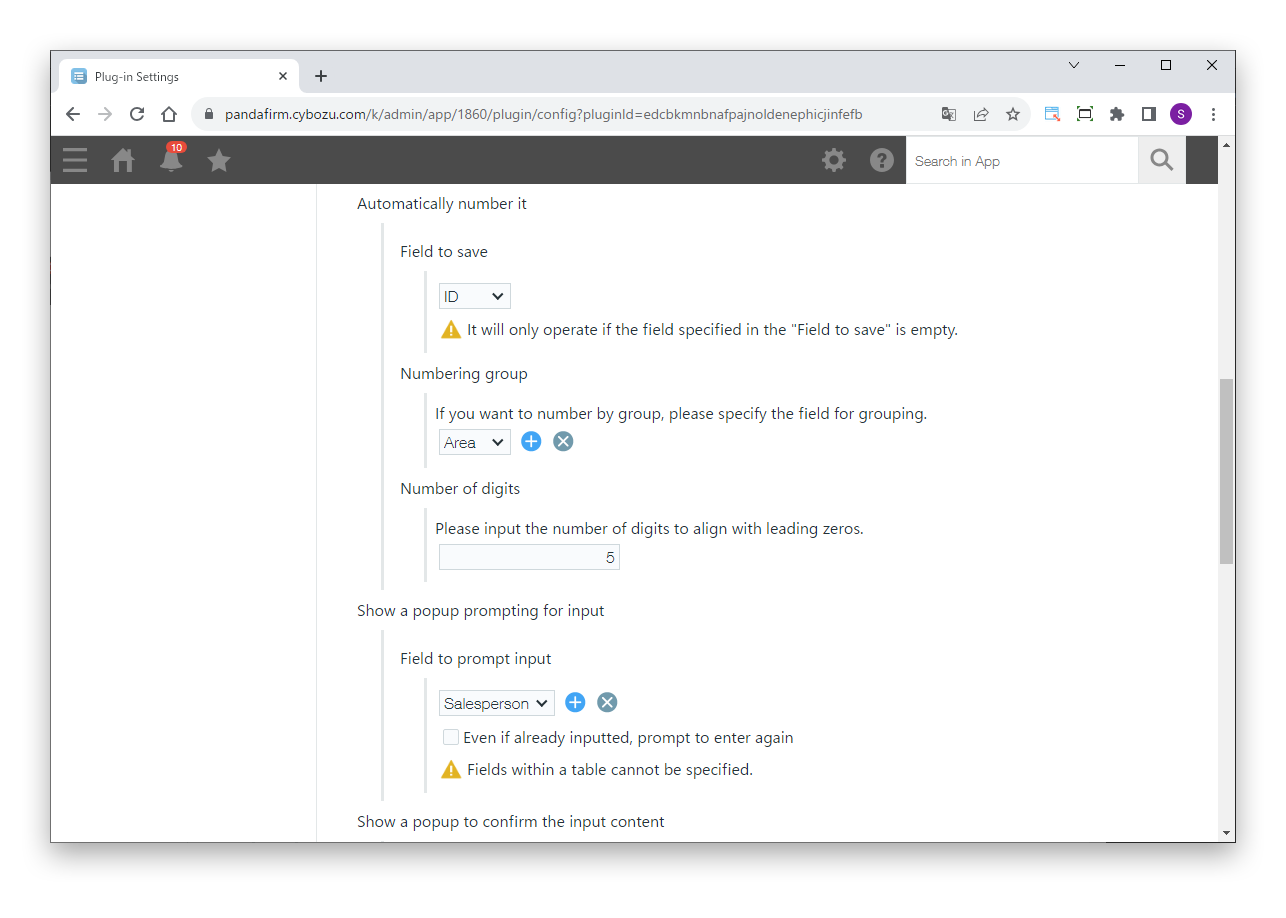
Automatically number it
Enters sequential numbers in the destination field automatically. If you specify a numbering group, numbers are assigned for each group.
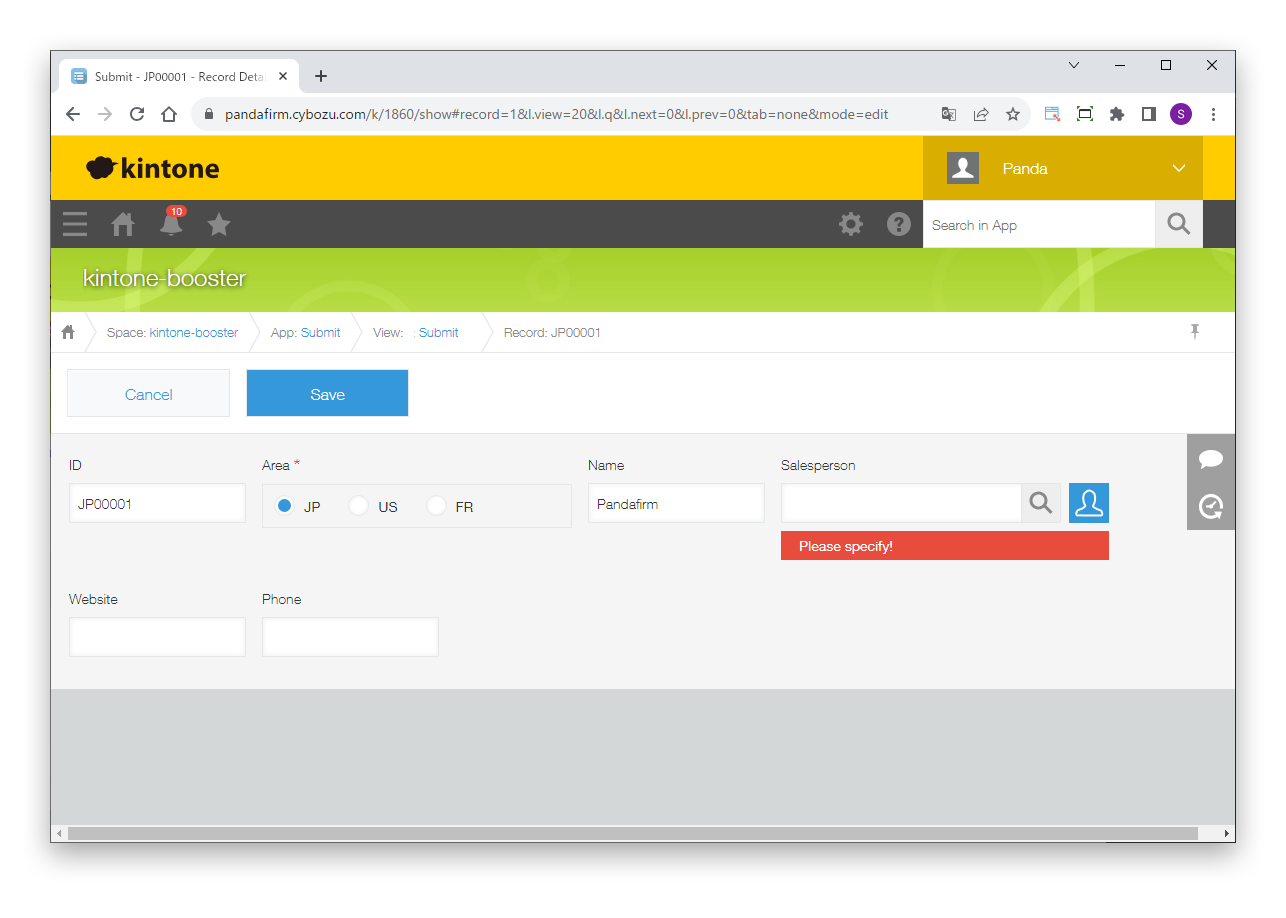
Show a popup prompting for input
Shows a pop-up that prompts for input in the specified fields.
Show a popup to confirm the input content
Shows a pop-up to confirm the content of the specified fields before saving.
If it meets additional conditions, make it an error
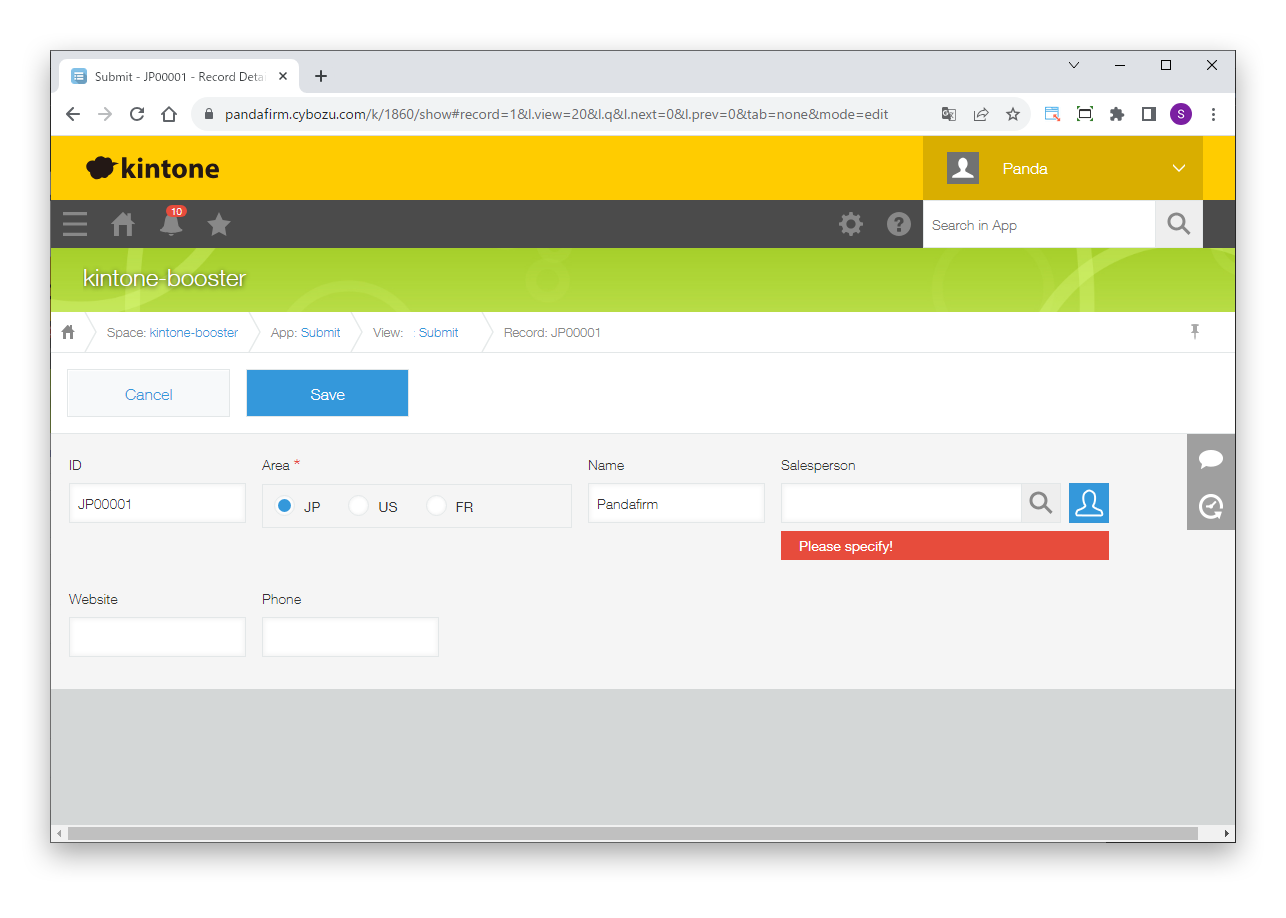
Shows an error message and stops saving when the specified conditions are met.
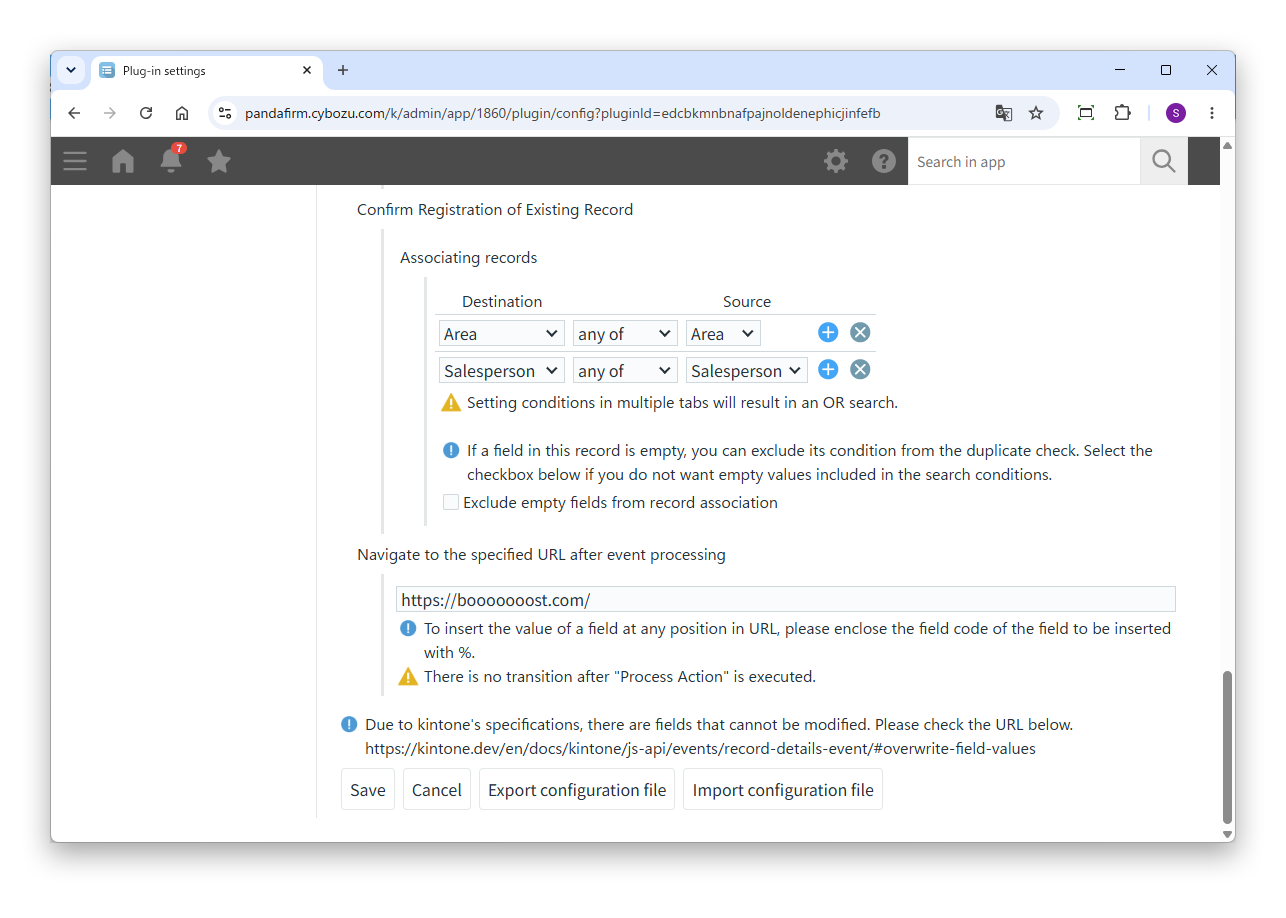
Confirm Registration of Existing Record
If a record with the same values in the associated fields already exists, asks whether to register the record.

"Automatically number it" enters a number only when the destination field is empty.

Fields in tables cannot be specified for "Show a popup prompting for input" and "Show a popup to confirm the input content".

For "Confirm Registration of Existing Record", conditions set in multiple tabs are combined with OR.

04

Change the page shown after saving

In kintone, a saved record may match conditions for which the user has no view permission, and a permission error may be shown after saving. In that case, enter a URL in "Navigate to the specified URL after event processing" to show the specified page instead of the record detail screen after saving.

After a process action runs, the page does not move to the specified URL.

HOW TO USE

How to use

01

Run the process

When the conditions are met at the event specified on the settings screen, the process runs.

02

Run in the list view

With Boost! Spread, this plugin also runs when records are saved in the list view.

Inline editing in the standard list view is not supported.

03

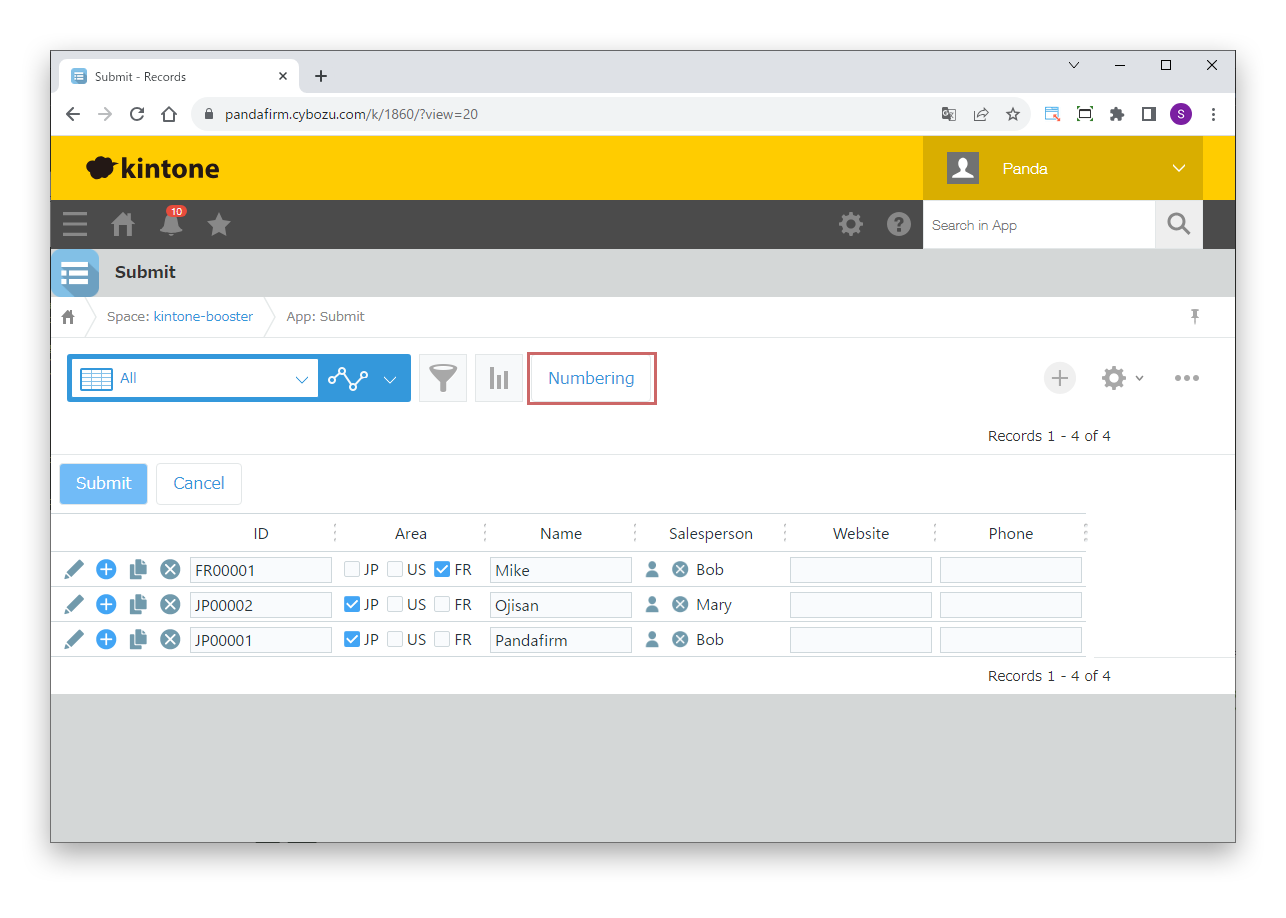
Run in bulk from the list view

If you specify "Bulk Execution from List View" as the event, the execute button appears here.