Boost!for kintone
Home / Spread
PLUGIN

Spread

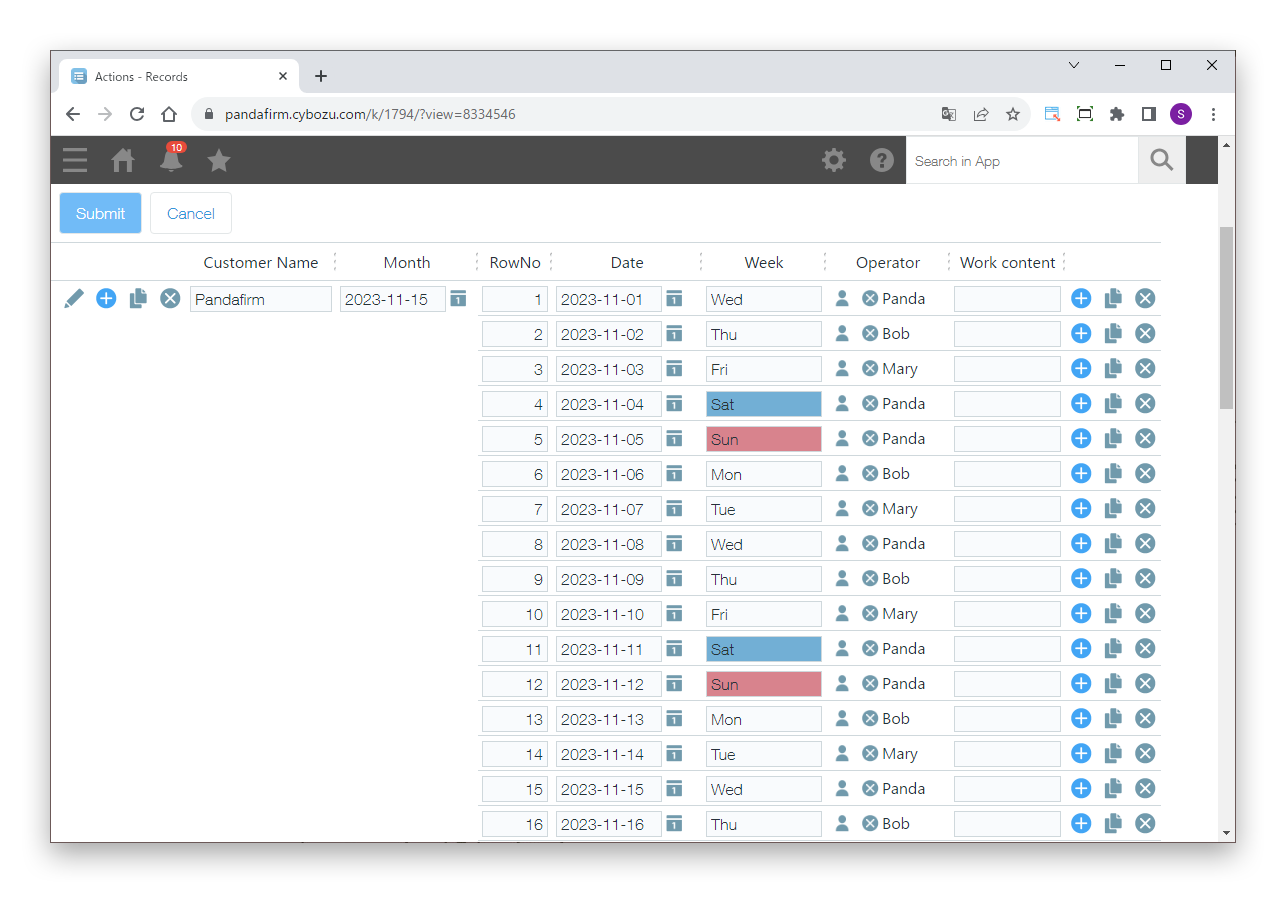
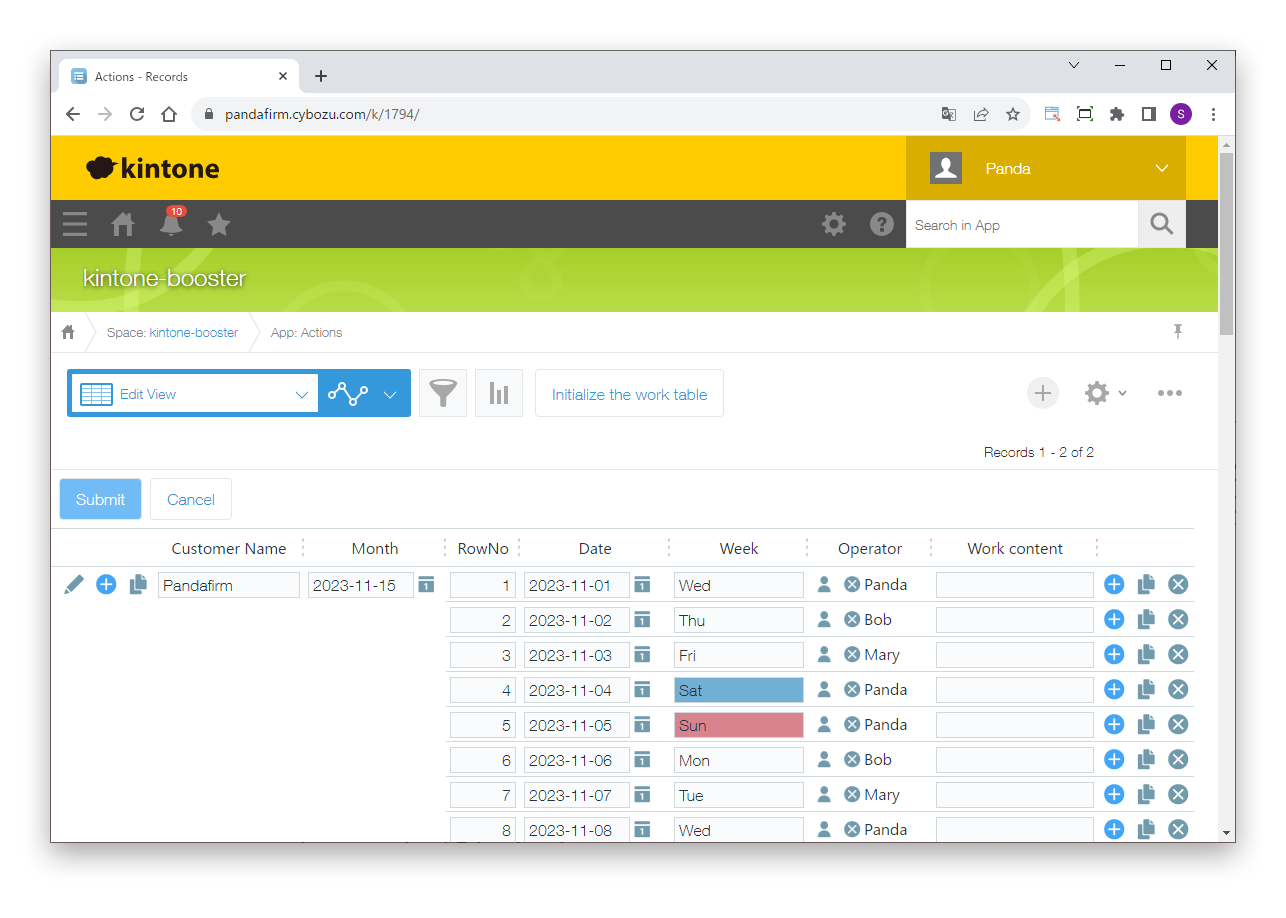
This plugin lets you display and edit records, including fields in tables, in a grid view. Plugins that run processes based on the status of records, such as Boost! Style, Boost! Action and Boost! Submit, also work in the list view.

See the features

By using this product, you are deemed to have agreed to the Terms of Service.

SETTING

Setup

01

Specify the settings

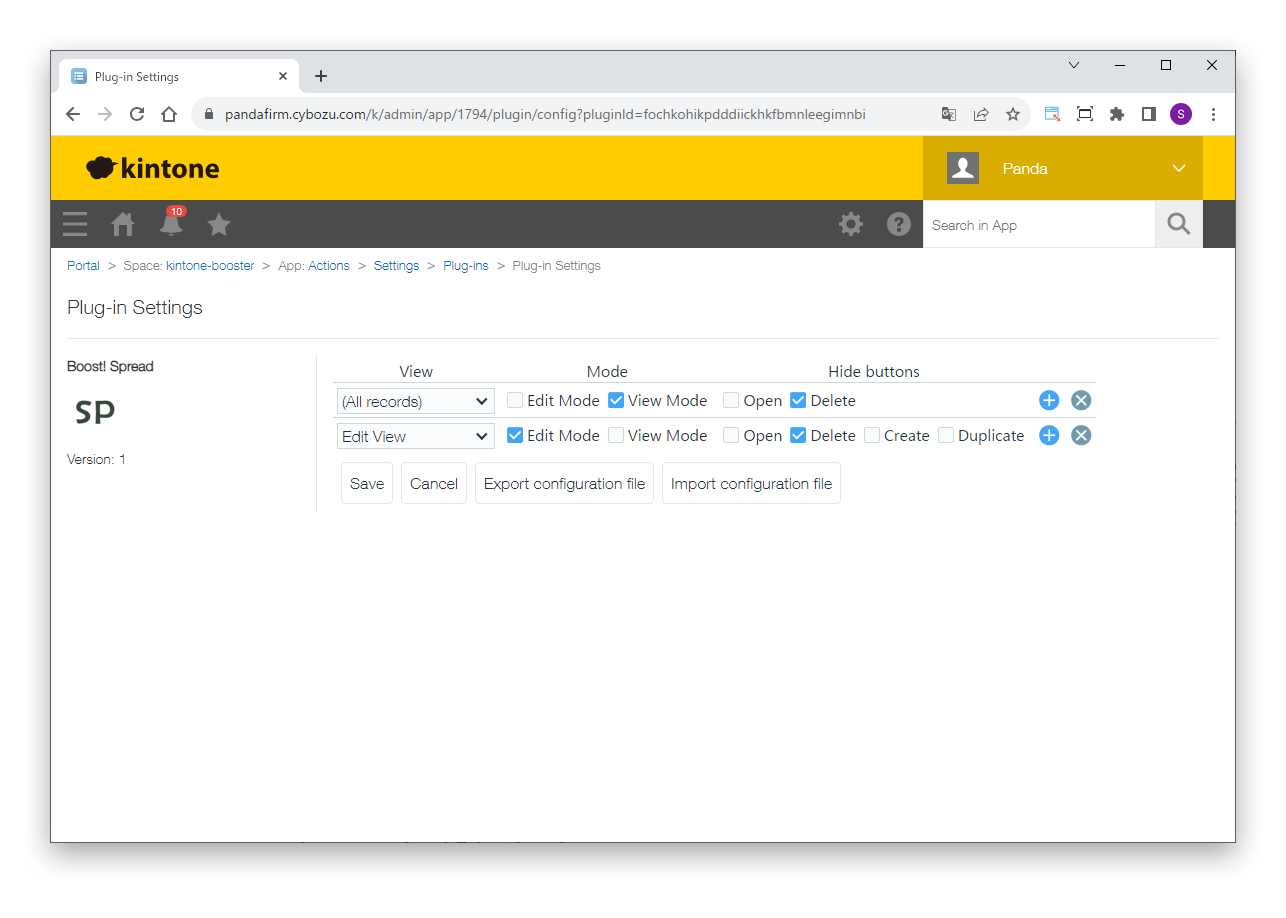
On the plugin settings screen, specify the views in which this plugin is used and how it works.

Settings

View
Specify the view in which this plugin is used.
Mode
Select "Edit Mode" to edit records in the view, or "View Mode" to only display them.
Hide buttons
Select which of the record operation buttons in the first column (Open, Delete, Create and Duplicate) are not shown.
HOW TO USE

How to use

01

Show the view

When you open the view specified on the settings screen, the plugin runs.

To change the background and text colors of cells or to show or hide cells, you need Boost! Style.

To use this plugin in Edit Mode, select "Record Create Page" and "Record Edit Page" on the event page of Boost! Style. To use it in View Mode, select "Record Detail Page".

To run Boost! Action when the view is shown or cells are edited, specify the following events.

Events of Boost! Action

After Field Value Change
Runs the process right after a cell is edited.
After Record Creation Shown
Runs the process right after the Create button is clicked.
After Record Edit Shown
Runs the process right after the view is opened in Edit Mode.
After Record Reuse Shown
Runs the process right after the Duplicate button is clicked.

To show column borders on PC, download the CSS file and add it as a CSS file for PC on the "JavaScript and CSS Customization" screen of the app.

02

Work with records

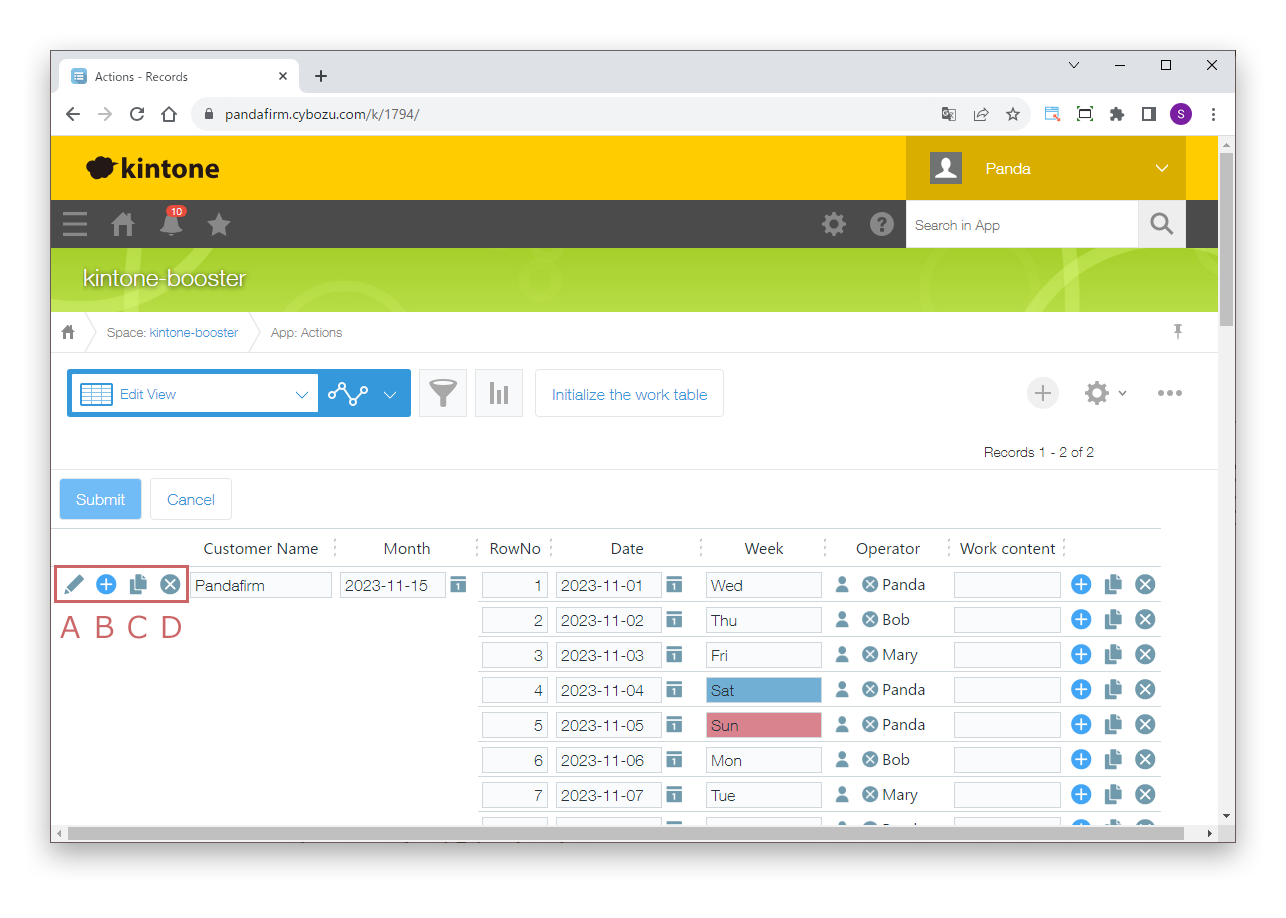
The buttons for working with records are shown together in the first column.

Buttons in the first column

A
Opens the record detail screen.
B
Inserts a row for a new record below.
C
Duplicates the record and inserts it below.
D
Deletes the record.

The buttons shown in columns other than the first are for working with tables.

03

Save edited records

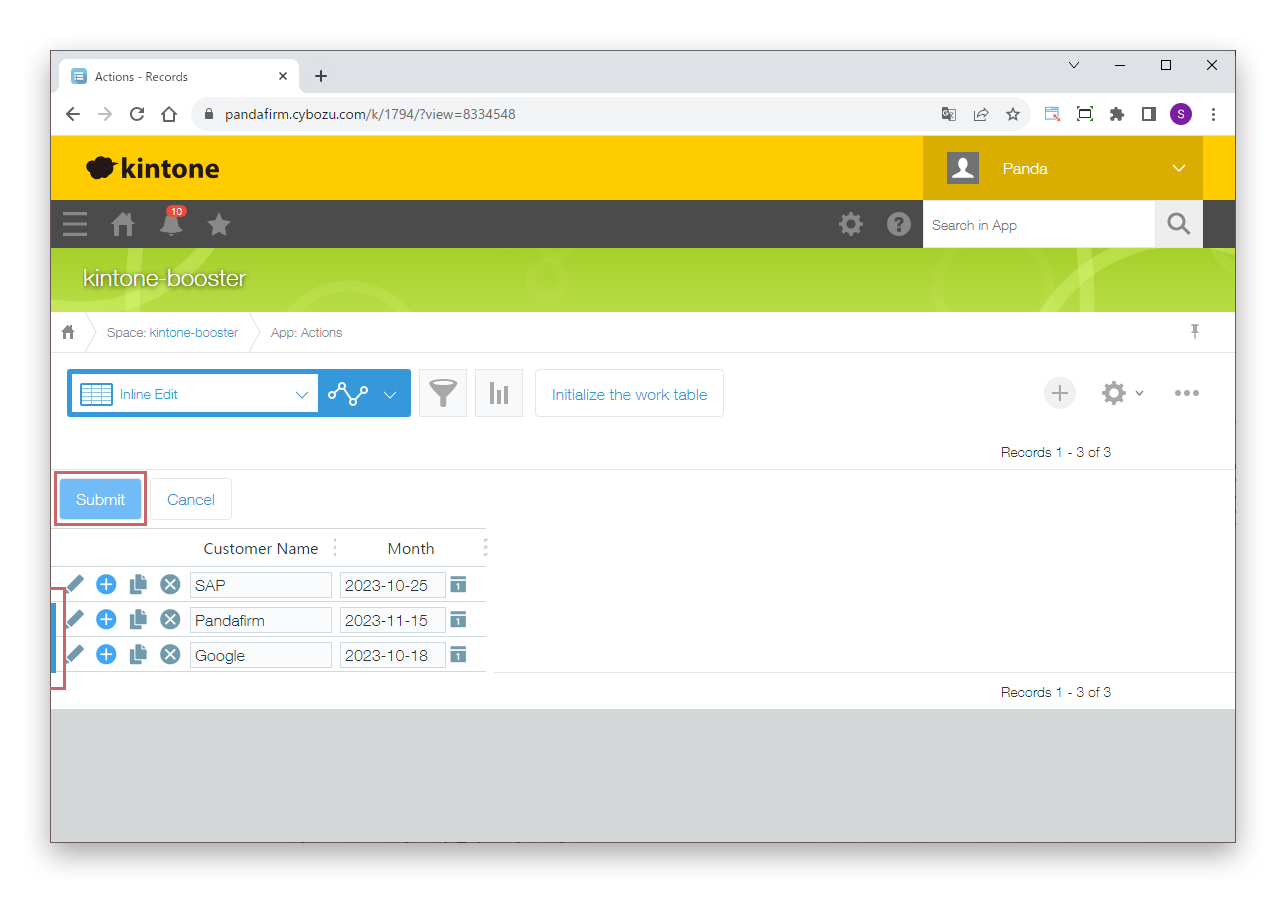
In Edit Mode, records you add or edit are highlighted in blue, and only those records are saved.

To run Boost! Mail, Boost! Upsert or Boost! Report after a successful save, specify "After Record Creation Success" and "After Record Edit Success" as the event of each plugin.

04

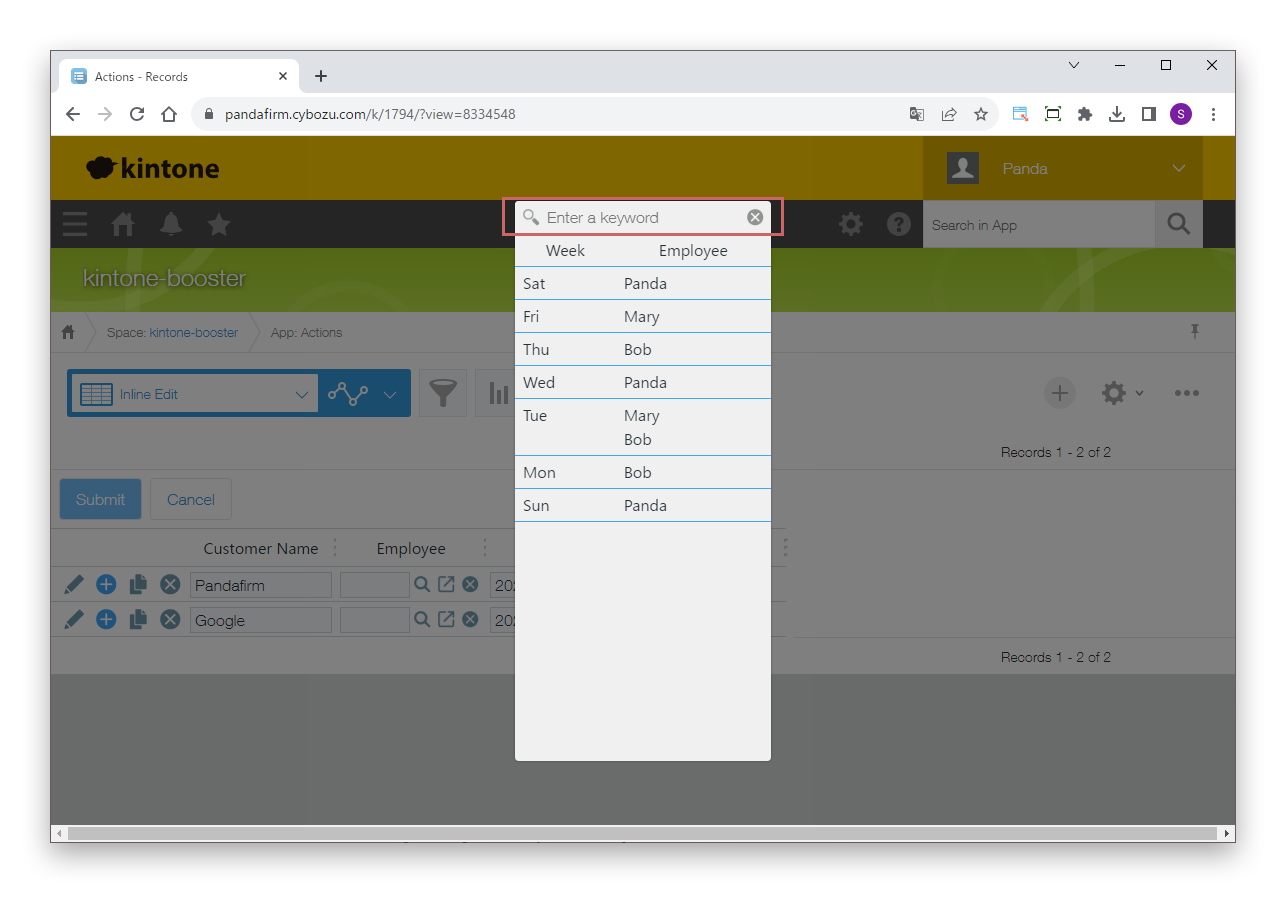
Filter lookup records

The search box at the top of the lookup record selection screen filters only on the text, multi-line text, link and rich text fields among the fields shown on the selection screen.

05

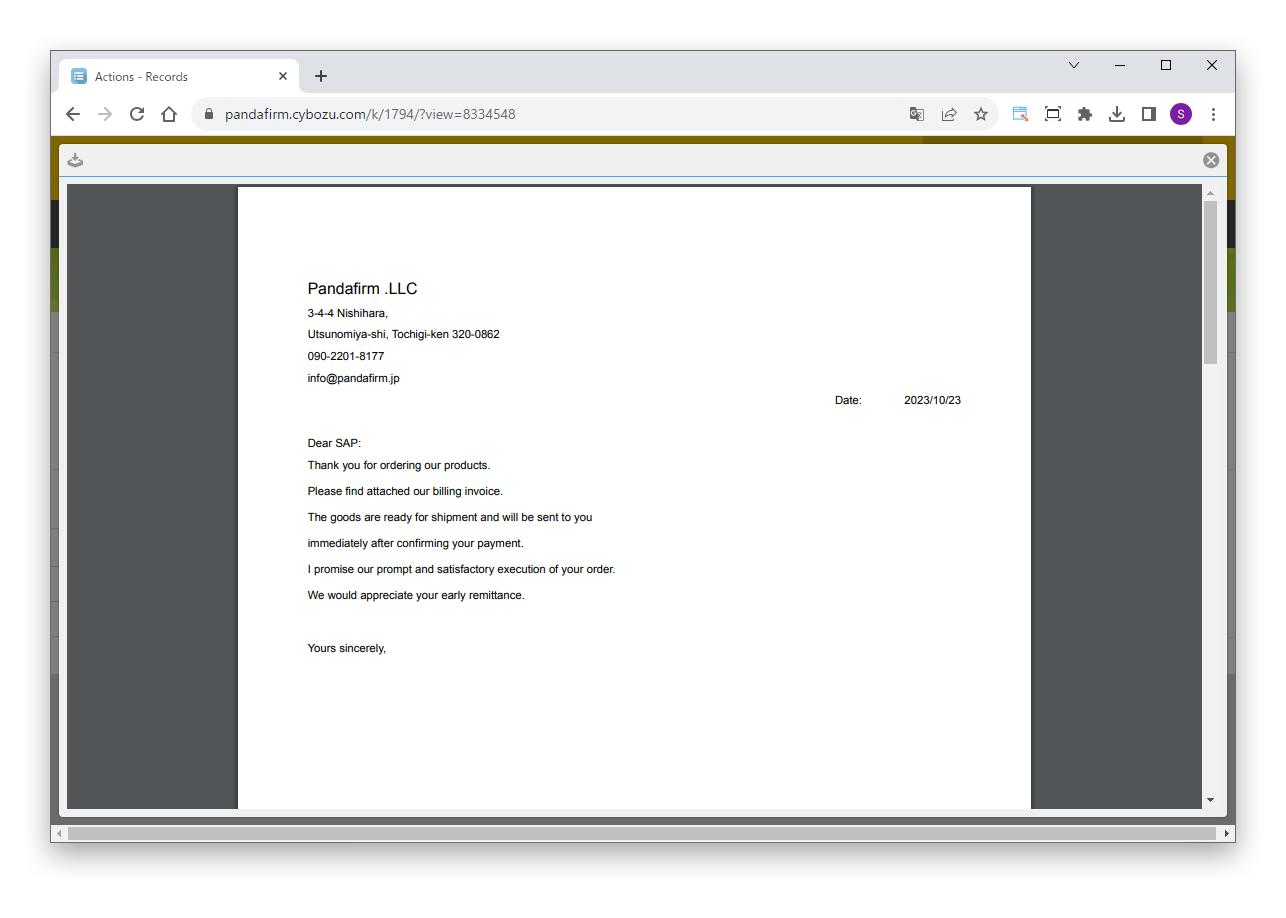
View the content of attachments

Click the file name in an attachment field to show the content of the file in a pop-up.

06

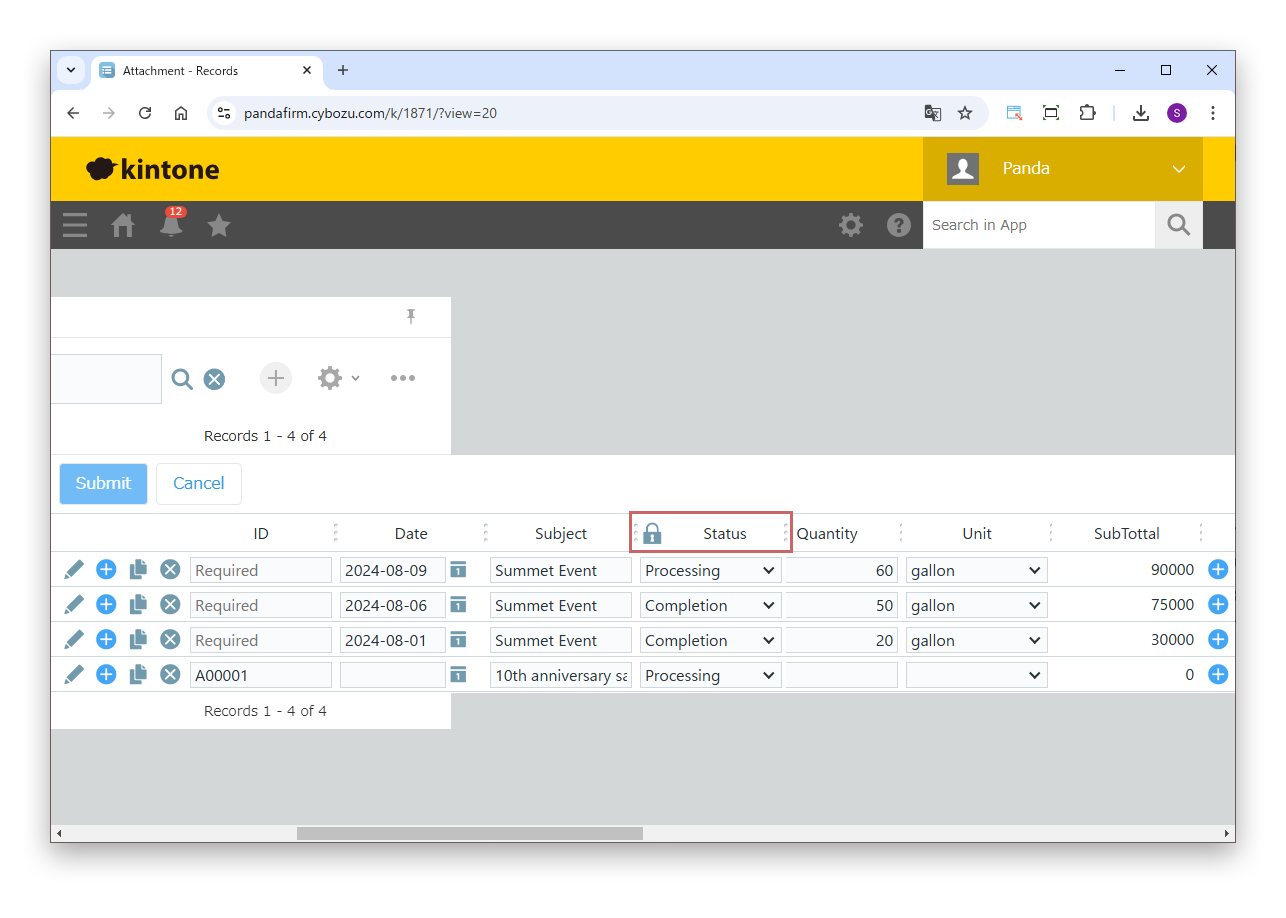
Freeze columns

Click a column header to freeze that column.

CUSTOMIZE

Customization

With this plugin, you can add your own processing in JavaScript using Boost! Events. You can build detailed behavior that the standard features alone cannot achieve, at moments such as editing cells, working with rows and saving.

For example, when a cell value changes, you can rewrite the values of other fields or retrieve a lookup automatically. You can also check the content before table rows are added, duplicated or deleted, or before records are saved, and cancel the operation if the conditions are not met. You can also continue processing with the added or updated records after a successful save.