Check the form
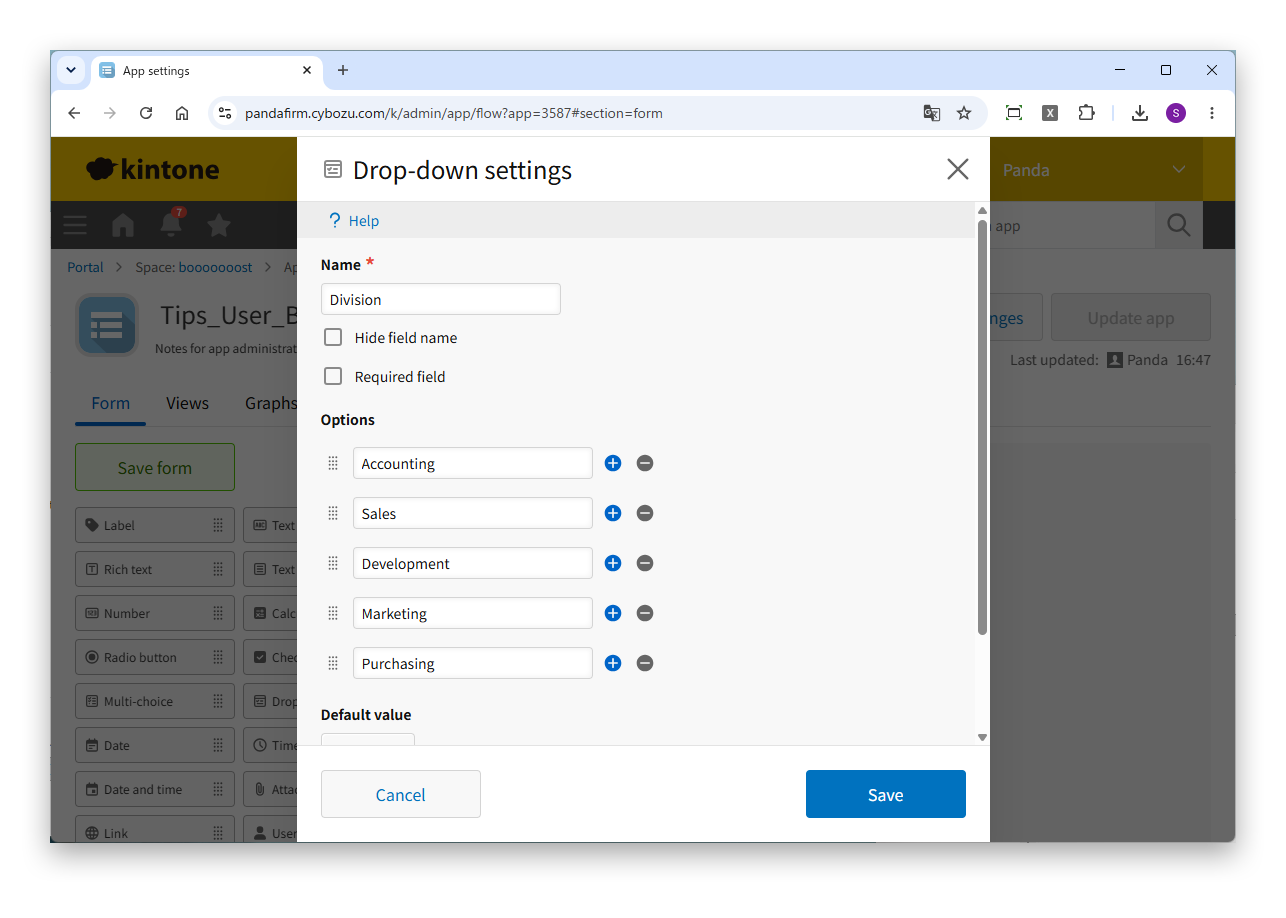
This example uses a drop-down (Division) that holds the division corresponding to the user's department. Its options are values that correspond to the departments, such as Accounting and Sales.
"Authorized users" in the Boost! series is a setting for narrowing down who can run a process, but if each tab enters a different value, you can also switch the value to enter according to the logged-in user or the departments and groups the user belongs to. This page introduces an example in which Boost! Action enters the division that corresponds to the user's department when the record add screen is opened.

This example uses a drop-down (Division) that holds the division corresponding to the user's department. Its options are values that correspond to the departments, such as Accounting and Sales.
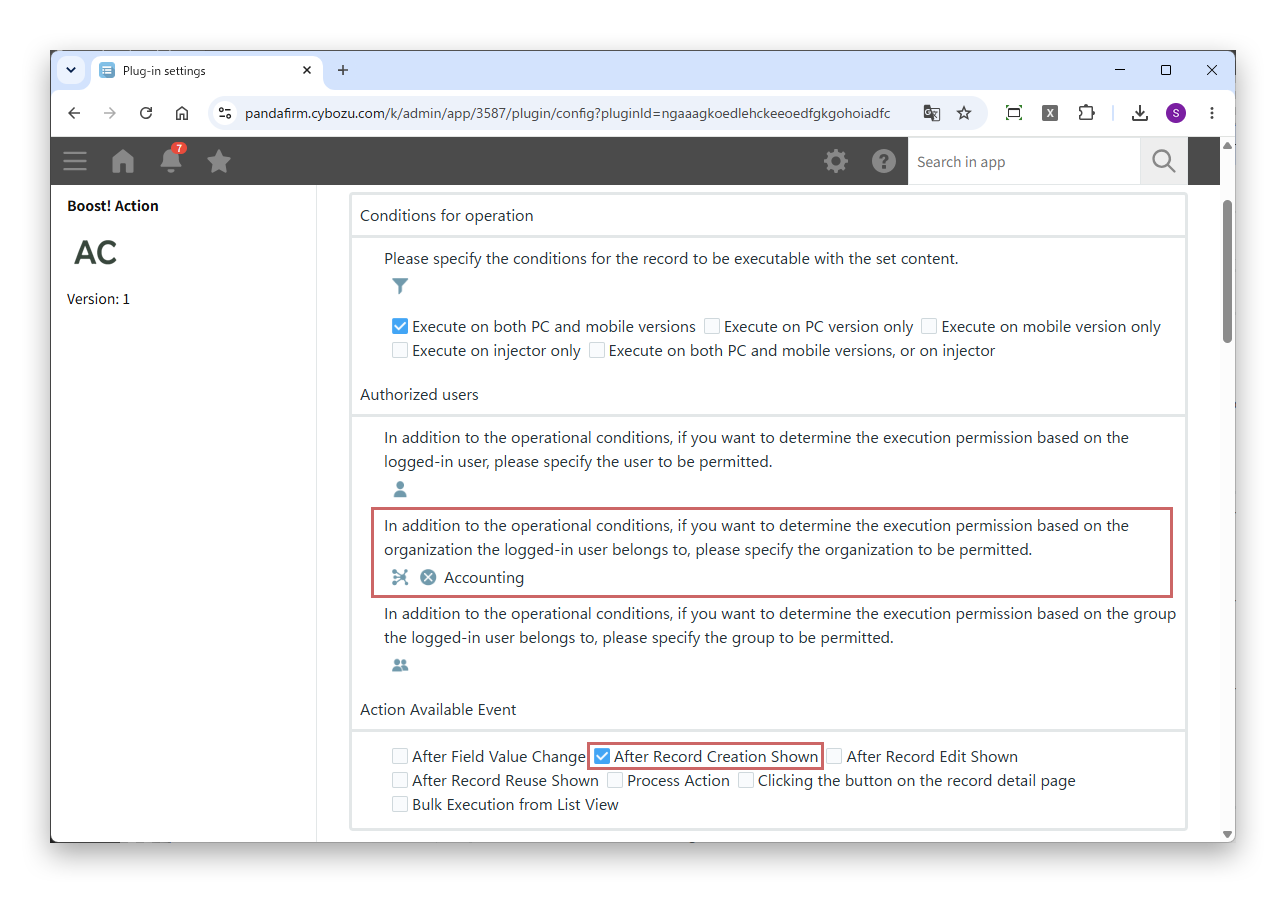
Create a tab for each department, and specify the target department in "Authorized users" of each tab. Specify "After Record Creation Shown" as the event.
For users who belong to more than one department, the process runs in every matching tab, and values are overwritten by later tabs. Place the tab of the department you want to give priority to later in the order.
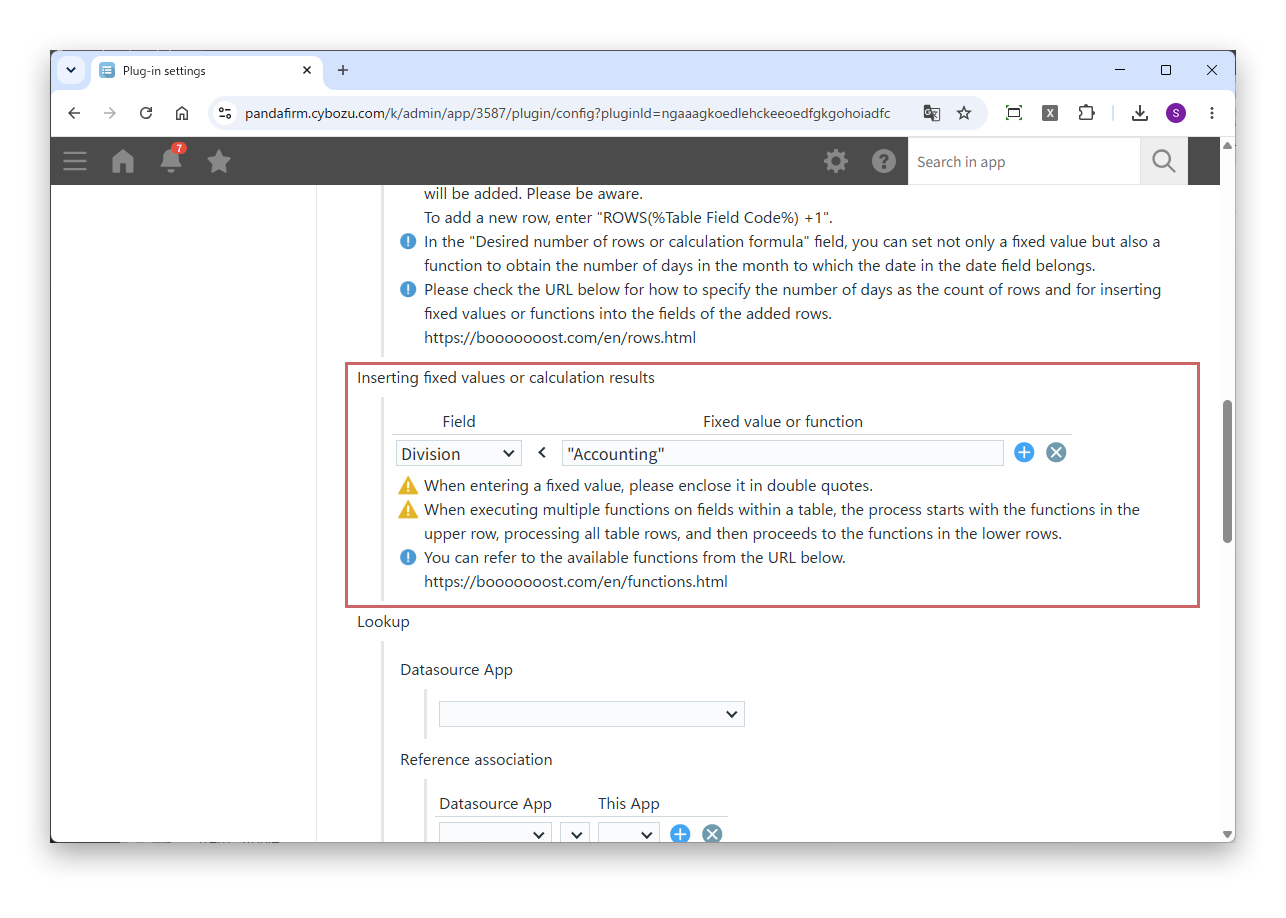
In "Inserting fixed values or calculation results" of each tab, enter the value corresponding to the tab's department in Division.
"Accounting"Enclose fixed values in double quotation marks.
To prevent users from changing the division, make Division non-editable in "Field Edit Restriction" of Boost! Style. In "Allow action page", specify the record add screen and the record edit screen.
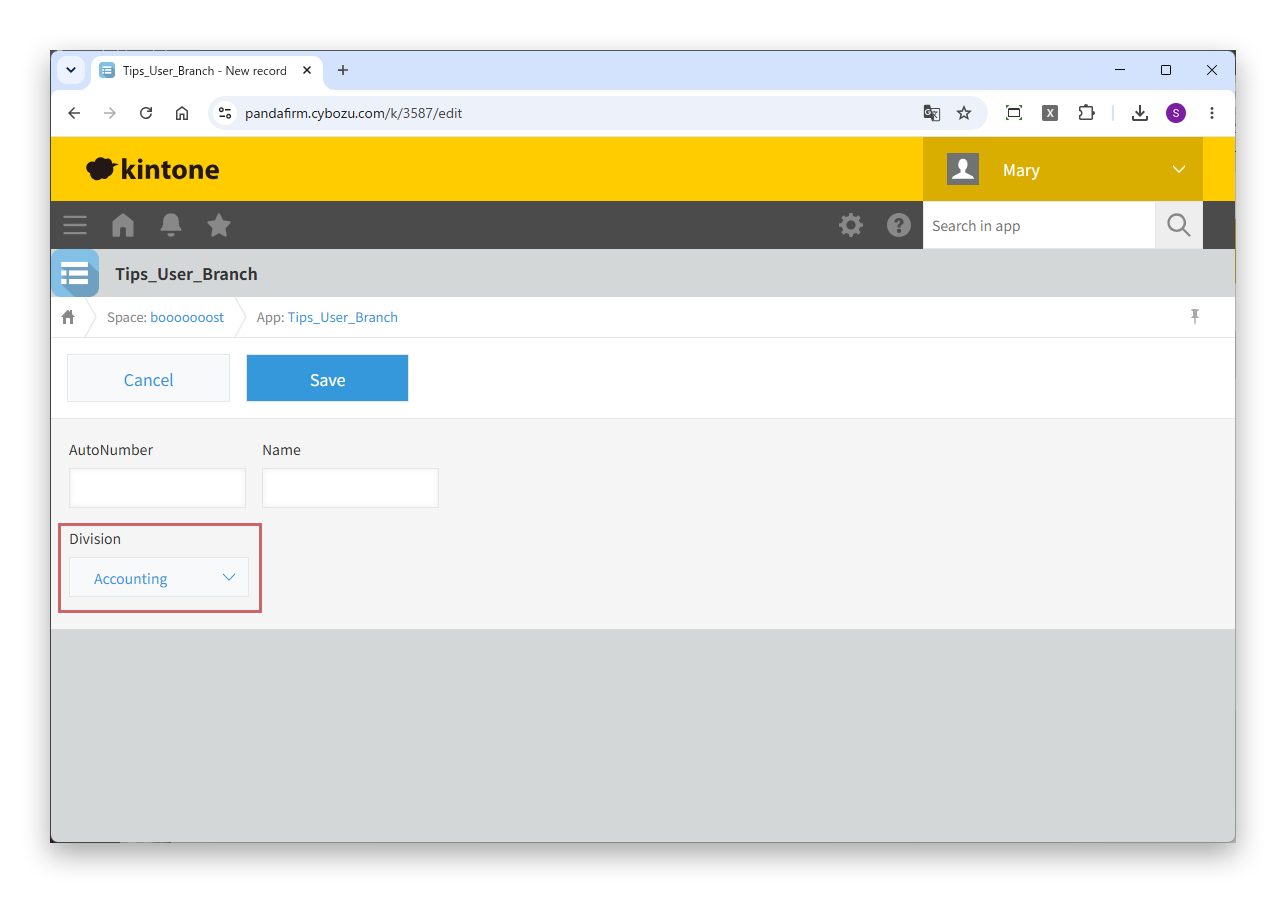
When the record add screen is opened, the division corresponding to the logged-in user's department is entered.
This is useful when, for example, you want to assign automatic numbers for each department or group. If you specify Division as the numbering group in "Automatically number it" of Boost! Submit, sequential numbers are assigned for each division, so numbers are not duplicated even in apps where record view permissions are set for each department.