Boost!for kintone
Home / Upsert
PLUGIN

Upsert

This plugin copies and updates records between apps. It runs not only when a record is saved but can also be triggered by a process action or a button click. It can also copy to the same app, so combined with the Boost! Original Functions, you can reuse records in bulk.

See the features

By using this product, you are deemed to have agreed to the Terms of Service.

SETTING

Setup

01

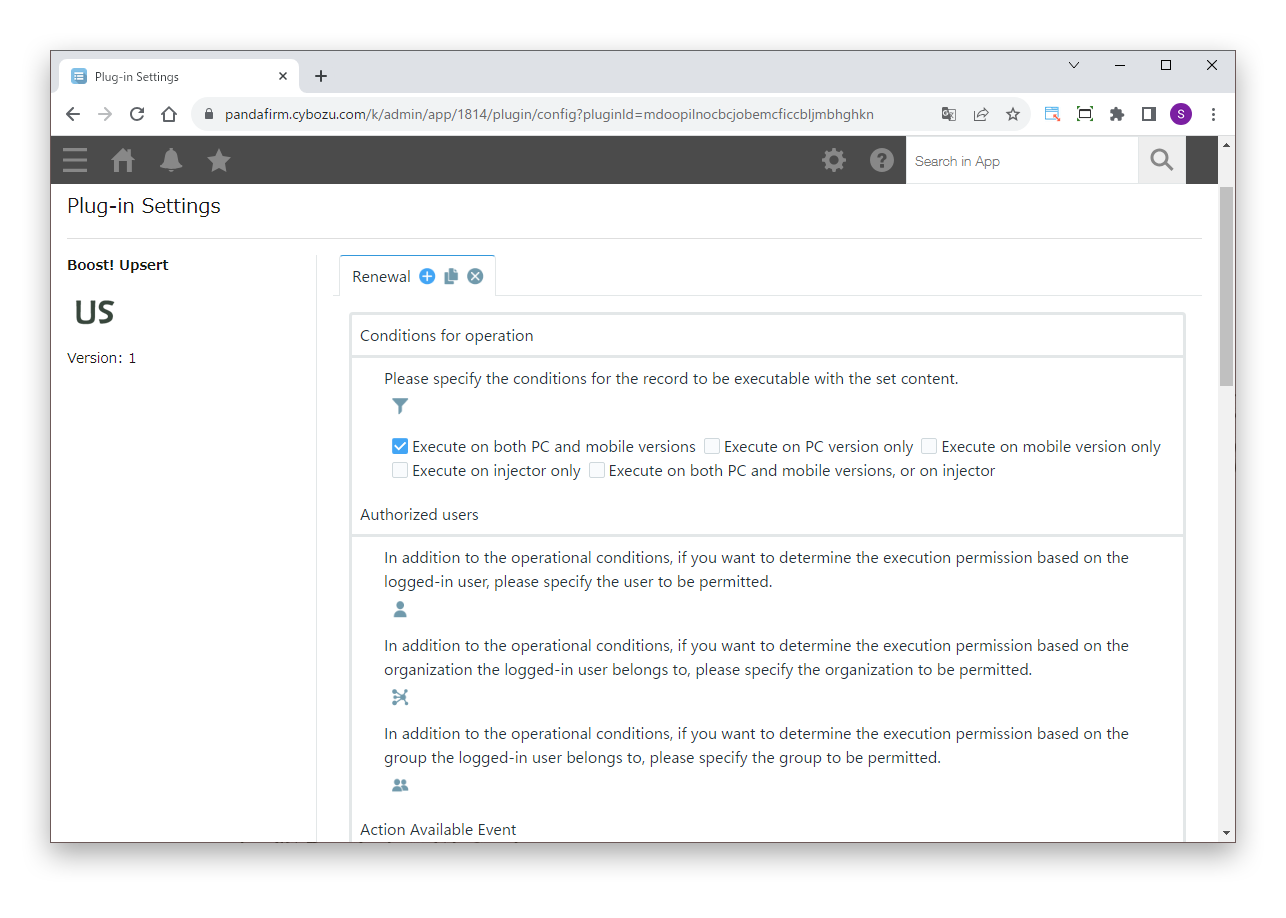
Specify the conditions

First, specify the conditions under which the process runs.

Settings

Conditions for operation
Specify the conditions of the records to process.
Authorized users
To allow execution based on the logged-in user, or the departments and groups the user belongs to, in addition to the conditions for operation, specify who is allowed.
Action Available Event
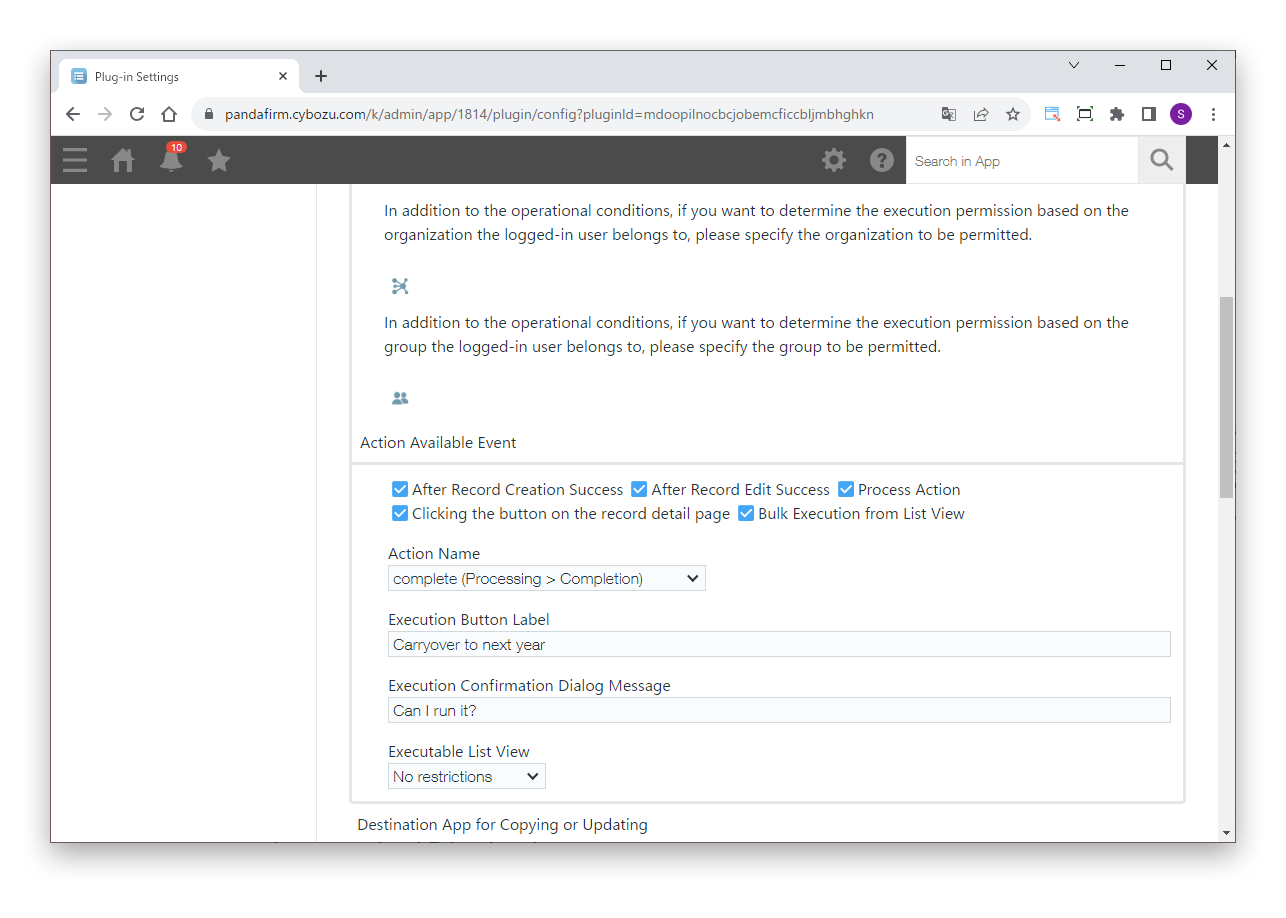
Specify the event that runs the process (After Record Creation Success, After Record Edit Success, Process Action, Clicking the button on the record detail page, or Bulk Execution from List View).

For details on the injector, see the Boost! Injector page.
02

Specify the items for the event

Some events have additional items to specify.

Settings

Action Name
If you specify "Process Action" as the event, specify the action name.
Execute Button Label
If you specify "Clicking the button on the record detail page" or "Bulk Execution from List View" as the event, enter the label of the execute button.
Execution Confirmation Dialog Message
If you specify "Clicking the button on the record detail page" or "Bulk Execution from List View" as the event, enter the message of the confirmation dialog.
Executable List View
If you specify "Bulk Execution from List View" as the event, specify the views in which the execute button is shown.
03

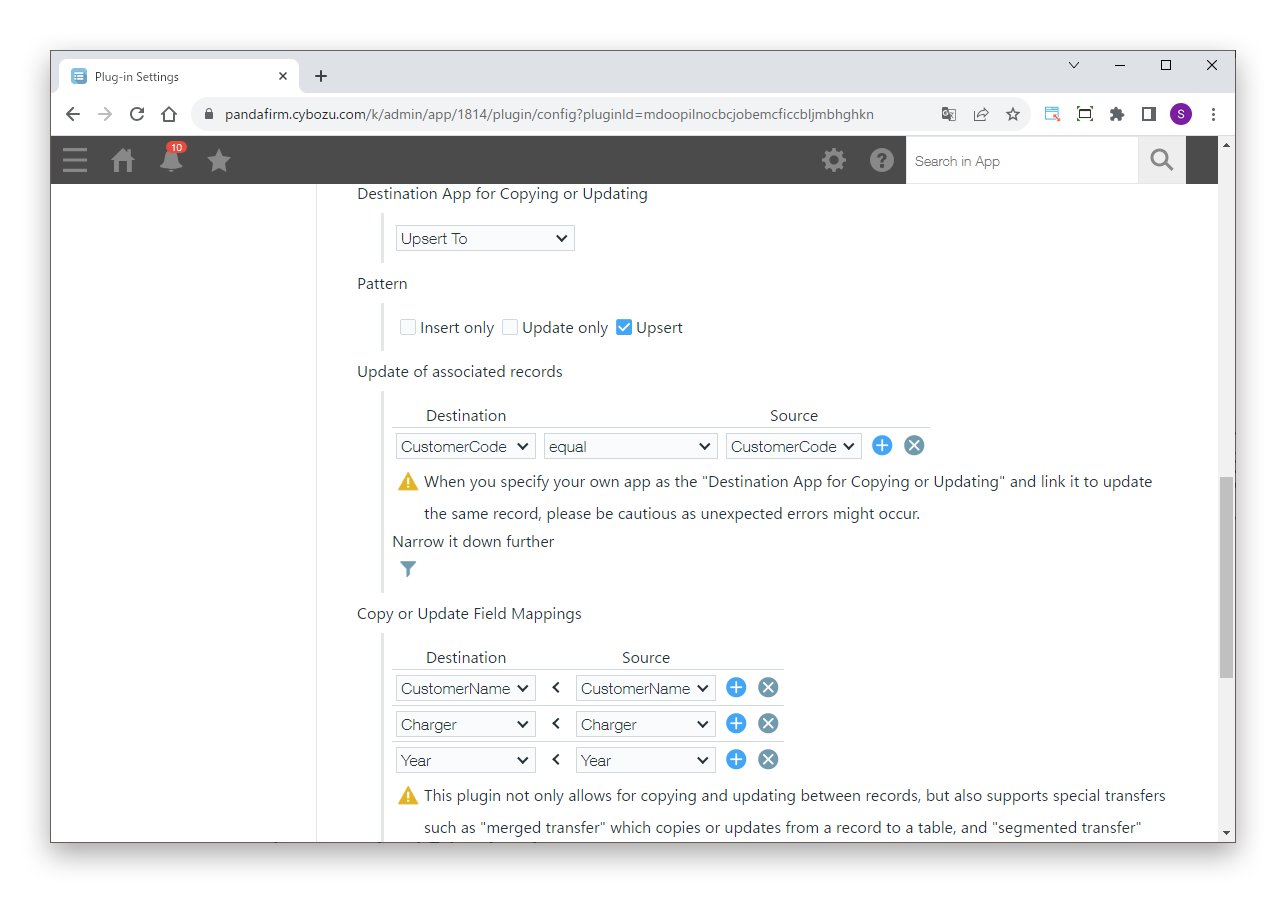
Specify the settings

Next, specify what to copy or update when the conditions are met.

Settings

Destination App for Copying or Updating
Specify the app to copy to or update. You can also specify the same app.
Pattern
Select the processing pattern (Insert only, Update only or Upsert).
Record association for updates
If you select "Update only" or "Upsert" as the pattern, specify the combination of fields that identifies the records to update.
Narrow it down further
Specify this to add conditions for the records to update in addition to the association.
Copy or Update Field Mappings
Specify the combinations of fields in the destination app and fields in this app whose values are transferred.

If you specify "Process Action" as the event, be careful: specifying the same app in "Destination App for Copying or Updating" with an association that updates the record itself causes an error.

In addition to copying and updating between records, special copies and updates are also possible, such as "merging" records into a table and "splitting" a table into records. When updates are involved, the association is important.

Copying from a record to a table + Copying from a table to records + Copying from a table to records and a table at the same time +
04

Insert fixed values or calculation results

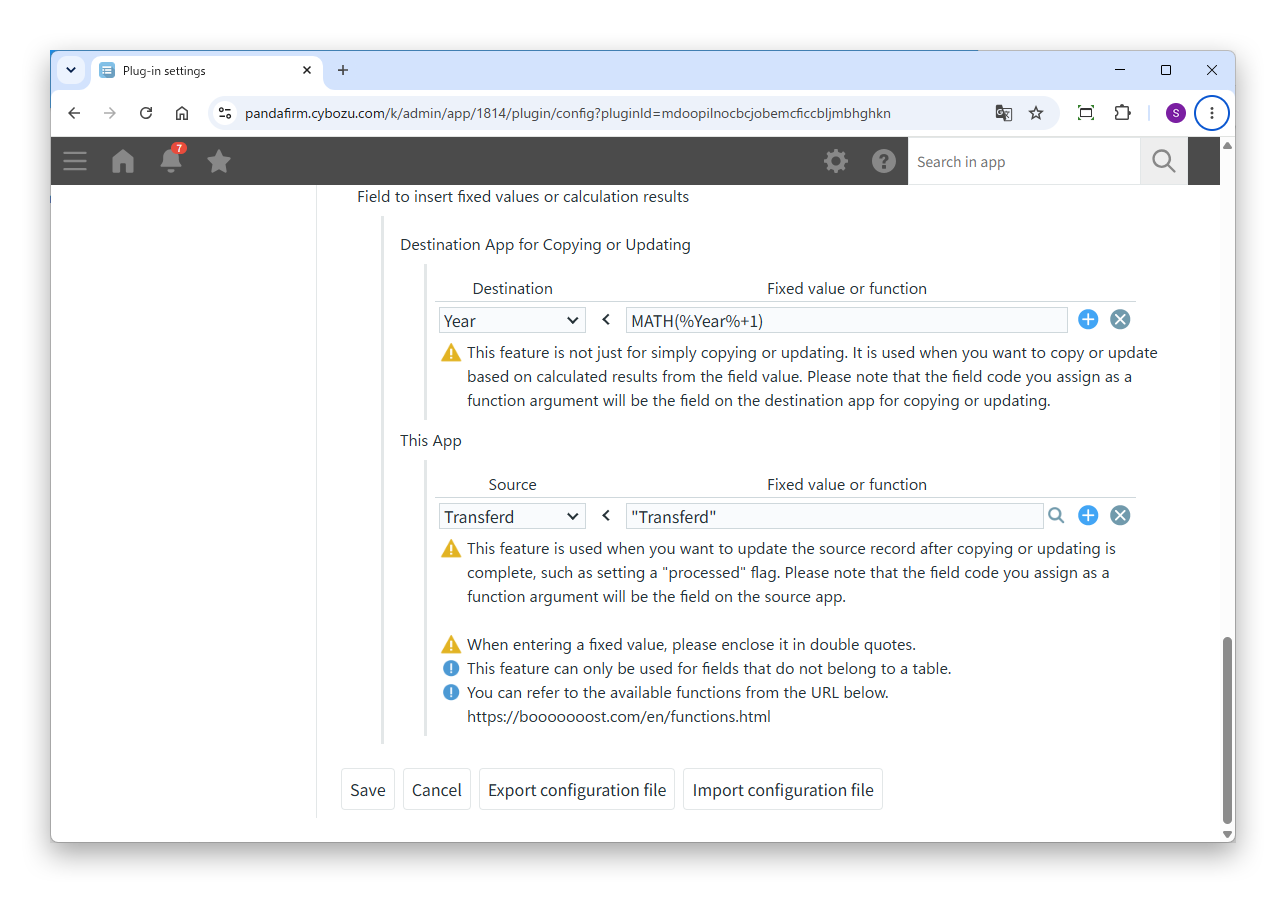
For operations other than a simple copy or update, such as copying or updating with the value of a date field plus one year, specify the field to insert into and a fixed value or function in "Field to insert fixed values or calculation results".

Settings

Destination App for Copying or Updating
To copy or update with a result calculated from field values, specify the field to insert into and a fixed value or function. The field codes used as function arguments are fields of the destination app.
This App
To update records in this app after copying or updating is complete, such as setting a "processed" flag, specify the field to insert into and a fixed value or function. The field codes used as function arguments are fields of this app.

To enter a fixed value, enclose it in double quotation marks.

This feature can be used only for fields that do not belong to a table.

Boost! Original Functions +
HOW TO USE

How to use

01

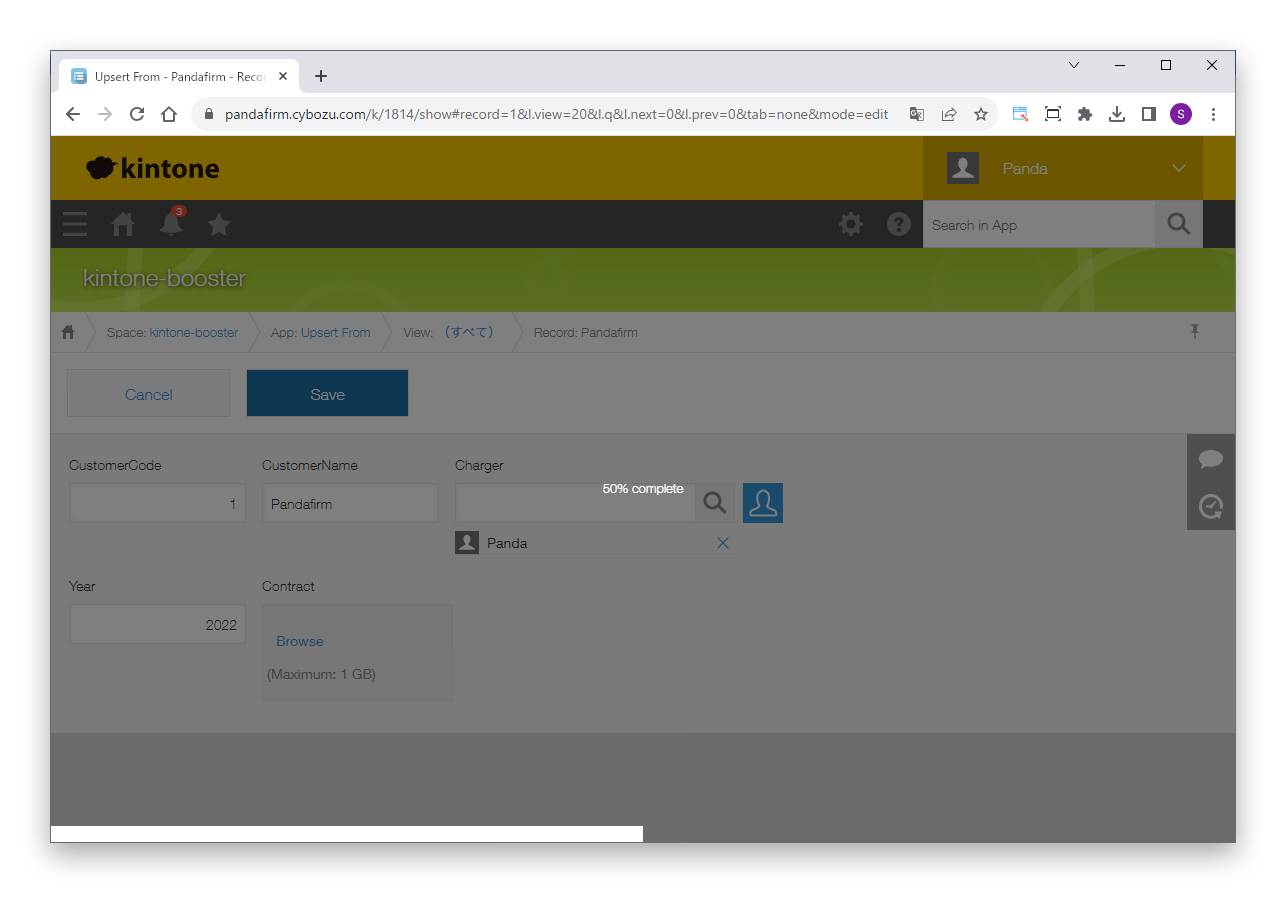
Copy or update

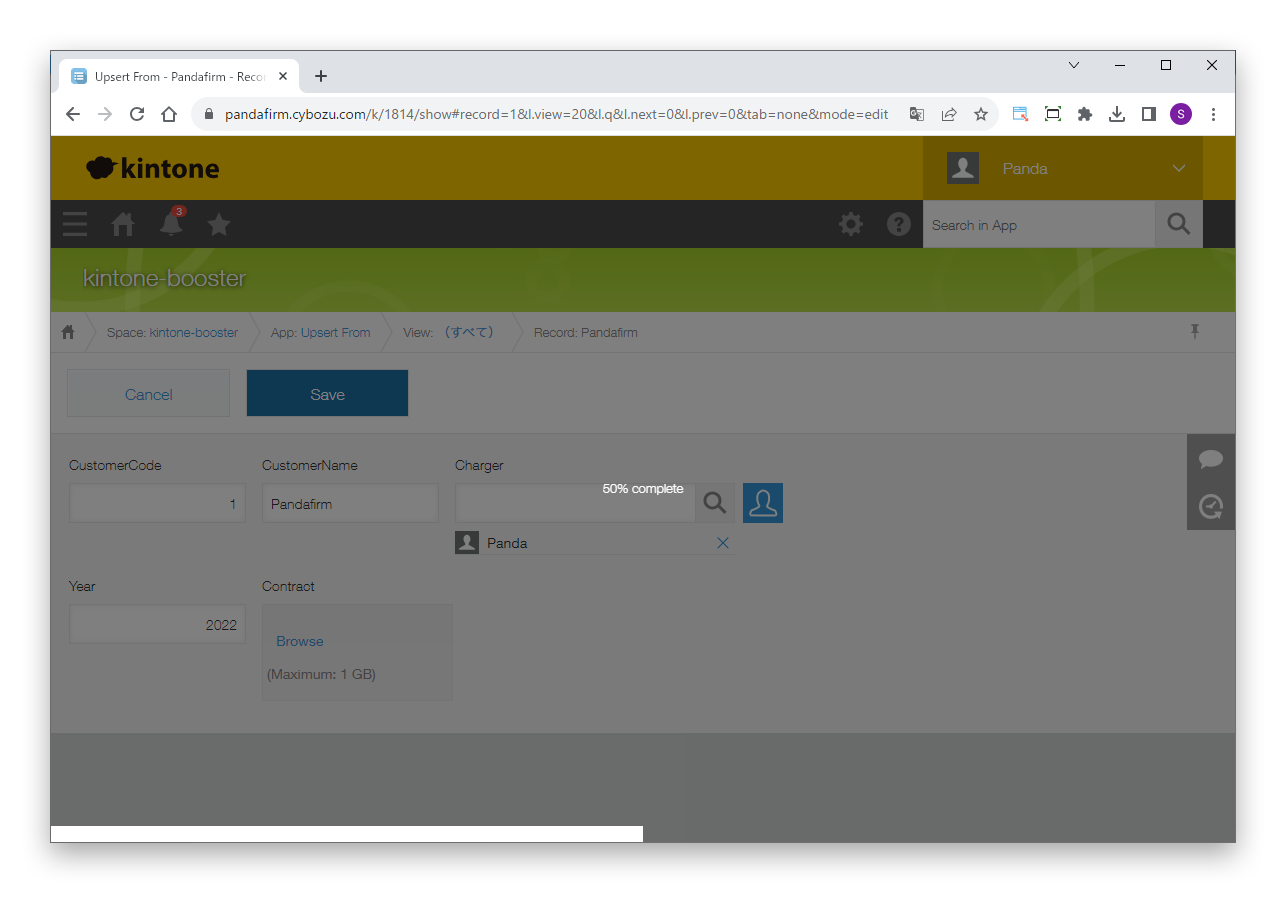
When the conditions are met at the event specified on the settings screen, the records are copied or updated.

02

Run from the record detail screen

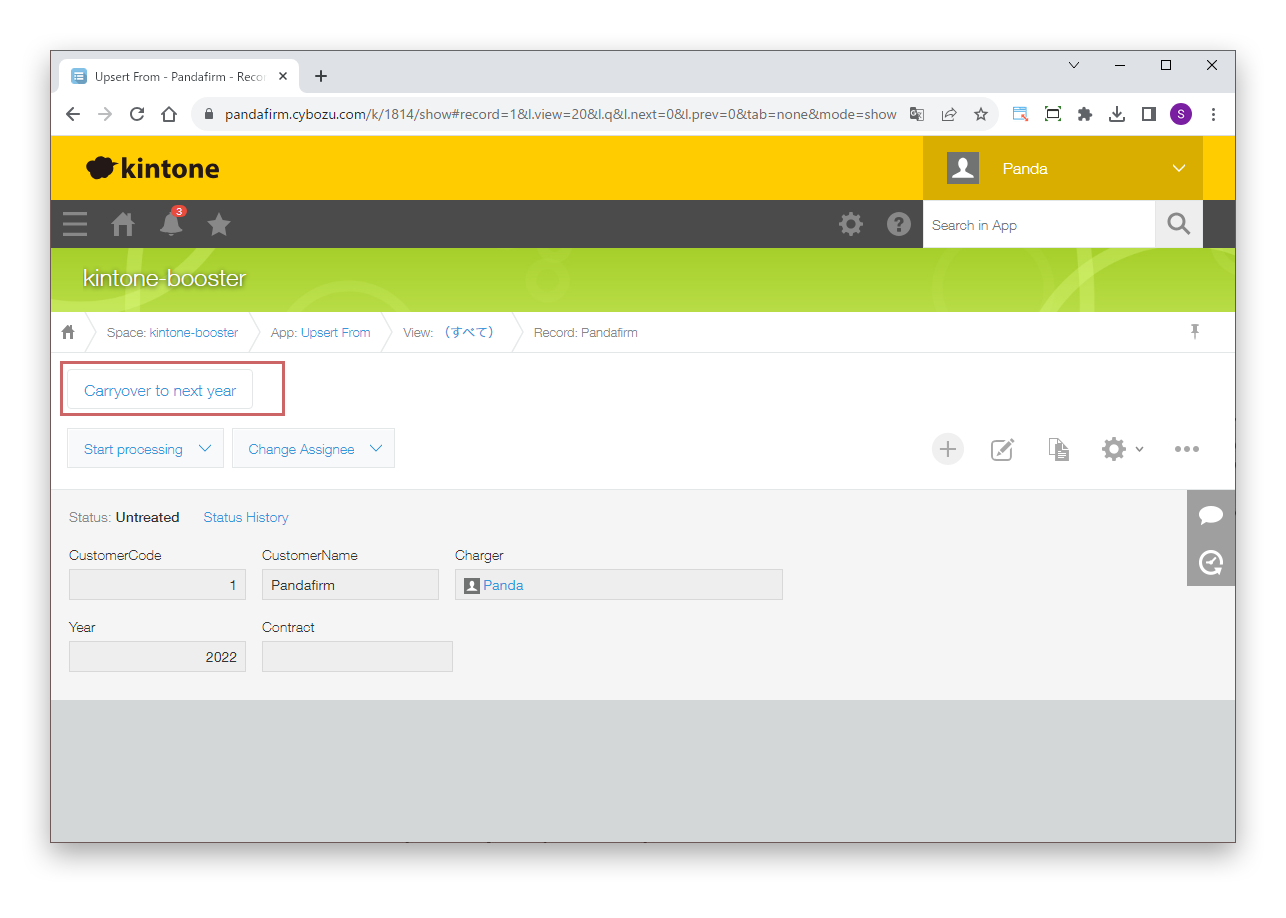
If you specify "Clicking the button on the record detail page" as the event, the execute button appears here.

03

Run in bulk from the list view

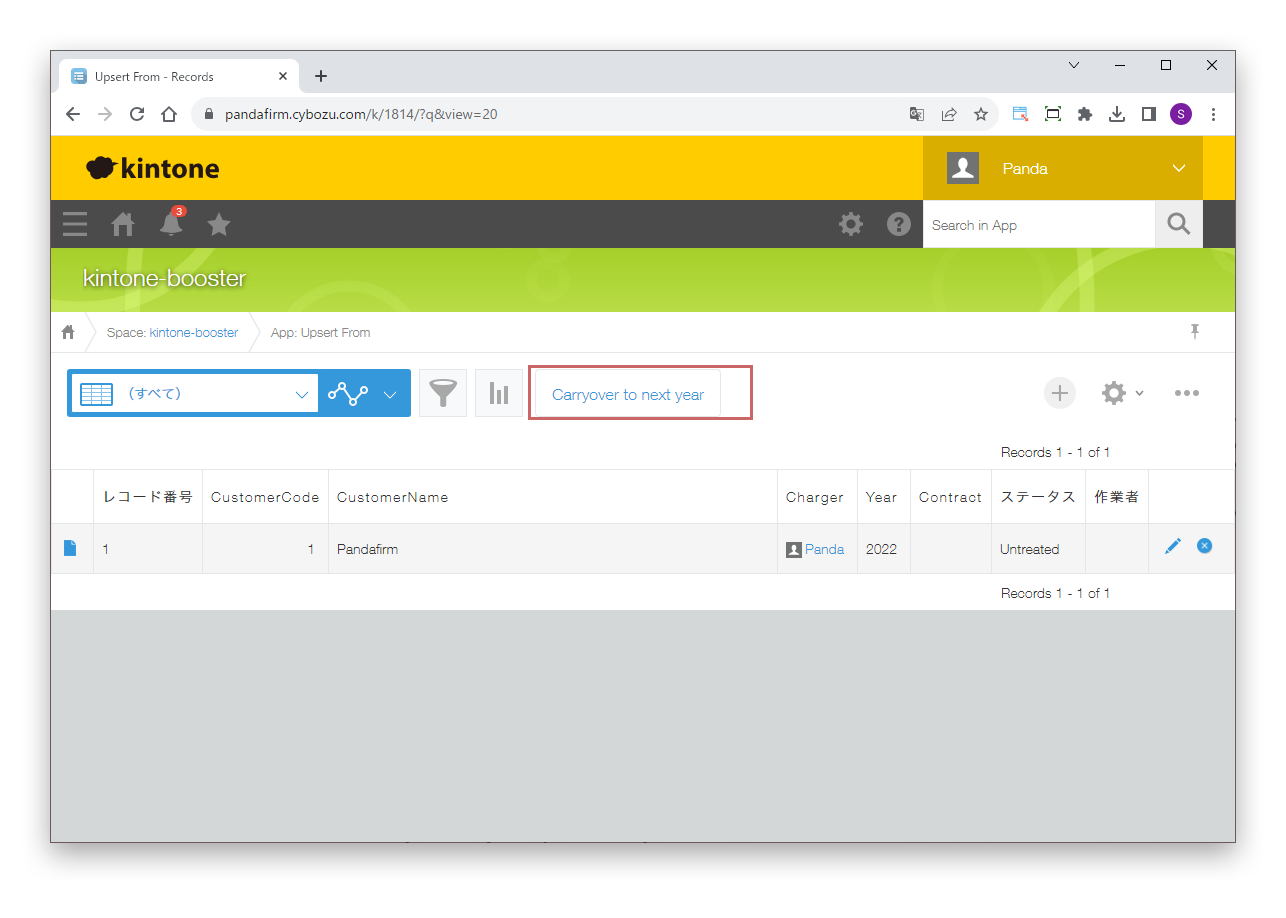
If you specify "Bulk Execution from List View" as the event, the execute button appears here.