Boost!for kintone
Home / Fusion
PLUGIN

Fusion

This plugin collects the details of a specified period from multiple apps based on a client master and creates statement records, such as invoices and payment instructions, in bulk. Details can be divided among multiple tables, so you can also create statements for specific purposes, such as managing receipts and payments. Used together with Boost! Action and Boost! Submit, it can also automate statement numbering and tax calculation.

See the features

By using this product, you are deemed to have agreed to the Terms of Service.

SETTING

Setup

01

Prepare the fields for creating statements
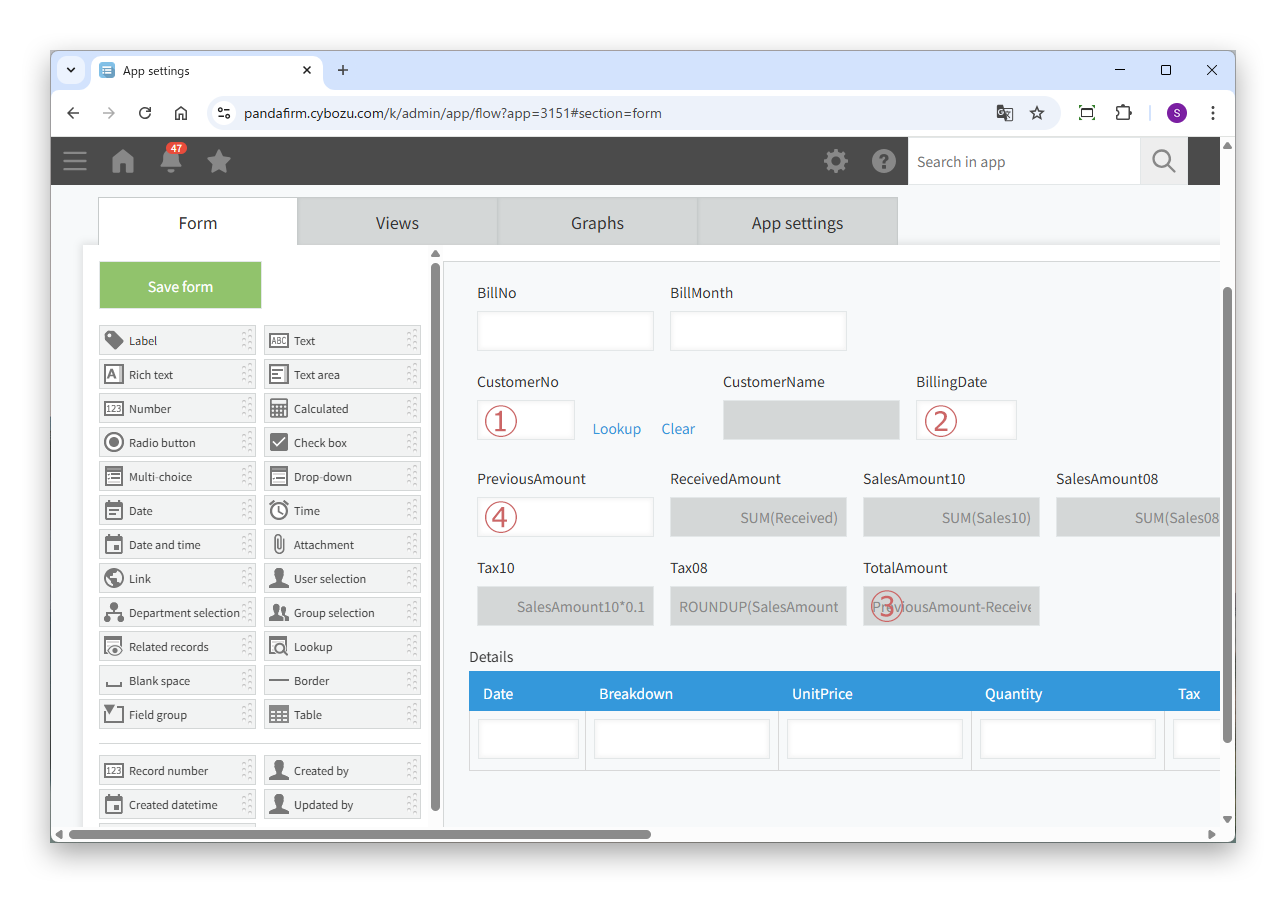
In the app in which this plugin is installed (the destination), place the following fields for creating statements. The numbers correspond to the numbers in the image.

Fields of the destination app

① Client Field
The lookup field that references the client for whom the statement is issued. Only a lookup field can be used.
② Issue Date Field
Place one date field to save the issue date of the statement.
③ Total Amount Field
Place one number field, or one calculated field in number format, to save the total amount of the current statement.
④ Previous Amount Field
Place one number field to save the total amount of the previous statement.
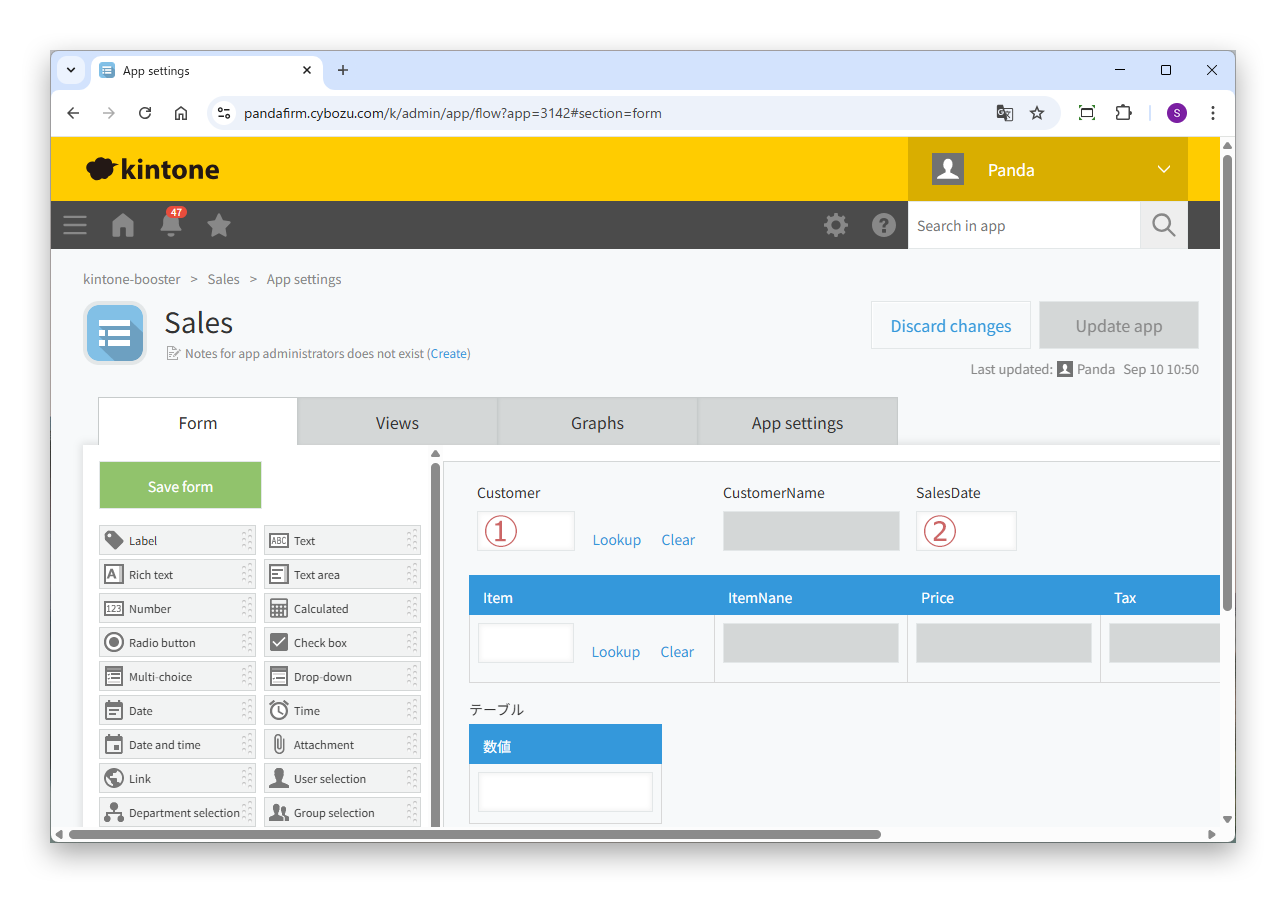
The app in which the source data of the statement details is registered (the source) needs the following fields. The numbers correspond to the numbers in the image.

Fields of the source app

① Client Field
The field that contains the same values as the client field of the destination app.
② Date Field
The field used to determine by date whether a record or table row is to be transferred.

After placing the fields, click "Update App" in each app to apply the changes. Fields that have not been updated cannot be selected on the plugin settings screen.
02

Specify the settings

On the plugin settings screen, specify the fields of this app.

Settings

Client Field
Specify the lookup field that references the client for whom the statement is issued.
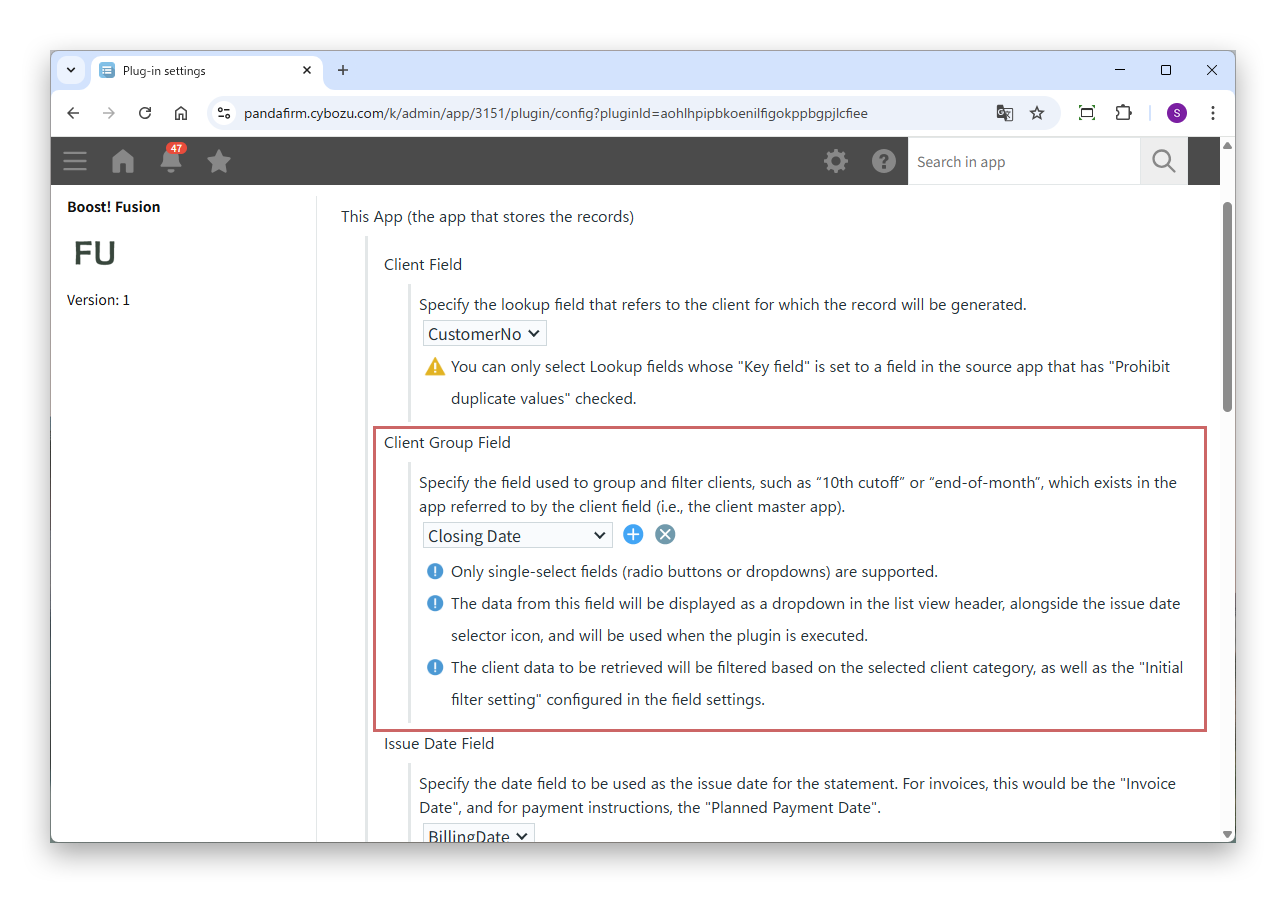
Client Group Field
From the fields of the client master, specify the field used to group and filter the clients for whom statements are created, such as "closing on the 10th" or "closing at month-end". The specified field is shown as a drop-down in the list view.

As the client field, you can only specify lookup fields whose "Key field" is set to a field in the datasource app that has "Prohibit duplicate values" selected.

Only radio button and drop-down fields can be specified as the client group field.

In addition to the client group, the clients for whom statements are created are also filtered by the "Filter" of the client field.

Then specify the fields that save the issue date and amounts of the statement, the source apps, the order of the statement details and the button that creates statements.

Settings

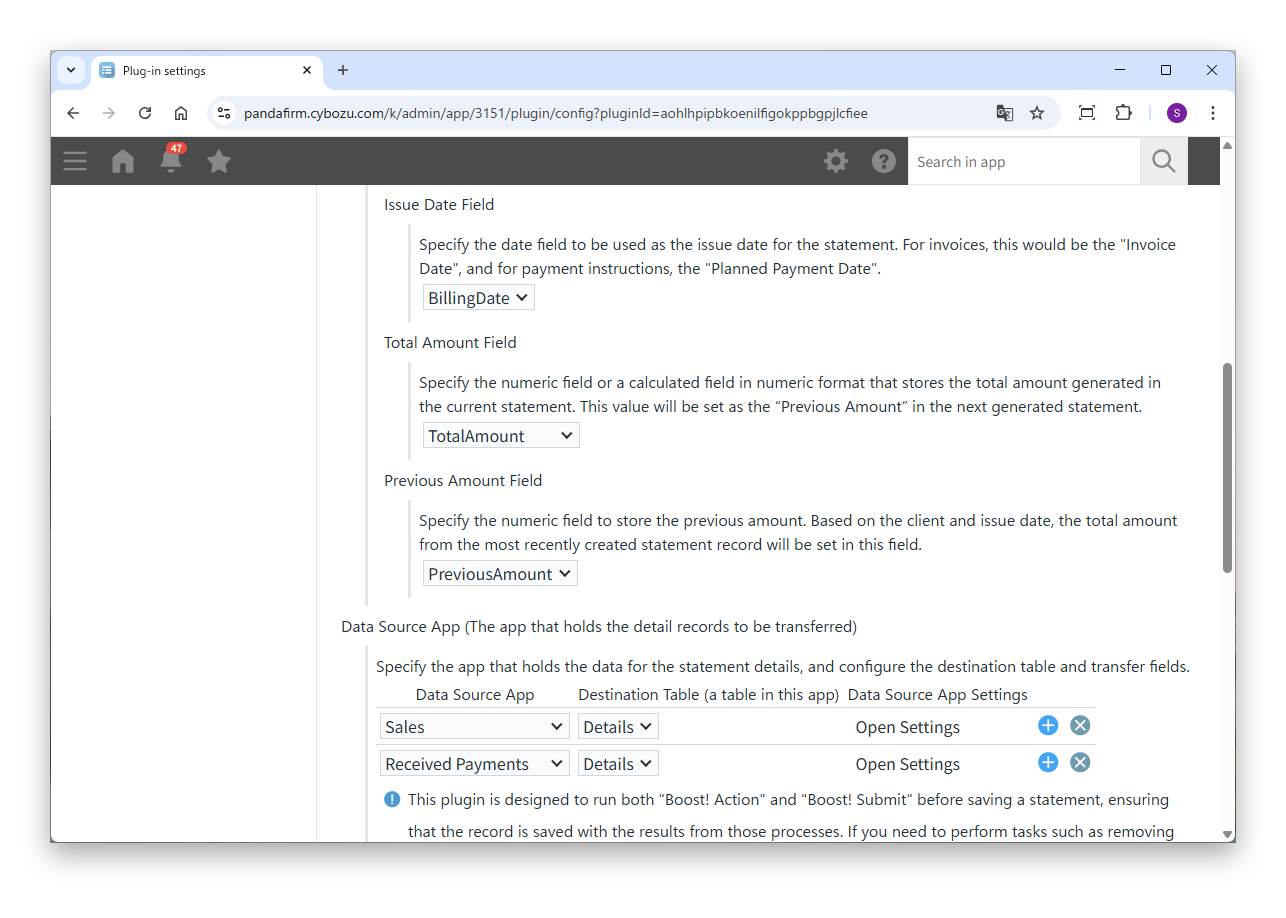
Issue Date Field
Specify the date field that saves the issue date of the statement. For an invoice, this is the invoice date; for a payment instruction, the scheduled payment date.
Total Amount Field
Specify the field that saves the total amount of the current statement. This amount is set in the previous amount field when the next statement is created.
Previous Amount Field
Specify the field that saves the previous amount. The total amount of the most recent statement record for the same client with an earlier issue date is set.
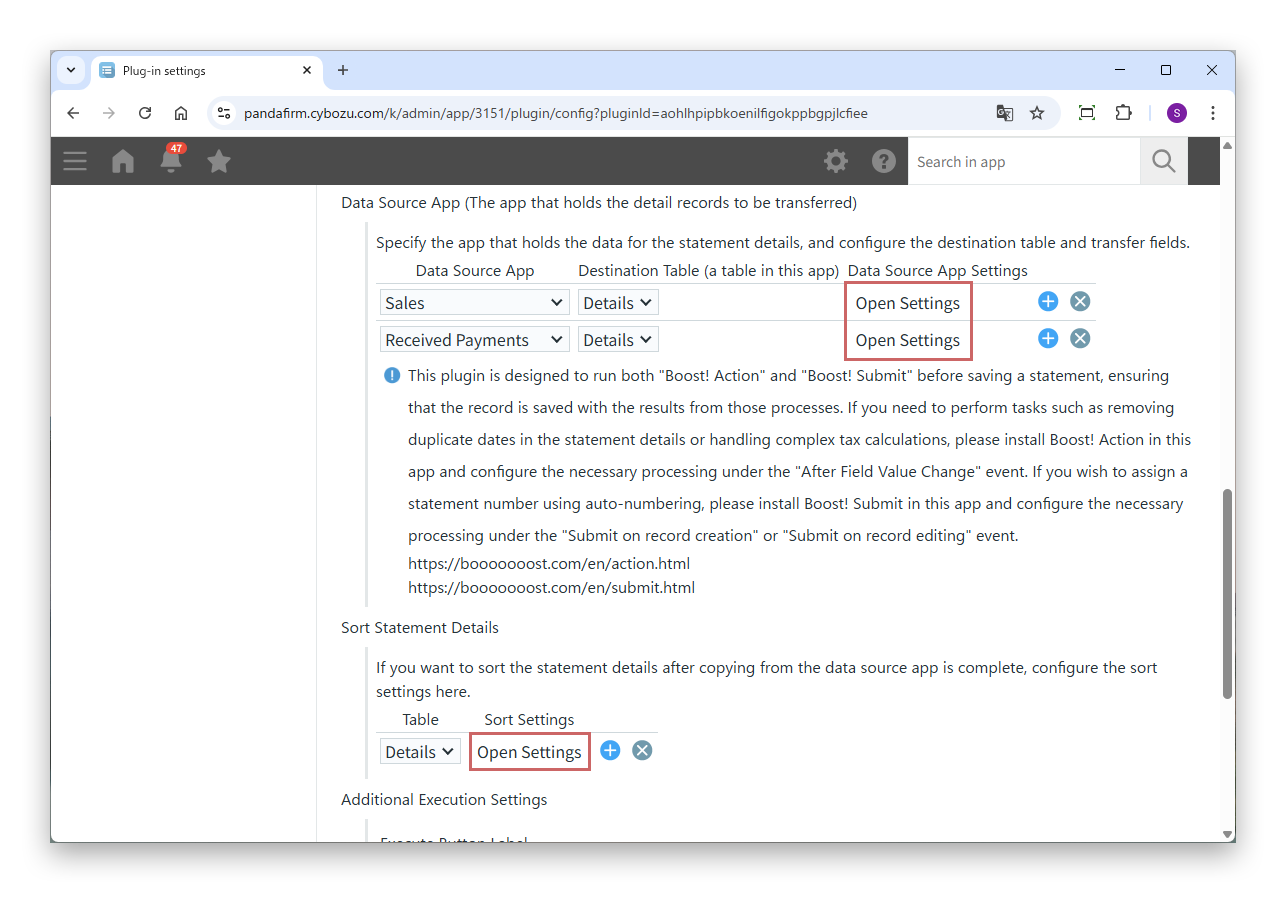
Data Source App
Specify the app in which the source data of the statement details is registered. You can add rows to specify multiple source apps.
Destination Table (a table in this app)
Specify the table of this app to which the details are transferred.
Data Source App Settings
Click "Open Settings" and specify the fields of the source app.
Sort Statement Details
To sort the statement details after all transfers are complete, specify the table, then use "Open Settings" to specify the fields to sort by and ascending or descending order.
Execute Button Label
Enter the label of the button that creates statements.
Confirmation message before execution
Enter the confirmation message shown before statements are created.
Executable List View
Specify the views in which the execute button is shown.
Users, departments, and groups allowed to run
To allow statement creation based on the logged-in user, or the departments and groups the user belongs to, specify who is allowed.

If you change the client field, the source app settings are reset.

03

Specify the source app settings

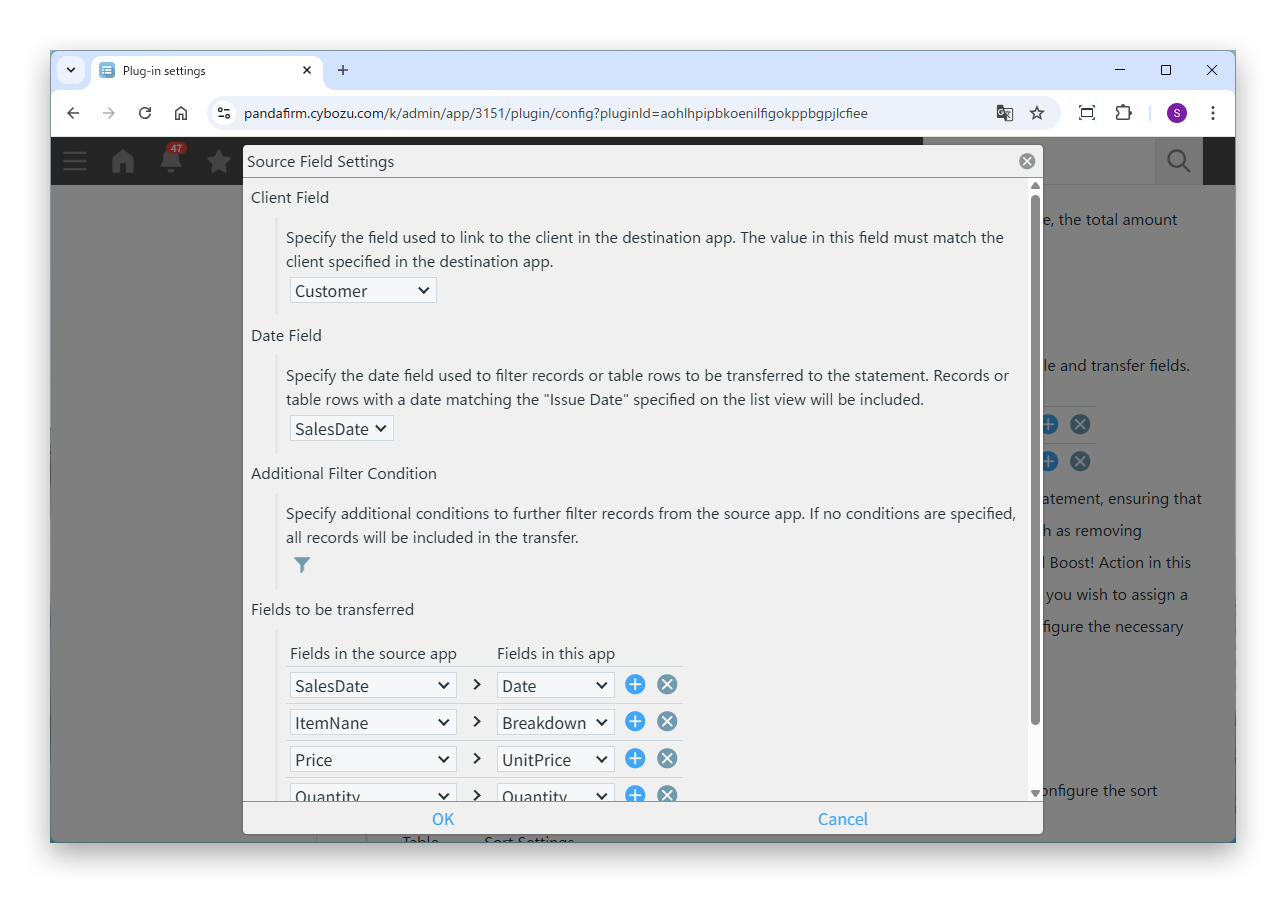
Click "Open Settings" for a source app to show the settings screen of the source app.

On the screen that appears, specify the fields of the source app.

Settings

Client Field
Specify the field used to link to the client of the destination app. It must contain values that match the client specified in the destination app.
Date Field
Specify the date field used to narrow down what is transferred. Records or table rows with dates from the day after the issue date of the previous statement up to the current issue date specified in the list view are transferred.
Additional Filter Condition
To narrow down the records to transfer further, specify the conditions.
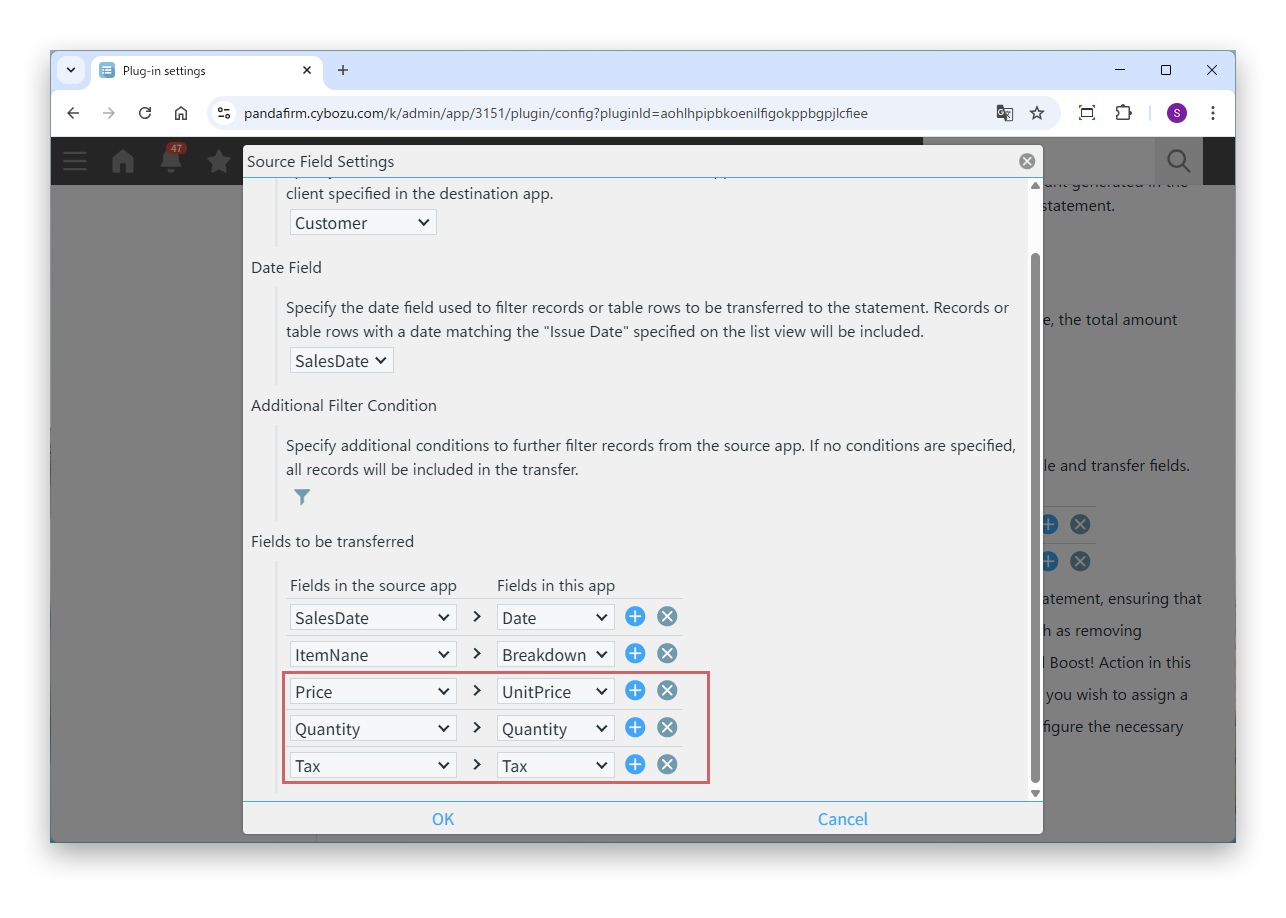
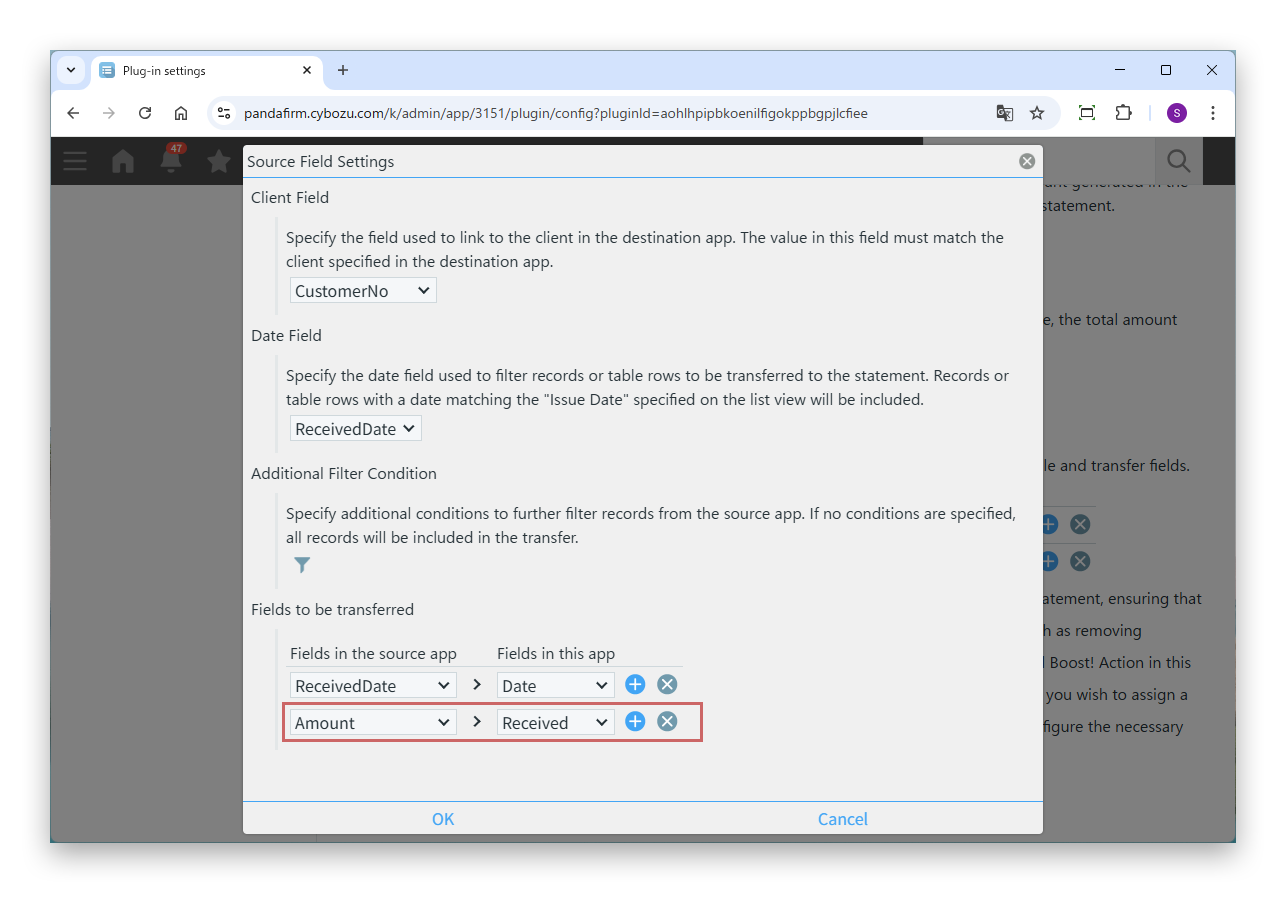
Fields to be transferred
Specify the combinations of fields in the source app and fields in the destination table.

Fields in different tables cannot be combined and transferred to the same table.

For clients with no previous statement, all data up to the current issue date is transferred.

For details aggregated by tax rate, such as sales, transfer the unit price, quantity and tax rate to separate fields.

For details of a different nature from sales, such as receipts, transfer them to fields separate from sales.

In kintone, a calculated field outside tables cannot total only the rows that match a condition. If the details include items whose totals should be kept separate, such as receipts and payments, use separate destination fields.

04

Calculate with Boost! Action

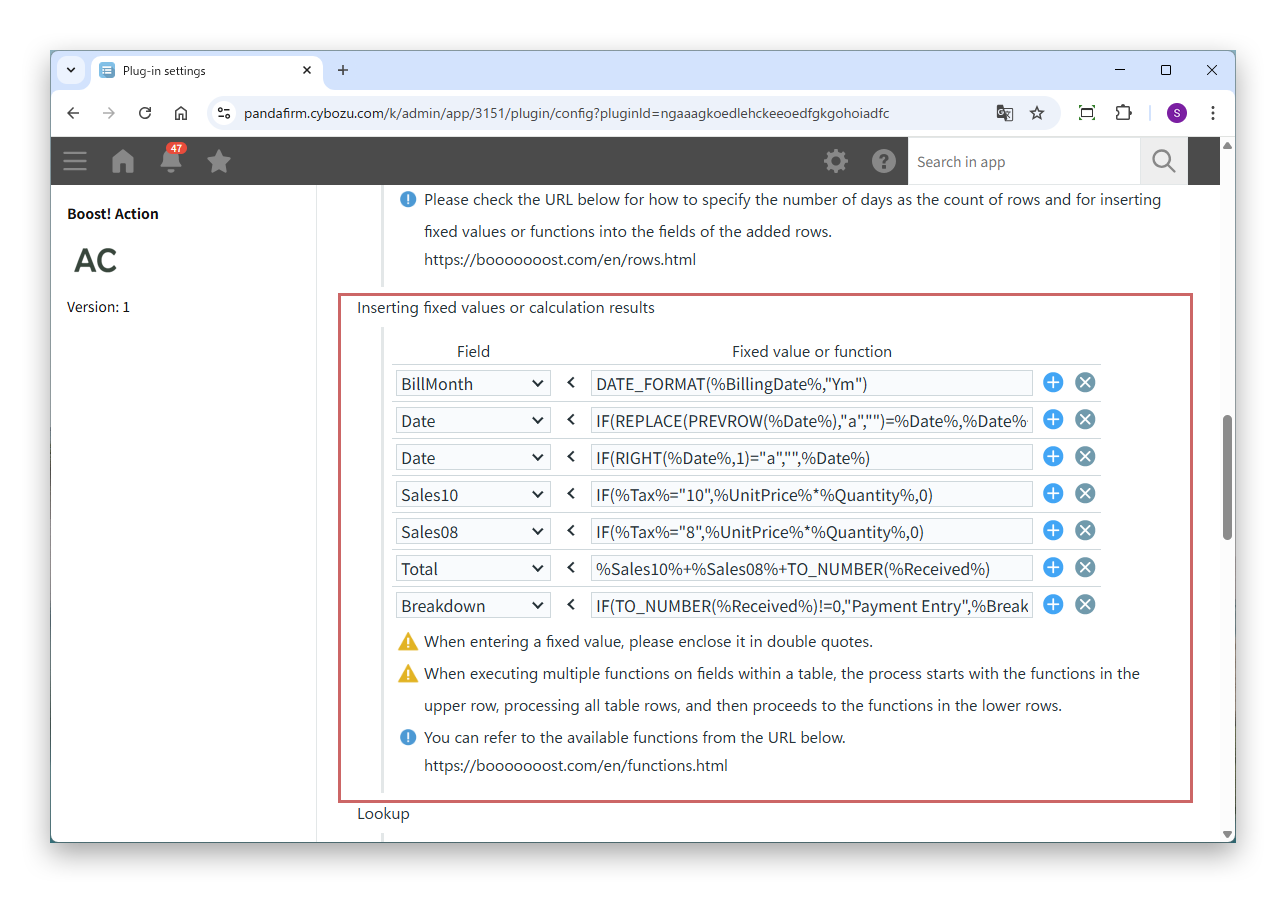
Before a statement is saved, Boost! Action and Boost! Submit in this app run, and the record reflecting their results is saved. If you need to remove duplicate dates in the statement details or calculate by tax rate, specify "After Field Value Change" as the action event of Boost! Action and add the necessary processing.

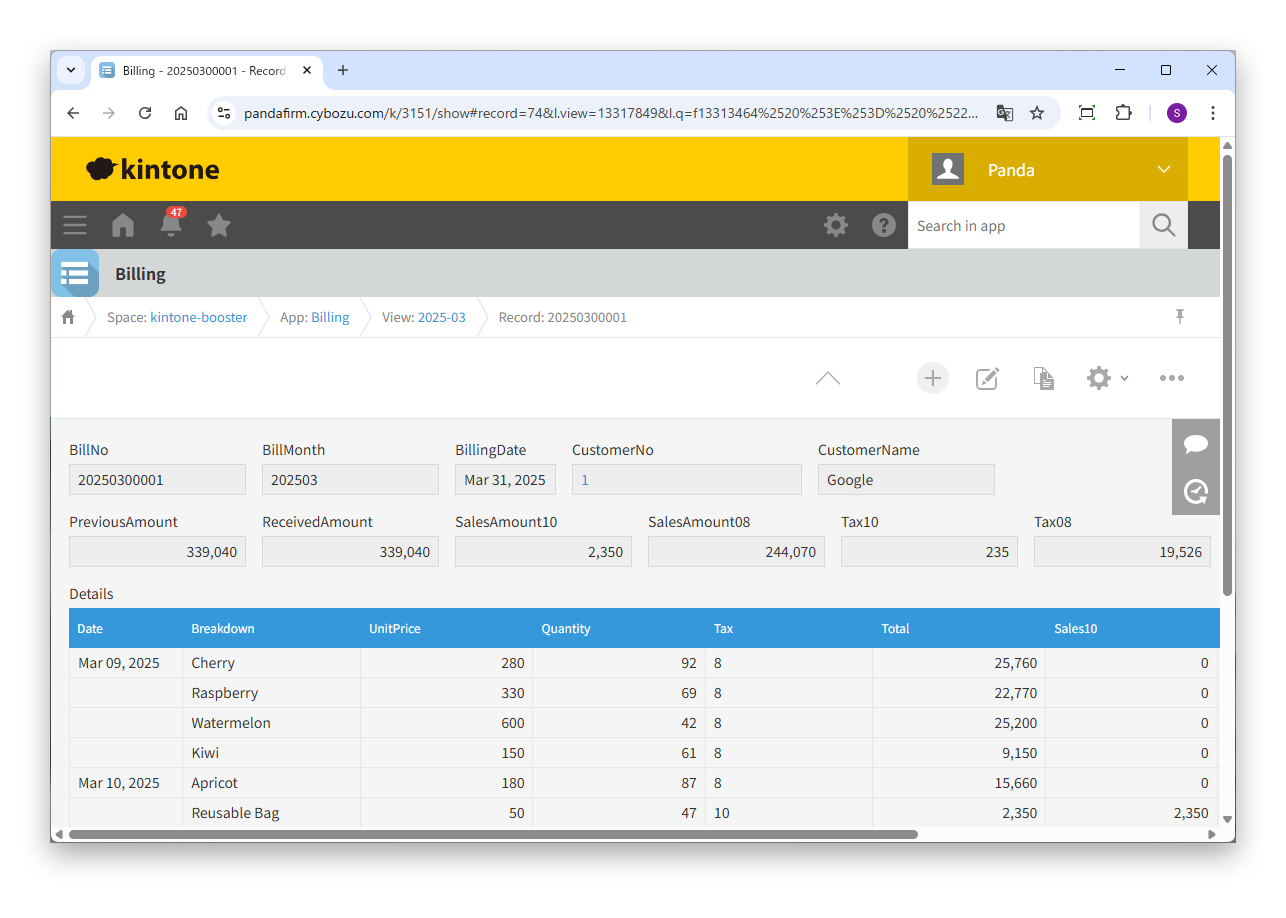
View the formulas of the sample app +

Formulas

BillMonth
DATE_FORMAT(%BillingDate%,"Ym")
Date
IF(REPLACE(PREVROW(%Date%),"a","")=%Date%,%Date%+"a",%Date%)
Date
IF(RIGHT(%Date%,1)="a","",%Date%)
Sales10
IF(%Tax%="10",%UnitPrice%*%Quantity%,0)
Sales08
IF(%Tax%="8",%UnitPrice%*%Quantity%,0)
Total
%Sales10%+%Sales08%+TO_NUMBER(%Received%)
Breakdown
IF(TO_NUMBER(%Received%)!=0,"Payment Entry",%Breakdown%)
  • BillMonth creates the year and month used as the group when statement numbers are assigned automatically with Boost! Submit.
  • The first Date temporarily adds "a" to a date that is the same as the previous row, and the second Date clears that date so that duplicate dates are not shown.
  • Sales10 and Sales08 separate the amounts by tax rate (Tax). Calculated fields outside the table total each of these columns.
  • Total combines receipts and payments, which are transferred to separate fields, as the total of the detail.
  • Breakdown sets "Payment Entry" with a formula, because receipt details have no breakdown to transfer.

The field codes in the formulas are from the sample app. Replace them with the field codes of your app.

To assign statement numbers automatically, specify "Submit on record creation" or "Submit on record editing" as the action event of Boost! Submit and add the necessary processing.

Boost! Original Functions +
HOW TO USE

How to use

01

Show the execute button

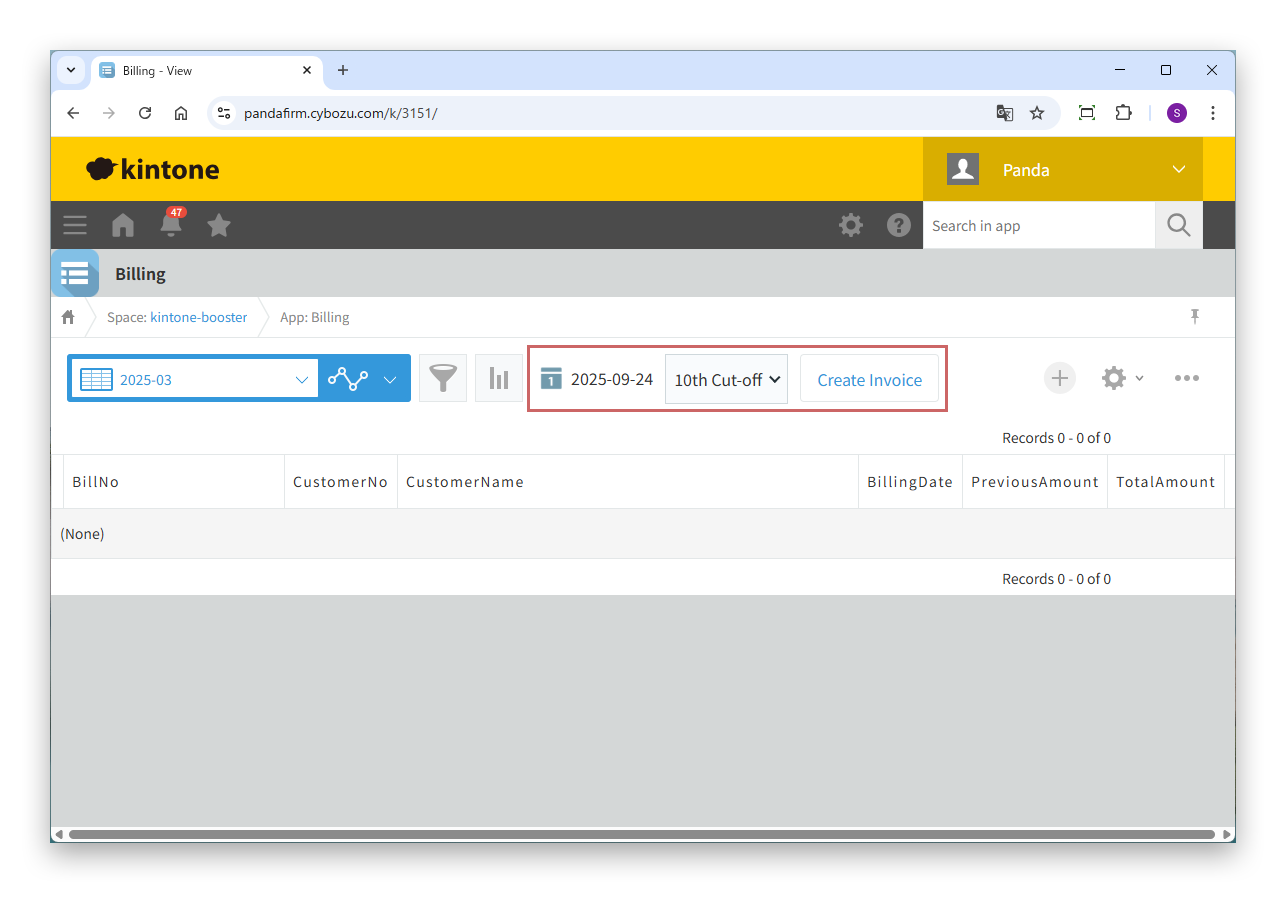
When you open the list view specified on the settings screen, a calendar icon for selecting the issue date and the execute button for creating statements appear. If a client group field is specified, a drop-down for filtering clients also appears.

02

Create statements

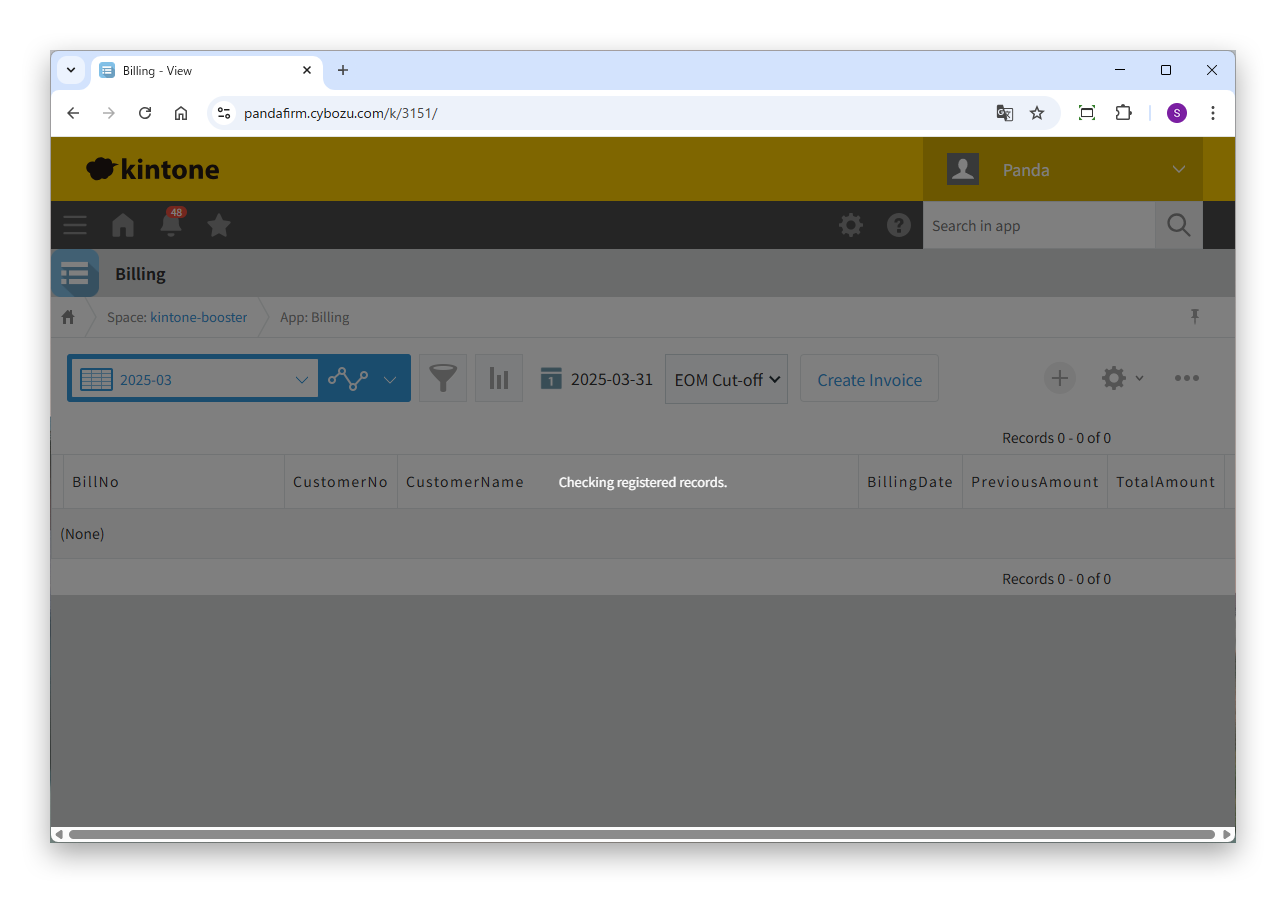
Specify the issue date and client group and click the execute button to start creating statements. During creation, the progress is shown.

03

Check the created statements

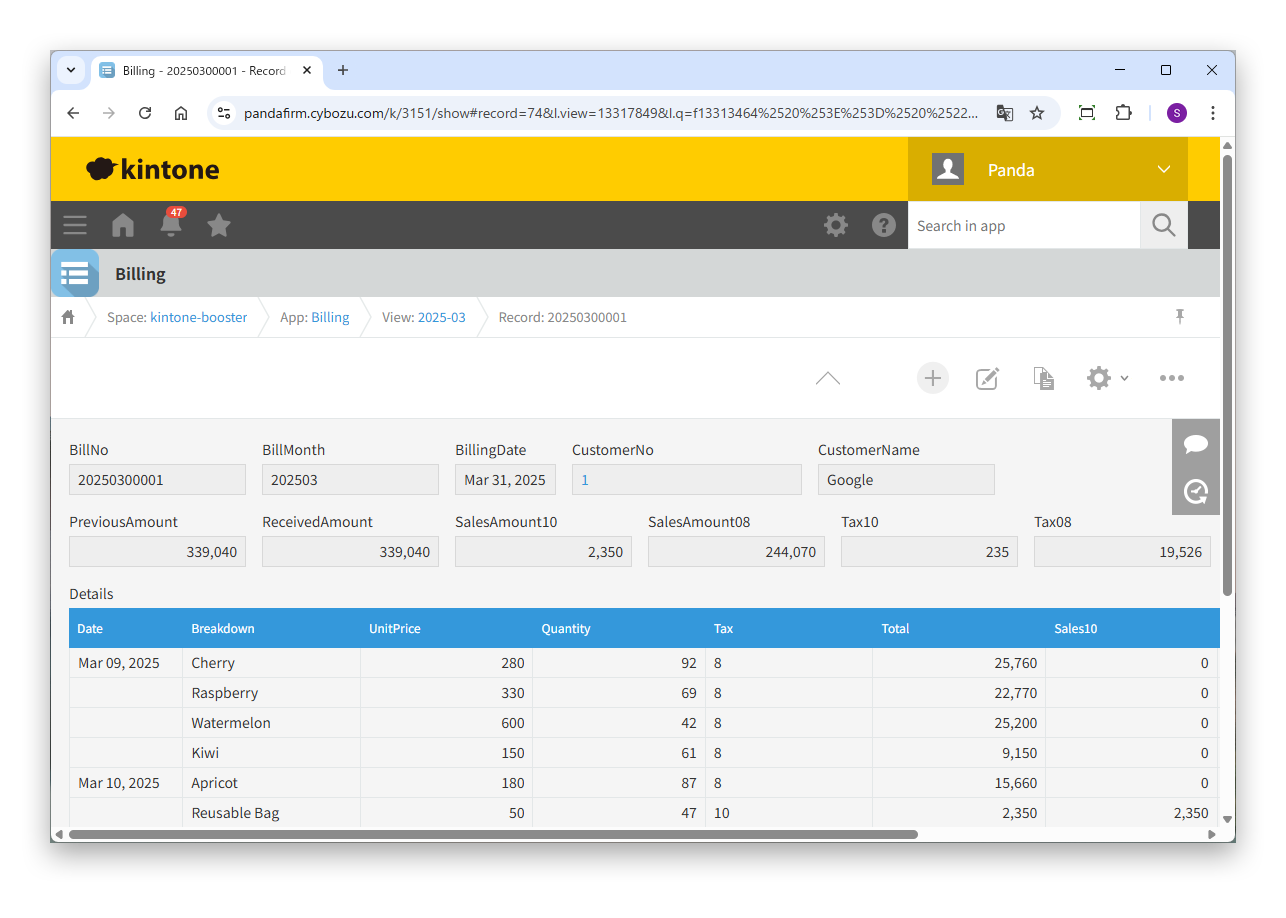
When creation finishes, a statement record is created for each client. The details of the source apps and the previous amount are transferred to the records, and the results of the processing by Boost! Action and Boost! Submit are reflected.

If a statement for the same client and issue date already exists, that record is updated.